All posts in “tech”

Should You Buy Apple’s Wireless Keyboard with Touch ID?

Apple has finally made the accessories it introduced with the M1 iMac this spring available for standalone purchase. These accessories include the first Magic Keyboards with Touch ID ($149+), an updated Magic Mouse ($79) and an updated Magic Trackpad ($129). Previously, you were only able to get your hands on these accessories with the purchase of an M1 iMac, but now you can buy each individually from Apple.

There are few caveats, however, and because of them these new accessories might not be a good fit for you.

You can’t buy these new Mac accessories in colors.

One of the big selling points with all these accessories was color — when you bought an M1 iMac in one of its seven colors, you got a Magic Mouse (or Magic Trackpad) and a Magic Keyboard that matched — but Apple is only selling its new accessories are only available in one color: silver.

If you were hoping to buy a Magic Keyboard, Magic Mouse or Magic Trackpad in the one of the other colors, including green, yellow, orange, pink, purple or blue, those aren’t available at this time (and we don’t know if Apple will ever sell them).

The new Magic Mouse and Magic Trackpad aren’t much different.

Second, the updated Magic Mouse and Magic Trackpad are very similar to models that Apple has previously been selling. The big difference is that all the new accessories come with a USB-C to Lightning cable instead of a Lightning to USB cable. The new cable also has a new woven design. The only design difference is with the new Magic Trackpad, which has a refined shape to perfectly match the new Magic Keyboard.

All in all, there’s very little reason to upgrade to a new Magic Mouse or Magic Trackpad if your current Magic Mouse or Magic Trackpad is working just fine.

Touch ID won’t work on non-M1 Macs.

The new Magic Keyboards are the most different from their predecessors for a few reasons. They have new dedicated Function keys for Spotlight, Dictation and Do Not Disturb. They also come with a USB-C to Lightning cable with a woven design (just like Apple’s other new accessories). And they are the first Magic Keyboards to have a dedicated button for Touch ID.

Touch ID is the big upgrade because is it allows you to unlock your Mac with your fingerprint (rather than having to type in a password). You can also quickly verify purchases with Apple Pay. It’s a huge selling point for these new keyboards — but it won’t work with non-M1 Macs.

The reason for this that M1 chip allows the keyboard and Mac to communicate wirelessly in a really secure way, but can only be done a computer that has Apple’s M1 chip — so, the newest MacBook Air, MacBook Pro, iMac, Mac mini or even iPad Pros. If you have a Mac with an older Intel chipset, these new accessories will still work, but you won’t be able to use Touch ID.

All of Apple’s new accessories are available for purchase now on Apple’s website.

LEARN MORE

This content is created and maintained by a third party, and imported onto this page to help users provide their email addresses. You may be able to find more information about this and similar content at piano.io

These JBL Bookshelf Speakers Look Like An Instant Classic

JBL just announced new bookshelf speakers that look iconic and vintage — and you might actually be able to afford them. The all-new L52 Classic have the same walnut wood veneer enclosure and striking foam grille (available in black, blue or orange) as the company’s the company’s $2,500 L82 Classic, but they cost significantly less. You’ll be able to purchase a pair for just $1,000.

The main reason the L52 Classic are so much cheaper is size. They are smaller (or “scaled-down,” according to the company) versions of the L82 Classic. Each L82 Classic weighs roughly 14 pounds and stands 18-inches tall, while each L52 Classic weighs 11 pounds each and standing 13-inches tall.

The nice thing about this size difference is that it means that the L52 Classic are small enough to actually fit on your bookshelf, while the L82 Classic most definitely can’t. In fact, the L82 Classic are so big that they need to be paired with JBL’s expensive companion stands (which cost $250) to sound their best. The L52 Classic, on the other hand, are small enough to fit on the speaker stands you already have.

As for sound quality, the L52 Classic won’t deliver the same grandiose sound as the much larger L82 Classic, but they still should be plenty big for most rooms. Each L52 Classic has a similar two-way design, with an 0.75-inch titanium dome tweeter, a 5.25-inch white cone woofer and a front-firing tuned bass-reflex port. The L52 Classic should work with most amplifiers as they aren’t nearly as power hungry as their larger siblings.

If you’re smitten by L52 Classic and are interested in buying them, you’ll have to wait. According to the company, they’ll go on sale sometime this fall but before the holidays.

JBL

JBL L52 Classic

jblsynthesis.com

$1,000.00

This content is created and maintained by a third party, and imported onto this page to help users provide their email addresses. You may be able to find more information about this and similar content at piano.io

The Most Beautiful TVs You Can Buy Are OLEDs. Period.

The most beautiful TVs you can buy are all OLEDs. Period. OLED technology produces darker blacks, superior contrast and more lifelike colors than any LED LCD TV. That said, for years the main strike against buying an OLED TV was that they were wickedly expensive. When LG released the first OLED TV back in 2013, it was a 55″ model that cost roughly $15,000.

In 2021. the prices for OLED TVs are much more reasonable. For example, you can buy a 55-inch OLED TV for well-under $2,000. Yes, they’re still expensive, especially when you can get a similarly sized 4K LCD TV for well-under a grand. But if gorgeous picture quality is your jam, it’s really OLED or bust.

The next thing to know is that all the major manufacturers that sell OLED displays source the technology from one company: LG. That’s right, LG makes the OLED displays for Sony and Vizio, as well as LG-branded OLED TVs. So don’t worry about the quality of the OLED slipping from brand to brand.

Instead, you can focus on the same factors you would with older TV technology: size, thinness, pixel resolution, speaker quality and general aesthetics, as well as newer concerns like curvature, processing chips, HDR compatibility and smart functionality. Whatever your priorities, if you’re in market for a new TV, it might finally be worth it for you to spend a little extra on an OLED.

LG C1 OLED (2021)

LG

LG C1 OLED (2021)

B&H

$1,496.99


The C1 Series is the next generation of LG’s 2020 CX Series, which had previously been the recommendation for the best OLED TVs that most people should buy. Like its predecessor, the C1 Series boasts excellent picture quality with support for popular HDR technologies, like Dolby Vision and HDR10, as well as Dolby Atmos. The difference is that LG added gaming features to the C1 Series — HDMI 2.1 and a 120Hz refresh rate panel — to optimize them for next-gen consoles. Also, LG added an 83-inch model — the biggest screen size in the line — for people who want the biggest OLED possible.

Sizes: 48″, 55″, 65″, 77″, 83″
Price: $1,397 — 5,997

LG CX OLED (2020)

LG

LG CX (2020)

LG Best Buy

$1,899.99


The LG CX Series is still one of the best OLED TVs you can buy, but it’s an older version of the company’s C1 Series and innately not quite as nice. The two lines produce basically the same picture quality and support the same HDR technologies. They both have a 120Hz display panel and have the same number (4x) of HDMI 2.1 ports, meaning they work excellently with next-generation consoles. The main difference is that CX has a slightly older processor and uses a slightly older UI, so it’s not going to run quite as snappy. On the plus side, the CX is a year older and you can often find a better deal on one.

Sizes: 48″, 55″, 65″, 77″
Price: $1,397 — 3,000

LG A1 OLED (2021)

LG

LG A1 OLED (2021)

Amazon

$2,199.99

$1,896.99 (14% off)


The A1 Series is LG’s most affordable and entry-level line of OLED TVs — and they’re new to 2021. They’re able to deliver pretty much the same excellent picture quality as the company’s higher-end C1 OLED line, but the big tradeoff is that they aren’t designed for gamers. The A1 Series doesn’t have an HDMI 2.1 connection and doesn’t support the high refresh rates (120Hz) that the next-gen consoles take advantage of.

Sizes: 48″, 55″, 65″, 77″
Price: $1,300 — $3,000

Vizio OLED (2020)

Vizio

Vizio OLED (2020)

Best Buy

$1,299.99


Vizio has long made some of the best budget 4K LED TVs on the market. Its first-ever line of OLED TVs, which the company released near the tail end of 2020, are good all-around options for people shopping on a budget. Available in two sizes – 55″ and 65″ — the TVs get bright, support all the popular HDR technologies and have a specific game mode that supports a 120Hz refresh rate. You can use any soundbar or home theater system, but these TVs do have a specifically designed stand that’s designed to hold Vizio’s Elevate soundbar.

Sizes: 55″, 65″
Price: $1,300 — $1,900

Sony Bravia XR A80J (2021)

Sony

Sony Bravia XR A80J (2021)

Best Buy

$2,299.99


The Sony A80J is, quite simply, one of the best all-around OLED TVs you can buy. It pairs a stunning picture quality (that supports all popular HDR technologies and has a max 120Hz refresh rate) with a premium design and a sound system that’s surprisingly great. Additionally, the Sony A80J runs Google TV’s smart operating system, which is really intuitive, and supports AirPlay and Chromecast for easy streaming for either Android or Apple devices.

Sizes: 55″, 65″

Price: $1,899 — $2,500

Sony Bravia XR A90J (2021)

[product contentProductId=’2c29d2b4-8801-47cc-af60-a9d7163eea58′ mediaId=’58b34938-a709-49d7-96ba-8a13c5c15139′ align=’center’ size=’large’][/product

The Sony A90J is a higher-end version of the Sony A80J. It’s a stunning TV, but it boasts almost the exact same design, capabilities and picture quality as the Sony A80J. If you’re looking to justify the price bump, the Sony A90J has three upgrades over the Sony A80J. It gets slightly better HDR performance (thanks to the addition of Sony’s heatsink technology). Its remote control has motion-activated backlighting to help you see the buttons in the dark. And it comes in a larger 83-inch model.

Sizes: 55″, 65″, 83″

Price: $2,800 — $8,000

Sony A9S (2020)

Sony

Sony A9S (2020)

Amazon

$1,899.99

$1,299.99 (32% off)


The Sony A9S is a solid OLED TV for people looking for a small and relatively affordable option. It’s only available in a 48-inch model, making it good for small rooms. It’s also a good fit for people wanting to try out an OLED TV as a PC monitor. There are a few caveats, however. It supports Dolby Vision HDR but not for HDR10+. It also lacks a newer HDMI 2.1connection, meaning it can only transmit 4K at 60fps (although it can do 1080p at 120Hz), making it not the best fit for next-gen consoles.

Sizes: 48″
Price: 1,500

This content is created and maintained by a third party, and imported onto this page to help users provide their email addresses. You may be able to find more information about this and similar content at piano.io

How to Clean and Take Care of your Vinyl Collection

The immense popularity of music streaming has also, ironically, helped bumper vinyl sales. It turns out that the ease of listening to music these days, from services like Spotify, Apple Music, Tidal and Youtube, has actually cultivated a desire for people to have an analog listening experience. They want to physically hold, place and play a record, and then ultimately collect it; a growing vinyl collection can actually be shown off as decor.

A proper vinyl collection requires more care that storing CDs or, of course, digital music files; and there are a few fundamental things that every vinyl enthusiast, whether they have a large or small collection, should know. That way their records can sound great and last years to come.

How to dry clean your vinyl records.

Using a carbon fiber anti-static brush — like this one from the Turntable Lab — to clean your records is important and easy. It safely gets in the record’s grooves to get rid of dust and other particles that could impact sound quality. To properly clean, spin the record on the turntable and have the brush resting lightly on top. After a few seconds, carefully drag the brush off the record. (Here’s a helpful instructional video.) In an ideal world, you should use a brush to clean a record before and after each use.

How to wet clean your vinyl records.

Wet cleaning your records involves using a cleaning fluid — like this one from Pro-Ject — and a micro-fiber cloth, with the goal to remove dust, dirt and even fingerprints from your records. It takes more time than the dry brush method, but it gives the record a deeper clean. To clean, simply spray the solution on the record, wait a few seconds for it to seep into the grooves, and the dry the record by using the micro-fiber cloth and following the groves around. (Here’s a helpful instructional video.)

Keep your collection cool and dry.

Vinyl is, in layman’s terms, a type of plastic material and thus needs to be taken care of accordingly. To preserve any time of plastic you want to keep it in a cool, dark and dry climate. If the room where you’re storing your records is too hot or humid, they are more prone to bending or warping and thus can’t be played.

Never stack your records. Store upright like books.

There’s a reason why you rarely see records stacked on top of each other: it’s not good for them. It doesn’t matter whether they’re in their jackets or inner sleeves, stacking your records can lead to warping. The weight of each record puts unneeded pressure on the records, which can cause them to crack or bend. It’s not great for the album artwork on the sleeve, either.

Don’t touch the surface of the records.

All of the musical information of record is stored in its grooves and anything, especially your hands, can affect the playback of the record. If you want the best possible sound quality, you should only handle the record by touching its outside edges or its inner label.

Don’t leave records out.

A record should live in its sleeve and jacket, meaning the only time it should be out is when it’s playing. The idea is that this minimizes the chances or dirt and dust from getting into the record’s grooves.

Inner sleeves aren’t overkill.

While polypropylene sleeves are probably better than paper sleeves (more durable, better protection, last longer), an inner sleeve serves an important purpose no matter the material. It prevents the record from shaking or scratching while inside the jacket, while also keeping out dust and other things that could potentially hide inside the record and affect its sound quality. Basically, don’t throw out your inner sleeves. And replace them when ripped, damaged or lost.

Place — don’t drop — your records back in their inner sleeves.

When you’re done listening to a record, you want to place it back into its inner sleeve and jacket as carefully as possible. Quickly dropping it back in can damage the record as well as the sleeve.

Why a Discontinued Sonos Speaker Is Still in Absurdly High Demand

The Play:5 — specifically the 2015-“Gen-2” model — is one of the most beloved Sonos speakers of all time. For years, it was the company’s biggest and best-sounding standalone speaker (and the only one with a line-in connection to hook up a turntable). The problem is that, today, it’s really difficult to buy.

There’s a very sensible reason Sonos doesn’t make the Play:5 (Gen 2) anymore. Instead, it makes a version that looks and sounds virtually identical, and goes for the same $500 price, the Five. So what’s the problem? Nothing for new buyers. But it’s a major headache for anyone, like me, who owns a Play:5 (Gen 2) and wants to turn it into a larger system by making a stereo pair.

Gear Patrol

Sonos Five

Sonos sonos.com

Sonos says the upgraded internals of the Five are more future-proof, but that’s at the cost of being past-compatible: The Play:5 (Gen 2) and the Five can’t be stereo paired together. And, sorry to be the bearer of bad news, but there’s just no way around it.

This wouldn’t be such an issue if the Play:5 (Gen 2) speaker was easy to find and buy. But it isn’t. At all. A dwindling supply plus a growing demand for completing stereo apirs means these speakers are very much and even increasingly in demand. After all, until their resale price exceeds $1,000, it’s still cheaper to buy one at a markup to complete your stereo pair than it is to buy two new Fives.

There is one silver lining: The difficulty of buying a new Play:5 (Gen 2) prevents you from doubling down your investment on aging hardware. Though speakers are typically timeless (vintage units still sound incredible), the digital guts in Sonos speakers means that, eventually, they are all but certainly going to be left behind by new software. That’s a price you’re paying for conveince. And while getting rid of your Play:5 now is a headache, it may put the pain of obsolecense a little further off into the future.

Meanwhile, if you have a Play:5 (Gen 2) speaker and you really want a true stereo sound, you have a few options — but none of them are great.

sonos
The Play:5 (Gen 2) and the Five next to each other.

Gear Patrol

Look out for a refurbished Play:5 (Gen 2) from Sonos.

Sonos doesn’t sell new Play:5 speakers anymore, but it does occasionally sell refurbished models from the “Certified Refurbished” section of its website, which normally go for $399. The problem is that they’re very rare. At the time of writing, the Play:5 (Gen 2) is the only new-ish Sonos speaker that you can’t buy a refurbished model of. You buy refurbished models of the Play:1, One, One SL, Arc, Beam, Playbar and Sub — but not the Play:5. And when Sonos does make refurbished models of the Play:5 (Gen 2) available, which is almost exclusively during the holidays, they sell out fast. Like, almost instantly.

Best Buy also occasionally sells refurbished Play:5 speakers but I can’t remember the last time they were available. (I’ve been looking for months.)

Buy a wicked expensive Play:5 (Gen 2) from Amazon.

If you go on Amazon, you can buy a new Play:5 (Gen 2) speaker — but it’s so expensive that it’s hardly justifiable. At the time of writing this, Amazon is currently selling them for $690 a pop, and that’s down from a peak price of $750 earlier this year. It’s an extremely hard sell considering that you can buy a Five, a newer version of that speaker, for several hundred bucks less. Or two Fives that you can actually pair for just a few hundred bucks more.

Buy a preowned Play:5 (Gen 2) from eBay.

The “best deal” you can get on a used Play:5 (Gen 2) speaker is if you were to buy one on eBay or from some other third-party seller. You can sometimes find them on eBay for less than $300. The problem that they aren’t certified refurbished by Sonos or Buy Buy’s Geek Squad, so you’re wading into unknown territory. Most third-party sellers have pretty good return policies, but you’re going to have to watch your step and be prepared for the possibility of an adventure if you take this route.

Bite the bullet and buy two new Fives.

Even if you don’t want to buy on eBay, you can try to get rid of your own used Play:5 (2nd Gen) by selling it on eBay, Craigslist, or elsewhere, and use that money to fund the purchase of a new pair of current-gen Fives.

You can’t trade in your Play:5 (Gen 2) speaker to Sonos which got rid of its controversial trade in program in 2020 and replaced it with an Upgrade Program. Instead, you can get a discount of up to 15 percent on new speakers if you provide proof of purchase for older ones. If you qualify for 15 percent discounts on both speakers (which you need to have two older Sonos speakers to be able to do), you’re going to get $150 off ($75 off each), bringing your total to around $850.

Maybe, just maybe, if you get lucky with your own Play:5 resale, you can come out having spent nothing more than a chunk of your time.

This content is created and maintained by a third party, and imported onto this page to help users provide their email addresses. You may be able to find more information about this and similar content at piano.io

7 Things You Didn’t Know Google Maps Could Do

Google Maps is by far the most popular navigation app with millions and millions of active users who love it for its simple-to-use interphase, robust features (such as real-time GPS navigation and integration with public transport schedules, like buses, trains, ferries and subways) and the fact that it works on basically any device you have, be it an iPhone or Android, Mac or PC. And Google added a bunch of new features.

Here’s what you need to know.

How to measure distance on Google Maps

It’s actually pretty easy to find the exact distance between locations when using Google Maps. If you’re using a smartphone or tablet, all you have to do is open the Google Maps app and drop a red pin by tapping and holding a spot anywhere on the map.

Then, look at the bottom of your screen which will now indicate the address of the pin you just dropped. Click on that address and you will see an option labeled “measure distance” just underneath the icon for “Directions.”

From here, you can scroll anywhere using the black crosshairs and it will tell you the distance of that location to your red pinned location. You can select the “+” icon to drop multiple points on the map and get the distance between all of them. (

If you’re using your computer, you can do the same thing by right-clicking anywhere on Google Maps and choosing “measure distance.”

How to navigate indoors with Google Maps

google maps live

Courtesy

Google recently introduced a new feature to Maps called Indoor Live View that essentially works the same way as Street View for outdoor locations (like streets, buildings or intersections), but for well-trafficked indoor locations. When inside the Maps app, you can switch to this Indoor Live View and your 2D map will turn into a 3D map and you’ll be given augmented reality directions to help you stir towards a specific shop in the mall, the baggage claim of an airport, or a specific bus or train terminal. The idea is that you can better find your way while in those crowded and tricky locations.

Indoor Live View isn’t available in every airport, mall or transit station, but Google has rolled out the feature across select cities, such as Chicago, Long Island, Los Angeles, Newark, San Francisco, San Jose and Seattle.

LEARN MORE

How to see the weather at your destination in Google Maps

google maps

Courtesy

Google has added two “layers” to Maps that help people better prepare for the location that they are arriving in. First, there’s a new weather layer that, after you set a location, you’ll be able to quickly see the current and forecasted temperatures and weather conditions in that area; this way, you’ll know if it’s going to be raining or really hot before you get there and without having to open a separate app.

The other layer does the same thing but for air quality. After you set a location, you’ll be able to quickly see how healthy (or unhealthy) the air in that area is. You can use this information to remind yourself to bring a mask or your inhaler, or prevent you from even going to a place if the air quality is so bad.

How to find eco-friendly travel routes in Google Maps

google maps eco friendly

Courtesy

Google Maps is introducing a feature that will guide you (when driving) along an eco-friendly route, or a route with the lowest amount of carbon emissions, so long as it doesn’t affect the ETA of your journey too much. This feature will be on by default (although Google isn’t expected to roll it out to all Androids and iPhones until later this year) as its part of Google’s big initiative to fight climate change.

However, if you’re a speed demon who always wants to get to your location as fast as possible, you’ll have to opt out of it.

How to find eco-friendly restaurants in Google Maps

google maps eco restaurants

Courtesy

If you’re looking to order from or go out to a restaurant, but you also want to make sure the restaurant is composting, recycling and just proactively being environmentally friendly, Google Maps recently rolled out a feature just for that. When researching a restaurant or shop, you’ll now be able to see an attribute for recycling (just click on the business, go to the About section and scroll down to Recycling).

If you’re a business, you can add an icon to your profile if you offer recycling (Here’s how). You can even specify which things you recycle, such as plastic bags, plastic household products, glass and even electronics. This way you can ensure that nothing you use at that business will end up in a landfill.

How to find the best biking route in Google Maps

google maps bike route

Courtesy

You know how ski mountains have different trail markings (like green circle, blue square or black diamond) depending on difficulty? Well, Google is doing something kind of similar for its biking routes. Specifically, after you type in your route, Maps uses machine learning to find you the smoothest route (it basically just takes into account the flatness or steepness of your route). This way, if you’re not a skilled biker or maybe you’re transporting something fragile (like groceries), you can choose the path with the least amount of peril.

How to avoid crowds on public transit with Google Maps

google

Google

Google is updating Maps with more crowdedness information, so that commuters using certain public transit can see how crowded a train or bus is at a particular time. The information, which is a mix of historical data based as well as real-time reporting from people using Maps, has been available for roughly 200 cities, but as of July 2021, Google is bringing it over 10,000 locations across 100 countries. To access this crowdedness information, all you have to do is navigate to a certain place using Maps, scroll down to see the Transit Details, and then scroll down to find crowdedness predictions.

This content is created and maintained by a third party, and imported onto this page to help users provide their email addresses. You may be able to find more information about this and similar content at piano.io

What Is an SD Card, and Which Ones to Buy

If you own a digital camera — be it a compact, mirrorless or DSLR camera — you need to pair it with an SD in order for it to save your photos and videos. Most digital cameras actually don’t come with an SD card so it’s kind of up to you, the photographer, to buy one that fits your digital camera and your shooting needs.

When searching for an SD card for your digital camera, there are a lot of different options out there and it can get complicated fast. Here are the basics you need to know.

What is an SD card?

An SD (Secure Digital) card is a small removable memory card that can be inserted in a number of different consumer electronics — including digital cameras, printers, laptops, smartphones and video game consoles (like the Nintendo Switch) — to save, store and transfer data. A lot of smartphones have transitioned to using Micro SD cards, which is a smaller (in size and capacity) version of an SD card.

The cards: SD, SDHC or SDCX?

There are a few different types of SD cards —SD, SDHC (Secure Digital High Capacity) and SDXC (Secure Digital Xtra Capacity) — but they all effectively do the same job: add storage to your digital camera. SD cards are older and generally have lower capacities and slower transfer speeds. SDHC and SDXC cards are newer (and better) types of SD cards that have higher storage capacities and faster transfer speeds. And yes, they’re more expensive.

It’s important to check which type of memory card your digital camera is compatible before buying one. Most new digital cameras should support three types of SD cards. If the digital camera is more than 10 years old, there’s a decent chance it won’t support support SDHC cards and SDXC cards because they weren’t around, but that’s a problem that should be pretty uncommon.

Why is speed important?

The speed of the SD card refers to two different speeds: there’s the “write speed” and the “read speed.” The write speed is how quickly the SD card is able to record all the information while you’re taking photo or video with your camera, while the read speed is how fast you can transfer data off of the SD card. The write speed and the read speed are typically the same on most SD cards.

The speed of an SD card is important as a quality-of-life feature, but it’s crucial for people shooting with higher-end digital cameras. Higher-resolution photos and videos require an SD card to be fast so that it can record all the data as fast as possible. Most SD cards with a high-capacities generally also tend to have high speeds, so you don’t have to worry as much about a high capacity card with a low speed.

If you don’t see the speed of the SD card advertised, the other thing you want to look out for is its class rating. The SD Association (the governing body of SD cards) created a class system to help standardize SD card speed ratings, and each SD card is given a class rating. The higher the class rating, the faster the write speeds of the SD card

Here are the various classes and their minimum write speeds: Class 2 (2MB/s), Class 4 (4MB/s), Class 6 (6MB/s) or Class 10 (up to 10MB/s).

    Why is capacity important?

    SD card capacities are typically measured in gigabytes (GB) and range from just a handful of gigs up to 512GB. When deciding what SD card capacity you should get, you need to have a knowledge of what size photos or videos you’re taking.

    If you have a fairly modern mirrorless or DSLR camera, uncompressed RAW photos will take up in the neighborhood of 7 megabytes (MB) apiece. With this knowledge, you can fit about 325 photos on an SD card with a capacity of 16GB, or 650 photos on a 32GB card.

    Videos take up more space than photos and complicate things in an additional direction; in addition to resolution and bitrate, you also need to factor in things like video length and aspect ratio. If you’re shooting a 4K video at 60fps (which is pretty standard these days for action cameras, compact shooters and even smartphones), a 16GB card can store about ten 4K 60fps videos.

    lexar professional class sdxc
    The high-speed performance of Lexar Professional Class SDXC will dramatically accelerate workflow from start to finish.

    Lexar

    Some buying advice

    • If you can, buy the most advanced card that your camera is capable of accepting.

    • Buy from a well-known SD card maker, such as SanDisk or Lexar.

    • Before buying an SD card, check to see if there are higher-capacity models available — you might be able to get better deal on one.

    All that said, here are some great picks.

    Lexar Professional Class SDXC (64GB)

    Lexar

    Lexar Professional Class SDXC (64GB)

    amazon.com

    $12.99

    Best All-Around

    The Lexar Professional line of SDXC cards is one of the best you can buy. Its boast Class 10 speeds and a relatively high capacity, and it’s fully capable of handing your camera’s 4K photos and videos. And it’s still really affordable. This line ranges in capacities from 32GB to 1TB.

    SanDisk Extreme SD (16GB)

    SanDisk

    SanDisk Extreme SD (16GB)

    SanDisk amazon.com

    $8.50

    Best Budget

    The SanDisk Extreme SD line is a great affordable option. Despite its price, it still delivers relatively Class 10 speeds (up to 90MB/s) that are only a slight drop off from the Lexar Professional SDXC line (above). It’s available in a range of capacities, from 16GB to 256GB.

    SanDisk Extreme PRO SD UHS-II (64GB)

    SanDisk

    SanDisk Extreme PRO SD UHS-II (64GB)

    amazon.com

    $190.38

    $107.25 (44% off)

    Best Upgrade

    The SanDisk Extreme Pro is a beast of SDXC card. Its extreme fast read and write speeds — Class 10 — have made it a go-to choice for professional photographers and videographers who shoot in the highest resolution. It’s available in capacities up to 128GB.

    This content is created and maintained by a third party, and imported onto this page to help users provide their email addresses. You may be able to find more information about this and similar content at piano.io

Should You Get a Tube Amp For Your Headphones?

So you’ve made the decision to buy an external headphone amplifier for your desktop setup. Awesome. It’s an easy way to make your nice pair of wired headphones sound better (because your computer’s built-in amp just frankly isn’t very good) — and you want that. Now you just need to decide which one to buy.

There are two main types of headphone amplifiers out there. A solid-state amplifier amplifies the electrical signal using transistor circuits, while a vacuum tube amplifier does the same thing with vacuum tubes. The do effectively the same job, just in different ways. The thing is that there are more solid-state headphone amplifiers in the sub-$200 range because they have less moving parts and are cheaper to make.

Schiit

Schiit Audio Vali 2+

schiit.com

$149.00

Tube amps just sound different

A vacuum tube amp can definitely be considered the “elevated option.” They’re more expensive because they’re more complicated to make, but you find still models that are relatively affordable vacuum tube amplifiers, like Schiit Audio’s Vali ($149) or Vahalla ($349) . That said, a vacuum tube amplifier isn’t definitely make your headphones sound better than if you had a solid-state amplifier — it’s just a different sound.

“Some people (including me) think there is something ‘better’ about the sound of tube amplification,” said Jason Stoddard, cofounder of Schiit Audio, a California-based audio company that sells both kinds of amplifiers. “We don’t really talk about perceived sound, but many audiophiles have commented on tube sound being somewhat more ‘liquid’ or ‘natural’ through the midrange. This is what I perceive as well, though this is not measurable in terms of frequency response.”

The other thing with vacuum tube amplifiers is that you can swap out and try them with different tubes, which changes how they sound. It’s an allure for tinkers (which audiophiles inherently are), in much the same way how people try out different preamps, photo cartridges, styluses (and more) with their turntable setups to customize the sound.

Schiit Audio

Schiit Audio Valhalla

schiit.com

$349.00

The design is undeniably cool

So the sound quality is admittedly subjective. The design of the two kinds of amplifiers is also subjective. If you ask me (and I think most people), vacuum tube amplifiers have a “wow” factor that solid-state amplifiers can’t compete with. The tubes stick out and glow when you’re listening music. It just looks cool — and admittedly a little intimidating.

Vacuum tube amplifiers aren’t reserved for audiophiles, but if you’re somebody who is thinking about buying one, there are definitely a few words of caution. First, with their exposed glass tubes, they’re definitely more fragile. And two, they require more maintenance; the glass tubes of a vacuum tube amplifier will eventually need to be replaced (Stoddard says after about 5,000 hours of run time).

A vacuum tube amps isn’t a set-it-and-forget-it option. It requires more maintenance, but it also allows for more customization. But are great-yet-different options. “If you really don’t want to deal with things, get solid-state,” Stoddard said. “If you like playing and experimenting a bit, go tubes.”

This content is created and maintained by a third party, and imported onto this page to help users provide their email addresses. You may be able to find more information about this and similar content at piano.io

Bose May Finally Be Updating Its QuietComfort Headphones

It looks like Bose is gearing up to release new QuietComfort wireless headphones. As first reported by PhoneArena‘s Doroteya Borisova, the new headphones just passed their FCC certification. The filing showed the first real world images of the headphones as even told us what they’re going to be called: the Bose QuietComfort 45.

The Bose QuietComfort 45 are poised to be the true successor to the Bose QuietComfort 35, which were first released five years ago (in 2016) and then updated a year later in 2017; the updated model, QuietComfort 35 II, added a button to quickly summon Google Assistant or Amazon Alexa, but were otherwise exactly the same.

The upcoming QuietComfort 45 appear will have a very similar design to the QuietComfort 35 II, with the one major improvement being that they’ll have a USB-C charging port, as the current QuietComfort 35 II still use an old micro-USB port, which very few modern gadgets still use.

The lack of design update might sound anti-climatic, but the QuietComfort 35 II are still some of lighting and most comfortable noise-canceling headphones you can buy and, if you ask me, they don’t need a design overhaul. Plus, Bose released the Headphones 700, noise-canceling headphones in late 2019, which have a completely new design and a more expensive price tag.

The upcoming QuietComfort 45 are expected to replace the QuietComfort 35 II in the company’s headphone lineup. We expect them to cost around $300, which would mean that they’d still be a more affordable alternative to the Headphones 700, which originally were priced at $399, but are regularly on sale for $379.

At this time, we don’t know when the Bose is going to announced (or release) the QuietComfort 45.

LEARN MORE

This content is created and maintained by a third party, and imported onto this page to help users provide their email addresses. You may be able to find more information about this and similar content at piano.io

Monitor Fitness and Whereabouts Of your Pet With The MoFinderX1 GPS Pet Tracker

GPS trackers are essential for not just misplaced or lost items. They can also help monitor your pet’s whereabouts, especially if they venture too far from home. The MoFinderX1 GPS Pet Tracker works with just about anything you don’t want to lose out of sight.

This innovative device tracks everything important to you: pets, everyday carry, or even a loved one. It offers real-time distance and direction tracking at a range of up to 6.4km. It even has voice tracking and LED lights for easy visibility. Best of all, there is no monthly fee.

Guaranteed as a great substitute for Apple’s AirTag, the MoFinderX1 GPS Pet Tracker does not rely on a sim card, a network, or a mobile phone signal to work.  It uses a one-press precise positioning system to get the exact location and distance. It even provides GPS directions.

Meanwhile, an accompanying app for Android or iOs lets you set a safe zone up to 3 km and alerts you when the tracked item, person, or pet leaves that zone. The app also lets you record a ten-second voice message that would work well with your pet. A press on the controller’s “positioning” button will play the recording. The app, like a Fitbit, also records distance covered by your pet so you’re able to monitor fitness goals. One controller can connect to up to four trackers so it’s great for families and friends.

The MoFinderX1 GPS Pet Tracker has a standby time of seven days and a working time of up to 14 hours. It is outdoor adventure-ready with its waterproof construction. The controller, on the other hand, comes with an easy clip and snap design and can last for 26 hours in working mode and ten days on standby.

Get It Here

Images courtesy of MoFinderX1

Sony promises WFH comfort and sleek design with the SRS-NB10 neckband speaker

Even though most of its competitors have established a foothold on many market segments once dominated by Sony, its presence remains strong. These days, the bulk of its operations now focus on gaming, displays, and imaging, among others. Here to remind us of its proficiency when it comes to audio, we have the SRS-NB10.

Consumers who find earbuds and headphones unbearable might want to consider this alternative. As much as audiophiles hate to accept it, the shift to true wireless technology is unstoppable. To date, Apple’s AirPods lineup leads the pack, while everyone else uses similar platforms from other competing brands.

What Sony hopes to do with the SRS-NB10 is cater to a specific subset of users. We’re sure some of you hate how earphones or headphones feel after a long listening session. Prolonged usage can leave your ears or head sore.

Therefore, the Japanese consumer electronics giant goes for a wearable solution that feels more natural. It aptly describes the SRS-NB10 as neckband speaker designed with all-day comfort in mind. With many of us now working from home, making and receiving calls can be a chore

Just slip it on around your neck and you’re free to move about. Multi-point connection via Bluetooth lets you pair it up to two devices at the same time. Sony says it can seamlessly switch between the two when you need it to.

A full charge can last up to 20 hours and its USB-C quick charging tech will give you 60 minutes of runtime after a short 10-minute top-up. The upward-firing speaker grilles sport a premium fabric cover for a classy touch. Finally, don’t let moisture get in the way as the IPX4-rated splash-resistance protects your SRS-NB10.

Buy – $149.99

Images courtesy of Sony

Should You Buy Apple’s MagSafe Battery Pack for Your iPhone 12?

This week, Apple announced the MagSafe Battery Pack, which is its first portable battery that works with MagSafe — it magnetically sticks to the back of your iPhone 12 and gives it extra power throughout the day. The problem is that it costs $99 and you can buy similar alternatives, like the Mophie Snap+ Juice Pack Mini ($50) or the Belkin Magnetic Wireless Power Bank 2.5K ($50), for significantly cheaper.

But Apple is known for making its accessories work better within its ecosystem. Its line of MagSafe wireless chargers are the only ones that can fast-charge an iPhone 12 at 15-watts, while all other wireless chargers charge an iPhone 12 at a max of 7.5-watts. And it has given some similar powers to its first-party MagSafe Battery Pack. The MagSafe Battery Pack has three big advantages over those cheaper third-party alternatives. Whether that makes it worth the extra cost is up to you.

First, the MagSafe Battery Pack charges via Lightning. This means that you can use the same charging cable with your iPhone 12 and your portable battery. You can also stick the MagSafe Battery Pack to the back of your iPhone 12, plug the Lightning cable into either device and it’ll charge both. (It will fully charge the iPhone 12 first, then charge the MagSafe Battery Pack).

Second, when the MagSafe Battery Pack is plugged into the wall, it effectively turns into a turn MagSafe wireless charger. This means that it can fast-charge any iPhone 12 at 15-watts (aside from the mini, which maxes out at 12 watts), which is twice as fast as non-MagSafe wireless chargers.

Finally, you can easily tell the battery life of the MagSafe Battery Pack because, when connected to your iPhone 12, its battery life can be seen from the Lock Screen and from the Batteries widget. If you’ve ever used a portable battery before, you’ll know that it’s not always that easy to tell how much juice it has left. But Apple has made that easy with the MagSafe Battery Pack.

At the time of writing, Apple has not said what the exact capacity of the MagSafe Battery Pack actually is, though it looks to be somewhere in the neighborhood of 5,000mAh based on its size and other chargers. If it is actually larger, that could be another key advantage over its much-cheaper competitors.

The MagSafe Battery Pack is available for preorder right now and will start shipping next week. It will work with the entire iPhone 12 family.

Apple

MagSafe Battery Pack

Apple apple.com

$99.00

    This content is created and maintained by a third party, and imported onto this page to help users provide their email addresses. You may be able to find more information about this and similar content at piano.io

Thinking About Buying an iPad Mini? Here’s Why You Should Wait

Apple hasn’t updated the iPad mini in nearly two-and-a-half years, but that’s set to change since it’s expected to announce a refreshed version of its tiny iPad this fall. So, if you’ve been thinking about buying a iPad mini (which are frequently discounted on Amazon), you might want to hold off for a few months.

When Apple last refreshed the iPad mini in March 2019, it gave it a bunch of new features — an upgraded processor, a new Retina display and support for the first-generation Apple Pencil — but not a design overhaul; it still looked identical to the iPad mini from 2016. With the upcoming sixth-generation iPad mini, Apple is expected to give it a much needed design refresh.

Here’s what we know so far.

No more Home button

Like the recent iPad Pros and iPad Air, the upcoming iPad mini is expected to ditch the Home button to make room for a bigger display. According to Bloomberg‘s Mark Gurman, the mini’s new design is expected to more closely resemble that of the recent iPad Air (but smaller, obviously, because we’re taking about the mini), meaning that Apple will likely integrate Touch ID into the side power button rather that upgrading the front-camera system so that it supports Face ID.

An edge-to-edge display

The current iPad mini has a 7.9-inch display. Thanks to the removal of the Home button and the slimming down of the bezels, Bloomberg‘s Gurman is predicting the next-generation iPad mini will have a slightly larger 8.4-inch display. The overall size of the new mini should remain be about the same.

A USB-C charging port?

As it stands, the iPad Air and the two iPad Pro models are the only current iPad models with a USB-C charging port; the current iPad mini and 10.2-inch iPad both still have Lightning charging ports. It seems odd that Apple would add a USB-C charging port to the upcoming mini considering that it’s still going to be an “entry-level” tablet, but that’s exactly what Jon Prosser, a known Apple leaker, is predicting.

No M1 chip

The upcoming iPad mini isn’t expected to get the M1 treatment. Instead, Prosser is predicting that Apple will give it an A14 chip, which is the same processor that it uses in the latest (fourth generation) iPad Air and the iPhone 12 models. This should still give the new mini quite the performance bump over its predecessor, which has Apple’s A12 Bionic chip (also found in the 2018’s iPhone XS).

This content is created and maintained by a third party, and imported onto this page to help users provide their email addresses. You may be able to find more information about this and similar content at piano.io

How to Use AirPods As a Gaming Headset

Yes, it’s possible to use your AirPods as an Xbox One gaming headset — in fact, you can use any pair of wireless earbuds or wireless headphones — and it’s pretty simple to do. But it’s far from perfect.

However, there’s a big caveat to using your AirPods (or any Bluetooth headphones) as a gaming headset — you’ll need to decide if you want to talk to friends or if you want to hear the in-game audio. Unfortunately, you can’t do both. This means that no competitive gamer should use AirPods as a gaming headset.

The reason why AirPods won’t play in-game audio is that the Xbox One (and Xbox Series consoles) don’t support Bluetooth. Microsoft has its own proprietary technology that allows a select few wireless headsets to work properly as gaming headsets, like its own Xbox Wireless Headset ($100) or the SteelSeries Arctis 9x ($200), but most wireless headphones don’t support that. That includes Apple’s AirPods.

If you want use your AirPods to hear the in-game audio and you’re OK with not talking to friends — maybe you’re not playing live and just trying to be quiet — you can buy a Bluetooth dongle, like Twelve South’s AirFly Pro ($55), and use its 3.5mm jack to connect to your Xbox controller.

But if you want to talk to your friends on Xbox Live using your AirPods and you’re OK with not hearing the in-game audio, you can do so without buying a dongle. All you need are a pair of AirPods, an Xbox and an iPhone (or Android) with the Xbox app. Here’s what to do:

  1. Turn on your Xbox One.
  2. Put on your AirPods and pair them with your iPhone.
  3. Open the Xbox app on your iPhone.
  4. Make sure you’re logged into your Xbox Live account.
  5. Select the social tab (second from left) at the bottom of your screen.
  6. If your friends are already online, select one of them and hit the headset icon.
  7. (If you wish to start your own party, select the headset icon in the top-right corner.)
    1. From here, you should be able to talk to your friends just like you would with a normal gaming headset. Just remember that you’ll want to have your iPhone nearby while you’re gaming, as that’s what your AirPods are connected to (not the Xbox or your controller). When finished, the easiest way to leave the party is to close the Xbox app on your iPhone.

      For those wondering if it’s easier to use your AirPods as a gaming headset with your PlayStation, the answer is no. In fact, there’s not even a workaround using the PlayStation mobile app like there is with Xbox. Your only option is to get a Bluetooth adapter and connect to your controller; you’ll be able to hear the in-game audio, but won’t be able to chat with friends online.

      LEARN MORE

          This content is created and maintained by a third party, and imported onto this page to help users provide their email addresses. You may be able to find more information about this and similar content at piano.io

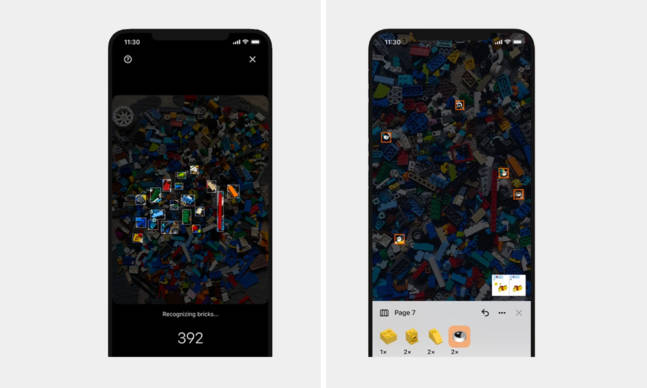
      This App Tells You What You Can Build Out of a Pile of LEGO Bricks

      Despite the fact we’ve all “grown up” since our introduction to LEGO, the magic of building something from nothing but tiny plastic bricks remains as appealing today as it was during childhood. These days, we’re…

      The post This App Tells You What You Can Build Out of a Pile of LEGO Bricks first appeared on Cool Material.

      How to Download Spotify Music and Podcasts onto Your Apple Watch

      If you wear an Apple Watch and you’re a Spotify Premium subscriber, the feature that you’ve long been waiting for is finally here. That’s right, you can finally download playlists, albums and podcasts from Spotify onto your Apple Watch for offline listening. Spotify announced the feature in late May, and it’s slowly been tricking it out to Apple Watch running the latest watchOS.

      Hallelujah.

      This is a huge deal because for years, you were only able to download music onto your Apple Watch for offline listening if you were an Apple Music subscriber. It was a great selling point for runners, for example, because it allowed them to leave their iPhone at home and still listen to music via their Apple Watch and wireless earbuds. (If you subscribe to Deezer, you also recently gained the ability to download music to your Apple Watch.)

      Previously, the Spotify app on your Apple Watch had been incredibly limited, allowing you to play/pause, switch songs and adjust the volume of tracks playing on your iPhone. But without your iPhone nearby and tethered to your Apple Watch, it was basically useless. Thankfully that’s changing.

      Spotify did make a small improvement for Apple Watch wearers last November. It rolled out an update that let them stream music from the Apple Watch without having their iPhone nearby so long as their Apple Watch was connected to Wi-Fi or LTE (the latter meaning they needed a cellular model). Unfortunately, since most people own the more affordable Wi-Fi-only Apple Watch, this didn’t drastically change their experience.

      tech roundup

      Courtesy

      Can I download Spotify Music to my Apple Watch?

      The answer is yes, but there are two caveats. First, you need to be a Spotify Premium subscriber (meaning you have to be a paying subscriber). And secondly, you will need to have an Apple Watch that’s running watchOS 6.0 or later, meaning older Apple Watch models like the Series 2 and Series 1 won’t get this ability. Finally, you need to have the latest updated Spotify app on your Apple Watch.

      How to download Spotify songs, albums and playlists to your Apple Watch

      Downloading Spotify music onto your Apple for offline listening is very simple — and it can be done either on your iPhone or your Apple Watch. Before starting, make sure that your Apple Watch or iPhone is connected to Wi-Fi or LTE.

      We recommend downloading when your Apple Watch is connected to Wi-Fi, otherwise it’s going to rely on your iPhone’s LTE connection, which is obviously going to drain data.

      1. Open the Spotify app on your Apple Watch.
      2. Find the music and podcasts you want to download.
      3. Select the playlist, album or podcast and press the three dots (…) and choose “Download to Apple Watch.”
      4. Once playlists, albums, or podcasts in your library are downloaded, you’ll see a little green arrow next to their names.
      5. Connect your headphones and start listening.
        1. Please note that Spotify is updating its app and rolling out this feature as we speak. So if you go to your music and don’t see the “Download to Apple Watch” option just yet — don’t worry. Give it a day or two and make sure your Apple Watch and iPhone are running the latest operating systems.

          LEARN MORE

          This content is created and maintained by a third party, and imported onto this page to help users provide their email addresses. You may be able to find more information about this and similar content at piano.io

        5 New Gadgets to Have on Your Radar

        It was a short week thanks to the July 4th holiday, but that didn’t stop the new tech gadgets from rolling out. From a Nintendo announcing an upcoming Switch console to DJI’s latest handheld gimbal — here’s what you need to know.

        Nintendo Switch (OLED Model)

        tech roundup

        Nintendo

        Nintendo announced that will be releasing a new Switch console on October 8. It’s not the Switch Pro that many fans were hoping for, unfortunately, as it’s not going to output 4K when docked to a 4K TV. Instead, the new Switch is going be the first with an OLED display, so its picture should be a little better (specifically, it should produce deeper blacks and have better contrast). It’s expected to have better speakers and a more adjustable kickstand. Other than that, the OLED model will be the same as regular Switch — just $50 more expensive.

        Price: $350

        LEARN MORE

        Plugable USBC-HUB7BC hub

        tech roundup

        Plugable

        This is a first-of-its-kind of docking station. It has seven USB-A ports, all of which can charge and transfer data (up to 5Gbps) at the same time. It comes with USB-A (3.0) and USB-C adapter cable, too, so it can work with a newer USB-C laptop or older laptop with a USB-A connection. And its stackable design means you can add two (or three) in case you (or a classroom) need to charge a bunch of devices simultaneously.

        Price: $49

        SHOP NOW

        DJI Pocket 2 Sunset White

        tech roundup

        Courtesy

        DJI released the Pocket 2 back in late 2020. It was the second-generation version of the company’s popular handheld gimbal that was designed for vlogging. The new model still shot 4K video, but DJI gave it several meaningful upgrades, including a bigger sensor, a better lens (with a wider field-of-view and more zoom) and an improved microphone array. But whereas you could only get the Pocket 2 in black, the company has released a “sunset white” version.

        Price: $439 (sold withe combo kit)

        SHOP NOW

        Kensington StudioCaddy

        tech roundup

        Courtesy

        The StudioCaddy is neat little charging dock for your various Apple devices. It plugs into the wall for power, and has an integrated charging stand for your iPhone and a wireless charging pad for your AirPods Pro (or AirPods, should they support wireless charging). There are USB-C and USB-A ports on the side of the device to simultaneously charge your MacBook and iPad. And, thanks to its modular design, you can add vertical stands to hold said MacBook and iPad without taking up much desk space.

        Price: $179

        SHOP NOW

        Nothing Ear (1)

        tech roundup

        Courtesy

        Nothing, a tech company started by one of the co-founders of OnePlus, revealed this week that it’s gearing up to release its first hardware product on July 27. It’s going to be a pair of wireless earbuds called the Nothing Ear (1) — and people are hyped about them. According to a TechCrunch exclusive interview, the new earbuds will cost $99 and deliver active noise-cancellation and other “leading features.” Not only that, but are expected to be tiny and transparent, as you can see in the above picture (which was shared by Nothing’s Instagram account).

        Price: $99

        LEARN MORE

        This content is created and maintained by a third party, and imported onto this page to help users provide their email addresses. You may be able to find more information about this and similar content at piano.io

        This $50 USB-C Dock Is a Productivity Beast

        Plugable just announced a beast of USB-C charging hub that’s also pretty darn cheap. It’s called the USBC-HUB7BC ($49) and it has seven different USB-A ports, all of which can charge and transfer data (up to 5Gbps) at the same time, which very few charging hubs that are this cheap can do.

        The 7-in-1 hub comes with USB-A (3.0) and USB-C adapter cable, too, so you can easily hook it up to your newer USB-C laptop or older laptop with a USB-A connection. Basically, it can work with any Mac or Windows laptop.

        tech roundup

        Plugable

        It might be overkill for most people, but the other cool thing about the USBC-HUB7BC hub is that it’s designed to be stackable with other USBC-HUB7BC hubs. So you can easily buy two or three of these hubs to get an extra 14 or 21 extra USB-A ports, meaning you can charge a lot of devices simultaneously.

        The only real downside of Plugable’s new 7-in-1 charging hub is that there’s no ports other than USB-A, so you’ll need an adpter if you want to connect a special peripheral such as a SD card reader.

        The Plugable USBC-HUB7BC is available on Amazon right now for $49, but there’s a special $10-off deal at launch so you can pick one up for even cheaper.

        SHOP NOW

        This content is created and maintained by a third party, and imported onto this page to help users provide their email addresses. You may be able to find more information about this and similar content at piano.io

        Nintendo finally unveils the Switch OLED model and its minor upgrades

        Ever since Nintendo released the V2 model of the Switch, the gaming industry started to speculate about what will follow. Since last year, rumors were already circulating about a new version of the hybrid console sporting a bigger display. Others were saying that it could be the brand’s next-generation system. Instead, we are getting an OLED panel upgrade and more.

        Those who were hoping to see Nintendo’s answer to the Sony PS5 and Xbox Series X are likely disappointed right now. Earlier this year, there were talks of more powerful chipsets, OLED displays, bigger internal storage, and 4K resolution support while docked. It seems the global chip shortage might have pushed back plans.

        Nevertheless, we are glad that Nintendo is finally addressing some of the Switch’s shortcomings. Obviously, the upcoming model’s defining update is the 7-inch OLED touchscreen. This is notably bigger than its predecessor’s 6.2-inch IPS LCD, but the resolution remains the same at 1280 x 720.

        Next, is the internal storage, which now grows from 32 GB to 64 GB. The Switch OLED still supports microSDHC/microSDXC expansion (up to 2 TB). No changes to the processor, which is a custom NVIDIA Tegra. To improve your online experience, the dock now has a dedicated LAN port.

        Another oversight that Nintendo finally fixes on the Switch OLED is the kickstand. The previous two versions can be propped up at a single angle only. As such, the new one touts a more robust design, is wider, and can hold your device at different angles. Finally, it also ships in a new colorway with white Joy-Cons and dock.

        Preorder yours now

        [embedded content]

        Images courtesy of Nintendo

        A Simple Trick to Keep Your Router on Its Best Behavior

        Your router does a vitally important job, especially if you’re working from home or video chatting. But it’s not always reliable. Blanketing your home in Wi-Fi is a complicated process, and consumer-grade gadgets are designed to operate in a reasonable margin of error to keep cost and complexity down. Sometimes, your router will just need to be rebooted to get it working right again. But there is something you can do to ensure it doesn’t need it at an inconvenient time.

        Instead of waiting for your router to act up in the middle of a Zoom chat, gaming session, or movie night, you can reboot it on a regular basis at a convenient time or take it to the next level and ensure that it reboots itself. How much trouble will this actually save you? It’s hard to know for sure. The line between technical competence and superstition in this case is pretty thin. Nonetheless, it can’t hurt! Here are three easy ways to make sure it gets done.

        Method 1: The low-tech lifehack

        For a solution with no additional gadgets or setting-spelunking required, just tack a quick router reboot onto a chore you already do on a regular basis. Talking out the trash? Go pull the plug quick before you get started you’ll be back up and running by the time you’re back from the driveway. Doing the laundry? Tuck a reboot between wash and dry. Or simply set a recurring reminder on your phone or calendar.

        Method 2: The set-it-and-forget-it solution

        Come on, you say. Remembering things? What is this, 1066? You’re right, there are other ways. One is to poke around in your router’s settings for a feature that does this for you. Options vary from router to router, and so finding this ability — if it exists — will take a little spelunking. But it is a feature some routers have; Belkin routers, for instance, refer to such a process as “Self-Healing”. The method of accessing router settings also varies from unit to unit, but a good place to start is by popping the default address “192.168.1.1” into the address bar of your web browser and using the default “admin” as the password if prompted (and then maybe changing it). Consult your router’s manual for guidance if you don’t want to just fumble in the dark, of course.

        Method 3: The fool-proof gear nerd remedy.

        But what if you want to use this as an excuse to buy an additional gadget? I have good news: you can. Periodic, scheduled power-cycling is a perfect use-case for a smart outlet. You can snag a Wyze Plug for about $12 (or two for $20 if you want an extra to play with) or whatever smart plug works with your existing smart home gadgets and simply plug your router into that. Then, using whatever app coordinates your smart plug behavior, set a recurring rule that turns that outlet off and back on in the middle of the night, or even earlier in the evening if you could use the extra prod to get off the internet and just go to bed.

        Wyze Smart Home Plug, Two-Pack

        amazon.com

        $19.97

        This content is created and maintained by a third party, and imported onto this page to help users provide their email addresses. You may be able to find more information about this and similar content at piano.io