All posts in “tech”

How to Make Your Home Smarter Than You Are

Clapping to turn your lights on and off used to be the most advanced home function you could perform. We haven’t gone as high-tech as reaching Smart House-levels of technological advancements, but we’ve come pretty far. Integrating smart functions into your home has gotten easier and easier, but you need to have a gameplan and know where to start as not every smart product is needed by every home. We created a handy guide for you to turn your regular home into a smart home.

How to Build a Smart Home, the Smart Way

How to Build a Smart Home, the Smart Way

These days, anyone can use their phone to turn on the lights. But a real smart home goes beyond parlor tricks.

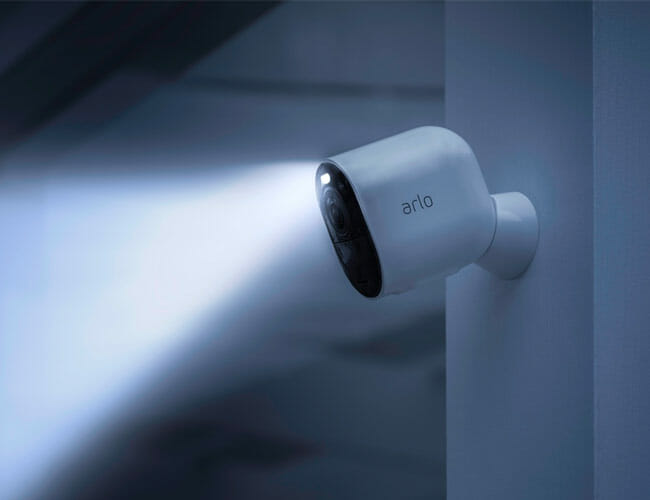
The Best Smart Home Cameras of 2019

The Best Smart Home Cameras of 2019

It doesn’t matter if you’re building a smart home around Alexa, Google Assistant or Apple’s HomeKit – there’s a smart home camera that’ll work for you.

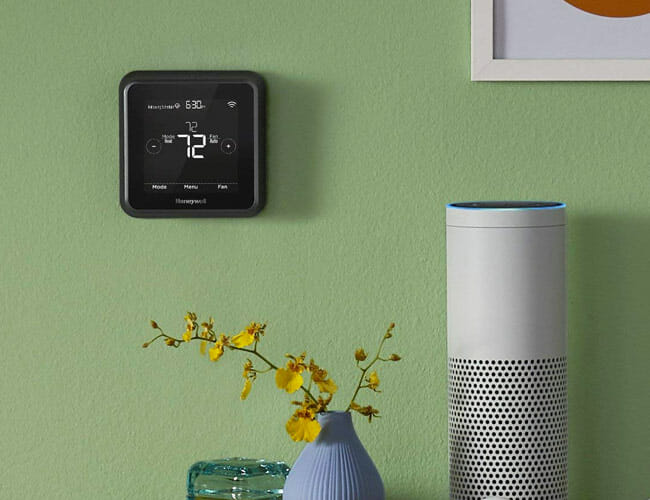
The Best Smart Thermostats: Which Is Right For Your Home?

The Best Smart Thermostats: Which Is Right For Your Home?

Here’s what you need to know before buying your first smart thermostat.

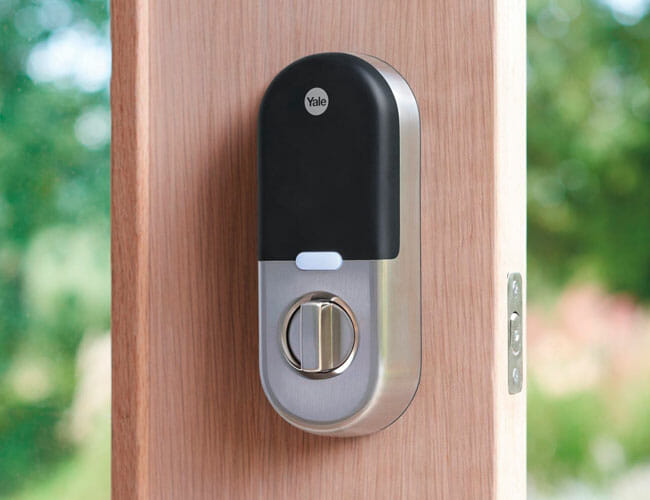
The Best Smart Locks: Which Is Right For Your Home?

The Best Smart Locks: Which Is Right For Your Home?

Here’s what you need to know before buying your first smart lock.

5 Easy-to-Install Gadgets to Upgrade Your Smart Home

5 Easy-to-Install Gadgets to Upgrade Your Smart Home

No need to deal with wiring or complicated instruction manuals.

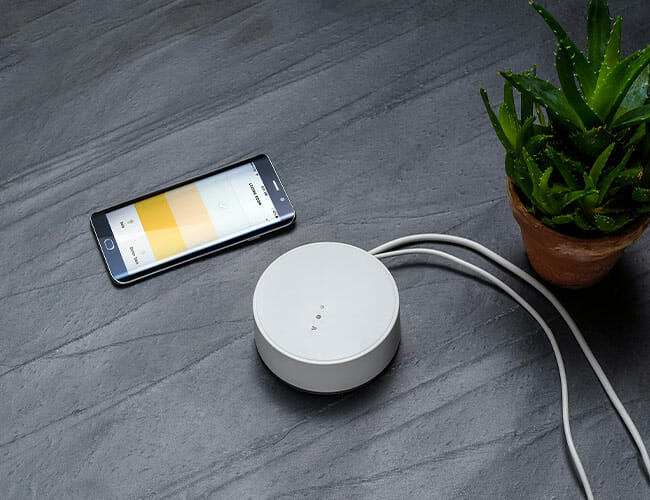
Now Is the Time to Get Into Ikea Smart Home. Here’s How

Now Is the Time to Get Into Ikea Smart Home. Here’s How

Ikea says it’s “just getting started” in the smart home world. Here’s everything you need to know.

This Smart Home Device Is Coming to Save You Money on Your Water Bill

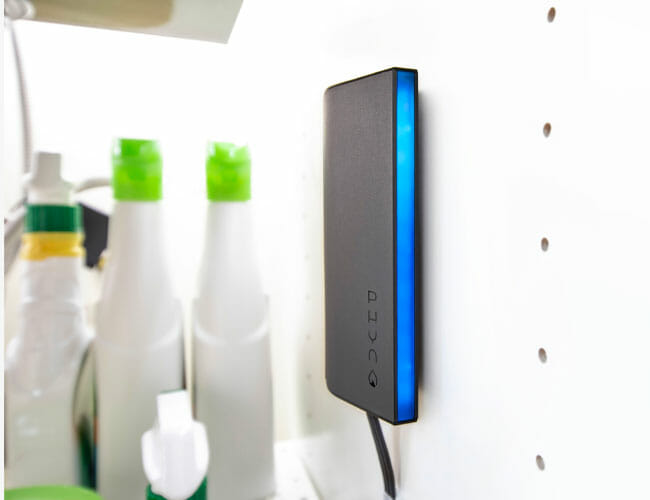
This Smart Home Device Is Coming to Save You Money on Your Water Bill

A Belkin-owned company made a smart water monitoring system that catches leaks and frozen pipes before they become problematic.

The Cheapest Smart Plugs Might Also Be the Best Smart Plugs

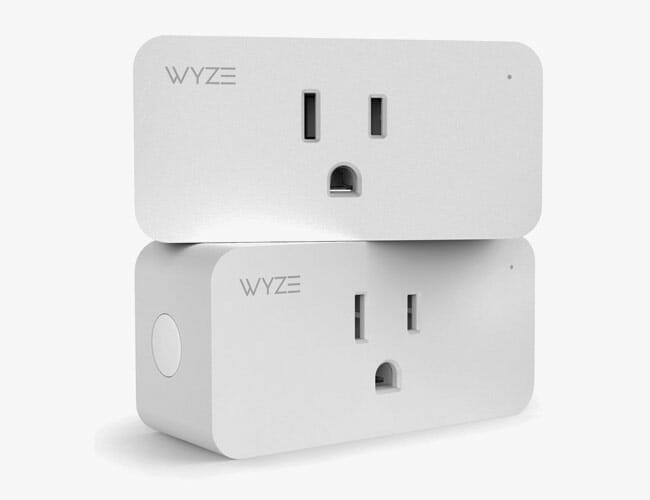
The Cheapest Smart Plugs Might Also Be the Best Smart Plugs

The Wyze Plug is a new smart plug that works with both Amazon’s Alexa and Google Assistant.

The Best Smart Alarm Systems That You Can Install Yourself

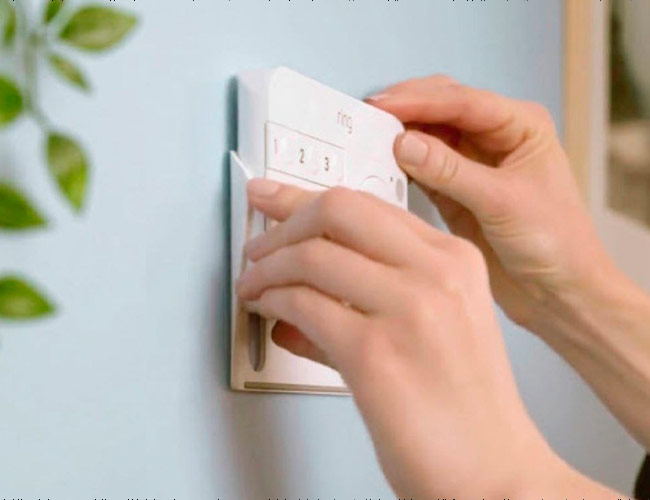
The Best Smart Alarm Systems That You Can Install Yourself

Gone are the days of mandatory multi-year contracts, wires running down widow frames, and keypads requiring home phone lines. Today, keeping an eye on your home is easy and cost-efficient.

The Best Smart Alarm Clocks to Keep on Your Nightstand

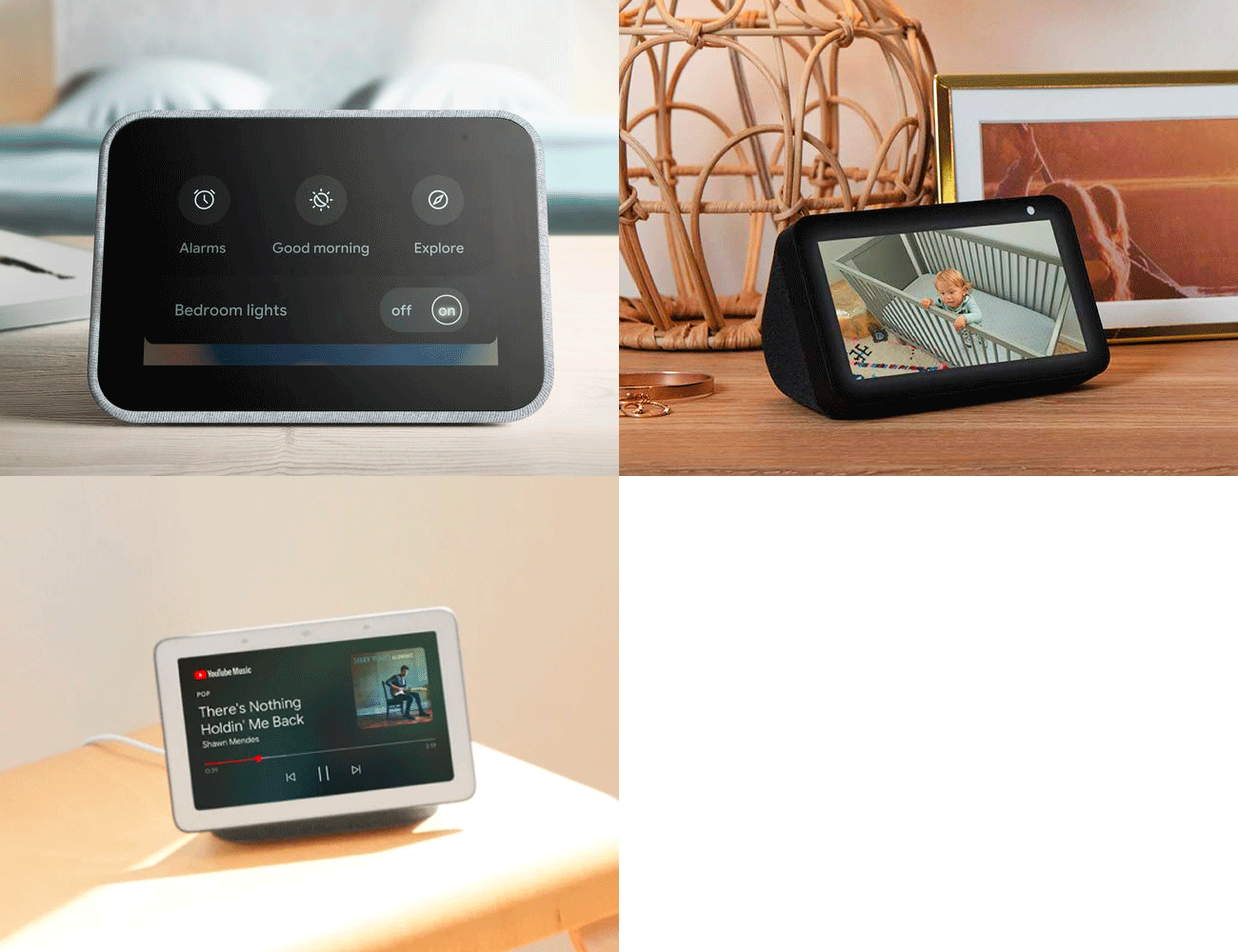
The Best Smart Alarm Clocks to Keep on Your Nightstand

We break down the differences between the three best smart alarm clocks: Lenovo Smart Clock, Google Nest Hub and the Amazon Echo Show 5.

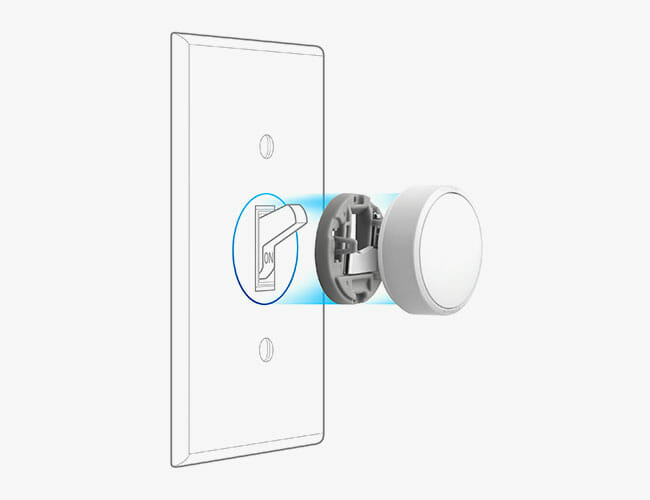
The Aurora Dimmer Switch Cleverly Solves Smart Lightbulbs’ Most Annoying Drawback

The Aurora Dimmer Switch Cleverly Solves Smart Lightbulbs’ Most Annoying Drawback

The Aurora wireless dimmer is not just a dimmer switch. It’s also a way to make sure no one accidentally turns off your smart bulbs.

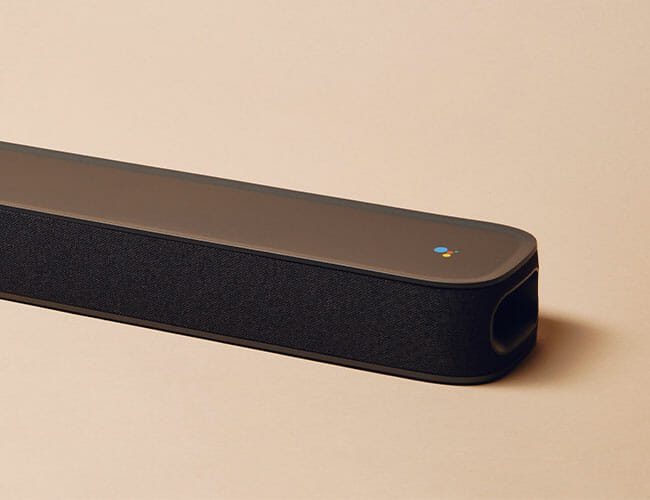
This Is a Glimpse at the Soundbar of the Future

This Is a Glimpse at the Soundbar of the Future

The JBL Link Bar offers us a glimpse into what many future soundbars will be like.

The Best New Smart Gadgets That Work With Apple HomeKit (So Far)

The Best New Smart Gadgets That Work With Apple HomeKit (So Far)

We’ve rounded up the best new smart devices announced at CES 2019 that work with Apple’s HomeKit.

The My Arcade Retro Champ Is A Switch For Classic Gaming

These days, there’s no shortage of game systems that can let you play vintage software. Video game manufacturers such as Nintendo, Sony, SNK, and a bunch of others are cashing in on the craze. However, these platforms are normally marketed with pre-loaded games and designed to look like the console it represents albeit in miniature form. Hence, they are affixing the word “mini” on most of these products. Then there’s the few that threat the fine line between being a sleek multi-function device and an ugly hybrid mess. Thankfully, the My Arcade Retro Champ fit the former description perfectly.

We’ll start by telling you that although it does not seem intentional, The Retro Champ resembles a popular game system. We have to give it to My Arcade for keeping just enough elements to make it stand out on its own. Nevertheless, there is a slight resemblance to Nintendo’s latest machine. It really depends on the eye of the beholder, but we can say that it appears to be a chunkier Switch. You can think of it as a reimagination of how the hybrid game console would look like if it played NES and Famicom games.

The portable game system is compatible with both the American and Japanese game cartridge, which makes it quite versatile. It sports a 7-inch colour display and promises around three to five hours of battery life on a single charge. Just like the Nintendo Switch, it features a built-in kickstand for tabletop gaming. Furthermore, owners can also hook it up to their TV via the HDMI interface. Finally, as an added bonus, My Arcade is throwing in a cleaning kit to help restore your cartridge collection.

Get it here

Images courtesy of My Arcade

Can’t Find Workout Headphones That Work for You? You’re Not Alone

People listen to music while they exercise, and why shouldn’t they? A recent study published in the journal Psychology of Sport & Exercise found that listening to music during sprint interval training (SIT) had “the potential to enhance feelings of pleasure, improve enjoyment, and elevate performance.”

But music means headphones, and not just any pair will do. You want one that’s sweat- and water-resistant. (AirPods, for example, aren’t and have a better chance of dying if subjected to, say, sweat.) And then there’s fit to consider; it’s hard to have a good workout when your earbuds keep falling out.

I’ve tested a lot of different pairs and settled on two: the Beats Powerbeats Pro ($200) and the Jaybird Vista ($180), both released in 2019.

The Powerbeats Pro have the same H1 chip as Apple’s AirPods, making them extremely easy to pair with an iPhone. They normally cost $230 (but we’ve seen them on sale for $200).

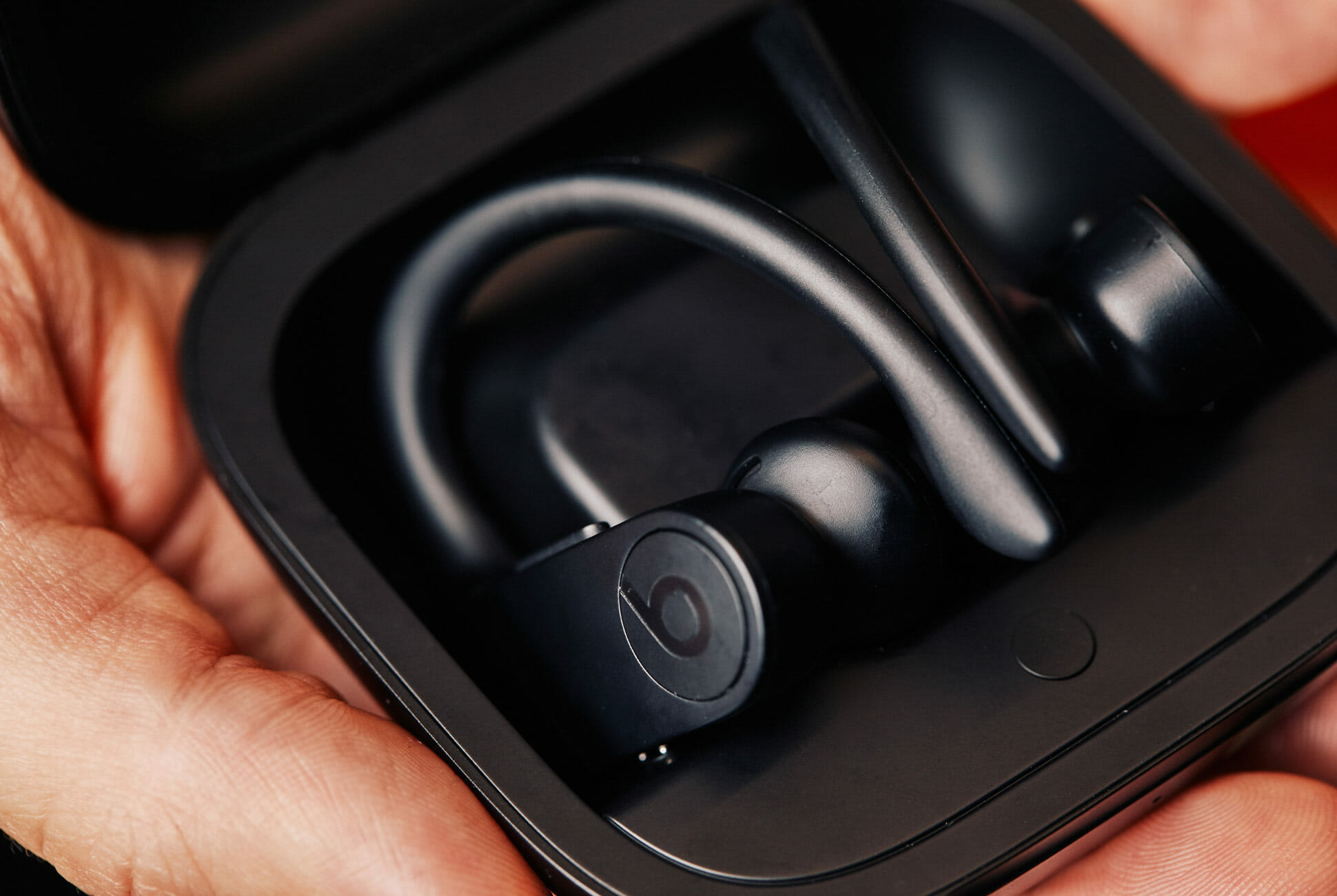
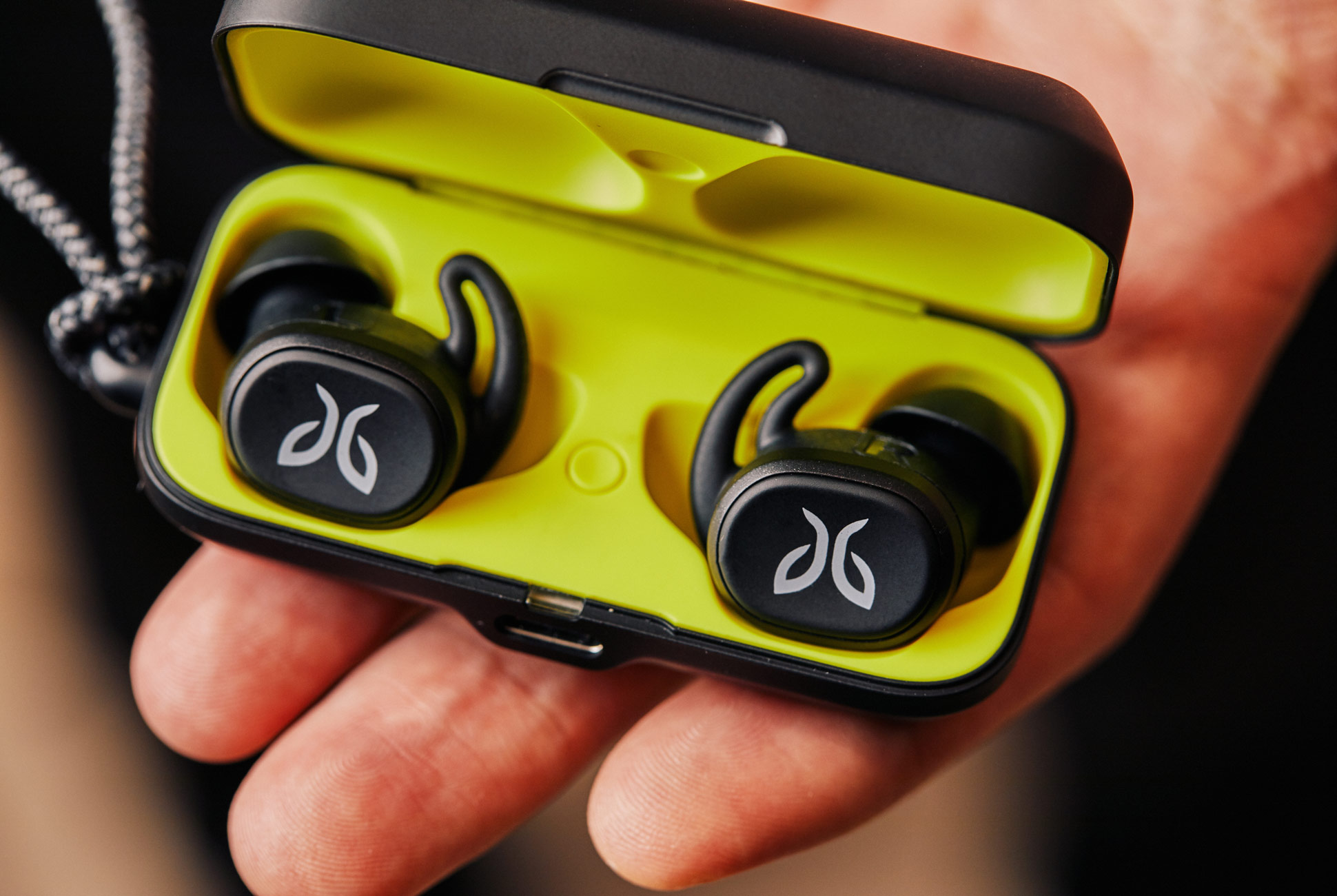
The Powerbeats Pro — the obvious choice for anybody with an iPhone (they’re essentially sweatproof AirPods with Apple’s easy-pairing H1 chip) — have a unique ear hook design, which results in the most secure-fitting wireless earbud I’ve ever tested. The Jaybird Vistas, on the other hand, feel entirely different. They’re much smaller and have silicone ear tips that grip the inside of your ear.

Both pairs sound excellent, and together, they represent the best workout headphones money can buy. But let me be clear: they are flawed.

Let’s start with the Powerbeats Pro. On multiple occasions, I’ve gone to take them out only to find one of the earbuds wasn’t fully charged, meaning that the one earbud simply wasn’t placed back in the charging case correctly. This same issue has also been happening to one of my colleagues, who has a pair of Powerbeats Pro, as well as a community of Reddit users. One of them, GreenTeaRex007, sums it out correctly: “It’s an easy but frustrating fix. You have to make sure the charging port is perfectly connected with the buds.” This happens far too often to call user error; it’s bad design, plain and simple.

The Jaybird Vista have an IPX7 rating, meaning they’re fully waterproof and sweatproof. They cost $180.

My issue with the Jaybird Vista isn’t as severe, but it’s still frustrating. On really hot days, when I sweat a lot, one of the earbuds will lose its grip and fall out of my ear. And once it’s out, there’s no going back in — which means I have to hold onto the lone earbud for the rest of my run or risk losing it if it’s in an unzippered pocket.

When it comes down to it, I find myself reaching more often for the Powerbeats Pro instead of the Jaybird Vista, simply because I like the way they fit. But $230 is a lot to stomach for a pair of wireless headphones that may or may not be properly charged before your next run. (Of course, you could pay an extra $29 for AppleCare+ for Headphones to cover any kind of accidental damage to the headphones for two years.)

To be fair, workout earbuds have covered a lot of ground recently — just a few years ago, I wrote about my preference for cheap wired earbuds, which I found qualitatively louder and more intuitive than their wireless brethren at the time. But make no mistake, the category of workout headphones, wired or wireless, still has a long way to go.

Note: Purchasing products through our links may earn us a portion of the sale, which supports our editorial team’s mission. Learn more here.

4 Noise-Canceling Headphones That Are on Sale Now

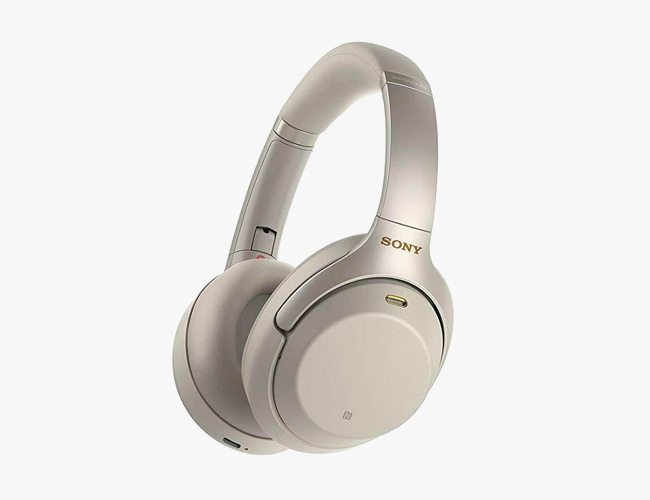
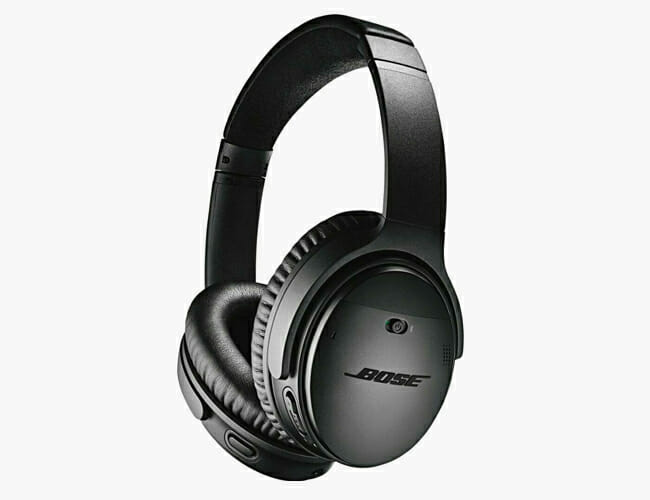
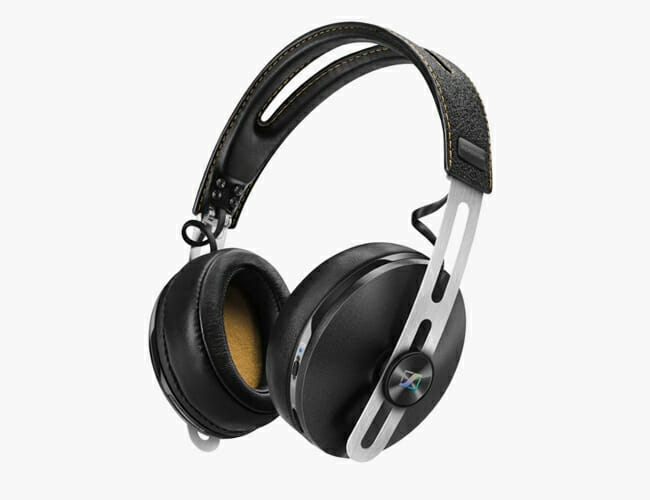
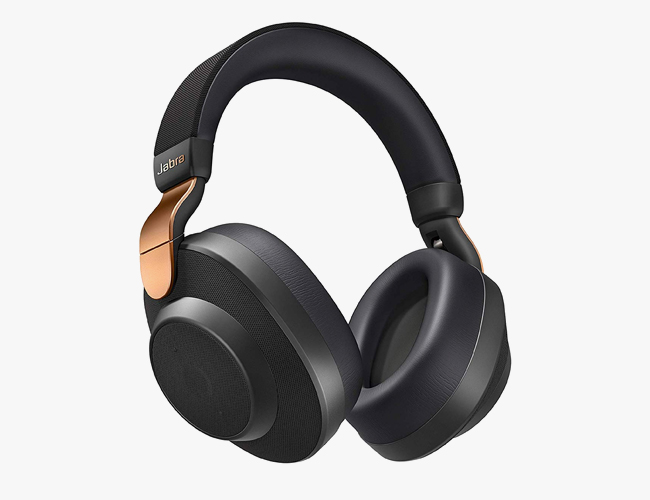
If you’re looking for a solid pair of wireless noise-canceling headphones, but don’t want to fork over MSRP prices – we’ve got you covered. Below, you’ll find four great deals on some of our favorite noise-canceling headphones by Sony, Bose, Sennheiser and Jabra.

Sony WH-1000XM3

Sony’s flagship noise-canceling headphones typically cost $348, which is what they’re going on Amazon and Sony’s website, however you can get a pretty sweet deal if you shop on eBay. It’s selling new, black or silver models for $270

Bose QuietComfort 35 II

Even though these aren’t Bose’s flagship noise-canceling headphones anymore (that title now belongs to the Headphones 700), the QuietComfort 35 II are excellent and arguably more comfortable and travel-friendly than the above Sony’s. They’re also on sale on eBay.

Sennheiser Momentum Wireless 2

The price is a little bit of a misnomer, here. That’s because Sennheiser just released a newer version of this headphone, the Momentum Wireless 3, and is likley trying to phase out these new-year-old models. That said, these are great-sounding noise-canceling headphones with a great industrial design.

Jabra Elite 85h

Jabra’s noise-canceling headphones have been getting rave reviews online. In his review, David Carnoy of CNET wrote that “The Jabra Elite 85h is a good alternative Bose and Sony noise-canceling models for slightly less money, particularly if you value call quality.” And now Amazon is selling these headphones for an extra $50 off.

Note: Purchasing products through our links may earn us a portion of the sale, which supports our editorial team’s mission. Learn more here.

The Best Smart Home Cameras of 2019

This definitive guide to the best smart home cameras of 2019. It explores everything you need to know before buying a smart home security, including what to watch out for, the different models available, and which work with Amazon Alexa, Google Assistant and Apple’s HomeKit.

Introduction

It’s 2019. Smart cameras are running home security companies like ADT out of business. Brinks’ home security division went bust a couple of years ago, and it all stands to reason — home security cameras are to subscription-based security systems what HBO GO is to cable. Plus, there’s no need to shell out a lot for something that you only use one percent of the time. The new generation of smart surveillance cameras are perfect for a modern family smart-home, and these smart cameras make home security both more inviting and more powerful. The only question left is: which one is right for your home?

The Most Important Features To Look For

Before buying your first home security camera, there’s a lot to consider. How are you going to use the camera? Is it more for home security or is it more for monitoring a baby or pet? Where are you going to place it? Do you want it to work with your other smart devices? Are you willing to pay a monthly/annual subscription fee for premium features, like facial recognition or extensive storage features? Factoring all these things can pretty daunting.

The truth is, however, most of today’s home security cameras are more similar than they are different. Pretty much all of them have motion sensors, night vision, two-way talk and a companion app that allows you to, at any time, get a live feed of what’s happening in front of the camera. Yes, there are physical differences between cameras, such as its video resolution, the field of view, and how it stores videos and photos, but there are other things to consider that might be just as (or even more) important.

Compatibility: If you already own smart home devices, such as a smart speaker or a smart TV, there’s a good chance that you’ll want a home security camera that plays well with them. For example, if you have an Amazon Fire TV or Echo Spot, you’ll probably want a security camera that’s compatible with Alexa so you can summon a live feed from the camera on your TV or smart speaker (with a screen). The same is true with Google Assistant and a TV with Chromecast built-in or with an Apple TV and a security camera that supports HomeKit.

Price: All the below cameras come at different price points, ranging from $20 to over $400, and this is obviously an important thing to consider. The surprising thing is that even the more affordable cameras, such as the Wyze Cam v2, is still going to do many of the same things — 24/7 live feed, two-way talk, night vision, motion alerts — as the way more expensive camera systems. The reason why you’d pay more for other cameras by Nest, Amazon, Honeywell and Lighthouse is for better app experiences, smart home compatibility, image quality and some other advanced features (I’ll get into this next). Ultimately it’s going to come down to how often you’re checking in on the camera — once every few days or once every few hours — and if multiple people, such as other family members, are also going to be checking in.

Subscription: Many smart home security cameras, especially the more expensive models, require you to pay a monthly or annual subscription fee to get its more advanced features. A lot of these features include facial recognition, person alerts, and the ability to share clips and videos with friends. Another big factor with subscriptions is how long you want the camera to save videos in the cloud. Most free accounts will allow you access to the last 24 hours of footage, but paying subscriptions (which usually cost between $3 to $10 per month) can grant you access to a week’s or month’s worth of saved clips.

Wired or Battery: Like most of today’s smart speakers, pretty much all of today’s smart home security cameras need a constant wi-fi connection to work. That said, not all smart speakers need to be tethered to a wall outlet. There are a few models that come with rechargeable batteries, allowing you to move them around the house as you see fit. The disadvantage with portable security cameras is they need to remember to change their battery every so often, plus they tend to be more expensive than wired cameras.

These are a few of the important things to look out for. Below, you’ll find the rundown of our favorite smart home security cameras arranged by indoor cameras and outdoor cameras. Remember, just because a camera is expensive doesn’t necessarily make it immediately better. A lot of the more expensive options are only worth buying if you know you’ll use it a lot and you’re willing to pay a reoccurring subscription fee.

Wyze

Wyze Cam V2
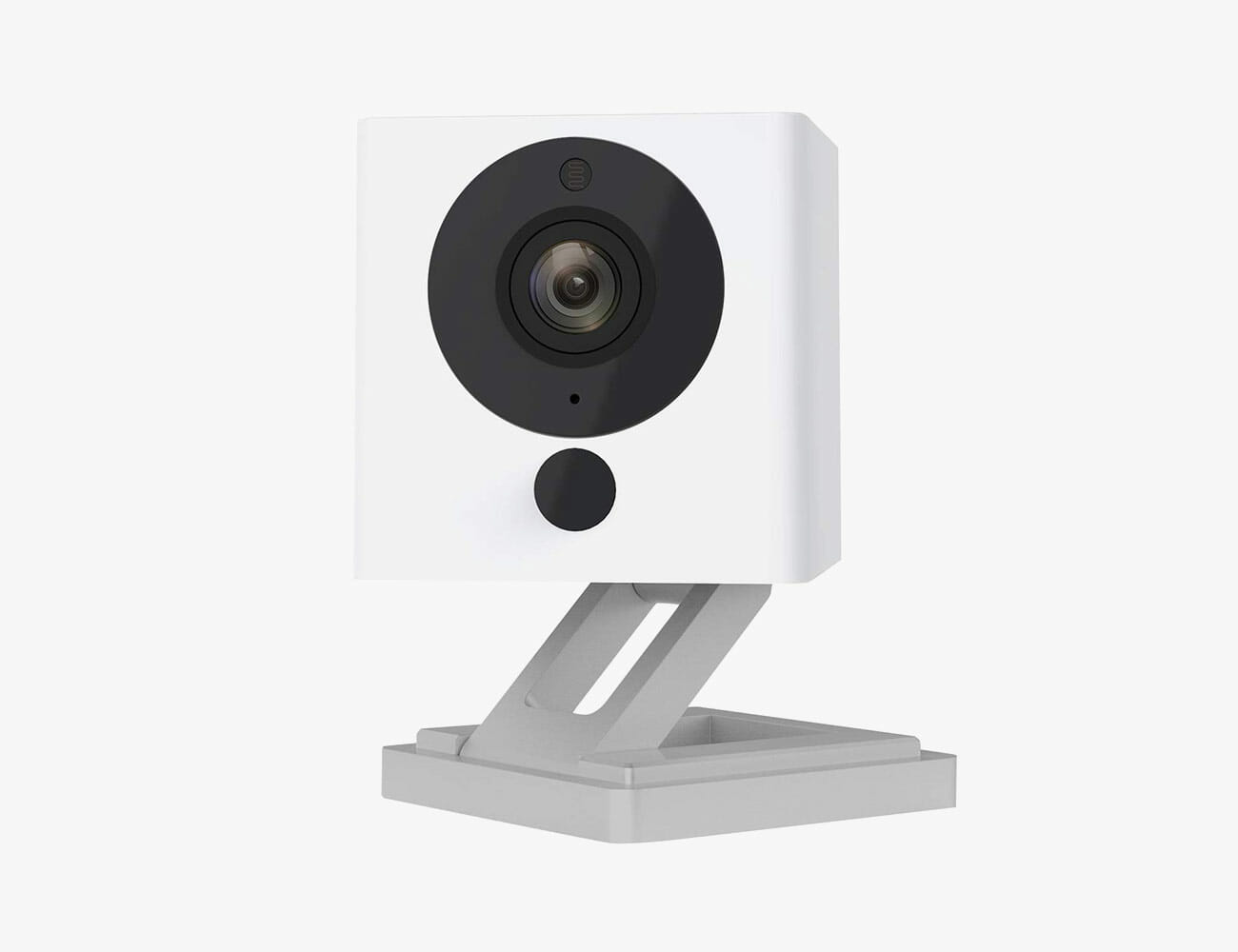
Brief: The Wyze Cam is the cheapest smart security you can buy, and despite its super-low price and admittedly cheap design, it actually packs most of the same features as other indoor security cameras. It shoots 1080p video, supports two-way talk, and it will automatically record video clips (up to 12 seconds) if it detects motion or hears a loud sound. You can also access a live feed any time you want by opening the Wyze app. The kicker is that 14 days of cloud storage comes free, without any subscription, which is huge.

Compatible with: works with Alexa and Google Assistant

Subscription? No, there’s no subscription service with Wyze’s cameras. That said, it has excellent cloud storage; it can store video clips (up to 12 seconds long) for up to two weeks. If you want continuous videos, you can purchase a MicroSD card, which then slots directly into the camera.

Who Should Buy: Anybody who is building an entry-level smart home for the least amount of money. But don’t be fooled by their cheap prices, the Wyze Cam punches well above its weight.

The Basics

Field of view: 110 degrees
Video resolution: 1080p
Wired or portable: wired
Storage: 128MB, microSD card (sold separately)
Key features: 8x digital zoom, night vision, 24/7 live video feed, 3-axis design, magnetic base

Wyze Cam Pan
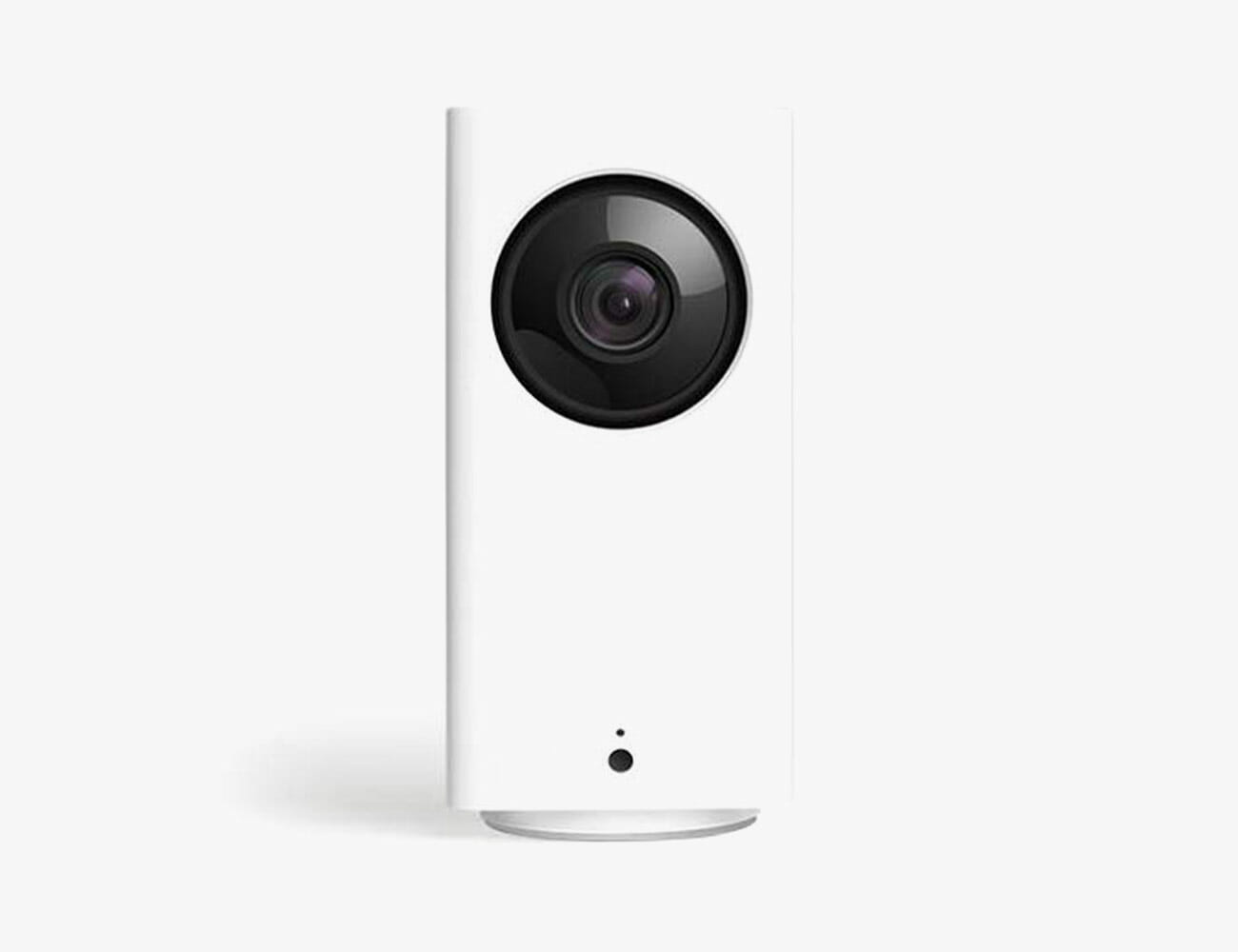
Brief: The Wyze Cam Pan is essentially an upgraded version of the Wyze Cam. It has all the same abilities but it “pans,” hence the name. If you open the Wyze app, you can actually control what the camera is looking at. You can tilt it left or right, up or down. Unlike the cheaper Wyze Cam, the Wyze Cam Pan offers motion tracking; if motion is detected in a specific area of its field of view, the camera will use its Zoom capabilities to track the subject. A downside is that the Pan doesn’t have a magnetic base or stand.

Compatible with: works with Alexa and Google Assistant

Who Should Buy: Anybody that wants a slightly more upgraded version of the Wyze Cam, or they simply want to be able to adjust the camera’s vision from afar.

Subscription? No, there’s no subscription service with Wyze’s cameras. That said, it has excellent cloud storage; it can store video clips (up to 12 seconds long) for up to two weeks. If you want continuous videos, you can purchase a MicroSD card, which then slots directly into the camera.

The Basics

Field of view: 120 degrees (plus panning)
Video resolution: 1080p
Wired or portable: wired
Storage: 128MB, microSD card (sold separately)
Key features: 8x digital zoom, 24/7 live video feed, night vision, panning

Nest

Nest Cam (Indoor and Outdoor)
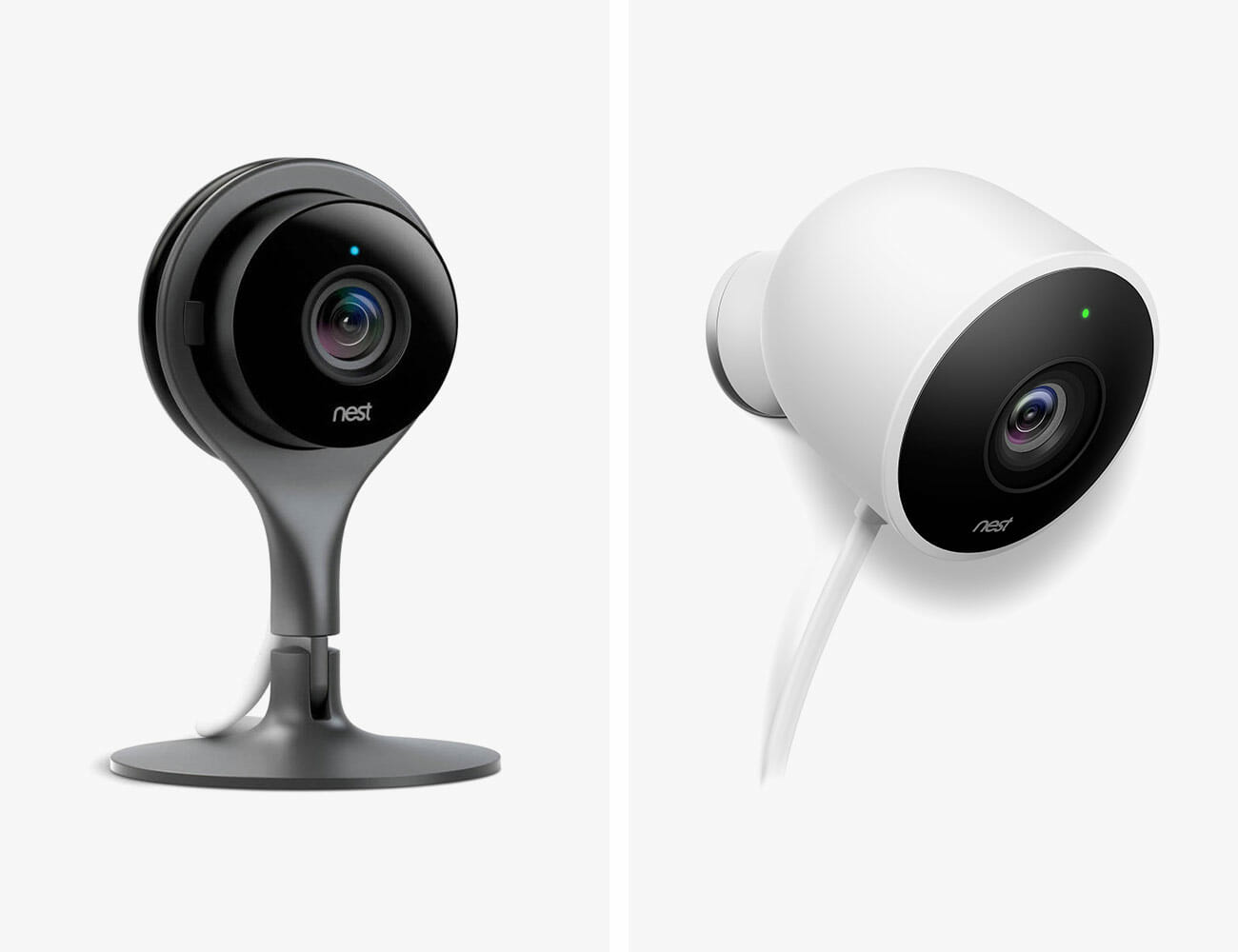
Brief: The Nest Cam comes in two different models, one for indoors and one for outdoors, and both are the most entry-level security cameras that the company makes. The two cameras have pretty much the exact same abilities – same field of view, video resolution, night vision, alerts and storage – but there are some differences. The Indoor camera has better zoom abilities (8x versus 4x optical zoom), while the Outdoor camera is weather resistant and comes with a much longer cord (25 feet vs 10 feet). Overall, these are the most entry-level security cameras and while they’ll

Compatible with: works with Alexa and Google Assistant

Who Should Buy: These cameras are optimized for anybody building a smart home around Google’s ecosystem. They’re dependable entry-level security cameras without the fancy features found in Nest’s higher-end “IQ” line (which honestly, most people won’t need). Even though these Nest Cam cameras will work with Alexa, it’s worth remembering that since Google owns Nest, its line of home security cameras will always be more likely to work more smoothly within a Google smart home ecosystem.

Subscription? Nest Aware is Nest’s cloud storage service and while you don’t need to purchase a subscription, you’ll probably want to. Without a subscription, you’ll only have access to the last three hours of what the camera recorded. Depending on the Nest Aware subscription you purchase, you can have five to 30 days worth of recordings.

The Basics

Field of view: 130 degrees
Video resolution: 1080p
Wired or portable: wired
Storage: 3 hours of free cloud storage; Nest Aware subscription gets you up to 30 days of cloud storage
Key features: night vision, two-way talk, motion alerts, 24/7 live video feed

|

Nest Cam IQ (Indoor and Outdoor)
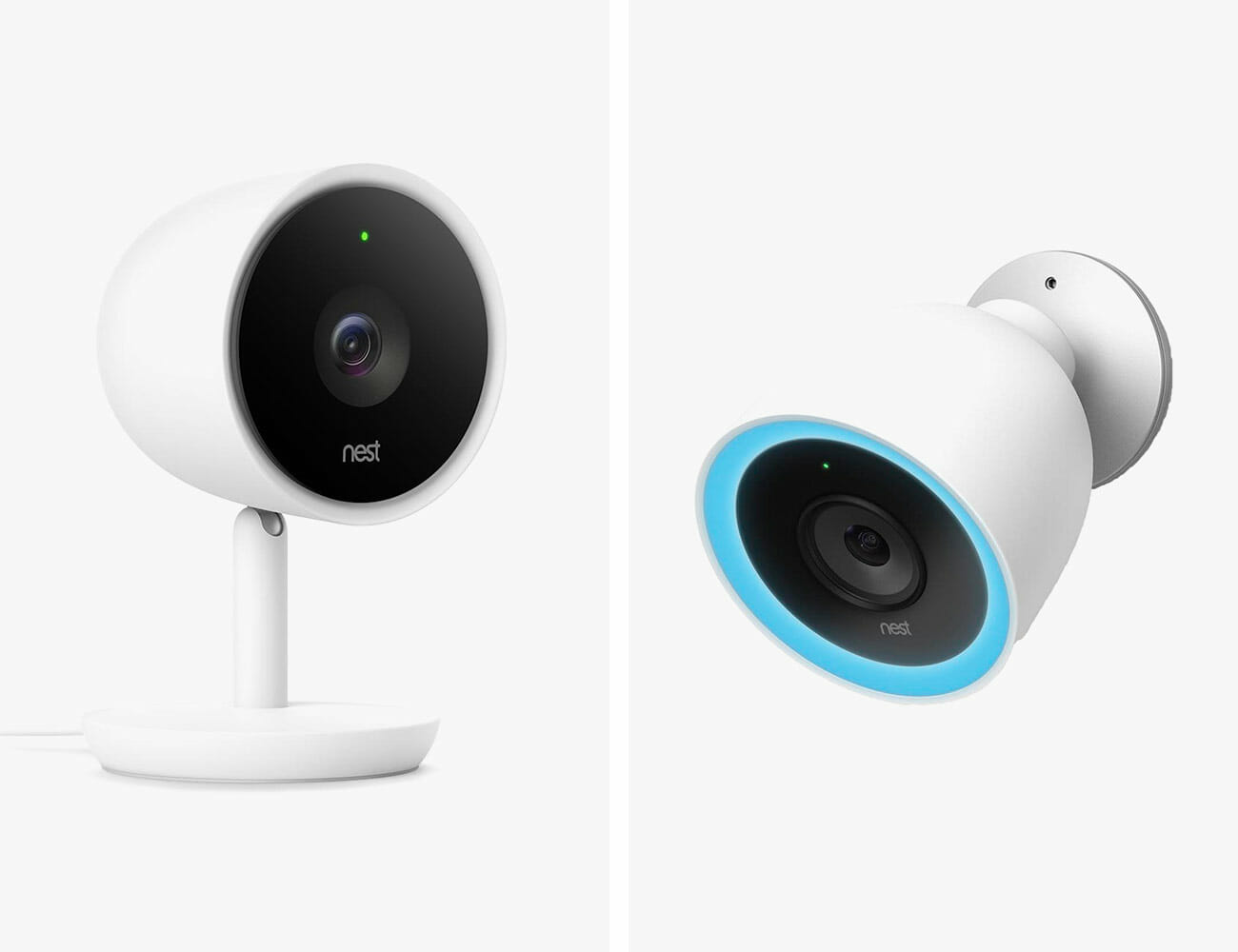
Brief: These are the upgraded versions of the Nest Cam Indoor and Outdoor. The biggest difference is that the two IQ cameras have a 4K image sensor, which enables a feature called “Supersight,” which allows the cameras to identify familiar and unfamiliar faces, as well as zoom in and track those subjects while they’re in the frame. The IQ cameras will also send you real-time alerts when it detects motion (should you enable it). The catch is that in order to get these premium features, you’ll need to have a Nest Aware subscription.

Compatible with: works with Alexa and Google Assistant

Who Should Buy: Admittedly, the Nest Cam IQ is really only people who are going to use the heck out of these cameras and watch the recordings. If you’re just going to casually check in on what’s going on at home, the regular Nest Cam is probably a safer bet. And, like before, even though these cameras work with both Alexa and Google Assistant, since Google owns Nest, it’s a safer bet to get Nest cameras if you’re thinking about building out a Google smart home ecosystem.

Subscription? You need to be Nest Aware subscriber to get the premium features, which starts off at $5 per month for five days of cloud storage.

The Basics

Field of view: 130 degrees
Video resolution: 1080p
Wired or portable: wired
Storage: up to 30 days with a Nest Aware subscription
Key features: 12x digital zoom Supersight, facial detection, night vision, two-way talk, motion alerts, 24/7 live video feed

|

Amazon (and Ring)

Amazon Cloud Cam
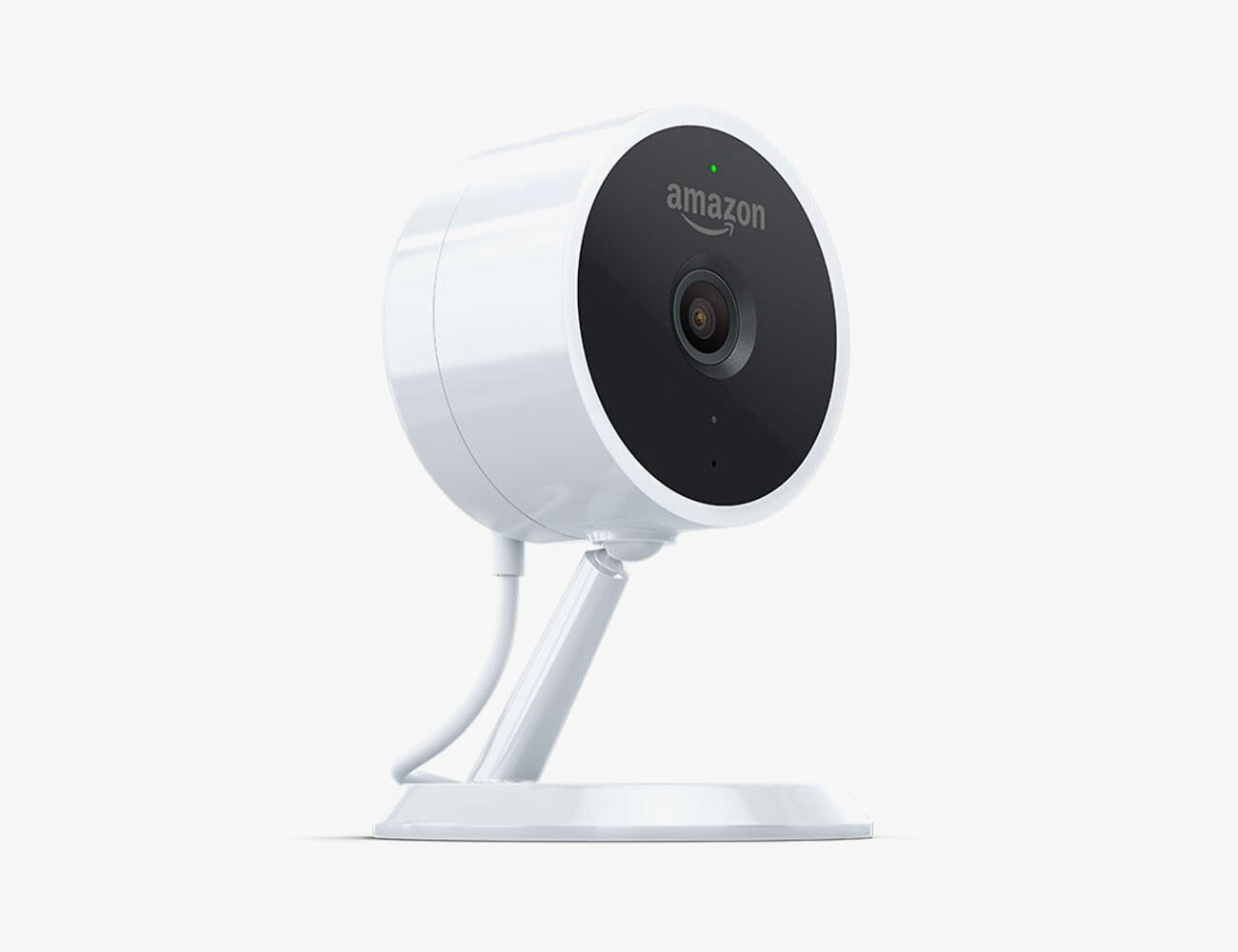
Brief: The Cloud Cam is Amazon’s first-and-only smart security camera. It’s a camera that only works with Alexa, and therefor is really optimized for homes that already use Alexa as a voice assistant, as well as an Amazon Fire TV, Fire Tablet, Echo Show or Echo Spot (with any of these devices you can ask Alexa to show you a live feed from a specific Cloud Cam). The catch is that Amazon released the Cloud Cam before its acquisition of Ring, so it seems that moving forward Amazon will likely upgrade its Ring’s smart cameras instead of its own.

Compatible with: works with Alexa

Who Should Buy: Anybody who wants an entry-level smart camera that can be seamlessly integrated in an Alexa smart home.

Subscription? Without a subscription to Amazon’s cloud storage service, you only get free access to recordings for 24 hours. With a subscription, however, you can a few additional things other than a longer window to check on your recordings. The Cloud Cam will also be able to detect specific people; let you establish “zones” or specific areas within the camera’s field of view to look for motion; it will let download clips and share them with whomever.

The Basics

Field of view: 120 degrees
Video resolution: 1080p
Wired or portable: wired
Storage: 24 hours of free recordings, more with subscription
Key features: night vision, motion alerts, 24/7 live video feed

Ring Indoor Cam
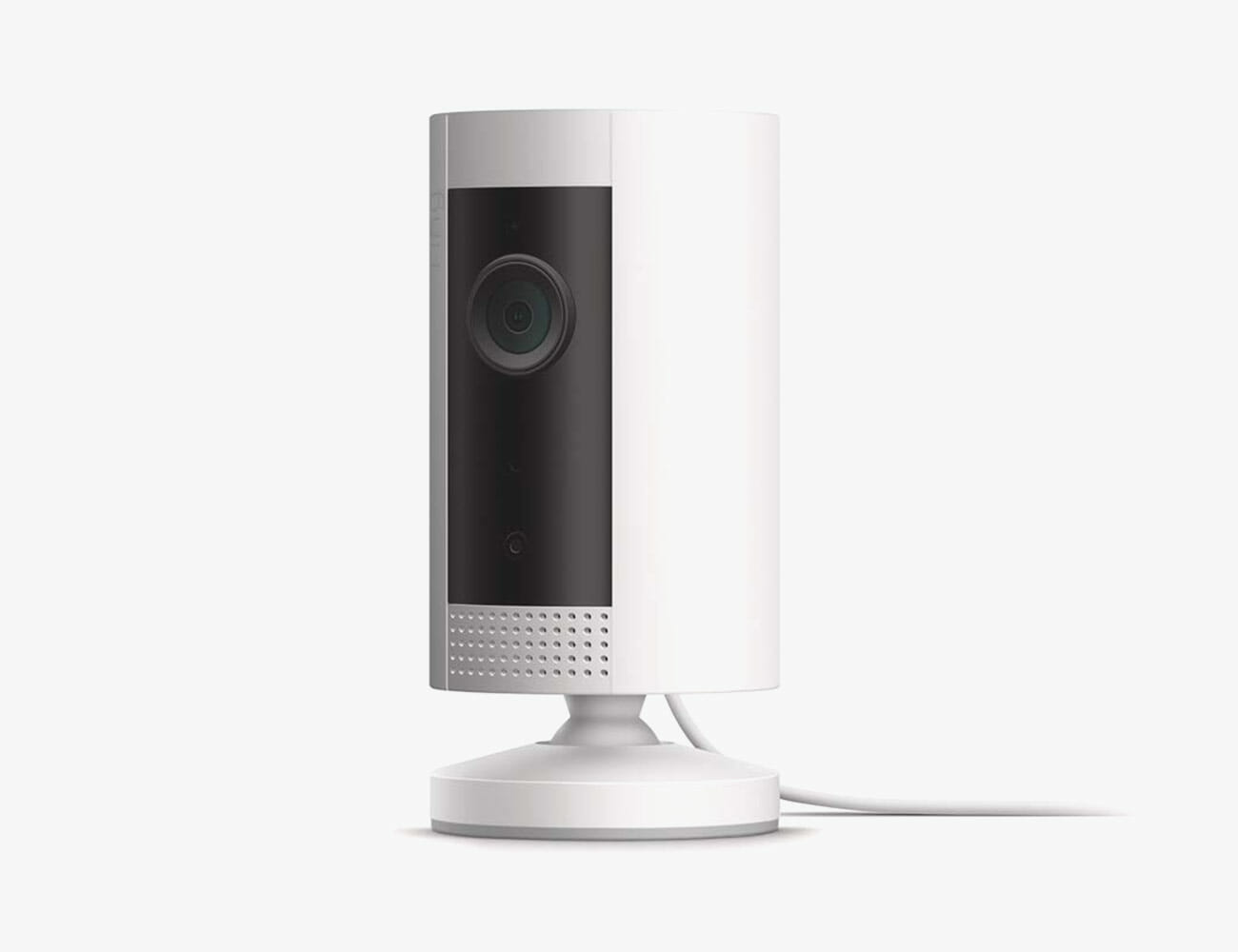
Brief: The Indoor Cam is a smaller and cheaper version of Ring’s Stick Up Cam (below), and it has most of the same abilities as every other entry-level security camera on the market. The difference is that, if you already own Ring’s video doorbell or security system, any of Ring’s cameras will work seamlessly with that existing ecosystem. They’ll also work well with Alexa smart ecosystem.

Compatible with: works with Alexa

Who Should Buy: Anybody building a smart home around Amazon Alexa and people who already have a Ring smart home device.

Subscription? Yes. Ring’s cloud storage subscription, Protect Plus, costs $3 per month per Ring camera, or $10 a month for unlimited Ring cameras, and gives you access to recorded videos for up to 60 days. Without a subscription, the Indoor Cam only allows you to check the live feed – there’s no free cloud storage.

The Basics

Field of view: 140 degrees
Video resolution: 1080p
Wired or portable: wired
Storage: no free cloud storage
Key features: 24/7 live video feed, night vision, motion alerts (with subscription)

Ring Stick Up Cam
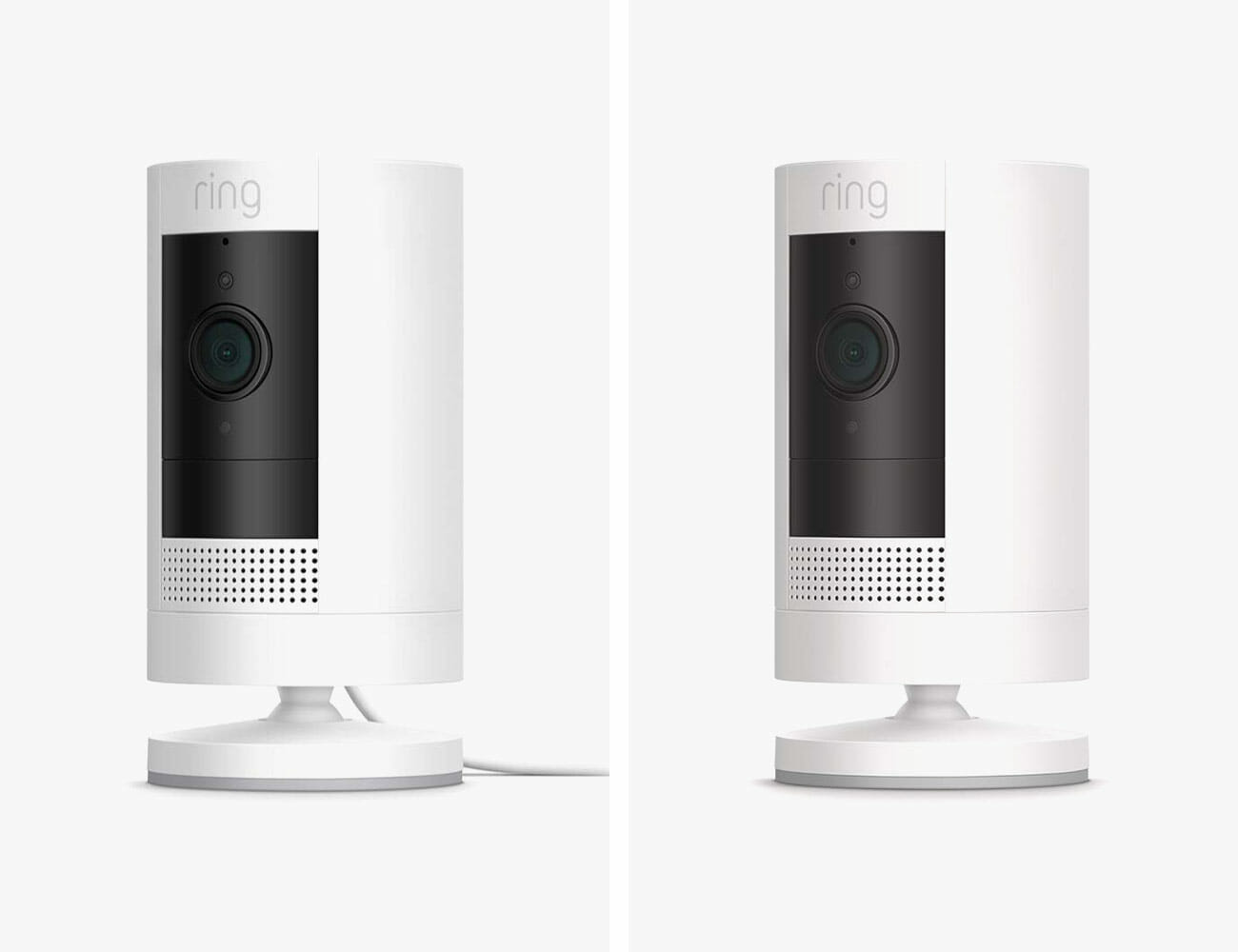
Brief: The Stick Up Cam comes in three different models – wired, battery-powered or solar-powered – and it’s also essentially a larger (and slightly better) version of Ring’s Indoor Cam. All three models shoot 1080p video, and have two-way talk and night vision. The battery-powered models come with a rechargeable battery pack and, since they’re portable, you can stick them (or use included wall mounts) to place them anywhere in your home that has Wi-Fi. A big difference from the Indoor Cam is that the Stick Up Cam are designed for indoor and outdoor use, which is why they’re more expensive.

Compatible with: works with Alexa

Who Should Buy: If you just want an entry-level indoor security camera, the Ring Indoor Cam probably makes more sense. However, if you want a more versatile camera that you can place essentially anywhere (so long as it’s connected to Wi-Fi), that’s where the Stick Up Cam comes in. It works best within an Alexa smart home.

Subscription? Yes. Ring’s cloud storage subscription, Protect Plus, costs $3 per month per Ring camera, or $10 a month for unlimited Ring cameras, and gives you access to recorded videos for up to 60 days. Without a subscription, the Indoor Cam only allows you to check the live feed – there’s no free cloud storage.

The Basics

Field of view: 130 degrees
Video resolution: 1080p
Wired or portable: wired, battery-powered or solar powered
Storage: no free cloud storage
Key features: 24/7 live video feed, night vision, motion alerts (with subscription), ability to wall mount

|

Arlo

Arlo Ultra
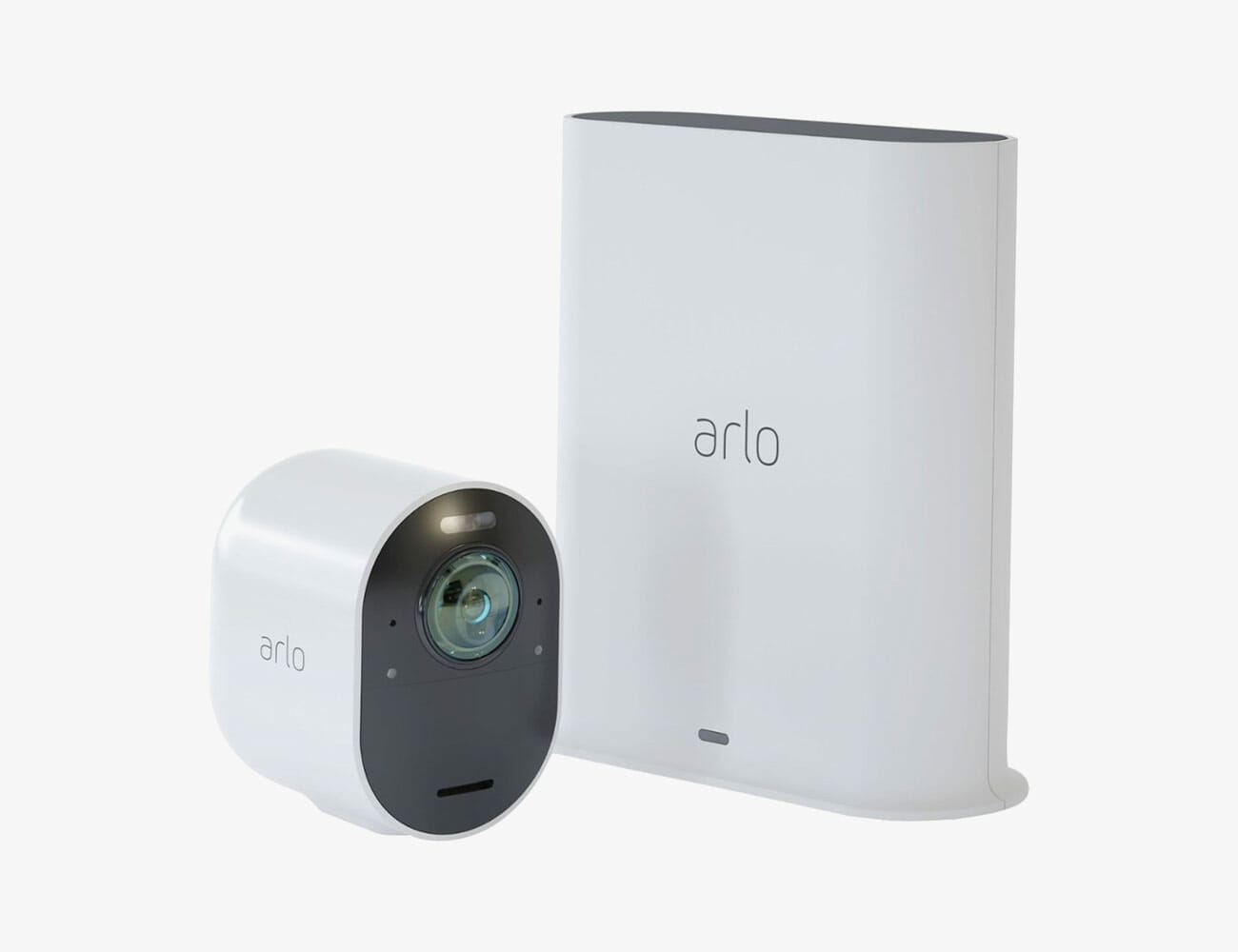
Brief: Arlo’s home security cameras are unique for two main reasons. First, they’re battery-powered, meaning you can place them anywhere around your house. And two, every Arlo’s camera system requires you to have a SmartHub, which allows you to control all the cameras through the Arlo app. This separate hub also gives you to locally store video files, as opposed to the cloud. Ultra is Arlo’s high-end line of security cameras. They shoot the best quality video, 4K with HDR, with the widest field of view.

Compatible with: works with Alexa and Google Assistant

Who Should Buy: Anybody who wants the best completely wireless security system, which works with either Alexa and Google Assistant, and they’re not afraid to invest in a multi-camera system. (You can always purchase additional add-on cameras later down the road.)

Subscription? When you purchase Arlo’s Ultra smart security system you also get a one-year free subscription to Arlo Smart, the company’s cloud-storage service, which is more than the Pro 3 (3-month trial). In addition to more cloud storage, it allows subscribers to create custom activity zones within each camera’s field of view, as well as be able to recognize the difference between objects, such as people, pets, cars and trees. It’s worth noting that without paying for an Arlo Smart subscription, you still get seven days of free rolling cloud storage. You can also store 4K videos locally on a microSD card.

The Basics

Field of view: 180 degrees
Video resolution: 4K with HDR
Wired or portable: battery powered
Storage: 7-days cloud storage free; up to 30 days with subscription; interal storage via microSD
Key features: 12x zoom, motion tracking, noise cancellation audio (for wind and rain), night vision, motion tracking

Arlo Pro 3
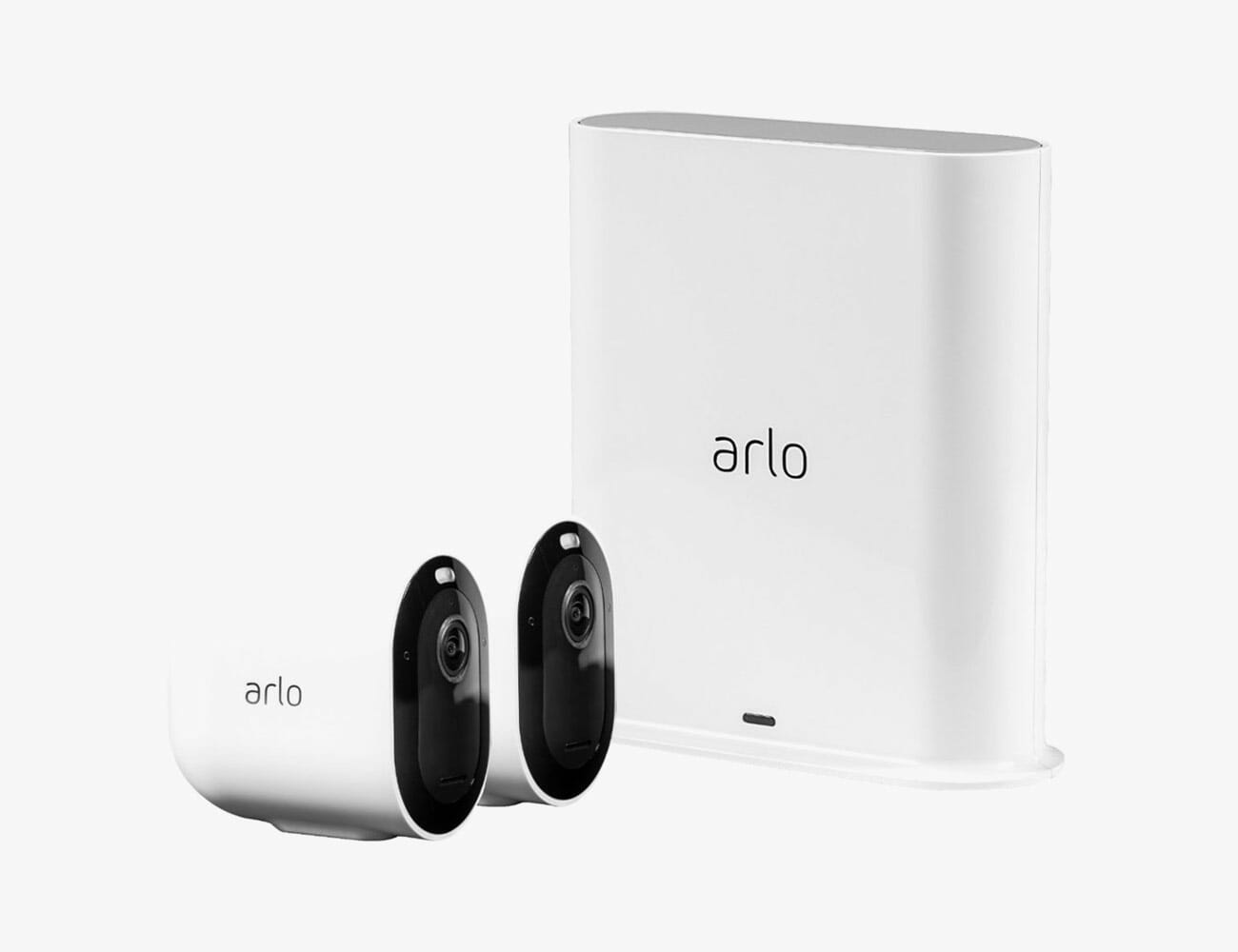
Brief: The Arlo Pro 3 is the company’s newest wireless security camera system and it delivers many of the abilities of Arlo’s high-end Ultra line, but just at a much more accessible price point. There are tradeoffs with the Pro 3, obviously. It captures 2K video instead of 4K, and doesn’t have quite the same field of view. And you only get a 3-month free trial of Arlo Smart, the company’s cloud-storage service, instead of an entire year.

Compatible with: works with Alexa and Google Assistant

Who Should Buy: If you’re thinking about an Arlo system, the reality is that a Pro 3 system will more sense for most people. It’s significantly cheaper and the video quality, even though it’s not at the same 4K level, is still very good.

Subscription? Yes. When you purchase Arlo’s Pro smart security system you also get a 3-month free trial to Arlo Smart, which is more than the Pro 3 (3-month trial). In addition to more cloud storage, it allows subscribers to create custom activity zones within each camera’s field of view, as well as be able to recognize the difference between objects, such as people, pets, cars and trees. Without a subscription, you still get seven days of free rolling cloud storage. You can also store 2K videos locally on a microSD card.

The Basics

Field of view: 160 degrees
Video resolution: 2K with HDR
Wired or portable: battery powered
Storage: 7-days cloud storage free; up to 30 days with subscription; internal storage via microSD
Key features: 12x zoom, motion tracking, noise cancellation audio (for wind and rain), night vision, motion tracking

eufy

eufyCam
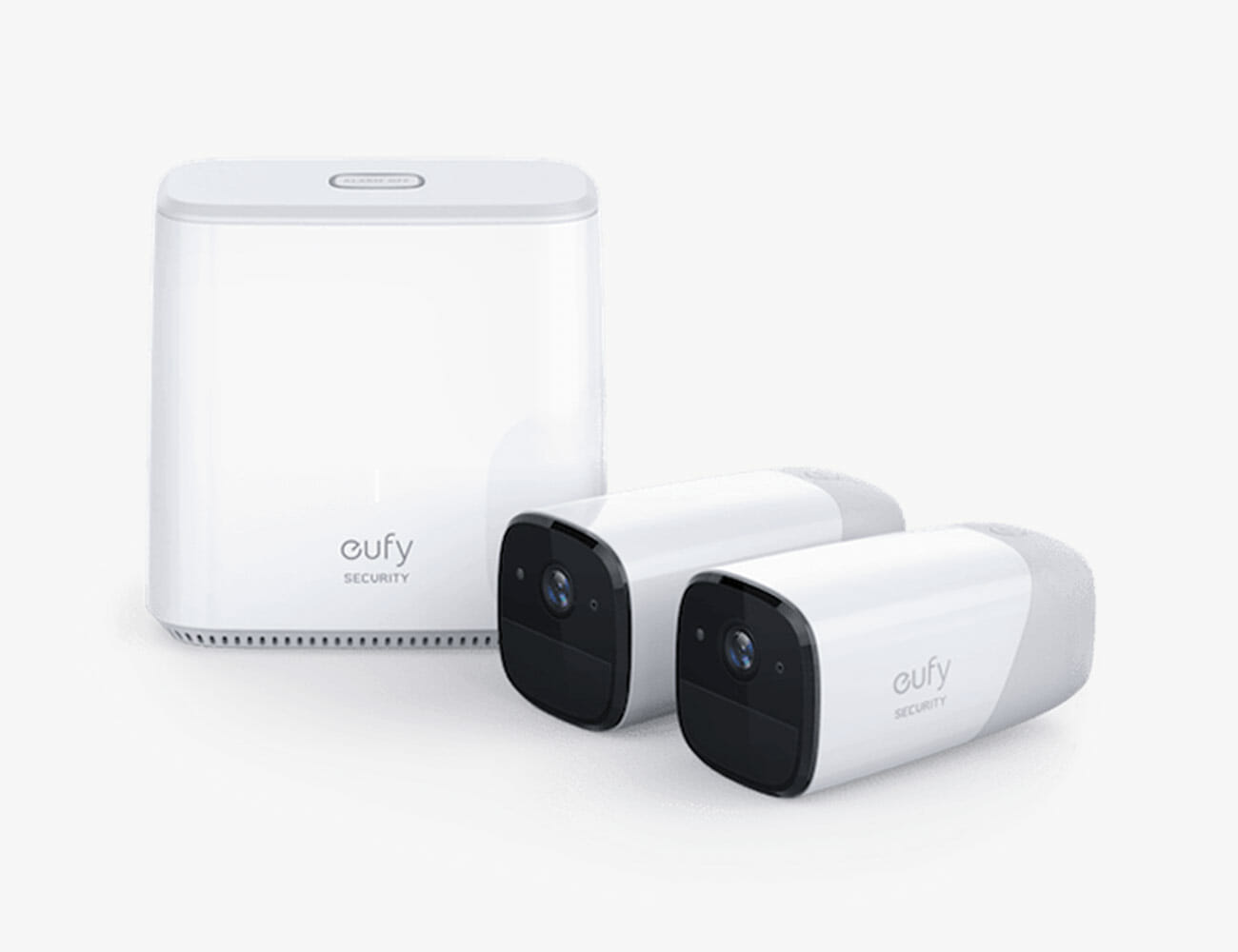
Brief: eufy is Anker’s smart home division and its eufyCam is system of battery-powered smart cameras, similar to what Arlo offers. The eufyCam system needs a smart home hub, called the HomeBase, to work. The two defining features of the eufyCam system are, one, its battery life – each camera can last 360 days between charges – and, two, the fact that you don’t need to pay extra for premium features, such as facial recognition and object detection. As far as video storage, videos can be stored in the cloud or locally, via a microSD card, which is a great option for those with privacy concerns. Each camera has an IP67 rating, so they’re for indoor or outdoor use.

It’s worth noting that eufy also makes the eufyCam E, which is a slightly less water-resistant version of the eufyCam, and it also looks a little different, but they largely have the same abilities.

Compatible with: works with Alexa

Who Should Buy: Anybody who wants an

Subscription? There are two Eufy Security cloud plans that you can choose from in case you want additional storage. There’s the Basic plan, where you pay $3/month (or $30/year) per camera and that grants you 30 days of rolling video storage. The Premier plan costs $10/month and covers up to ten cameras. A 16GB microSD card comes with the HomeBase hub.

The Basics

Field of view: 140 degree
Video resolution: 1080p
Wired or portable: battery powered
Storage: cloud and local
Key features: motion alerts, face recognition, night vision, IP67 rating

Logitech

Logitech Circle 2
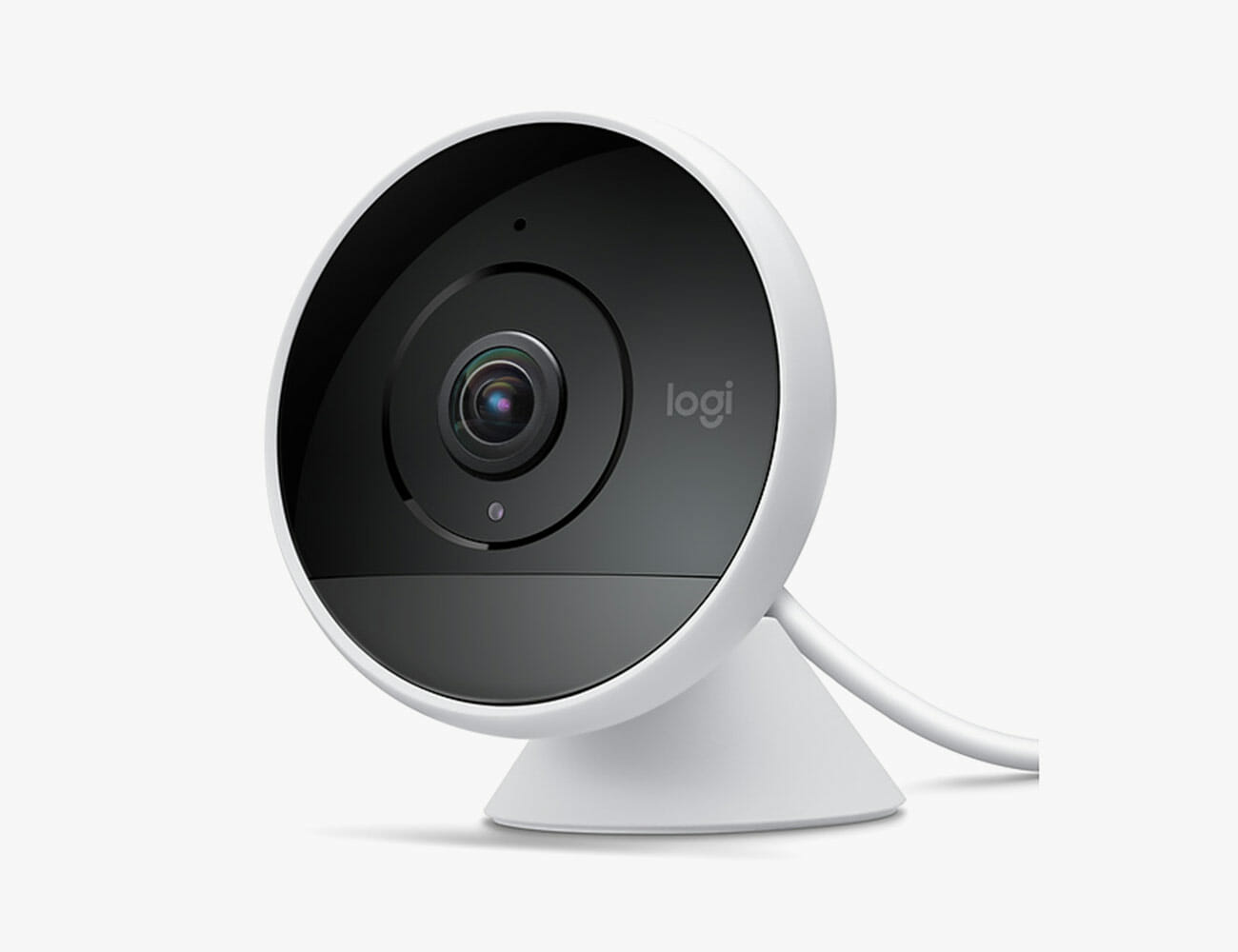
Brief: Logitech’s Circle 2 is a weatherproof security camera (IP65) that can set up indoors or outdoors; its base can work as a traditional stand or be swapped out for a wall/window mount. The Circle 2 is really notable because it’s really one of the few smart security cameras that works with Apple’s HomeKit (it also supports Alexa and Google Assistant). It should be noted that Logitech makes the Circle 2 in wired and wire-free models, but HomeKit only works with the wired model. The Circle 2 was released in June 2018 and is often on sale.

Compatible with: works with Apple HomeKit, Amazon Alexa and Google Assistant

For a complete list of smart cameras that work with HomeKit, click here.

Who Should Buy: Anybody looking for the most affordable security camera that works with Apple HomeKit.

Subscription? Yes. Logitech’s subscription service, called Circle Safe, gives you the option of paying for cloud storage for video recordings from either 14 or 31 days. If you don’t pay for a subscription, you can only access video recordings for the last 24 hours.

The Basics

Field of view: 180 degrees
Video resolution: 1080p
Wired or portable: wired (and battery)
Storage: cloud
Key features: 24/7 live video feed, IP65 rating, night vision, two-way audio and motion detection

|

Netatmo

Netatmo Indoor Camera
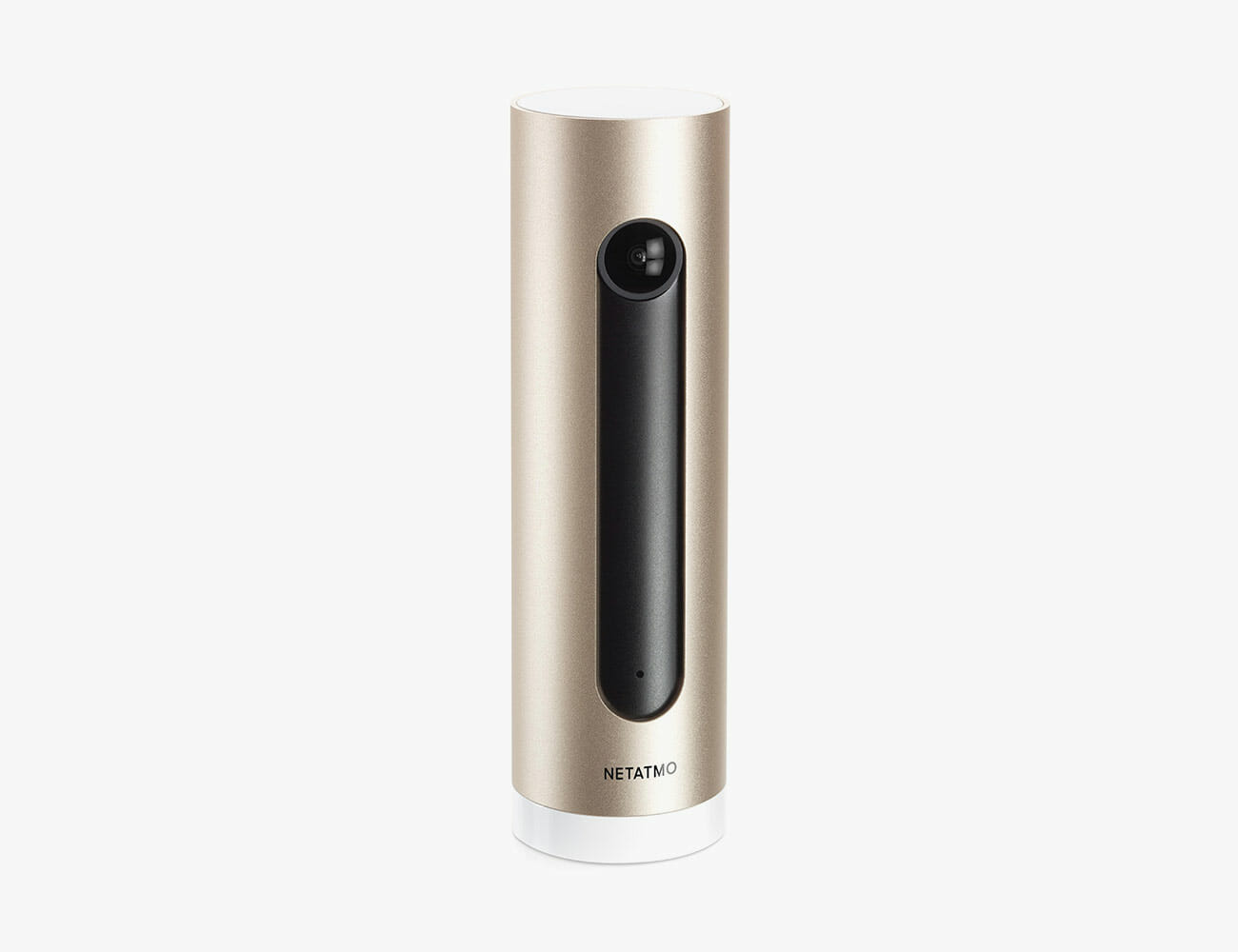
Brief: Netatmo is French-based manufacturer of a system of smart home cameras, sensors and alarms that are all designed to work together (similar to Ring’s system of devices). Its Indoor Camera offers a range of features, including people detection and facial recognition, and it’ll notify you and start recording video when it hears any kind of alarm. It also is one of the rare camera systems that works with HomeKit. A key feature is that there’s no subscription service that forces you to pay a monthly free. (Netatmo also makes Smart Outdoor Camera, which requires a little more installation.)

Compatible with: works with Google Assistant and Apple HomeKit

For a complete list of smart cameras that work with HomeKit, click here.

Who Should Buy: Somebody willing to pay a little extra upfront for a pricier HomeKit-enabled camera, and who doesn’t want to deal with a monthly subscription play.

Subscription? No. Your video recordings are stored locally on a microSD card. If you want to have additional video storage, you have to option to save videos directly to your Dropbox account or send them to a personal FTP server.

The Basics

Field of view: 130 degrees
Video resolution: 1080p
Wired or portable: wired
Storage: microSD
Key features: 8x digital zoom, 24/7 live video feed, facial recognition, motion alerts, night vision

Note: Purchasing products through our links may earn us a portion of the sale, which supports our editorial team’s mission. Learn more here.


Why Some iPhone Users Should Immediately Switch to Dark Mode

Since iOS 13 was released a few weeks ago, there have been rumblings that switching to Dark Mode could potentially extend your iPhone’s battery life. It was never proven and Apple itself refrained from marketing Dark Mode as something that could help with battery life, but a recent experiment seems to have proven just that.

The prolific YouTube channel PhoneBuff just released a video showing two robotic arms interacting with two identical iPhone XS Max’s, one with Dark Mode turned off and one with it turned on. After a day of testing, the iPhone that wasn’t using Dark Mode was dead while the iPhone using Dark Mode still had a 30-percent battery.

[embedded content]

The results will no doubt vary depending on the brightness of the screen as well as the types of apps you’re using, and Dark Mode will have a much more significant impact on iPhones that have OLED displays — the latest iPhone 11 Pro (Max), last year’s iPhone XS (Max) and the two-year-old iPhone X. OLED displays have much better contrast because they’re able to completely turn off areas that are meant to be black.

There’s a good chance that iPhones with LCD displays, meaning the iPhone 11, iPhone XR, iPhone 8 (Plus) and iPhone 7 (Plus), won’t get quite the same battery-saving benefits of Dark Mode. LCD technology simply isn’t as efficient.

If you have an iPhone running iOS 13 and you don’t know how to switch to Dark Mode, click the link below.

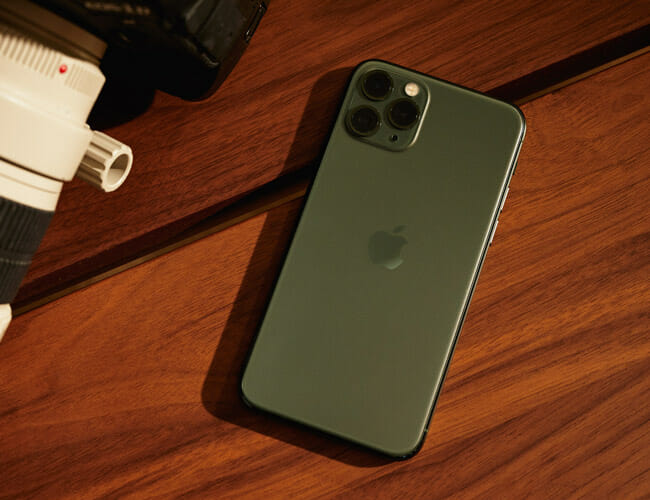
Review: iPhone 11 Pro

Apple’s new flagship offerings have some key advantages over the more affordable iPhone 11. The question you have to ask yourself: Will you use them? Read the Story

These Gmail Hacks Will Help You Streamline Your Email Hell

In this day and age, it’s virtually impossible to keep your inbox tidy and even harder to reach that magic Inbox Zero. Most of us are busy trying to manage a mountain of messages that gets bigger with each passing day.

There are a handful of snazzy new (and expensive) email services that promise to solve this problem but good old Gmail also has tools and options that can help. You can live without them, sure. You probably have been! But they can make email a little less of a stressful chore.

1. Use email aliases

Periods don’t matter in Gmail addresses — if your email address is brucewayne@gmail.com, you’ll get messages sent to bruce.wayne@gmail.com as well, and indeed b.rucewa.yne@gmail.com. They all go to the same place.

You can also add plus (“+”) signs to your email address to create alternative addresses: brucewayne+work@gmail.com and brucewayne+office@gmail.com will still come through to your Gmail account, for example.

Why is that useful? Use addresses with periods and plus symbols when you’re signing up for newsletters, or new apps, or anything else that demands your email address and you can filter incoming messages sent to these specific addresses to be marked as important, or to skip your inbox, and so on.

2. Get aggressive with filters

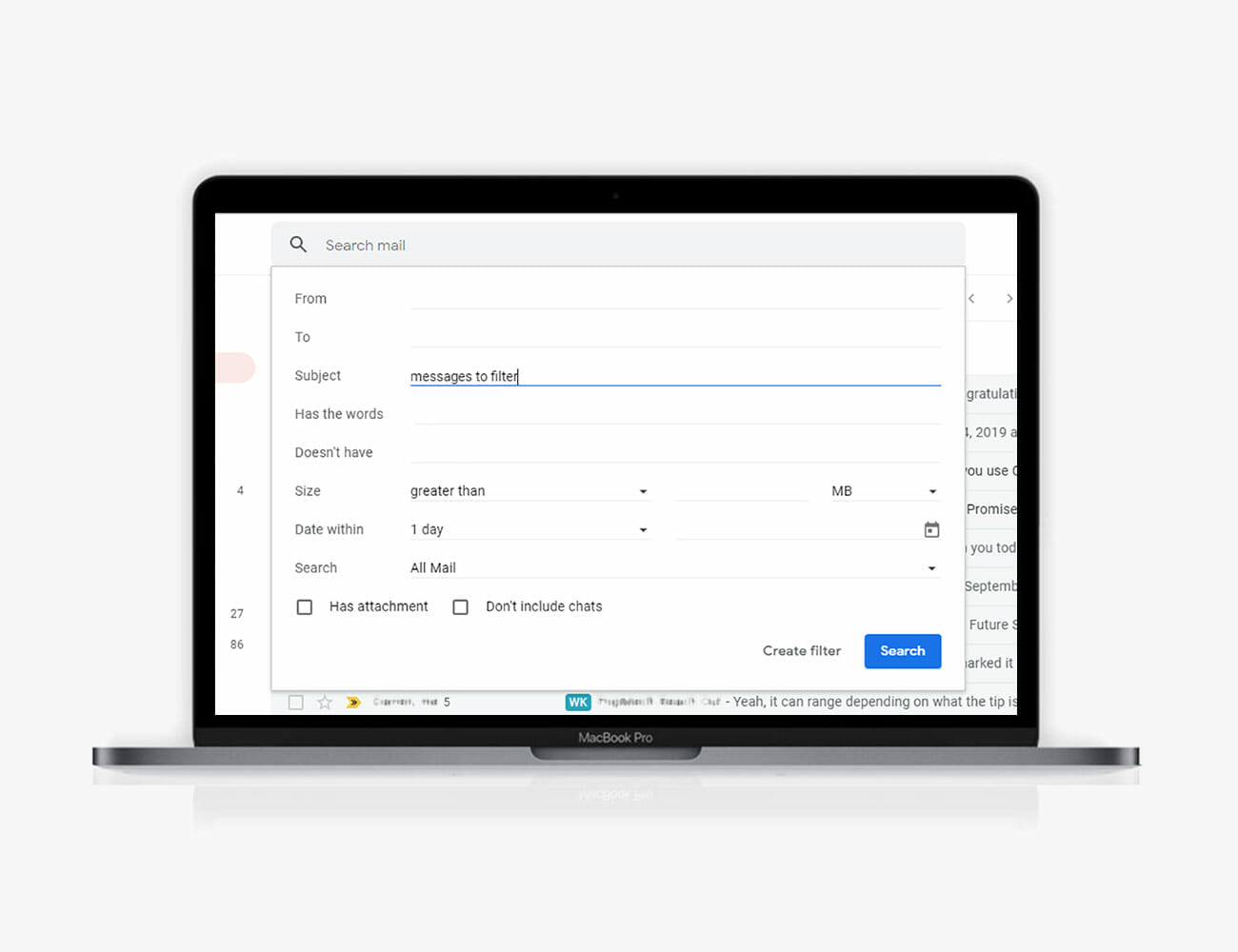
Speaking of filtering, filters are one of the best ways to tame an unruly Gmail inbox. On the Gmail web interface, you can create a filter by clicking the arrow to the right of the search box, then setting out your criteria. You can also create filters from inside individual conversation threads by clicking the menu button (three dots) on the right, then choosing Filter messages like this.

Filters cover all kinds of different scenarios: it’s possible to pick out emails based on who sent them, or words that appear (or don’t appear) in the body of the email, or how big (or small) the emails are. You can identify emails with attachments too.

The real power of the Gmail filtering system comes with what you can do with emails once they’ve been highlighted as matching your criteria: they can be marked as important or not important, starred, marked as read, sent straight to the archive, given a particular label, and more besides.

3. Take a minute to help train Google’s algorithms

Google tries to do some clever email sorting for you, but if you take a few minutes each day to help it along, it’s going to get smarter over time. Take email importance, for example: emails that seem important by Google’s standards get put in the Primary tab, with a yellow arrow next to them. If Google has got it wrong, click this yellow arrow to mark the email as not important (or vice versa).

Your Gmail inbox is most likely split up into tabs for social media emails, less important updates and so on, if you’re using the default layout (click the arrow next to Inbox on the left to change the view). On the web, just click and drag emails to put them in different tabs—Gmail then asks if you want to sort all future emails like this in the same way.

Don’t neglect your spam folder either. Take a few moments, when you can, to dive into the spam folder and fish out genuine emails, as well as flagging junk messages in your main inbox that Gmail hasn’t caught automatically—as time goes on, you should find spam email becomes less and less of a problem.

4. Reach for the stars

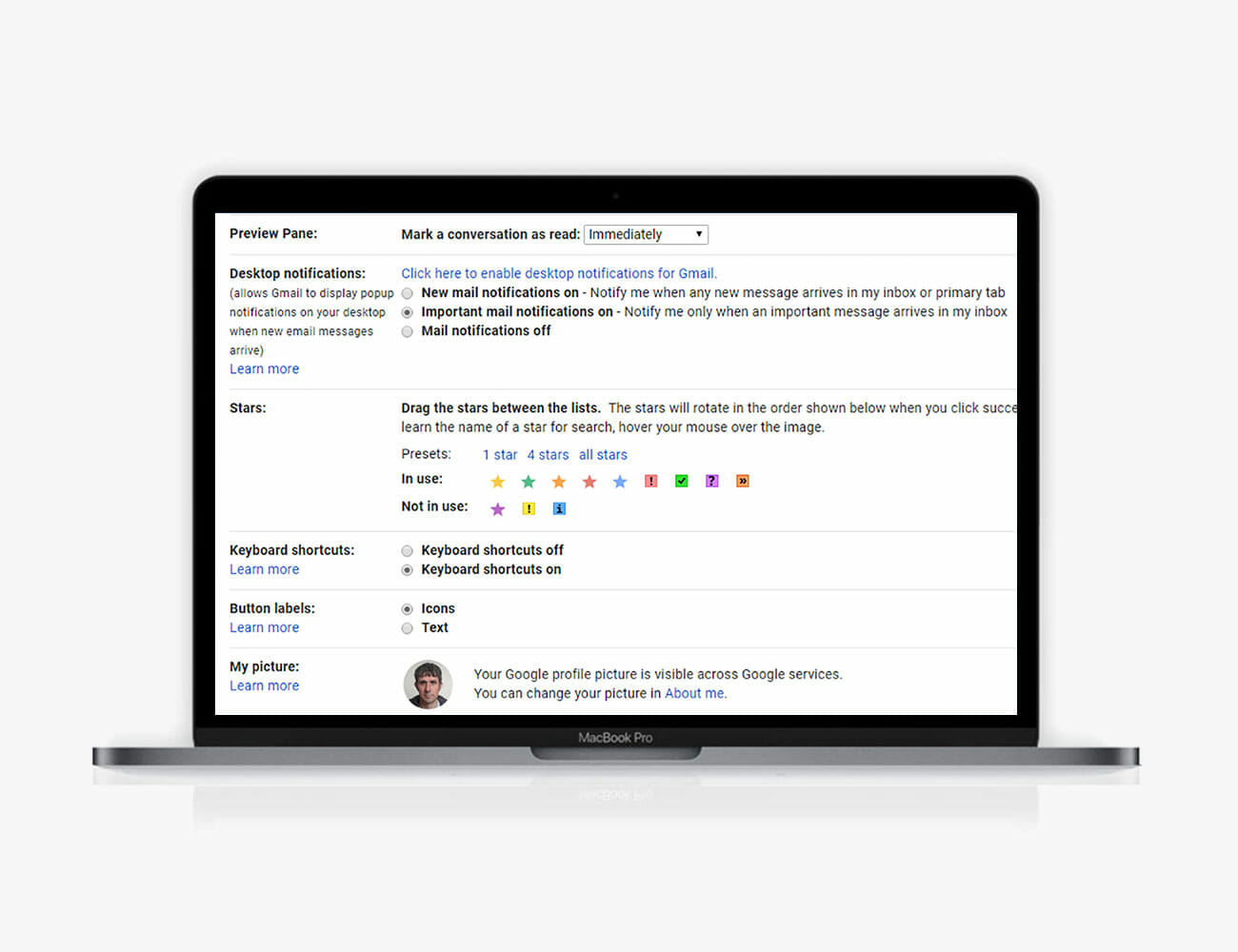
Gmail’s system for starred emails is more extensive than it might seem at first glance. Open up the Settings pane on the web by clicking the cog icon on the right then choosing Settings. Switch to the General tab and under Stars you’ll see a total of 12 stars and other symbols you can make use of.

Drag the small icons to the top row to have the associated stars enabled in Gmail. You can then cycle beyond the regular yellow star by clicking again (andagain) on the star symbol next to messages in your Gmail inbox on the web.

Besides helping you better organize your emails into different lists or priority rankings (urgent, needs following up, family or whatever), you can also use these stars with searches—try “has:green-star” in the Gmail search box, for example. Hover the mouse cursor over the various icons on the General tab of Settings to see the name that Gmail gives to each indicator.

5. Clear out the ancient stuff

There comes a point in the battle against email where it’s best to just cut your losses and start again from scratch (or maybe just from the last three months’ worth of messages). If those deleted messages were important enough, someone is bound to follow up.

This isn’t for everyone — you might have old messages with a lot of sentimental value, for example — but if you’re ready to take the plunge, then a simple “before:01/01/2019” search on Gmail on the web will do the trick. Just change the date to whatever you want. Click the Select all checkbox (top left), then Select all conversations, then take a deep breath and click Delete (the trash can icon).

Those older emails then get wiped from the record and your inbox is suddenly a lot cleaner. Unfortunately, Gmail can’t do this sort of tidying up automatically, but you can run the search every month or so, as well as combine it with other search terms, if needed — “before:01/01/2019 is:unimportant” for example.

6. Use the snooze

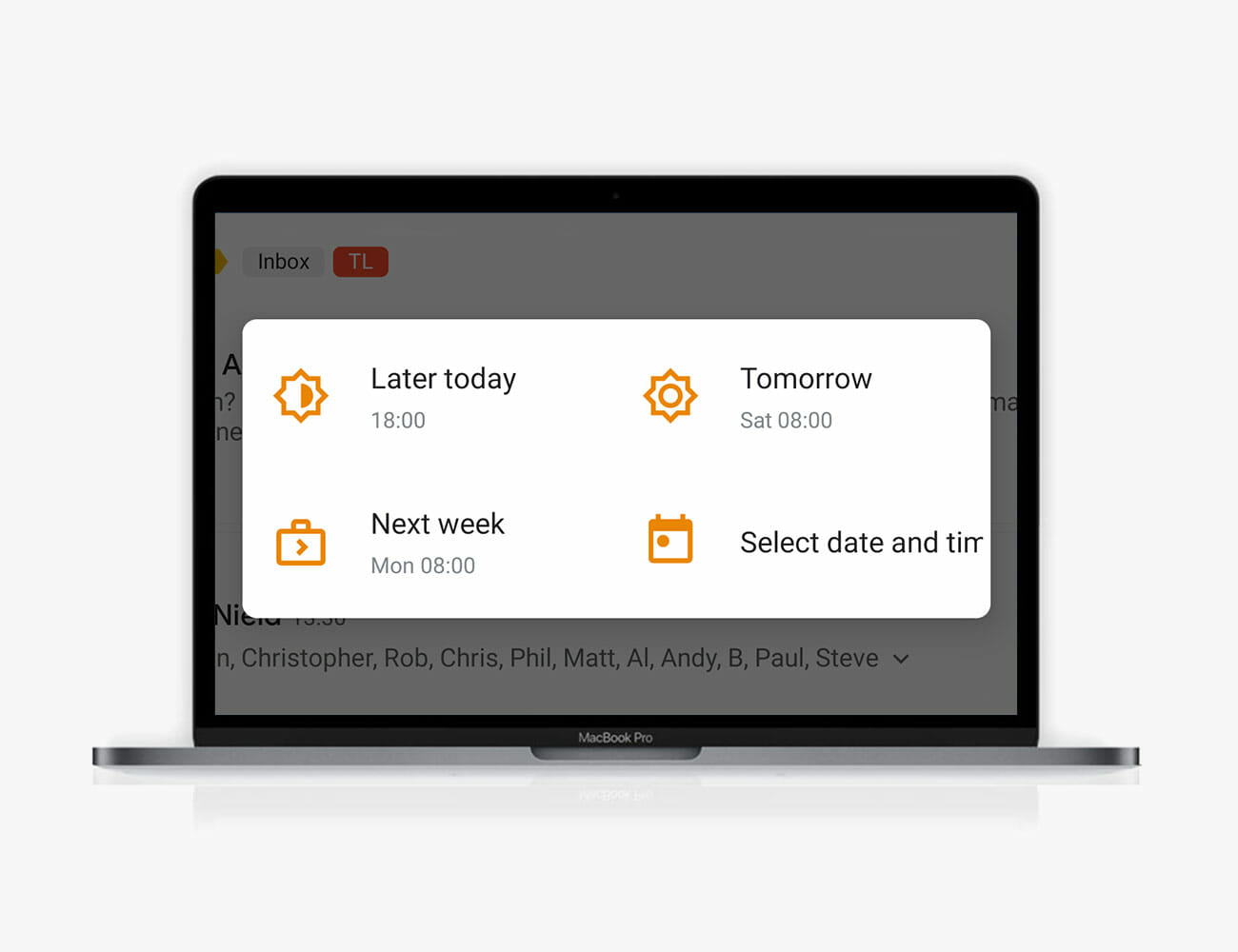
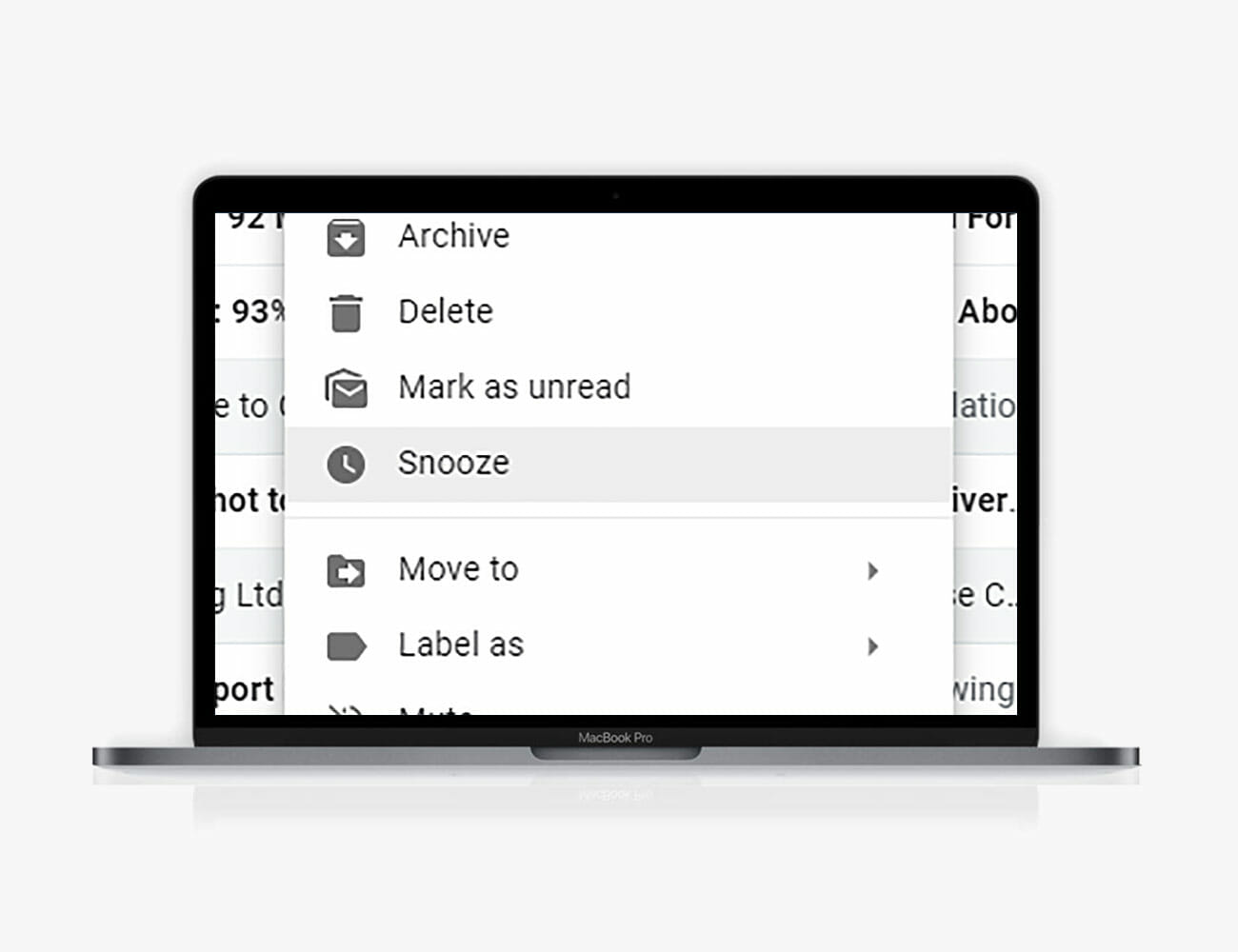
Don’t have time to deal with an email straight away? Feeling overwhelmed with all the messages coming into your inbox? Gmail’s snooze function can help here: with a conversation open on screen on the web, click the Snooze button (the clock icon), then choose when you want the thread to reappear. The emails in the conversation disappear from your inbox until the specified time and date.

This feature is arguably even more useful in the Gmail apps for Android and iOS. You can find the Snooze option behind the menu button (three dots) whether you’re in a conversation or looking at the overview of your inbox (long press on an email in the list to select it).

Snoozing is different than muting. If you choose Mute (an option on the same menus as Snooze) then you won’t see any notifications from the selected email conversation thread until you unmute it — it stays in the archive and won’t show up in the main inbox views. It can still be found, through search with a query of “is:muted” in Gmail on the web, for example.

7. Make message templates

Email wouldn’t be so bad if it wasn’t for all those responses you have to spend time crafting and sending—whether it’s getting back to your boss or chasing up someone who was due to fix your plumbing, a big chunk of your emailing efforts can be taken up with composing messages.

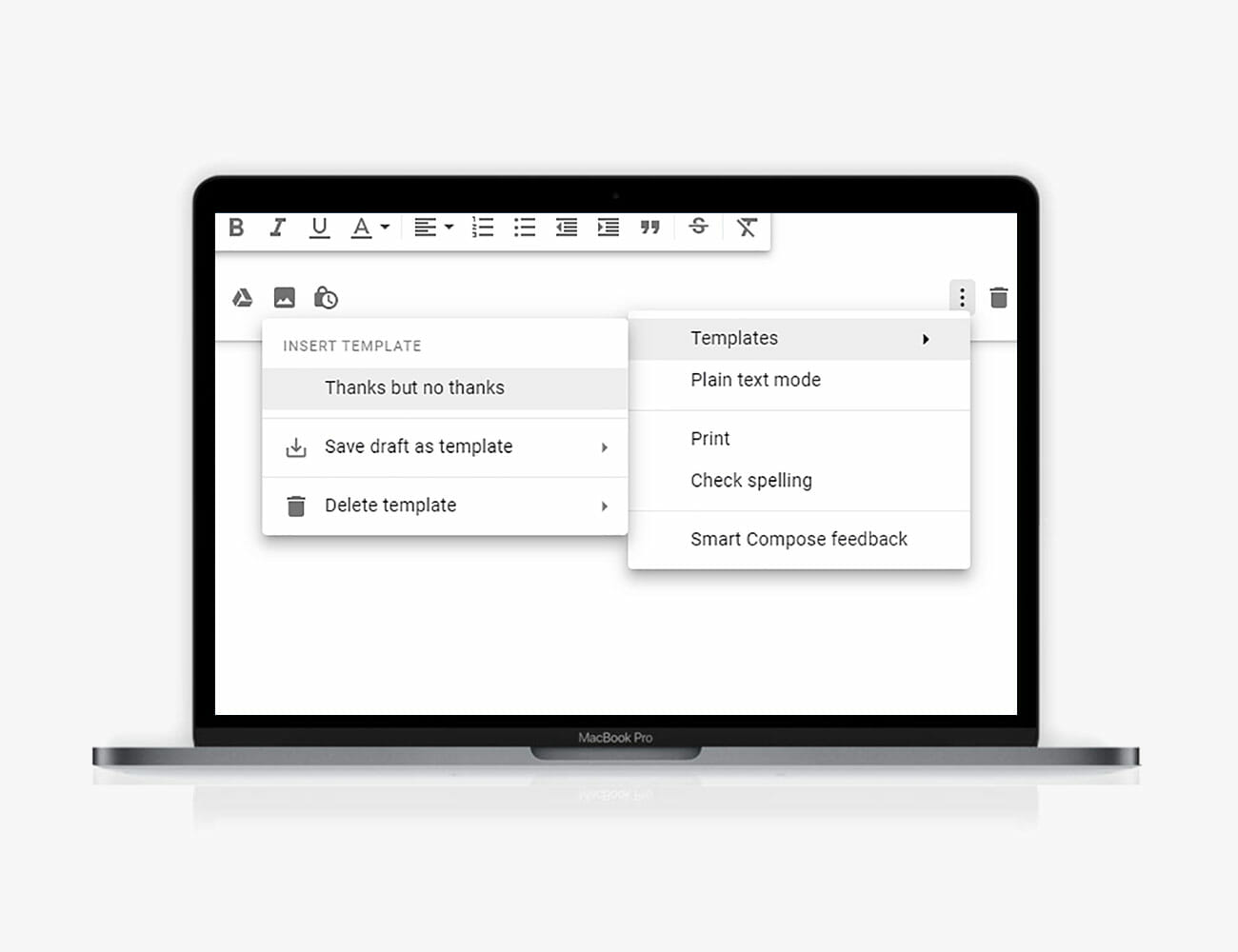
Enter short email templates you can use over and over again. You might have one for telling someone you can’t make an event, for example, or for turning down a pitch that’s been sent to you for work. To enable the feature in Gmail on the web, click the cog icon on the right and choose Settings, then go to Advanced and select Enable next to the Templates option.

When you’re composing a message, click the menu button (the three dots) down in the bottom right corner, then choose Templates. From this submenu, it’s possible to save the current message you’re writing as a template to use again in the future, or to drop in a template that you’ve previously created.

8. Know your mouse and keyboard shortcuts

Knowing a few keyboard and mouse shortcuts can make a huge difference to how quickly you’re able to power through your Gmail inbox, more of a difference than you might think. Rather than hunting through menus and toolbars for the options you need, you can simply make a few taps or clicks based on your muscle memory. Keyboard shortcuts can be turned on from the General tab of Settings (click the cog icon on the right of the web interface to find it).

Google has a full list of keyboard shortcuts here, but some of our favorites include J and K for moving forwards and backwards through messages in the inbox, and E for archiving the currently selected (or open) conversation. G+I gets you back to the inbox from anywhere, while R (for reply) and A (for reply all) are really handy too.

There’s plenty you can do with a right-click of the mouse (or trackpad) too, and Gmail recently added some new options to the right-click menu when you’re selecting messages in the inbox: you can reply to messages, move them to other tabs, apply labels, find more emails from the same sender, mute threads and more.

9. Make good use of bookmarks

One way to get around your inbox faster is to start bookmarking certain sections of Gmail so you can jump between them more quickly. This works in any browser of course, and you can have your bookmarks on the browser toolbar for easy access, or have different Gmail screens open in different tabs.

So what can you bookmark? Just about every part of Gmail. If you’re logged into your Gmail account in your web browser, the following links will lead you to your starred messages, and your sent messages, and your important messages, and messages you haven’t read yet.

It doesn’t stop there either, because any Gmail search can be saved as a bookmark, or indeed any individual conversation thread. You could bookmark the most important labels and sub-labels you’ve set up in Gmail too. However you want to use this, you’ll find it gets you around your inbox more easily.

Note: Purchasing products through our links may earn us a portion of the sale, which supports our editorial team’s mission. Learn more here.
These Noise-Canceling Headphones Steal the Best Features from Apple’s AirPods

Beats just announced the Solo Pro, the company’s first-ever pair of on-ear active noise-canceling headphones. It looks similar to the company’s current wireless on-ear headphones, the Solo3 Wireless, but features Apple’s H1 chip (the same one found in the latest AirPods that allows them to easily pair with any Apple device), a Lightning charging port and active noise-canceling and transparency modes.

The Beats Solo Pro noise-canceling headphones cost $300 and come in six different colors: black, ivory, gray, dark blue, light blue and red. They’re available for preorder and begin shipping on October 30.

According to Beats, the Solo Pro headphones trump the Solo3 Wireless in basically every way: They sound better, thanks to improved drivers that deliver “exceptional frequency response with lower total harmonic distortion.” Their redesigned earcups keep outside sounds out, even with ANC turned off. While a pair of beam-forming microphones and an updated speech-detecting accelerometer helps the Solo Pro with call clarity and voice pickup (which is important for “Hey Siri” commands).

[embedded content]

On the noise-cancellation front, the Solo Pro headphones feature the same “Pure Adaptive Noise Cancelling” (Pure ANC) abilities as the company’s over-ear noise-canceling headphones, the Studio3 Wireless ($350). When wearing the headphones, users can switch between ANC and Transparency modes via a button on the side of the headphones.

Beats claims that the Solo Pro can get up to 22 hours of battery life with ANC or Transparency modes turned on, or up to 40 hours with both modes turned off. Another notable feature: the Beats Solo Pro headphones don’t actually have a power button — to turn them on, you have to unfold them; to turn them off, you fold them back up into a compact form factor.

It’s worth noting that the Solo Pro have the same Audio Sharing feature of all other Apple and Beats headphones featuring the Apple’s W1 and H1 chips (Solo Pro, Powerbeats Pro, Beats Studio3 Wireless, Solo3 Wireless, BeatsX and Powerbeats3 Wireless). This allows two wireless headphones to pair to the same iPhone or iPad so different people can listen to the same audio. While sharing audio, Solo Pro users can still tap in and out of Pure ANC and Transparency modes.

With these new headphones, Beats is leveraging everything that comes with being an Apple-owned company. The Solo Pro headphones take the best parts of Apple’s much-loved AirPods (or the Powerbeats Powers wireless earbuds) and then adds a Beats flair (meaning its signature sound and colorful designs). They also give anybody who finds over-ear headphones uncomfortable but likes the look and feel of Beats headphones a bonafide on-ear alternative.

MORE GREAT DEALS

Save $160 on a Filson Duffel Bag
Save $88 on Bonavita’s Elite Drip Coffee Brewer
Save $70 on Master & Dynamic’s Wireless Earphones
Save $69 on Patagonia’s Best Light Down Jacket
Save $64 on Adidas Ultraboost 19 Sneakers
Save $54 on Bose Noise Cancelling Headphones 700
Save $50 on the Patagonia Nano Puff Jacket
Save 50% on This Affordable Automatic Pilot’s Watch

Deals Last Updated: 10/15/19

The Analogue Pocket Is A Miniature But Powerful Portable Gaming Platform

Retro gaming just continues to grow as more tech companies start to realize the potential market for niche devices. Most of these products are designed to run indie games like the Playdate, which even features a small hand crank. Then there’s more premium and artistic stuff from Love Hultén, which look like instant collector’s pieces. Most of these handheld gadgets usually emulate a beloved classic – the Nintendo Game Boy. With that in mind, the Analogue Pocket seems like the most versatile of the bunch.

When we say that it is the most flexible portable gaming device, we were not exaggerating. According to the product page, it is compatible with huge library of games. It will run cartridges for the Game Boy, Game Boy Colour, and Game Boy Advance. Moreover, it will likewise support Game Gear cartridges via an adapter.

The Analogue Pocket is more than just a gadget for playing games. It is also capable of becoming a portable workstation for users to create music. This function is available through the Nanoloop program for the device. Going back to what it does best, this awesome gaming gadget comes with the Analogue Dock. This accessory allows you to output your games to your HDTV. Now all that’s needed is a pair of Bluetooth controllers preferably from 8BitDo or wired connection via USB.

If you’re interested after reading about all the cool stuff it can do. The Analogue Pocket will start shipping in 2020 for $199. Word is that it will be on offer in limited numbers only, which means you have to act fast.

Get it here

Images courtesy of Analogue

Become Smarter in Just 5 Minutes with Morning Brew

There’s a reason over 1 million people start their day with Morning Brew, the daily email that delivers the latest news from Wall Street to Silicon Valley. Written in a witty and conversational tone, it…

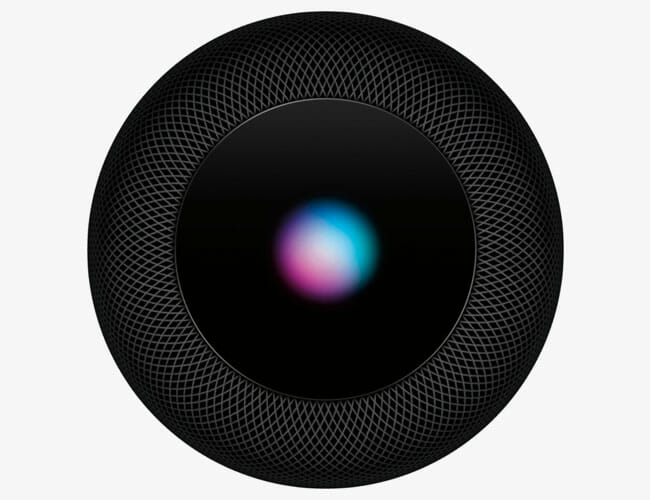
Apple Can Still Save the HomePod

The problem with Apple’s HomePod has never been its sound. When it was released, pretty much everybody who reviewed the HomePod said it was the best-sounding smart speaker you could buy, and an exhaustive HomePod review posted on an audiophile subreddit thread went viral, saying:

“I am speechless. The HomePod actually sounds better than the KEF X300A. If you’re new to the Audiophile world, KEF is a very well respected and much-loved speaker company. I actually deleted my very first measurements and re-checked everything because they were so good, I thought I’d made an error. Apple has managed to extract peak performance from a pint-sized speaker, a feat that deserves a standing ovation. The HomePod is 100% an Audiophile grade Speaker.

It’s been a year-and-half (a little bit more, actually) since Apple released its first-and-only smart speaker and it hasn’t had the stellar success we’ve come to expect with Apple hardware. Just two months after its release, Apple reduced the number of orders from Inventec, the company manufacturing its HomePods, because of less-than-stellar sales forecasts. And, more recently, Apple officially lowered the price of a HomePod from $350 to $300.

So, why aren’t people buying HomePods?

The big two reasons are price and compatibility. The first is the easier of the two to explain. The HomePod costs $300 – or $350 at launch – and that’s just too expensive for a lot of people, especially when you consider that you could buy any of Google’s or Amazon’s smart speakers, a Sonos One, or even one of the latest offerings from Ultimate Ears for considerably less. The tradeoff is sound quality, but it turns out most people don’t prioritize that. Then there’s the issue of compatibility.

Unlike any of Amazon’s or Google’s smart speakers, or third-party smart speakers that use either Alexa or Google Assistant (like the Sonos One), Apple’s HomePod is designed to deliver the best possible experience for anybody with an iPhone and committed to Apple’s ecosystem. Similar to the way that iMessage has kept people from ever switching from iPhone to Android, Apple hoped that the HomePod and its iPhone-special features – the ability to send iMessages, make calls, quickly hand off audio to and from your HomePod, listen to voicemails and create notes (in the Notes app), all with “Hey Siri” voice commands – could cajole iPhone users. But it hasn’t exactly worked.

It turns out that most people don’t really want (or trust) a smart speaker to have an all-access to their phone ( yes, there are settings you can change for the sake of privacy). Nor do most people need a smart speaker to send iMessages or read out voicemails – it’s easier, more accurate and more familiar just to do it by whipping out their iPhone. Then there’s the issue of multi-user support. Amazon’s and Google’s smart speakers have been able to support multiple users for a long time, but the HomePod, almost two years after its release, still can’t do it. Apple has told users that it was roll out a firmware update for multi-user mode to the HomePod “this fall,” allowing it to recognize up to six different voices in the home, but it’s not here yet. If the HomePod is truly designed for the home, with multiple family members interacting with it, multi-user support is a must.

The biggest compatibility frustration with the HomePod is that it’s too dependent on Apple Music. The HomePod and Siri are able to do some pretty special things in regards to music that no other smart speaker can do, such as tell you the exact artist that’s playing, what song the album is on (as well as the release date), and you can even search songs by their lyrics (in case you forget the name of the song); but it’s only able to do these things if you’re a subscriber to Apple Music.

If you subscribe to any other music streaming service, such as Spotify, you can’t summon any music with your voice, which kind of defeats the whole purpose of having a smart speaker. Apple probably hoped that the HomePod would lure more people over to Apple Music, if they weren’t subscribers already; but it turns out that Apple Music, even though it’s a great streaming service, doesn’t have the same sticking power as iMessage. Not everybody with an iPhone is an Apple Music subscriber, after all.

I’ve talked a lot about the reasons why the HomePod hasn’t been a giant success, but it should be noted that a lot of people love it. They love the fact that it can be the smart home hub for all their HomeKit devices, easily play great music (provided they use Apple Music, which now has more paid subscribers in the United States than Spotify), and plays well with iPhone. Still, there’s a lot of ways that Apple could open up the HomePod to even more people.

The obvious thing to do would be to open up the HomePod – specifically Siri – to other streaming services like Spotify, Pandora, Tidal and Amazon Music. The HomePod should allow you to select your preferred streaming service, the same way Amazon’s, Google’s and Sonos’s, speakers allow you, and thus more people would be able to ask Siri to play music. This doesn’t seem to be that crazy of an idea because, even though Apple has been notoriously protective of its “walled garden” (aka its ecosystem of hardware and software), it has been more open to third-parties in recent times. For example, just recently it gave a host of TV manufacturers (Vizio, Samsung, TCL and more) the go-codes to Apple TV, Apple TV apps and HomeKit.

Dropping the price of its HomePod (even more) would obviously help, too, but it’s probably more likely that Apple releases an all-new cheaper speaker – which it’s rumored to be doing. That said, the upcoming “HomePod mini” needs to be more than just a smaller cheaper version of its current smart speaker. In addition to opening itself (and Siri) up to more streaming services, it’d be great there were more ways to stream music to the HomePod. For instance, if the new HomePod were to have a line-in, allowing you to hardwire the HomePod to an existing hi-fi system and then control it via Siri, that’d be super attractive. An optical connection could mean that the HomePod could function as a soundbar, too. And if the HomePod had support for Bluetooth, it’d make the speaker way more attractive for way more users, especially those who don’t have iPhones.

The fact is, right now, the smart speaker category seems to be a two-man race between Amazon and Google – as of this past August, Apple controlled just five percent of the total market share for smart speakers in the United States. But that doesn’t mean Apple is out completely. It just needs to make the HomePod and Siri more attractive to more people. And it could start with a new HomePod that’s better different.

A second-generation HomePod could be announced as soon as this October.

The Most Beautiful Wireless Earbuds Now Have Active Noise Cancellation

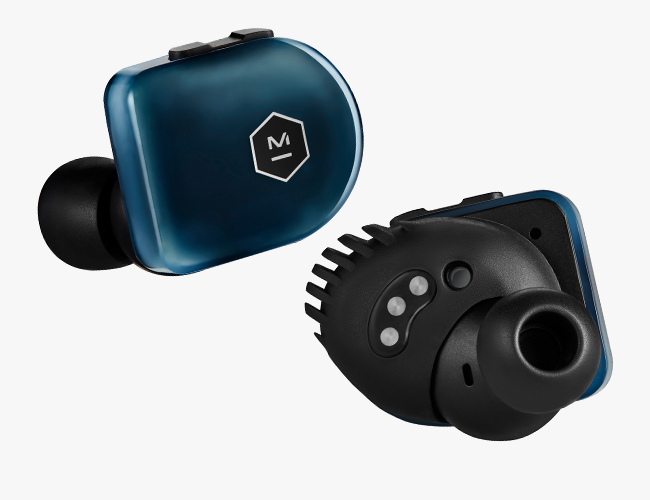
Master & Dynamic just announced two new versions of its MW07 wireless earbuds, which we reviewed last fall and called “the most beautiful wireless earbuds you can buy.”

There’s the MW07 Go ($199), which are sport-focused wireless earbuds, and then there’s the MW07 Plus ($299), which are premium noise-canceling wireless earbuds. Both new earbuds are available now on Master & Dynamic’s website and will be available at BestBuy.com later this month.

With these two new earbuds, you can expect Master & Dynamic to start phasing out its first-generation MW07 earbuds. To help them sell out quicker, Master & Dynamic is dropping the price of the original MW07 earbuds to $249, which is $50 off. (You can also expect to find some pretty sweet deals on them from third-party sellers like Amazon, Best Buy and eBay.)

MW07 Plus

The MW07 Plus ($299) earbuds are essentially identical to the first-generation MW07. They’re made of acetate and stainless steel and have the same stainless steel charging case. There are some significant internal upgrades, however. The MW07 Plus earbuds have three times the battery life (each earbud promises to get about 10 hours of listening time with an additional 30 hours provided by the charging case), Bluetooth 5.0 connectivity and a longer connection range (100 feet).

The MW07 Plus have the same 10mm custom Beryllium drivers as their predecessors, so you can expect similar sound quality, but the biggest upgrade is the addition of noise-canceling and ambient listening modes. An interesting new thing is that since there’s no companion app, in order to switch between modes you have to use the tiny buttons on the left earbud. To turn noise-canceling on and off, you hold the “volume -” button, and to turn the ambient mode on and off, you hold the “volume +” button.

The MW07 Plus earbuds are available in three core colorways, tortoiseshell, steel blue and white marble, and they’ll also be available in a Studio 35 x Kevin Durant special edition colorway, which will be black quartz.

MW07 Go

If you’ve ever worn or held the original MW07 earbuds, the MW07 Plus earbuds will be near-on indistinguishable – that’s not the case with the MW07 Go ($199). These new earbuds are 15-percent smaller and lighter than the original MW07, and they have an IPX6 water-resistance rating. They’re not made of acetate, either, with M&D opting for an ultra-durable TR90 composite that, according to the press release, is a “material traditionally used in performance eyewear,” instead. They have a smaller, lighter charging case that’s made out of a technical knit fabric instead of stainless steel. And they come with more ear tip and ear wing sizes, too, because a really snug fit is essential for good workout earbuds.

Even though they’re smaller, the MW07 Go also custom 10mm Beryllium drivers so you shouldn’t suffer too big of a dropoff in sound quality. As far as battery life, M&D claims that each MW07 Go earbud gets about 10 hours of listening time, with the case providing an additional 12 hours total.

The MW07 Go earbuds come in much more bold, primary colors. You can buy them in flame red, jet black, electric blue and stone grey.

The Canon Ivy Rec Is A Capable $130 Action Cam

Like it or not, Canon’s still very much in the game, despite the fact that film format’s heydays are long gone. To keep a firm foothold in the modern market, the company has introduced the Canon Ivy Rec. It’s a $130 action camera with waterproofing, Bluetooth, Wi-Fi — basically all the typical adventure-proof stuff found on cameras in its category.

The portable shooter, out Oct. 16, started life as an Indiegogo project back in July. The main appeal here, compared to other action cameras, is that it’s got a clippable carabiner clip, perfect if your clumsy but also can’t be bothered with fishing it out of your bag each time you want a shot. Don’t worry if it falls — the Canon Ivy Rec is also shockproof.

We can’t determine if the Canon Ivy Rec takes good shots, though, but the specs sheet portend good things. It boasts a 13-megapixel ⅓-inch CMOS sensor in a fixed-focus lens, which sounds okay, but the lack of autofocus may irk some people. It shoots in 4:3 or 1:1 aspect ratio. For video, it takes 1080p footage up to 60fps in 16:9, though each recording has a 10-minute limit.

As mentioned, the Canon Ivy Rec features Wi-Fi and Bluetooth, which allows you to send photos or videos to a smartphone via Canon’s Mini Cam companion app. If you prefer it old-fashioned, the device saves content onto a microSD card, which you can connect to a computer to offload your shots. The camera comes with a 660mAh battery, and whether or not this is enough has yet to be tested.

MORE HERE

Photos courtesy of Canon

7 Google Chrome Settings You Should Change Right Now

Google Chrome is a powerhouse of a browser that’s been with us since it launched way back in 2008, ushering in a new era of speedy, simple tab-based browsing. These days its not quite as lean as it once was, but it’s risen to be the most popular browser out there.

In the usual course of day-to-day life, you don’t need to spend much time messing around with browser settings: You just open up a tab and off you go. Dive a bit deeper into Chrome though, and you can tweak its settings for a more secure, streamlined experience.

These options, unless stated, can be found on the Settings page inside Chrome on the desktop: Click the three dots to the top right, then choose Settings.

0. Clean up after yourself

Before you get down to tweaking, it’s important to clean up the cruft that’s built up already. If you click Advanced from the Settings page then choose Clear browsing data, you can wipe out all the cookies stored in Chrome, as well as other images and temporary data stored on your local computer.

Use the Advanced tab for more control over what gets deleted, then use the Time range drop-down to choose how far back the clear-out goes. If you want to remove all traces of your browsing on your current computer without affecting the historical browsing history Google has logged for you, click the Sign out button first.

It’s good to do periodically, but especially before you get down to business with other tweaks.

1. Set your browsing data to self-destruct

Google uses the data it collects about you in Chrome to know what you’re going to search for next, or to decide which restaurants it should recommend to you, or to help you get back to something you were looking at weeks ago. It’s up to you how much you trust Google with your data and how you want to balance privacy with convenience.

You can now tell Google to automatically delete your browsing history after three months, so its recommendations and other algorithms are only running from recent data. From the Settings tab, click Sync and Google services, then Control how your browsing history is used, then Manage activity—the three month auto-delete will be one of the options at the top.

2. Control what Google gets to know

Also on the Sync and Google services page from Settings, you can control how much diagnostic data and other information gets sent back to Google for analysis—Google wants this data to spot bugs in Chrome, and to make it easier for you to browse the web (with auto-complete search suggestions) and so on, but you can stop some of this feedback if you want to.

Toggle any of the switches on the right to Off to limit what Chrome is sending back to home base. For example, you can stop sending the URLs of the pages you visit to Google, and turn off the feeding back of statistics about how you use the browser.

3. Sign into Google without signing into Chrome

By default, whenever you sign into a Google service like Gmail, Chrome now also signs you into the browser itself (to sync passwords, browsing history, bookmarks and so on between devices). This is helpful if you’re jumping between different computers and phones a lot, but you might also want to use Gmail or Google Docs without attaching your identity to the Chrome browser you’re using.

The answer is in Settings, under Advanced and then Allow Chrome sign-in. With the toggle switch turned to Off, you can sign in and out of your Google account on the web, but avoid signing into Chrome and linking the browser to your account as well.

4. Turn off annoying notifications

The days of websites being static pages are long gone, and plenty of sites and online apps are going to want to access your webcam and microphone (for video calls perhaps) and your location (for maps and deliveries and so on). These permissions are granted on a site-by-site basis as they’re needed, but you can edit them from a master list too.

On the Settings tab, click Advanced then Site settings. Choose a permission to see which sites have access, then revoke any permissions one by one, or block all requests of a certain type in one fell swoop. The same page lets you control which sites can display notifications on the desktop.

5. Stop certain sites from tracking you

Like other browsers, Chrome lets sites store cookies on your system: These small files keep logs of who you are and your preferences. Cookies might be used to remember your location on a weather site, for example, or to keep you signed in somewhere. Cookies known as third-party cookies can also be used by advertisers to track your browsing across multiple sites (which is why you might see ads for trainers or another specific product everywhere you go).

Head to the Site settings screen (under Advanced from Settings), then click Cookies and site data: From here you can block cookies completely, or just block the more invasive third-party cookies.

If you really want to get extreme, you can toggle the Clear cookies and site data when you quit Chrome switch to On, and the browser effectively gets reset every time you close it down, so you get a clean slate in terms of site logins and targeted ads.

6. Prevent web apps from running in the background

A lot of websites want to keep running in the background even when you shut down Chrome—to keep files syncing to the web, for example, or to alert you the next time you get a tweet.

If you don’t want this to happen, and would rather sites and apps didn’t run when Chrome was closed, open up the Settings tab then click Advanced, and turn the Continue running background apps when Google Chrome is closed toggle switch to Off.

7. Search multiple sites more quickly

Chrome can support multiple search engines and sites very easily, so you can switch between searching Google, Amazon, Wikipedia and other places with just a few taps on the keyboard. To set this up, click Manage search engines from the Settings tab—you can use the search engines already listed or click Add to add a new one.

You’ll see available search engines and sites listed together with what are called keywords: To run a search on this site, type the keyword then the search term into your browser address bar. For example, you could set up Wikipedia with a “wki” keyword for fast access to the Wikipedia search.

Note: Purchasing products through our links may earn us a portion of the sale, which supports our editorial team’s mission. Learn more here.
The Woman Behind Some of the Most Beautiful Handcrafted Cameras

A version of this article originally appeared in Gear Patrol Magazine with the headline “In Good Hands.” Subscribe today

The camera is not a device normally associated with artisanship. Almost invariably, buying a decent camera means choosing a comprehensive ecosystem carefully managed by the likes of Sony, Nikon or Canon. Once you pick your body and lenses, there’s little room for creativity or building out a bespoke setup. Right?

“You’d be surprised how many people modify their cameras,” says Dora Goodman, an Austria-based builder of beautiful, handcrafted cameras. “Many like to customize their old and even new [cameras]. This ‘let me change this’ and ‘let me improve that’ has always been part of photography. I find it inspiring that photographers have the need and motivation to customize their gear.”

Making a camera from scratch is normally a long, complicated process, but Goodman has created something of a wormhole for avid photographers and made it much easier for them to build their own cameras. All her creations are open-source, meaning anybody can download the blueprints for free and create their own version. If that person doesn’t have access to a 3D printer (which, to be fair, most people don’t), Goodman also sells preprinted camera kits.

“The customer only has to buy the magazine and the lens, and it’s all ready to be assembled.”

“I print the whole body, provide all the necessary elements for assembling it, with all the instructions, packed in together in a stylish box,” she says.

Her first open-sourced modular camera, the Goodman One, was designed for 120-format film. It’s just the framework, of course: photographers can easily add their own lenses and bellows for focusing, as well as a digital or analog back. But while her open-sourced designs vary in complexity and assembly time, all of Goodman’s cameras are similarly medium-format and modular, to give the owner creative control over the type of lens or the back, and whether they want to shoot digital or film.

Aside from being more affordable, Goodman’s modular printed designs are more lightweight than conventional medium-format cameras, and easier to carry on the shoulder; mainstream models are clunky, heavy and expensive — a bad combination for portability and spontaneity.

“You feel much more at ease with them than with [a camera] that costs a fortune,” Goodman says, “but the pictures are of equal quality.”

Microsoft’s New Surface Earbuds Are A Premium Audio Delight

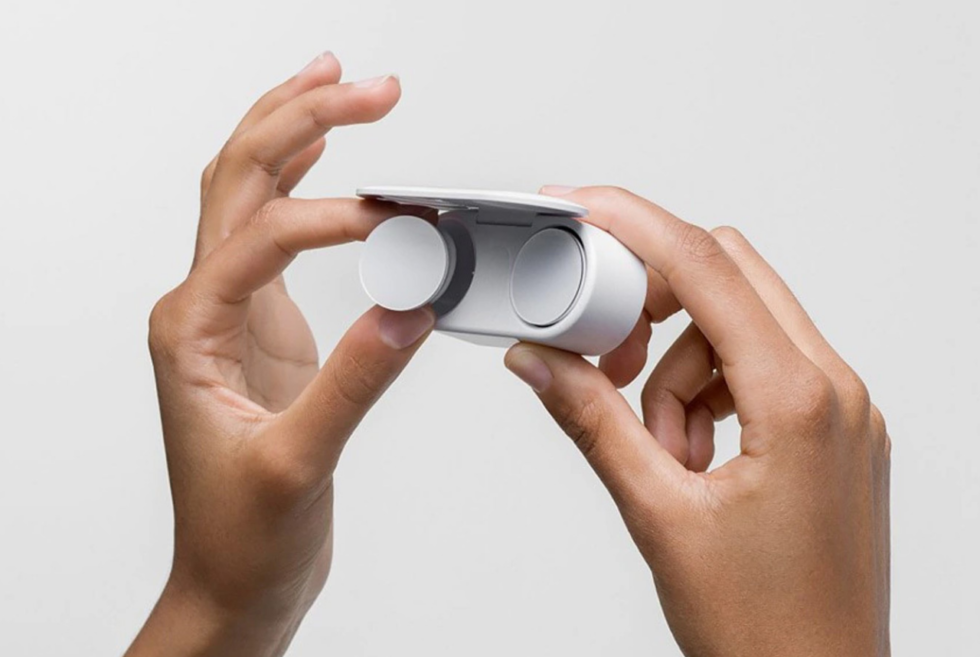
Rumours were circulating about Microsoft’s new Surface lineup for 2019. Insiders have been claiming that there would be dual-display devices joining the annual product refresh. Surely enough, at the big reveal, the Surface Neo and Surface Duo made a huge impact. People can’t seem to stop talking about the two upcoming gadgets slated for release next year. However, another surprise reveal was a pair of true wireless earphones. The Surface Earbuds is a premium audio device designed to blend with other Surface products.

The form factor is simple, but stylish, nonetheless. We noticed that Microsoft intentionally gave it a large flat area for a particular purpose. The touch-sensitive area responds to tap, touch, swipe, and other gestures to control the playback. According to the manufacturer, the audio-quality and precision-tuning of its custom drivers will even impress audiophiles. Meanwhile, the dual-microphone layout on each earbud offers superior call quality and voice recognition.

Despite being its first attempt with true-wireless technology, Microsoft seems to be getting everything right. The company claims users can keep the Surface Earbuds on longer than others. The ergonomic shape of the devices should make it feel non-intrusive to our ears. However, the large circular touch area could make it look too big on some individuals.

As expected with most Surface devices, it features some cool functions that allow you to interact with Microsoft Office applications. A swipe of your finger can move through slides in PowerPoint and so much more. The Surface Earbuds come with a charging case to give it a 24-hour boost on top of the 8-hour battery life. It will carry a retail price of $249 and will be available soon.

Order yours now: here

5 High-End Audio Companies Making Products You Can Actually Afford

It’s easy to understand why consumers look at the sky-high prices of high-end audio electronics and loudspeakers and immediately switch gears – they opt instead for something well-reviewed and affordable, like a Sonos or Bose speaker. There’s also the fact that high-end components and speakers tend to require a little more out of the consumer; the setup process tends to be more complicated and there’s more research required (you need to make sure whatever you’re buying will work with what you already have, after all.)

You’d think that the resurgence of vinyl and mainstream adoption of music would hurt high-end audio companies, but it’s actually created an enormous opportunity. It’s given them the chance to appeal to a new generation of listeners who want something better than just an average sounding smart loudspeaker as their stereo. (Especially, now that more streaming services are expected to release high-end lossless versions. Case and point, Amazon Music HD.) The problem is that most of those consumers don’t want to spend upwards of $5,000 on an entry-level audio system.

Fortunately, there are high-end audio brands that understand that quality needs to be affordable.

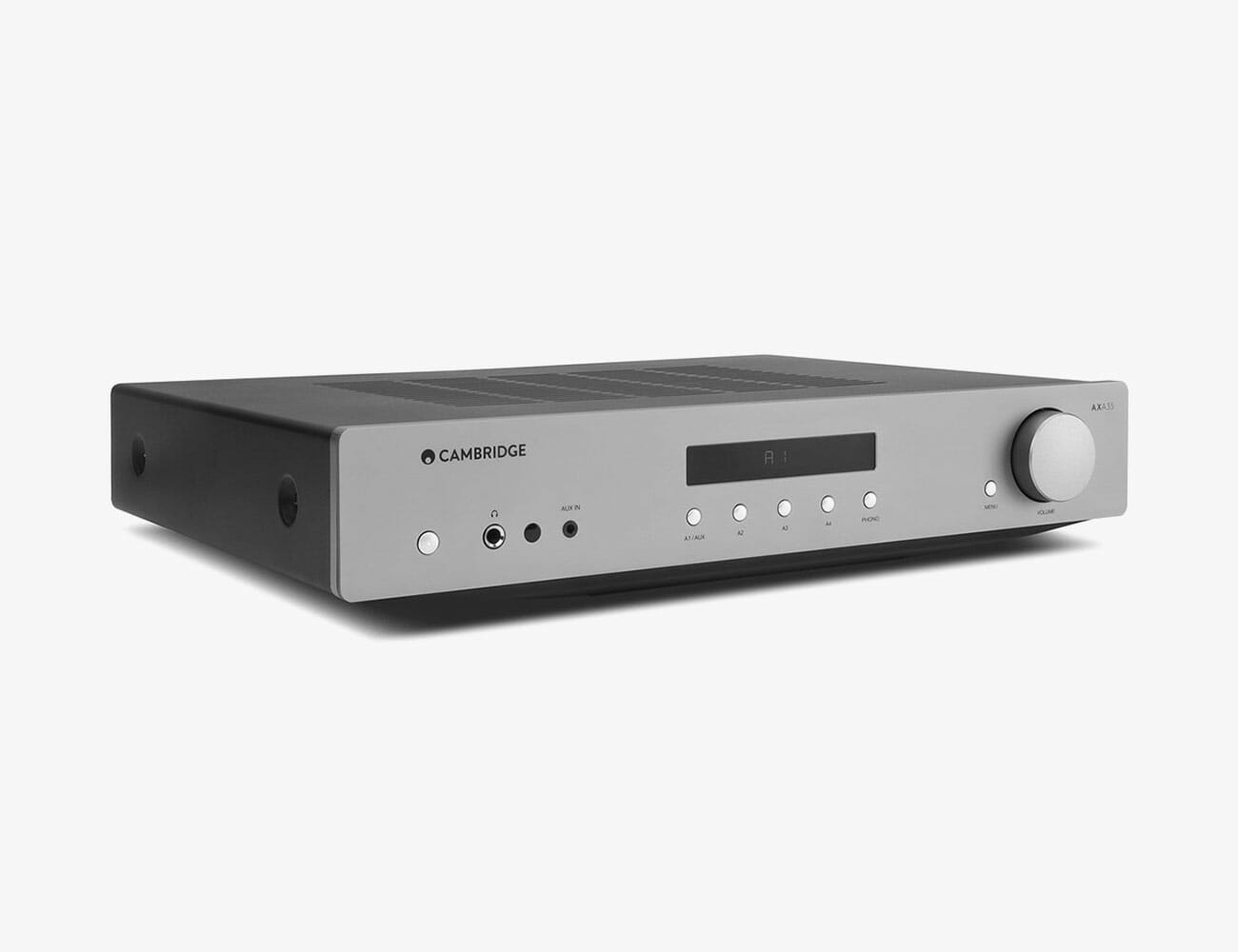
Cambridge Audio AXA35 Integrated Amplifier

Cambridge Audio recently celebrated its 50th anniversary with the launch of its Edge A integrated amplifier which retails for $5,000, and the $1,700 Alva TT turntable that wirelessly streams your records to any amplifier that can decode Bluetooth aptX HD. For the rest of us with smaller budgets, the AXA35 is a very worthy alternative with a number of features that make it one of the best affordable integrated amplifiers on the market. Its 35-watts-per-channel may not sound like a lot of power, but the AXA35 can drive most bookshelf loudspeakers with very little effort and a surprising degree of low-end control. The internal phono section works like a charm with high-output moving magnet cartridges, and the build quality is second to none at this price point. There is no internal DAC but connect your laptop with an AudioQuest DragonFly Cobalt and you have a $650 set-up that takes a backseat to nothing at this level.

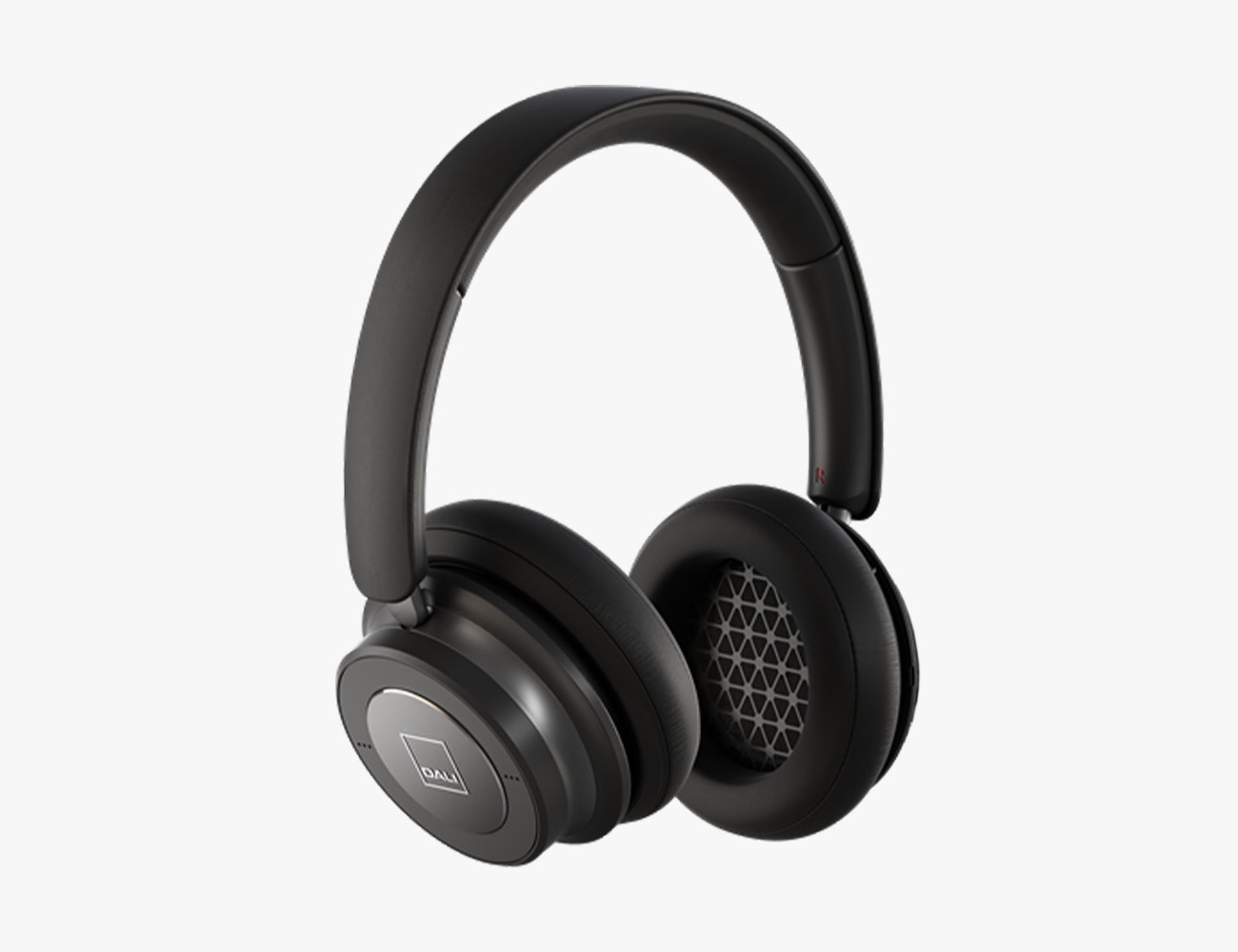
Dali iO-6 BT Headphones

Dali is one of the last premier European loudspeaker brands to enter the luxury personal audio category. Its iO-6 BT are active noise-canceling headphones that deliver excellent sound quality with support for both Bluetooth aptX and aptX HD. They utilize a 2-inch paper cone driver that sounds very natural across the entire frequency range, and there is a lot to like about the durable, yet lightweight design that has one of the most flexible headbands we’ve tried so far. Dali has clearly designed the iO-6 for the commuter or business traveler who is concerned about durability and battery life; 30 hours with ANC and the ability to switch to a wired 3.5mm connection at any time.

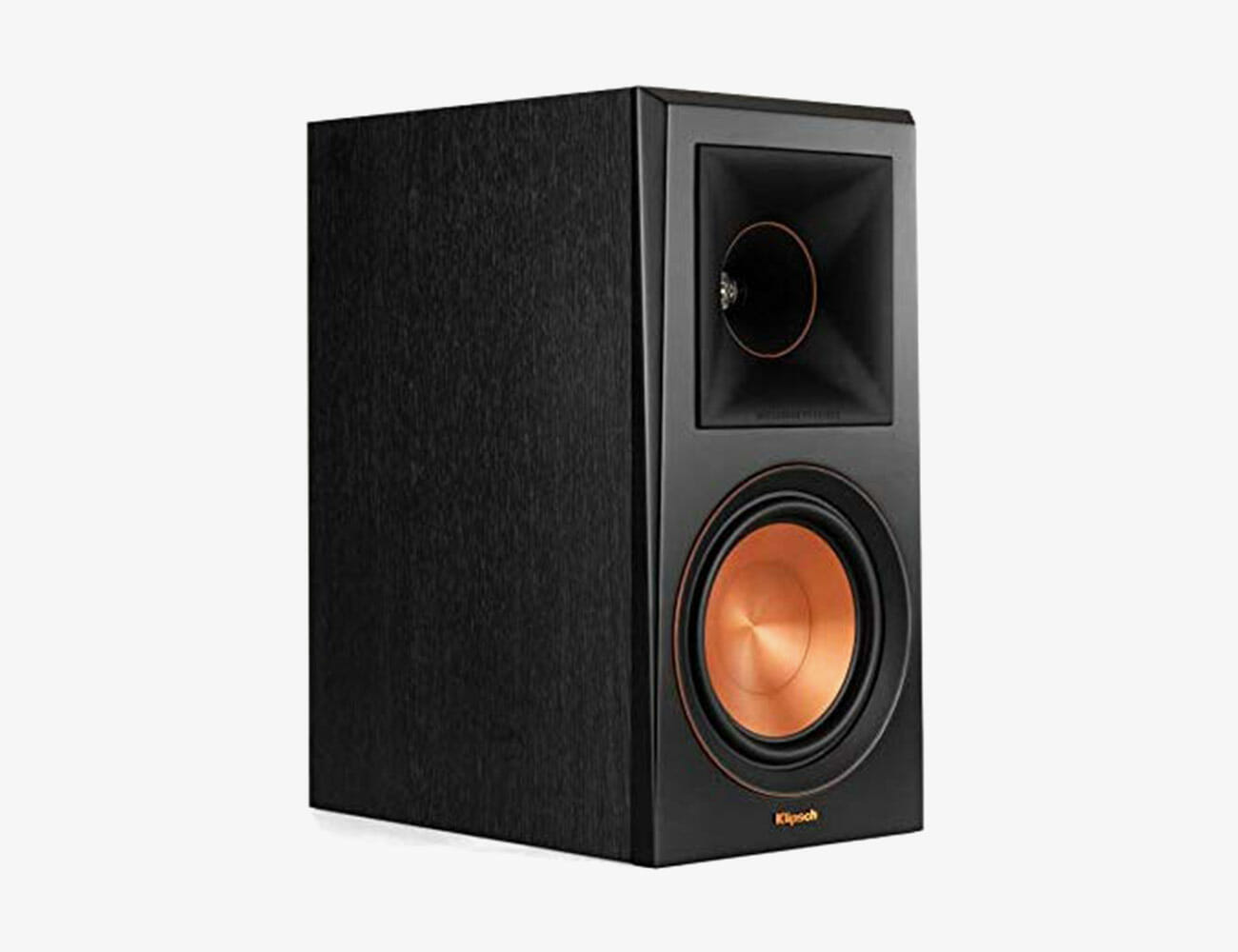
Klipsch RP-600M Loudspeakers

The legendary brand that brought us the Klipschorn, La Scala, Cornwall and Heresy horn-loaded loudspeakers is suddenly popular again in the world of high-end audio (a reality that has some of its competitors a tad concerned). The Heritage series loudspeakers start at $3,000 for the brand-new Heresy IV, but the model garnering the most attention these days is the RP-600M. These bookshelf speakers offer a glimpse of the Heritage experience but at a much more affordable price; they deliver with better dynamics, presence and pace than any other speaker in its class. If you’ve avoided loudspeakers like the RP-600M because you read somewhere that horn-loaded tweeters can sound too forward, you will be quite surprised by the top end of this loudspeaker that is quite restrained for a Klipsch. The RP-600M are lively transducers, but not fatiguing at all with a warmer sounding amplifier.

PSB Alpha P5 Loudspeakers

Paul Barton has been designing award-winning loudspeakers for almost forty years; earning PSB a global reputation for excellence at prices that are considered affordable in the high-end category. PSB doesn’t refresh its product line-up every year to look trendy – making products like the Alpha P5 newsworthy because of its remarkable performance for the price. These two-way bookshelf loudspeakers look minuscule next to the Klipsch RP-600M or ELAC Debut 2.0 B6.2, but there is no question that they offer a more balanced sounding presentation that would work for most people with something like the Cambridge Audio AXA35 integrated amplifier. The Alpha P5 do not require a lot of power and have an excellent bass response for such a small loudspeaker. Pull them out from the wall on a solid pair of stands, and they disappear in your room; leaving you alone with the artist and their music.

Yamaha WXA-50 Streaming Amplifier

If you’re old enough to remember integrated amplifiers like the Yamaha CA-2010 (1977-1980) which delivered power, layers of resolution, and had one of the best internal phono pre-amplifiers around – the WXA-50 Streaming Amplifier is going to be a huge letdown. If you’re looking for an inexpensive desktop amplifier that is powerful (55 watts per channel), compact, and offers access to your favorite streaming services through Yamaha’s MusicCast app, the WXA-50 will be exactly what you’re looking for. Spotify Connect and Apple AirPlay are both supported (using your iOS device or Spotify Premium subscription), and the amplifier features a 24-bit/192kHz DAC for high-resolution audio playback using music stored on a USB thumb drive or networked music server that you can connect via an Ethernet port on the rear of the amplifier.

Samsung Galaxy Fold Review: A Futuristic Phone That Made Me Nostalgic

A version of this article originally appeared in Gear Patrol Magazine with the headline “Samsung Galaxy Fold.” It has been updated to reflect the Galaxy Fold’s redesign and subsequent commercial release. Subscribe today

The Galaxy Fold made me nostalgic. Not because a folding phone is old-fashioned, but because it’s a novel design at a time when smartphones have become anything but — typically nothing more than the same functionalities ported to ever-thinner slabs of screen. But every time I pulled the Fold from my pocket on the subway and opened the already huge, bright screen to the size of a small tablet, I noticed more than a few double-takes. It’s been years since a new smartphone has been able to turn heads.

But if the Fold’s defining feature is an eye-popper, it’s also been a mitigated disaster. You’ve likely read the story: As soon as the $1,980 smartphone made its way into the world, its signature 7.3-inch folding screen, well, broke — either from over-eager prodding, the stresses of daily use or both. Those problems, though, aren’t universal; my Fold showed no signs of coming undone during the week I lived, commuted and worked with it. Nonetheless, Samsung recalled all review loaners early, pushed back the release date and offered refunds to pre-orderers. (Fortunately, it wasn’t literally dangerous, as with the company’s exploding Note 7.) In September, with a handful of minor design changes and reinforcements aimed at durability, the Fold finally made it to market.

Screen snafu or no, the Fold was always going to be a niche product. A foldable smartphone isn’t something everyone needs, or can afford. But the form factor has its appeal among inveterate multitaskers salivating at that truckload of RAM — and the expansive screen that lets you run three apps at once — as well as early adopters who want a conversation piece in their pocket.

The novelty is appealing. Yes, the Fold sports all the best features from Samsung’s flagship S10, but any amount of capability bows to the Fold’s originality. There’s never been a phone quite like this; my hands were drawn to playing with it, exploring the phone’s sheer usability, like being able to watch YouTube videos while perusing my Gmail inbox and Spotify playlist.

The ultimate multitasking potential, though, was limited by drawbacks, like only supporting one audio stream at a time. But that giant, beautiful OLED screen is meant for more than just multitasking. The Fold is essentially a tablet for your pocket: watching Game of Thrones was certainly an upgrade from viewing on an iPhone XS. And with over seven inches on which to play, the ever-more impressive roster of mobile games — especially battle royales like PUBG and Fortnite — have more room to unfold, with more space for on-screen controls that could give a (small) competitive advantage to players better than myself. Plus, the signature crease comes in handy when reading anything actually shaped like a book.

Screen snafu or no, the Fold was always going to be a niche product.

The Fold’s front screen is a bit lackluster compared to the full article, its main purpose seemingly to goad you into opening the full screen. But common apps like Gmail and Google Maps seamlessly jump from the front to the main screen when you unfold — wandering my way through Manhattan I was able to keep tabs on my general location with a glance at the front, while unfolding when necessary for greater context.

These features might seem like small change relative to the Fold’s exorbitant price, and for the most part that’s true — especially because the phone’s far from perfect. The crease down the center is still visible under some light, and it’s roughly twice the thickness of every other smartphone, which makes it a pain to slide into your pocket. Also, I was never really able to open the Fold one-handed; the magnets were too strong.

[embedded content]

Despite the kinks and the price, my time with the Fold convinced me that the premise of a folding phone remains sound. Shrinking a tablet-sized screen down to smartphone dimensions, allowing it to fit in your pocket, is extremely cool. That’s why everyone is trying to get it right. Huawei’s Mate X, also scheduled for release this summer (trade wars notwithstanding), sports its main screen outside a clamshell fold, rather than inside; it’s an interesting alternative, but given the fragility of Samsung’s folding screen you’d be right to be nervous about shelling out for one just yet. There’s still a lot of experimenting to be done.

iPhone-level sales were never in the cards for the Galaxy Fold, even before the screen issues. It’s too expensive, and its flagship tricks aren’t quite life-changing enough to justify the price tag. But it looks and feels like a radical departure from the endless parade of identical smartphones. That’s key: the Fold itself might have stumbled, but the concept has promise. It’s just a question of who will execute it best.

Samsung provided this product for review.

The Steel Speaker Is Handcrafted Perfection

Remember the super awesome Transparent Speaker? Well, the folks behind that made another jaw-dropping product — the Steel Speaker. It comes part of an extremely limited range of handcrafted speakers called Upcrafted, which consists of three speakers.

One in wood, one in ceramics, and one in steel, with each crafted from recycled materials. The Steel Speaker is arguably the most awe-striking of the three. Jonas Majors did the dirty work for this slick-looking speaker. It was made with only the most essential elements and showcases the raw metal texture of aged steel, here repurposed to perfection.

The limited-edition piece comes with offers high-fidelity sound via two 3-inch drivers. Also here to beef up sound quality? A 6.5-inch woofer and a built-in amplifier. The Steel Speaker also features Bluetooth, which means you can connect it to phones, tablets, and computers. It even supports all the major casting platforms like Apple AirPlay, Sonos, plus digital assistants including Amazon Echo and Google Assistant.

Design comes courtesy of Transparent Sound, the genius folks behind the aforementioned Transparent Speaker. The clean-lined Steel Speaker features a highly minimal look, but not minimal sound quality. If you’re into brutalist interior design, this would make a perfect addition to your living room. The black metal accents shine as the cherry on top of an already gorgeous unit.

Check out the Steel Speaker’s specs when you hit the link below. May we remind you that this doesn’t come cheap. Expect to shell out a couple of thousand dollars to get this bad boy.

CHECK IT OUT

Is This Still the Perfect Entry-Level Smartwatch?

Last fall, Fitbit released the Fitbit Versa – and I loved it. It was a simple-to-use smartwatch that was slim and bespoke, relatively affordable, an excellent fitness tracker and it had a battery life that lasted nearly a week. It was a great entry-level smartwatch for basically anybody, but especially casual smartwatch wearers, and it worked equally well with both iPhone and Android.

The next generation of that smartwatch, the Versa 2, doesn’t mess too much with last year’s success. It has the same relative look and feel of the original Versa, but Fitbit updated in nearly every way. It has an even simpler design, a better processor, a new OLED display (a welcome improvement over the Versa’s LCD display), and improved sleep tracking. The most “touted” new feature is the addition of Alexa integration, so you can tell the smartwatch to do things like set alarms and control your other compatible smart home devices. Lastly is price: the Versa 2 comes exactly the same as last year’s Versa.

|

The Good: The Versa 2 is a better entry-level smartwatch than last year’s Versa, which is something you’d both expect and welcome. The two most important upgrades are that the Versa two now has an always-on display (if you select it) and superior sleep tracking feature, called Sleep Score, which gives you a nice little rating out of 100 – the higher the number, the better your sleep. If you’re fine wearing a smartwatch to bed and you want to track your sleep, the Versa 2 is exactly what you want.

As was true with the Versa, a huge selling point of the Versa 2 is its battery life. If you elect to not have an always-on display (it’s off by default) the Versa 2 can last between five and six days on a single charge; if you have the always-on display, it lasts around three days. Either way, this battery life which is huge, especially when you consider an Apple Watch lasts roughly 18 hours and is not designed to wear while you’re sleeping.

There are two other big reasons to buy a Versa 2. First, it’s solid and intuitive fitness-tracking abilities. It has an always-on heart-rate monitor and can accurately track things like steps and calories. It also, like the Apple Watch, has automatic workout detection, so if you forget to start a walk, run, bike ride or pool workout, the smartwatch won’t skip a beat. And secondly, the Versa 2 is very slim and lightweight, and it’s one of the most comfortable smartwatches that I’ve ever worn.

Who It’s For: The Versa 2 is an entry-level smartwatch designed for anybody who wants a good fitness tracker with some smartwatch-y features (like see call and text notifications, and control music). If you’re somebody who wants to keep track of your sleeping, the Versa 2 is particularly good. It works equally well for iPhone and Android users.

Watch Out For: The new Alexa integration might come as a welcome addition for some, but it really shouldn’t be the main reason to buy this smartwatch. The fact is that most people don’t really need (or want) to talk to Alexa when they’re outside the house. Also, talking to Alexa on the Versa 2 isn’t like talking to Siri on the Apple Watch. For instance, you can’t tell Alexa to send text messages, open certain apps or even play/pause music; all it can do is answer specific queries (“Alexa, what’s the weather?”), set timers and alarms, and control some of your connected smart home gadgets. The other thing is that there’s no speaker, so you won’t be able to hear Alexa and all its answers will just appear on the screen – it’s far from a seamless experience.

As was true with the Versa, the Versa 2 lacks a dedicated GPS, meaning if you want reliable workout data you’ll have to have your smartphone nearby. This is a big bummer for runners. There’s also no LTE model available for the Versa 2.

There’s a new Spotify app that’s available on the Versa 2, which isn’t available on the Versa, but it’s not super helpful. Like with the Apple Watch, the Spotify app on the Versa 2 doesn’t let you download anything (playlists, albums, songs, podcasts) for offline listening. If you’re a Spotify Premium subscriber, only a select few Garmin and Samsung smartwatches do this.

Also, the Versa 2 still comes with a proprietary charger. The annoying thing is that it looks and feels just like the proprietary charger that came with the original Versa, which I didn’t like to begin with, but it’s actually not the same and won’t work with previous Versa smartwatches. I still have and use my Versa, and mixed up the chargers on several occasions, which was obviously frustrating.

Alternatives: Fitbit has a right to feel frustrated after the latest Apple hardware announcements. That’s because, in addition to announcing new high-end Apple Watches, Apple also dramatically reduced the price of its two-year-old smartwatch – you can now buy an Apple Watch Series 3 for $200, which is the exact price of the Fitbit Versa 2. Basically, if you have an iPhone and you want an entry-level smartwatch that works well with it, the Series 3 is probably a better bet.

Verdict: The Versa 2 is a better version of last year’s Versa, which was the best entry-level smartwatch for most people, Android or iPhone owner, who just wanted an easy-to-use smartwatch to track fitness. A year later, the Versa 2’s main problem is that there’s more competition, especially within its $200 price range. The Versa 2’s best qualities are its 6-day battery life, its great fitness and sleep tracking, and it’s super-slim design. If you those things are important to you, then the Versa 2 remains one of the best – if not the best – entry-level smartwatches you can buy. However, the reality is that the Versa 2 will feel more like a glorified fitness tracker than an actual smartwatch, especially if you have an iPhone or Samsung smartphone.

What Others Are Saying:

• “If you’re not wedded to Fitbit’s platform, the Versa 2 is a harder sell when you compare it with other $200 smartwatches, such as the Samsung Galaxy Watch Active and the Apple Watch Series 3, which both have GPS, onboard music storage and contactless payments. One feature that could set the Versa 2 apart is Fitbit’s new subscription service, but it will take a lot to convince me to spend $80 more per year. Still, the Versa 2 is a very good fitness-focused smartwatch that offers plenty of insights into your overall health, subscription or not.” — Mike Prospero, Tom’s Guide

• “Overall, the Versa 2’s fitness tracking features are the best and most comprehensive you’ll find on any smartwatch, even though it doesn’t have a dedicated GPS radio and relies on your phone for GPS tracking.” — Dan Seifert, The Verge

• “If not for its connectivity problems, the Versa 2 would be an excellent smartwatch. It offers accurate, comprehensive fitness features and a nice design for a reasonable price. It’s also one of the longest-lasting smartwatches around, while the Alexa integration makes it more useful than its predecessor. I just wish Fitbit would get its Bluetooth act together already, and give me a better OS.” — Cherlynn Low, Engadget

Key Specs

Display: 300 x 300 pixel touchscreen AMOLED
Water resistance: swimproof; up to 50 meters
Sensors: 3-axis accelerometer, optical heart rate monitor, altimeter, ambient light sensor, vibration motor, NFC
Battery life: up to 6 days; ~3 days with always-on display

|

Fitbit provided this product for review.

Read More Gear Patrol Reviews

Hot takes and in-depth reviews on noteworthy, relevant and interesting products. Read the Story
Note: Purchasing products through our links may earn us a portion of the sale, which supports our editorial team’s mission. Learn more here.