All posts in “tech”

The Telsa Cybertruck Is An Emission-Free Utility Vehicle Built Like A Tank

Back when there were rumours about Telsa making an all-electric pickup truck, we all had our own idea of what it would look like. The company’s goal is to innovate, so it’s easy to assume that it will behave a futuristic aesthetic. Others speculated it to take some elements from existing Tesla vehicles with a bit of tweaking. YouTuber Simone Giertz even went as far to create her own tesla pickup. With some elbow grease and Model 3 as the donor vehicle, she gave us the Truckla. Thankfully, Elon Musk had no plans to keep us in suspense and finally unveiled the Cybertruck.

You heard that right, the company is calling their first-ever emission-free pickup truck the Cybertruck. To be honest the name actually fits given its futuristic and angular form factor. The liberal use of flat surfaces with sharp corners makes it look like a polygon model of a car from older game systems. Laugh all you want but take note that this machine packs a lot of power.

Tesla really knows how to push the envelope when it comes to design and performance. it is practically a tank with its cold-rolled stainless steel body panels and Tesla armor glass. During the demo, the body was able to withstand the swing of a sledgehammer. Testing the ballistic-grade windows was a different matter because it cracked but remained intact. Nevertheless, Musk claims it is still a prototype and the engineers will work out the kinks before launch.

Buyers can opt for a single-motor, dual-motor, and tri-motor configuration. Each trim promises a range of 250 miles, 300 miles, and 500 miles respectively. The Tesla Cybertruck is heading to production late next year. Meanwhile, those who want more can look forward to an all-electric ATV that fits perfectly in the pickup’s bed.

Learn more about it here

Images courtesy of Tesla

The 5 Best Black Friday Tech Deals You Can Find Right Now

Black Friday is a full week away, but that hasn’t stopped some companies and online sellers from getting a good head start — including Amazon. We’ve rounded up our favorite early Black Friday deals on tech products that are live right now on Amazon. Check ’em out below.

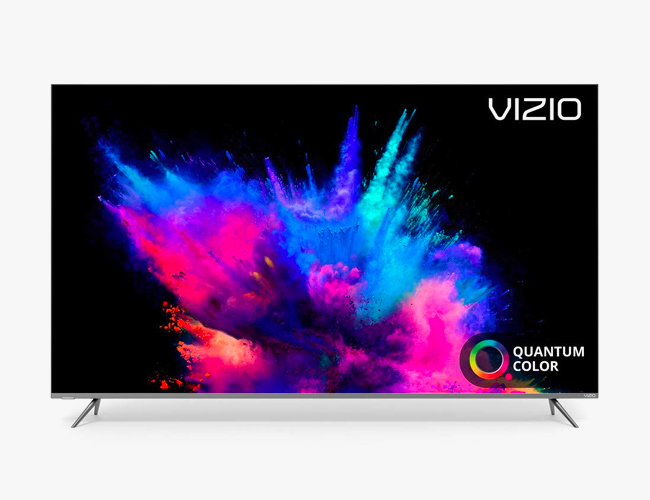
Vizio P-Series Quantum 65-Inch TV (2019)

The new P-Series Quantum is one of the most beautiful 4K TVs that Vizio makes. And now that new year is just around the corner, with Vizio (and all other TV manufacturers) expected to release their 2020 lineup, you can get an excellent deal on a 65-inch model — at 36 percent off, it’s at its lowest price ever.

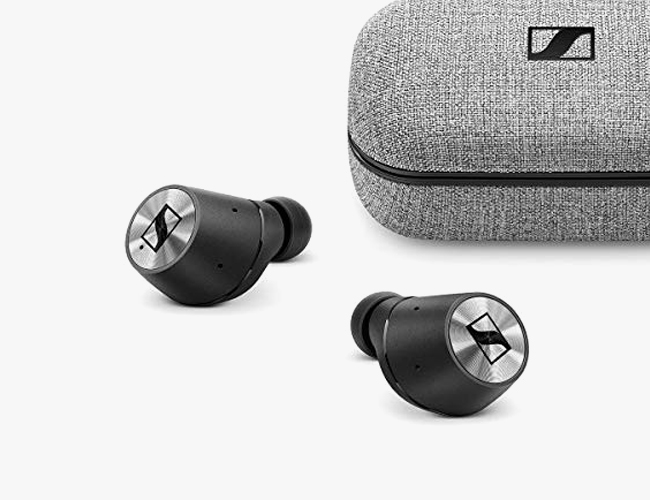
Sennheiser Momentum True Wireless

Released earlier this year, the Momentum True Wireless are Sennheiser’s first-ever true wireless earbuds — and they’re one of the best-sounding true wireless earbuds you’ll find. This is by far the lowest price we’ve seen on them.

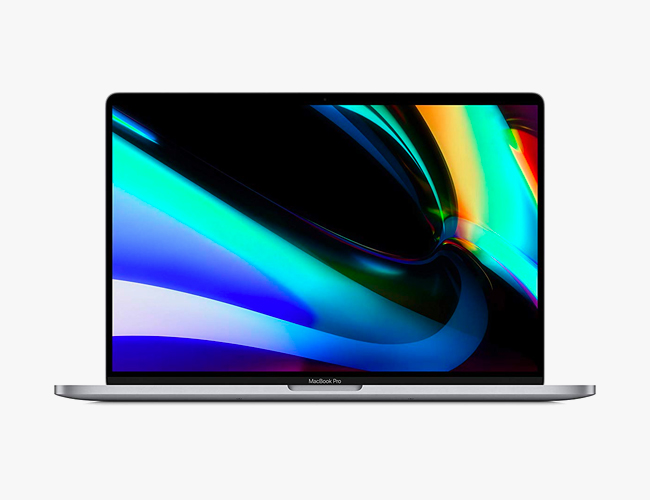
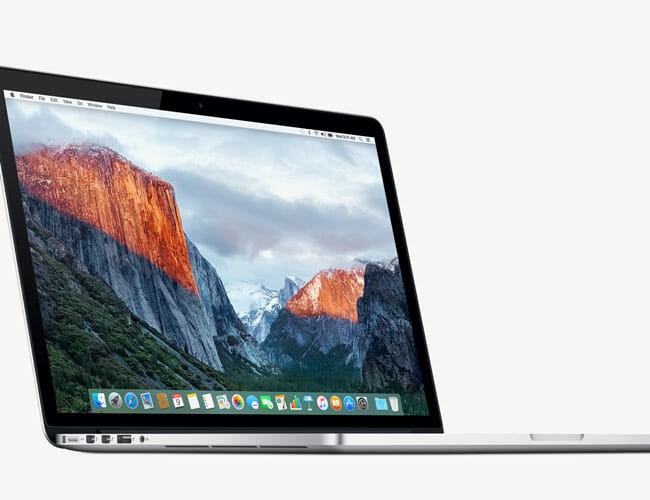
Apple 16-Inch MacBook Pro

The just-released 16-inch MacBook Pro is a true professional machine. Compared to previous MacBook Pros, it has more power, a bigger screen, a completely new keyboard (complete with a physical Escape key) and the best speaker system ever put in a laptop. If you want the high-end configuration (Intel Core i9 processor and 1TB of storage), Amazon is offering 5 percent discounts on both silver and space gray models.

Apple AirPods Pro

The new AirPods Pro have active noise-canceling and transparency modes, which none of Apple’s previous wireless earbuds had. They also have fit differently, thanks to shorter stems and new silicone earbuds, making them sweat resistant and ideal for working out. If you shop on Amazon, rather than Apple, you can save a few bucks.

Samsung HW-Q70R Soundbar

This is one of Samsung’s flagship soundbars. It’s a 3.1.2 soundbar that supports Dolby Atmos and DTS:X, so you know it’s going to deliver a great immersive experience (even if it isn’t true surround sound). Additionally, it has a ton of connectivity options and has built-in Bluetooth, so you can use it as a wireless speaker system when you’re not watching TV.

Note: Purchasing products through our links may earn us a portion of the sale, which supports our editorial team’s mission. Learn more here.

The New Ember Mug 2 Lasts Longer And Comes With Smart Features

Depending on your preference, most beverages can be consumed either hot or cold. We’ve seen some of the best containers that feature remarkable insulation technology. These can often maintain the temperature at your desired level for hours on end. However, when it comes to cold drinks, one might need to keep it inside the freezer or chiller after a certain span of time. On the other hand, it’s a lot easier when you’re dealing with hot or warm options. Self-heating mugs and other vessels are not exactly new, but the Ember Mug 2 goes beyond that.

We’ve seen almost everything getting the smart treatment and Ember is doing the same for its new product. The original did a fine job of keeping our drinks warm or piping hot, but its time for an upgrade. Perhaps the biggest upgrade aside from its smart functions is the battery life. The original model lasts just a little over an hour, while the 14-ounce Ember Mug 2 goes about an hour and 20 minutes. It might not seem much, but every minute counts. Likewise, the 10-ounce version gets 10 minutes more.

On the other hand, if the charging coaster is nearby, you can practically keep your drinks hot all day long. Some like it warm and some love it hot. Take advantage of the smart connectivity by adjusting the temperature remotely from the companion app on your smartphone. Just wait for the notification LED on the bottom to light up when your beverage reaches the ideal temperature. Finally. don’t worry about coffee or tea staining the Ember Mug 2. The scratch-resistant ceramic coating should keep it virtually spotless.

Purchase yours here

Images courtesy of Ember

LEGO x Top Gear App-Controlled R/C Rally Car

Batmobiles, Bugattis, and Beetles have all been part of the LEGO car world to our everlasting delight, but they’ve added their first app-controlled vehicle, and it’s a Top Gear-branded rally car. On top of its…

This Samsung Galaxy Note 10+ Star Wars Special Edition Is A Must-Have For Fans

Over the years, we’ve seen Samsung partner up with various movie studios to create limited-edition versions of their devices. Collaborations with Marvel, DC, and the Winter Olympics are just some of the most notable ones we can recall. Now, its latest tie-in is an awesome one as sci-fi buffs eagerly wait for the epic conclusion to the latest Star Wars trilogy. To commemorate the theatrical debut of Star Wars: The Rise of Skywalker next month, the company crafted an exclusive handset. Fans and collectors alike will undoubtedly go crazy over the Galaxy Note 10+ Star Wars Special Edition.

The last products we can recall from the South Korean tech outfit that features Star Wars was a pair of robotic vacuums. One is an homage to the franchise’s iconic baddie Darth Vader, while the other one resembles a Stormtrooper. We can see a pattern here suggesting the company really loves the dark side of the Force. This is clearly the case as the limited-edition Galaxy Note 10+ flaunts a colourway that is distinctly evil yet stylish.

It looks like a tribute to Kylo Ren as indicated by the packaging and included Leather protective cover. Plus, the unique wallpaper is a dead giveaway. As with all things associated with the dark side of the Force, the colour scheme is mostly black with red accents. Even the S-Pen looks like a menacing red light sabre favoured by the bad guys. Perhaps the coolest thing about the Galaxy Note 10+ Star Wars Special Edition is one of the freebies. The bundle comes with a pair of Galaxy Buds that accompanies the overall theme.

Learn more about it here

Images courtesy of Samsung

The 4 Best Noise-Canceling Wireless Earbuds of 2019

True wireless earbuds with active noise cancellation (ANC) are a relatively new development in the audio scene, with the Sony WF-SP700N being the first pair to make a considerable splash when they landed last year. They sounded alright and the fit was snug, but their noise-canceling abilities hardly up to snuff.

Fast forward a year and a half and the landscape for ANC true wireless buds has changed entirely. There still aren’t a ton of options out there and there are some notable holes. Heavyweight Bose won’t release its own pair, the Bose Noise Cancelling Earbuds 700, until 2020 for example. But what options there are follow through on the promise of their design. Here are the best of 2019, in order of their price.

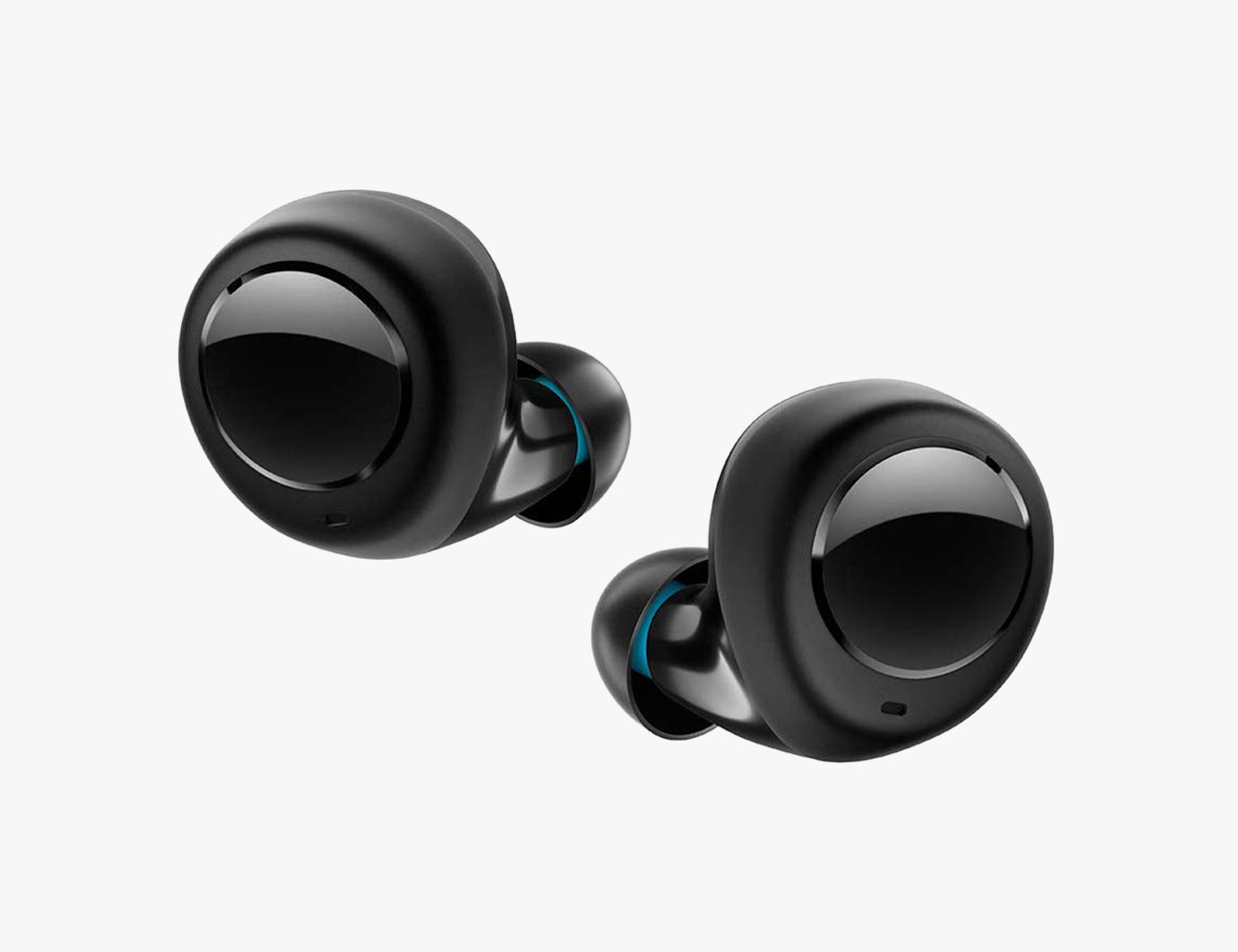
Amazon Echo Buds

How’s the noise-canceling? The Echo Buds use Bose’s “active noise-reduction” technology, which Bose claims isn’t as good as the “active noise-cancelation” technology that’s in its own headphones (and will be in Bose Noise Cancelling Earbuds 700, when they’re released in 2020). That said, the noise-canceling ability of the Echo Buds is suprisingly good and better than some other earbuds on this list. The secret, I think, is that in addition to the noise-reducation technology, the Echo Buds go for a fit that is snugger than most and it creates a nature, passive noise-canceling seal.

What else we like: The touch controls on the earbuds are very responsive, with a double-tap to switch between noise-canceling and transparency modes, the latter of which is quite good. Alexa voice controls work with third-party services, like Spotify. The earbuds come with swappable silicone ear tips and ear wings, so it’s pretty easy to get a secure fit. Also, you can’t beat the price.

What we don’t like: They still charge via micro-USB and the case and the earbuds feel kind very plastic-y. Also, to get the most out of these earbuds you’ll want to use the Alexa app, which can be confusing for the unfamiliar.

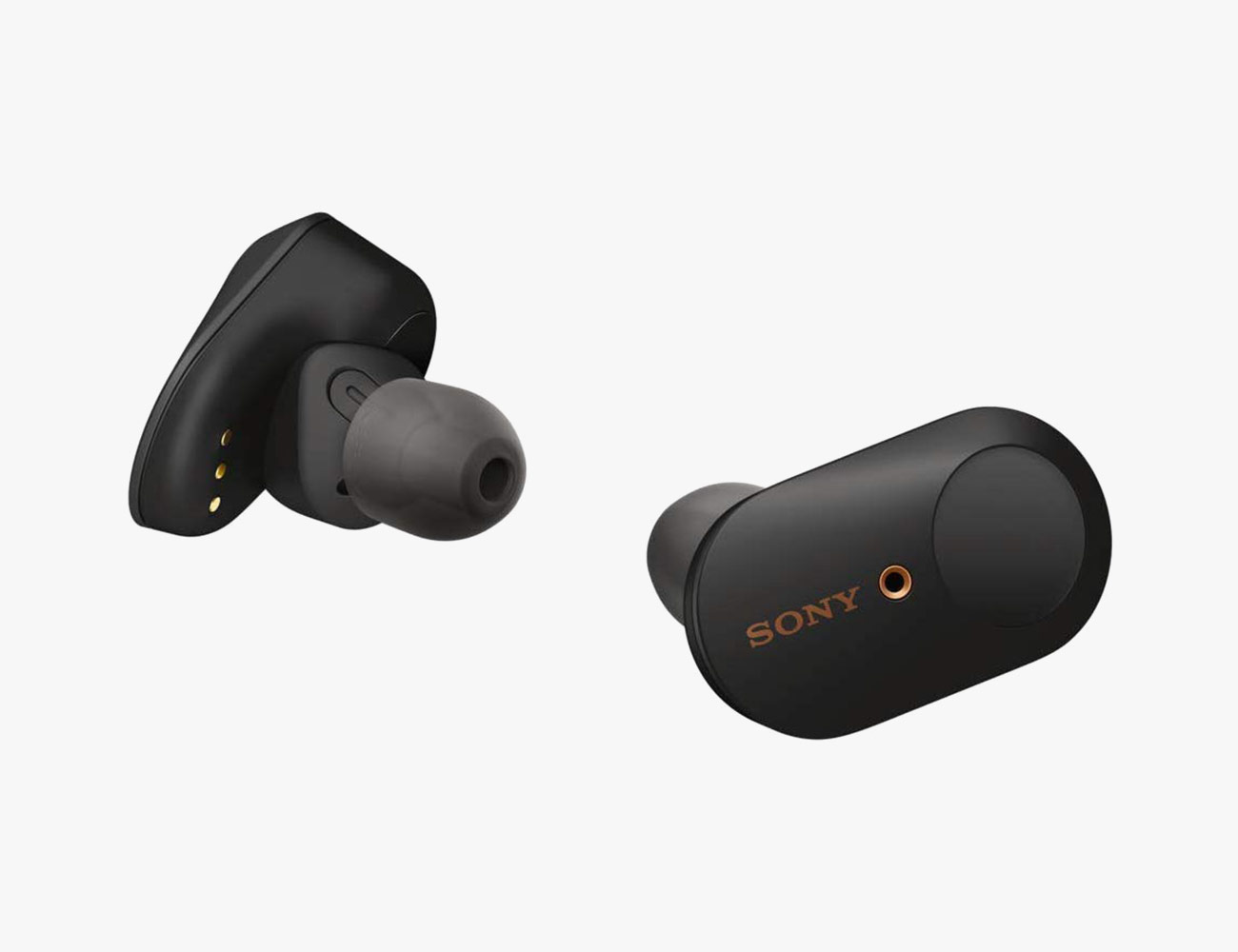
Sony WF-1000XM3

How’s the noise-canceling? Sony’s WF-1000XM3 offer the most effective noise-canceling abilities of any wireless earbuds on the market. It’s not quite up to the levels of the Sony WH-1000XM3, the company’s flagship noise-canceling over-ear headphones, but then again we wouldn’t expect it to. Also, via the companion app, you can easily customize the noise-canceling levels, which very few wireless earbuds (or wireless headphones in general) allow you to do.

What else we like: In addition to their great noise-canceling abilities, these are the best-sounding wireless earbuds that happen to also have ANC. They slightly edge out the other premium competition.

What we don’t like: The Sony WF-1000XM3 aren’t sweat-resistant and the fit isn’t secure enough to work out in. Also, the charging case is pretty gigantic.

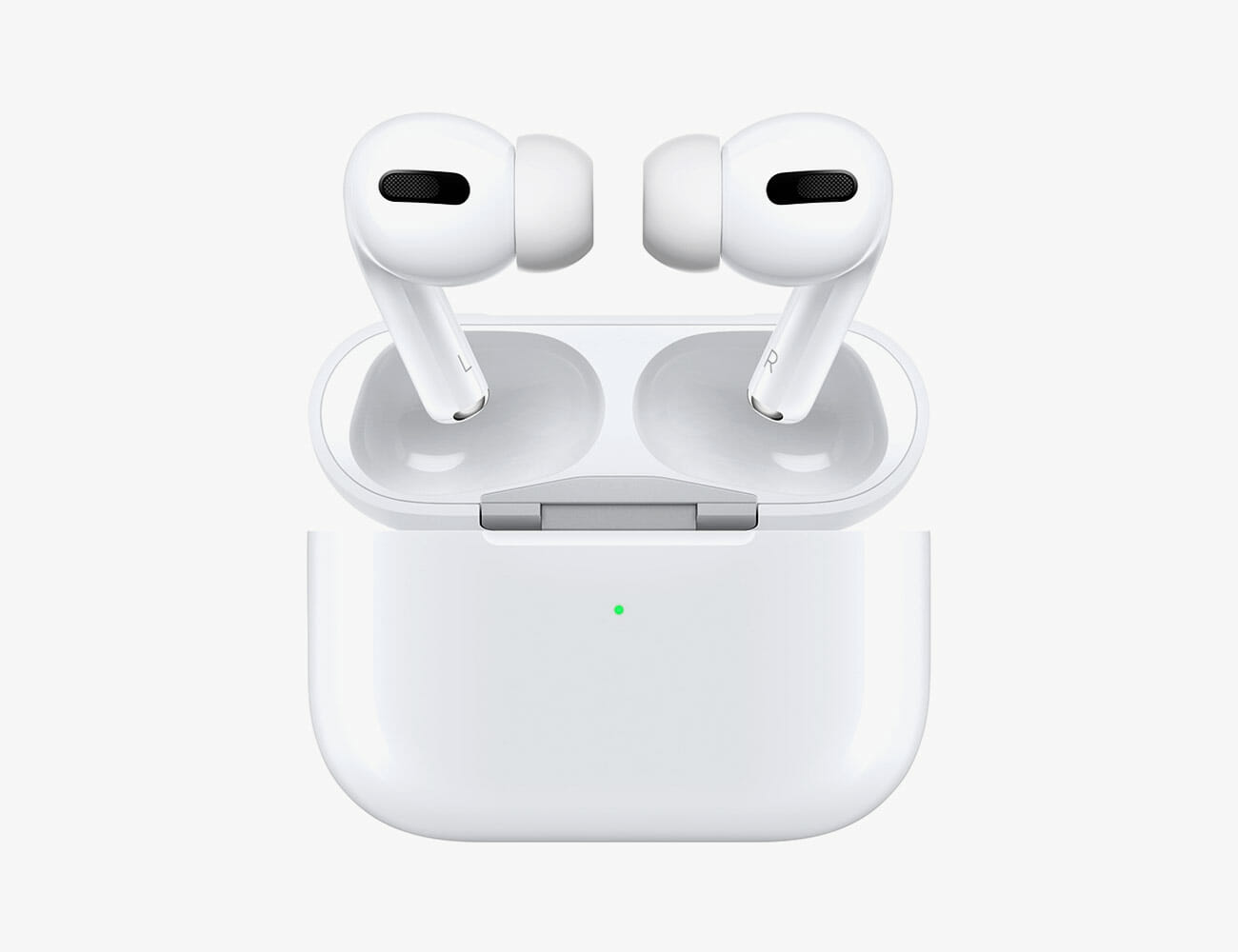
Apple AirPods Pro

How’s the noise-canceling? While not quite up the levels of the Sony WF-1000XM3, the AirPods Pro have pretty excellent noise-canceling abilities. They’re able to eliminate mid-to-low frequencies that are continuous, but are a bit less effective with higher frequencies.

What else we like: Apple packed the AirPods Pro with a ton of new tech. There’s Adaptive EQ, which is a sort-of hearing test to help you find the best fitting silicone ear tip. The transparency mode is pretty phenomenal. And they have Apple’s H1 chip for easy iPhone pairing. The best things with the AirPods Pro, however, don’t have to do with technology; these are Apple’s first wireless earbuds that are sweat-resistant (IPX4), and their new design with silicone tips mean that they won’t fall out of your ears nearly as easily.

What we don’t like: Lovers of the traditional AirPods might not like the way they fit — it’s different. The battery life of each earbud with ANC turned on is actually worse regular AirPods. Also, you still should only buy these if you have an iPhone.

|

Master & Dynamic MW07 Plus

How’s the noise-canceling? The noise-cancellation of the MW07 Plus’s was slightly less effective than the Echo Buds’s, which may have to do primarily with the seal; the MW07 Plus fit more loosely in the ear, which makes them more comfortable to wear for long periods of time, but also allows more ambient sounds to seep in. The neat thing about the noise-cancellation of the MW07 Plus is that, at least by my ear, it actually improves the overall sound quality of the buds when on, whereas the opposite is usually the case.

What else we like: Master & Dynamic’s wireless earbuds are all about style and sound quality. If you want the flashiest wireless earbuds out there — the MW07 Plus wireless earbuds are made of acetate and stainless steel — these are what you are looking for.

What we don’t like: There’s no doubt that the MW07 Plus are on the expensive side, but the thing that will be the most polarizing thing about them is their lack of a companion app. Normally that would be a good thing, like with the AirPods Pro, but it makes it a little difficult to know which mode you’re in (there’s an ambient listening mode in addition to an ANC mode).

|

Note: Purchasing products through our links may earn us a portion of the sale, which supports our editorial team’s mission. Learn more here.

Caviar Gets Extra Fancy With the AirPods Pro Gold Edition

Apple products have always been sitting on the top shelf when it comes to pricing and quality. As such, we are expected to part with a lot of cash to own any of the items in the catalogue. This has been the ongoing trend for a while now and we won’t be seeing it change anytime soon. Nevertheless, the Caviar AirPods Pro Gold Edition is on an entirely different level.

There’s this thing where certain upscale services take ordinary gadgets and turn them into luxurious pieces of technology. We’ve seen multiple iPhone models undergo the treatment as well as the AirPods. Now, Caviar is turning its sights on the AirPods Pro and the results are nothing short of jaw-dropping.

An ordinary pair of Apple’s latest cordless earbuds will run you around $249, which is already a premium cost. However, after it undergoes the luxury treatment from Caviar, you’re looking at a $67,780 audio accessory. This is for the people who have money to burn and desire precious metals on all of their stuff.

The establishment’s skilled staff know their way around most products hailing from the Cupertino-based company. Therefore, buyers can expect remarkable craftsmanship from any angle Gone are the plastic housing of the AirPods Pro and in its place is 750-content gold.

Caviar made sure that everything matches, which is why the charging case gets the same treatment. The Gold Edition, as the name implies, even comes with a fancy emblem to set it apart from the rest. ColorWare can only go so far when it comes to customizations, which is why these golden AirPods Pro are special.

Get it in gold here

Images courtesy of Caviar

The Aspark Owl Is A 2,012-Horsepower Japanese All-Electric Hypercar

EV technology continues to evolve as we begin to see more brands break into the market with rides that defy expectation. Even top-tier automobile brands are coming up with jaw-dropping entries. So far, we’ve seen the likes of the Porsche Taycan, Pininfarina Battista, Lotus Evija, and so much more. It appears the verdict regarding all-electric supercars and hypercars is that we just can’t get enough. As such, we want our readers to gawk with us at the Aspark Owl.

Not many people know it outright, but this incredible machine is Japanese in origin. The country’s outstanding love affair with high-performance automobiles are worthy of our respect. Let’s begin by looking at the numbers, which gives us an overview of its capabilities. The Aspark Owl relies on four electric motors to get from point A to point B.

What’s astounding about this configuration is the promise of 2,012 horsepower alongside a whopping 1,475 lb-ft of torque. Testing shows an insane 0-60 mph acceleration of just 1.69 seconds with a top speed of 250 miles per hour. Let us remind you that this is already beyond the concept stages. In fact, the data comes from a production version of the all-electric hypercar.

Speed alone is nothing when dealing with all-electric transportation. Thus the Aspark Owl is equipped with a massive 64 kWh lithium-ion battery. The range would depend on how aggressive the driver can be, but a safe estimate would be up to 280 miles. Despite using a generous amount of carbon fibre, it weighs a hefty 4,200 pounds. Nevertheless, it makes up for it in looks and performance.

See greatness here

Images courtesy of Aspark

A Definitive Ranking of Apple’s New “Pro” Line of Products

2019 was the year of the “Pro” for Apple, at least as far as nomenclature was concerned. Apple released updated models of familiar Pro products, like the MacBook Pro and iPad Pro, but it also introduced us to completely new Pro products, like the iPhone 11 Pro and the AirPods Pro. The natural question that comes to mind is: “What does it mean to be ‘Pro’?”

Not every one of Apple’s “Pro” products is designed for just pro consumers, of course, so we decided to play a game: rank all of Apple’s current crop of Pro products from “least Pro” to “most Pro.” The order of these products has nothing to do with how good they actually are, but whether or not they were specifically designed for pro users, such as graphic designers, app developers, musicians or architects.

Check out our list, with the top spot going to the “most Pro” Apple product of the year.

8. AirPods Pro

The reason: The new AirPods Pro are great, but not a lot of audiophiles, who are the people we associate with pro-level audio, are going to see them as an essential tool. The AirPods Pro sound better than regular AirPods — it’s true — but they’re more designed for people who either want wireless earbuds with noise cancellation or who just want better-fitting and sweat-resistant earbuds for working out. Just about everybody who owns an iPhone will have reason to fork over $249 for these.

|

7. 2019 MacBook Pro (13-inch)

The reason: Most “pros” aren’t going to buy this entry-level MacBook Pro. It’s designed for anybody who wants a Mac laptop that’s a little more capable than a MacBook Air. It’s pretty small and relatively affordable, and ultimately, it’s combination of superior performance, brighter screen and longer batter life make it a better value than the Air for just about anyone.

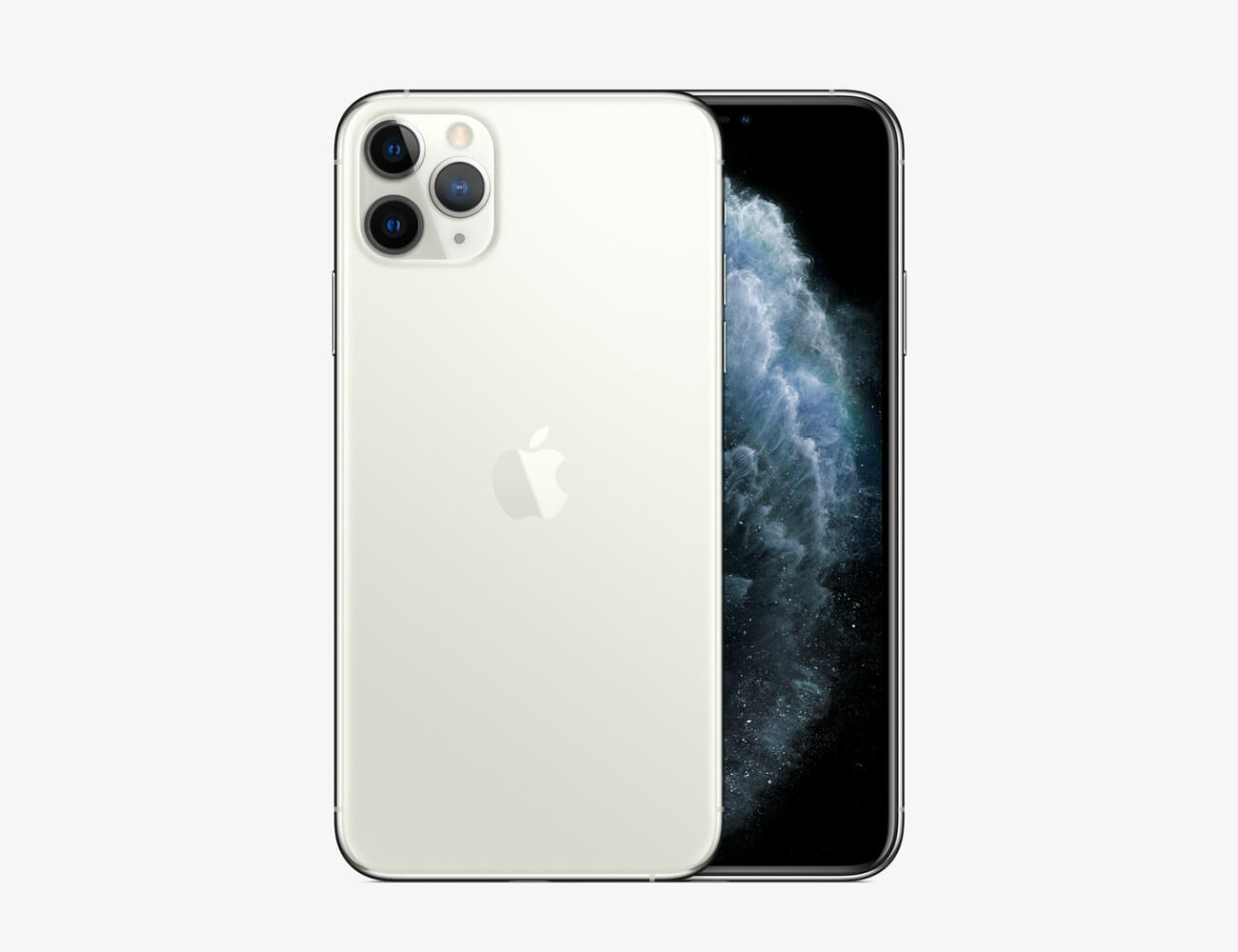
6. iPhone 11 Pro

The reason: The iPhone 11 was always going to be the most popular new iPhone. Its combination of low(er) price and specs almost as good as the iPhone 11 Pro, make it the better option for most people. Still, a heck of a lot of people are still buying the iPhone 11 Pro, maybe because they are social media pros that could make good use of the camera, but there is still plenty of reason to buy it simply because you want the best possible iPhone available.

|

5. iPad Pro

The reason: Here’s where we start entering “pro” territory. If you’re buying an iPad Pro, either 11-inch or 12.9-inch, you’re probably some type of creative — artist, graphic designer, engineer, musician or architect — or just a power user. The fact that more people are replacing their laptop with an iPad Pro, well, that makes this Pro even more impressive.

|

4. 2019 MacBook Pro (16-inch)

The reason: Apple listened to a lot of the grips that professional users has about its MacBook Pro and then they delivered. The first-ever 16-inch MacBook Pro is basically everything that the pros have been asking for and more. It has the latest 8-core processors, a better thermal design, great graphics, a ton of internal storage and the best speaker and microphone systems ever put in a laptop. Best of all, Apple finally fixed the keyboard. That means the return of the Escape key and no more butterfly switches.

|

3. iMac Pro

The reason: The iMac Pro is Apple’s all-in-one desktop that’s designed specifically for professional creatives and power users. It’s a beast. Its raw power, wonderful graphics, beautiful 27-inch 5K Retina display (in the base model) and 1TB solid-state drive (SSD) — not to mention the slight black color — make it the ultimate desktop for Mac lovers. Thanks to an intimating price tag, very few non-pro consumers are going to touch it.

|

2. Mac Pro

The reason: The Mac Pro is almost as pro as an Apple product gets. The modular system is incredibly upgradeable and can be customized specifically for a professional user’s needs. As far as specs and performance, it’s pretty mind blowing. Apple claims that you can deck it out with up to 8TB of SSD space, and it can handle up to six streams of 8K video, which is bonkers, as is its $6,000 price tag. The Mac Pro is scheduled to be released this December.

1. Pro Display XDR

The reason: The 6K Retina display, which Phil Schiller (Apple’s marketing chief) has called “the world’s best pro display,” is specifically designed to be paired with the Mac Pro. It comes in two finishes, a glossy model or a high-end nano-texture model, the latter of which has been specifically engineered to reduce glare and reflectivity. With a screen that tops out at 1600 nits peak brightness, a 1,000,000:1 contrast ratio, and a P3 wide color gamut, the XDR is packed with extremely niche and high-end features for a very specific kind of professional. Only the most direhard professionals need to consider this expensive upgrade over plugging a new Mac Pro into an old monitor, and saving $5,000 in the process.

Note: Purchasing products through our links may earn us a portion of the sale, which supports our editorial team’s mission. Learn more here.

Own A Bespoke AirPods Pro With The Help Of ColorWare

Earlier this year, the tech industry was already speculation about one of Apple’s latest products for 2019. While most of you might be thinking about the new MacBook Pro 16-inch, we’re talking about something else. Around March, the Cupertino-based tech outfit released the second-generation AirPods. These true-wireless earbuds sport H1 chips and boast “Hey Siri” support with an optional variant with a wireless charging case. Hence it was a welcome surprise for brand loyalists when it announced the arrival of the AirPods Pro. Now ColorWare is giving the latest model a colourful makeover.

Prior to its big reveal, industry analysts were already speculating the availability of colours other than white. However, after its debut, it seems the rumour was a big miss as there were no other versions that followed. Nevertheless, if you’re planning to customize the AirPods Pro, ColorWare is happy to help out. Clients can start by selecting how each of the two earbuds will look like.

On top of the colour combinations, it is possible to choose a glossy, metallic, or matte finish to match the owner’s style. Moreover, each piece can flaunt varying hues if the owners wish so. Unfortunately, the standard package only includes the work on the pair of earbuds.  For an additional fee of $50, ColorWare will paint the charging case as well. The AirPods Pro is a great addition to Apple’s lineup of audio products. It features active noise cancellation technology, Audio Transparency mode, Adaptive EQ, and more. Furthermore, it is IPX4 certified to withstand moisture.

Design yours: here

Images courtesy of ColorWare

The 8BitDo N30 Wireless Mouse Takes Us Back To Our Childhood

This here is the 8BitDo N30 – a wireless mouse inspired by a beloved Japanese gaming icon. But before we take a closer look, let’s talk about the current state of the retro gaming market. If you’re feeling the gaming nostalgia creeping in, it’s a good thing to have options. That’s why we’ve been scrounging up all the cool retro stuff gamers would love from the internet and found a few noteworthy items.

For those in the market for a more premium option. Love Hultén is the way to go. For a more generic type of experience, most major video game companies have you covered. Sony, Nintendo, SEGA, SNK, Konami, and others are offering a compact version of their classic consoles. Then there’s 8BitDo – an awesome brand that specializes in gaming gear that oozes style and just enough vintage aesthetics.

We have seen and used most of the company’s products and the verdict is their controllers are fantastic. Not only do these look and feel like their original counterparts, the quality and performance it brings to the table are top-notch. The N30 is a must-buy for fans of the NES and all things Nintendo.

The colourway screams Nintendo Entertainment System all the way and the buttons are the cherry on top. Instead of ones you find on a regular mouse, the left and right buttons are round and bright red. Meanwhile, the area where your thumb normally rests features a familiar directional pad as well. Even though it’s not obvious, the space between the two buttons is touch-sensitive for scrolling. The 8BitDo N30 wireless mouse boasts a 120-hour battery life on a single AA battery and a 10-meter range.

Get yours here

Images courtesy of 8BitDo

How to Buy Your First Mechanical Keyboard

I get it. Your laptop already has its own keyboard attached. The computer at the office came with a flat little keyboard for you to use and it works just fine. Why would you want to spend potentially hundreds of dollars to replace something you already have and which works fine?

A mechanical keyboard isn’t strictly better than what you already have on your desk. It can’t instantly make you a better or faster typist. But the draw of mechanical keyboards isn’t about functionality or efficiency. These keyboards just feel better. They look cooler. You can trick them out in your own style. Because the device you surely use for so much of your working day should be more than just a tool. It should be a source of pleasure. Every keyboard warrior deserves the joy of finding the perfect weapon of choice and wielding it every day.


Select Your Switches

If you don’t know much about the keyboard that’s currently on your desk, it’s almost certainly what’s known as a “membrane” keyboard. These contain within them a layer of flexible rubber domes — almost like a layer of bubble wrap — between the keycaps you press with your fingers and the electronics underneath which send an electric signal to your computer. These domes are what give your keyboard that “snap” (at best) or “mush” (at worst), when you press the keys.

Mechanical keyboards, by contrast, have a discrete plastic mechanism under each key. These tiny devices, the switches, are what give a mechanical keyboard its feel, which can vary wildly depending on what kind of switches you choose to use. There are hundreds of varieties, many of which are hard for even aficionados to tell apart, but for a newb there are three main flavors to consider: “linear,” “tactile,” and “clicky.” Each of these three flavors tends to come in two varieties of stiffness, where a stiffer switch requires more force to press down.

Off-brand switches

Cherry is the brand-name keyboard switch manufacturer, but its patent on the iconic design has expired. “Clones” from Gateron or Razer are all functionally identical. Generally, colors also indicate the same sensation across brands, but double check for the universal keywords “tactile,” “linear,” and “clicky” when buying boards with non-Cherry switches.

Linear switches are switches that simply go up and down with no gimmicks. When you press a linear switch, you’ll feel it depress smoothly until it’s all the way down. This is the vanilla of mechanical switches: it is very good and very enjoyable but it is also very simple. If you see a switch called a “red” or a “black,” it is almost certainly a linear switch. Blacks are typically the stiffer of the two.

Clicky switches are the other end of the spectrum. Clicky switches have two parts inside of them that smack against each other as you press them down, which results in a satisfying sensation for your fingers as well as a clicky noise that you may enjoy but that other people in the room will almost certainly hate. If you see a switch called a “blue” or a “green,” it is almost certainly a clicky switch, and greens tend to be the stiffer of the two.

Tactile switches are something of a fusion of these two options. Tactile switches have “bump” on the way down, a small physical sensation that is reminiscent of a click, but much more subtle and, perhaps more importantly, entirely inaudible. Tactile switches are a little rarer than linear or clicky switches, but are very popular among enthusiasts for this best-of-both worlds-quality. They’re also, by far, my favorite. If you see a switch called a “brown” or a “clear,” it is almost certainly a tactile switch, and clears are generally the stiffer of the two.

There is also a flavor of switches called “Topre,” but that’s a whole other can of worms you can open on your own if you’d like.

Our recommendation: Your first consideration for your choice be sound. Don’t buy clicky switches if you work within earshot of family or coworkers!!! Their high-pitched clicks tend to be particularly irritating to bystanders. While linear and tactile switches lack an annoying “click,” they do still make considerably noise than a membrane keyboard. If that prospect makes you self-conscious, my go-to solution is to convince a coworker to buy a mechanical keyboard as well so you are not alone. You can also opt for specialized keyboards that are designed to be quiet, but even these make noise.

The second consideration is feel. You can buy switch testers like this 9-Key Cherry Tester ($18) which will give you the opportunity to feel everything you’ve just read about, and for a reasonable price. But beware: pressing one switch with one finger is barely indicative of what it feels like to type on keyboard full of that switch. If you have a friend with a mechanical keyboard, certainly ask to try theirs. Otherwise, just take the plunge with whatever seems appealing. Personally, I prefer tactile, but enjoy linears as well!
Size and layout

Once you’ve settled on your switches, the hard part is over. But there are still a few more considerations. Keyboards come in a wide variety of shapes and designs. Some are truly wacky, but sticking with more traditional rectangular boards, you have three main options as to size and style.

But what about gaming keyboards?
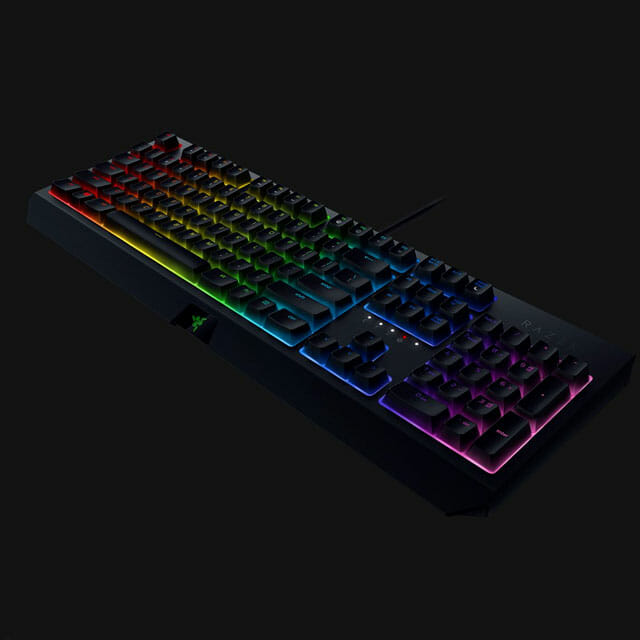
So-called “gaming keyboards” from companies like Razer make up a huge part of the mechanical keyboard market, and are very competent boards even for non-gamers. Their general aesthetic is a little….polarizing, but that is about the only meaningful difference between them and non-“gaming” keyboards. Follow your bliss!

Full-size keyboards have all the keys you could ever want: a full suite of letters and numbers (obviously) but also arrow keys, a row of F1-F12 function keys above the numbers and a dedicated numpad. This is your safest bet, with a few minor downsides. Bigger mechanical keyboards are generally more expensive, and they have a larger footprint on your desk.

Tenkeyless boards are a full-size keyboard, but without the numpad. Simple! After all, you can just pick up a numpad separately if you really miss it.

60 percent keyboards dispense with the numpad, but also function keys and, most notably, arrow keys. In lieu of dedicated keys for these functions, 60 percent boards make use of a feature called layering. Just like you would hold shift to access the “layer” of keys where symbols like @ and * live on a normal keyboard, 60 percent keyboards use an additional “function layer” to give you temporary access to the keys it is missing. Some slightly larger keyboards known as 65 or 68 percent keyboards, find a way to cram in those arrow keys somewhere by getting creative with the size of certain keys.

There are also even smaller boards, but that’s a conversation for another day.

Our recommendation: Unless you use the numpad on a very regular basis, get a Tenkeyless. Smaller 60 percenters are very popular for their minimalism and portability, but I would advise against choosing any keyboard that does not have arrow keys. If you’re anything like me, you will miss them far, far more than you expected to.

What’s your next upgrade?!

Typing on a mechanical keyboard is a blast, but it is only half the fun. The other half, and the truly addictive (and expensive) part is tricking it out. Unlike membrane keyboards where the keycaps are typically permanently attached to the board, a mechanical keyboard’s keycaps are removable. This means that you can pull off that stock plastic and replace it with all manner of colorful alternatives. This is how you turn the mechanical keyboard you bought into your mechanical keyboard.

Budget sets of replacement caps can be found on Amazon in the $30-50 range. But while colorful and widely available, they’re generally made out of low quality plastic and a pretty limited variety of colors. More esoteric and high-quality keysets are generally produced in small runs, are only available for limited times through boutique websites and may cost as much if not more than what you paid for the keyboard itself.

For an idea of the range of options that are trendy with enthusiasts, scope out a mechanical keyboard haunt like r/mechanicalkeyboards on Reddit. For an idea of what is available for purchase at the moment, you can scope out reputable boutique retailers like Drop, Pimp My Keyboard, and Originative Co. Just be prepared to wait; orders for new keysets are often taken long before the keys themselves are actually in production.

For a smaller upgrade, you can also purchase custom keys one by one. Some novelty keys, like the ever-popular “Sadster” can be had for as little as a dollar. Other “artisan” keys are made by hand or produced using handmade casts. These highly collectible keys are truly stunning and unique works of art, but they’re also wildly expensive. Artisan keycaps from Jelly Key (some of the best in the biz) will run you $50 or more for a single key.

And then, of course, there is the matter of your next keyboard because, let’s face it, there will be another. While it is too much to go into right here right now, just know that there is a wide, wide world of tiny keyboards, strangely-shaped ergonomic keyboards and, of course, the prospect of building one yourself.

Our recommendation: Any, or all, of the above! Just do something, because otherwise you’re only having half the fun you could be.

Great options for your very first keyboard

So, all that said: What should you actually buy?!?! Here are three terrific options that run the gamut from premium to inexpensive and all of which will make a terrific first board.

Massdrop ALT

The Massdrop ALT is admittedly a bit expensive, but there is a good reason to shell out: it is, in a manner of speaking, an infinite number of keyboards at once. Most mechanical keyboards have switches that are permanently soldered in, so if you want to try a new kind of switch, you’ll have to buy a new keyboard that has them. The ALT, on the other hand, has “hot-swap switch sockets,” which means that you can replace both they keycaps and the switches with ease. That means that if you decide you want to try a new flavor of switches, all you have to do is buy a handful from a wholesaler and install them yourself, saving you a lot of money and space versus buying more keyboards. Its 65 percent design is also, to my mind, the perfect layout, though the larger and more expensive Massdrop CTRL can give you a tenkeyless option.

Custom WASD Keyboards

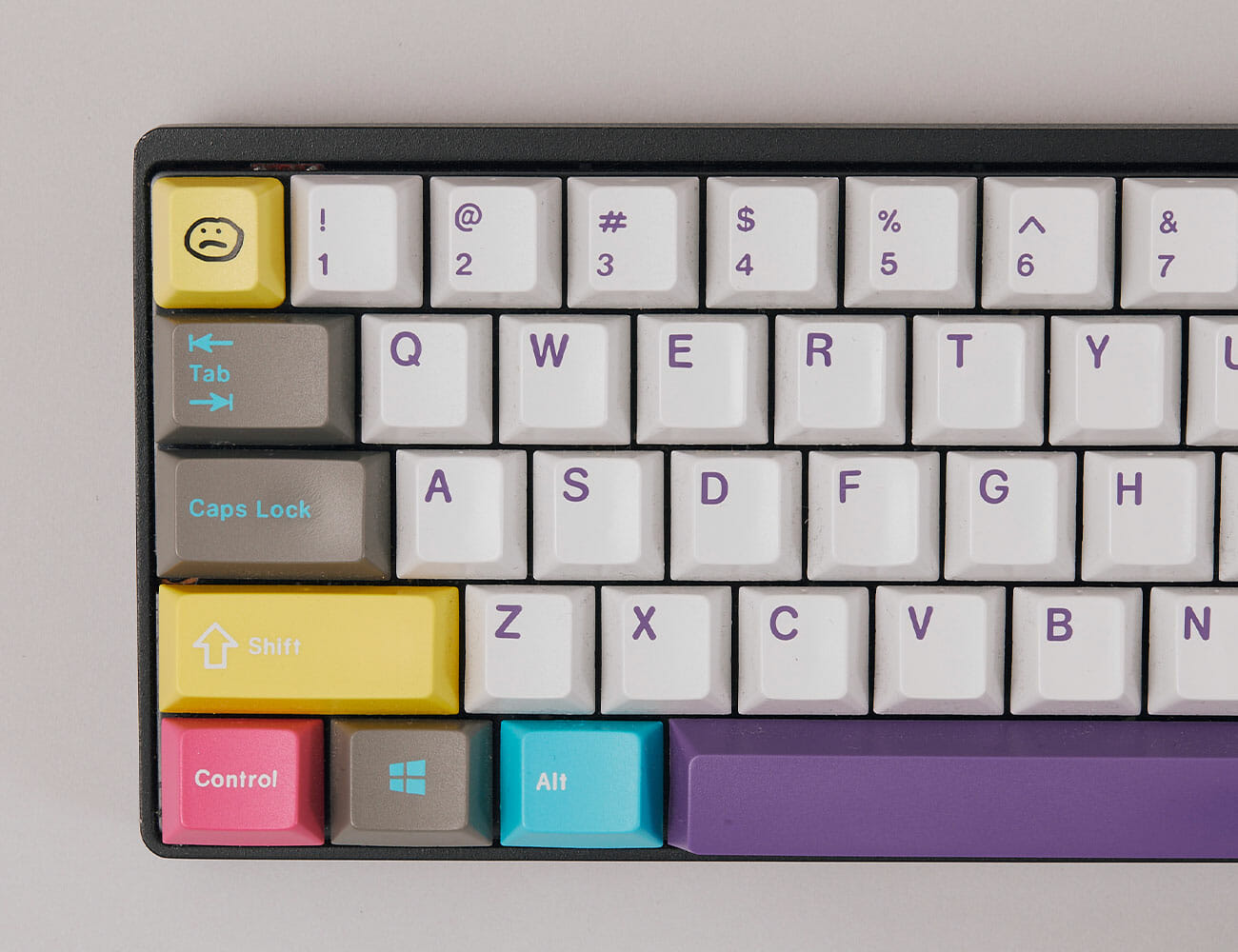
A slightly cheaper but still terrific option is a custom keyboard from WASD Keyboards. WASD offers full-size, ten keyless, and 60 percent sizes, along with the most popular flavors of switch, and case colors of black and white. But the best part is that these keyboards come with custom caps that you can design down to the individual key. While these caps are far from the highest quality and may show signs of wear pretty quickly if they feature printed legends, they are a terrific way to get your first taste of how addictively fun it is to trick out your own custom board. My very first mechanical keyboard (that’s it, right up there) was a 60 percent from WASD with brown switches, though if I could go back in time, I’d opt for a tenkeyless with clears instead.
Protip: Don’t pick an ISO layout with the big weird enter key. That makes finding custom keysets that fit your board much, much harder.

Qisan Magicforce 68

If you’re really on the fence, the Qisan Magicforce 68 is the keyboard for you. Chinese made, these boards are extremely cheap but punch well above their weight. Prices tend to fluctuate over time, as well as from model to model depending on what color and switches you’d like. But if you’re looking to get in on the cheap, there’s no better entry point. The best part about getting a cheap board for your first time out? It’s a great excuse to spring for something expensive the next time around once you have a handle on what it is you actually like.

How to Build the Perfect Cheap Smart Home From Scratch

So you want to build an entry-level smart home and you don’t want it to cost a fortune. Good news: that’s totally possible. The first thing you want to do is decide whether you want to have an Apple, Amazon or Google smart home — Siri, Alexa or Google Assistant?

There’s a good chance you already own a smart speaker. Roughly 25-percent of US households already do. If not, you’re probably already comfortable talking to a virtual assistant, so when it comes to deciding between Apple, Amazon or Google, there is probably already a way you are leaning. If not, then you’ve got the chance to make a big choice before you get started. Here are the reasons to choose Apple, Amazon, or Google, and the best entry-level devices to get you off the ground.

The Apple Smart Home

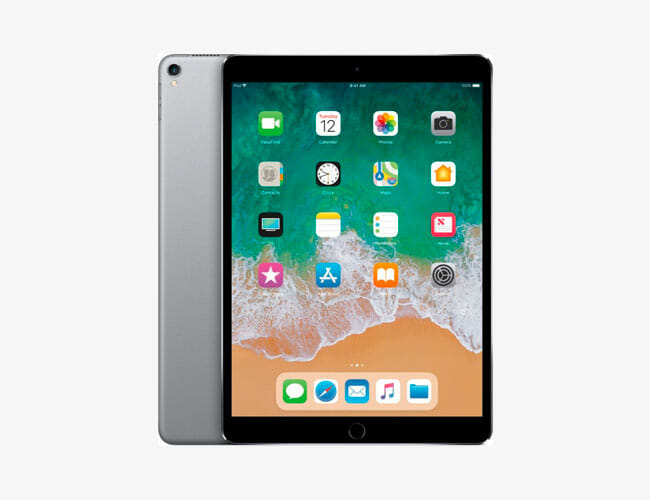
Apple’s smart home ecosystem has some pretty pronounced pros and cons. On the plus side, the HomePod and its assorted gadgets are uniquely suited to work well with other Apple products and services like your iPhone and Apple Music. Apple is also very committed to privacy in ways that its harder for data-slurping companies like Amazon and Google to be, even despite their promises. But Apple’s hardware is also on the more expensive side, and you basically need an iPhone to get the most out of the setup. All that said, Apple is a great choice for iOS die-hards, go figure.

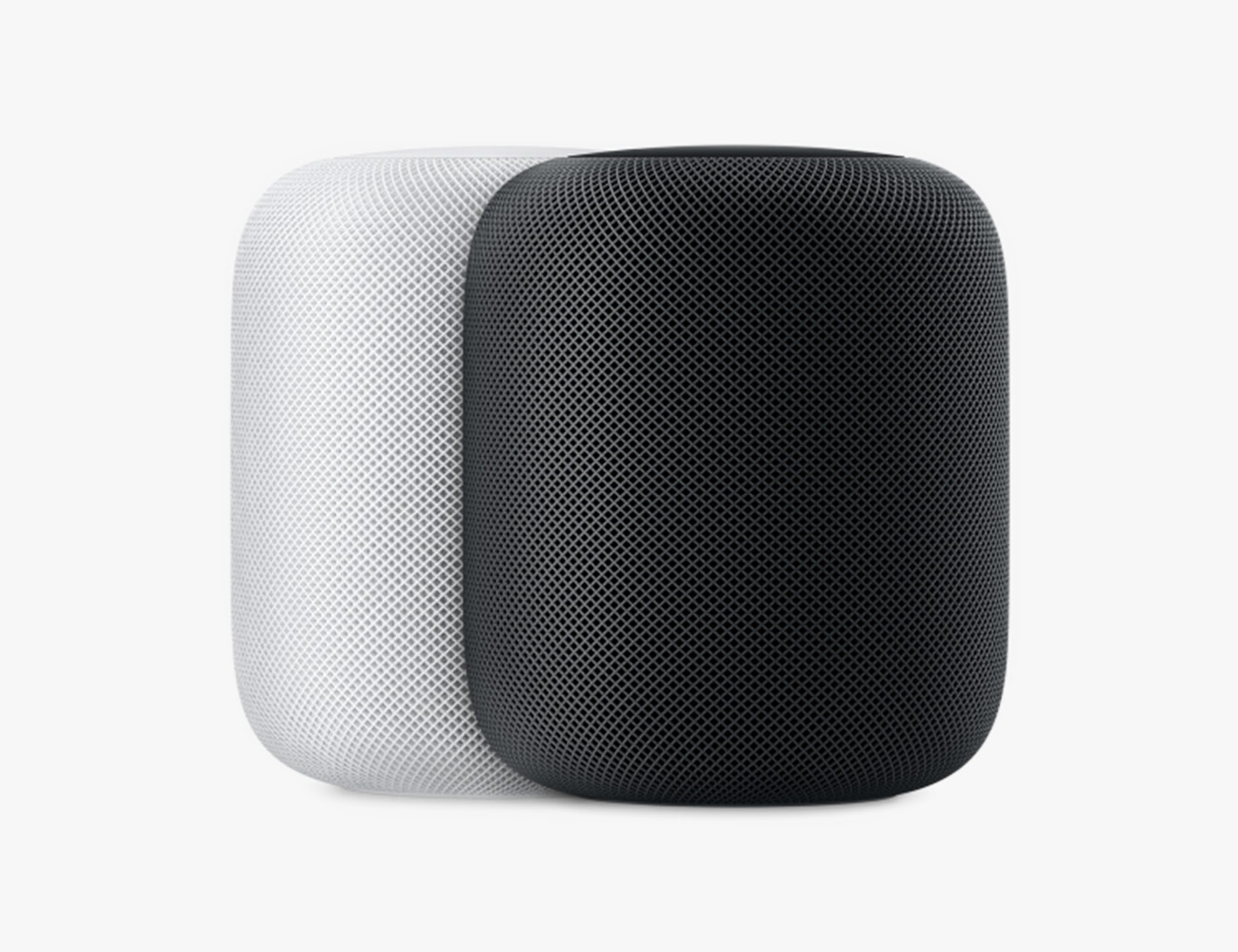
The Smart Speaker: Apple HomePod

The HomePod is still one of the best-sounding smart speakers you can buy. Apple was one of the first companies to bake an autotuning feature into a smart speaker; no matter where you place it, the HomePod will adjust its EQ settings so that it sounds the best that it can. The big catch with the HomePod is that in order to use one to its full potential, you really need to have an iPhone and be a subscriber to Apple Music. This is because the HomePod has some pretty neat iPhone-centric features that no other smart speaker has; you can send iMessages, make calls, handoff audio to and from the HomePod, and listen to voicemails, all with “Hey Siri” voice commands. And you need to be an Apple Music subscriber to summon music with your voice.

Alternatives: N/A

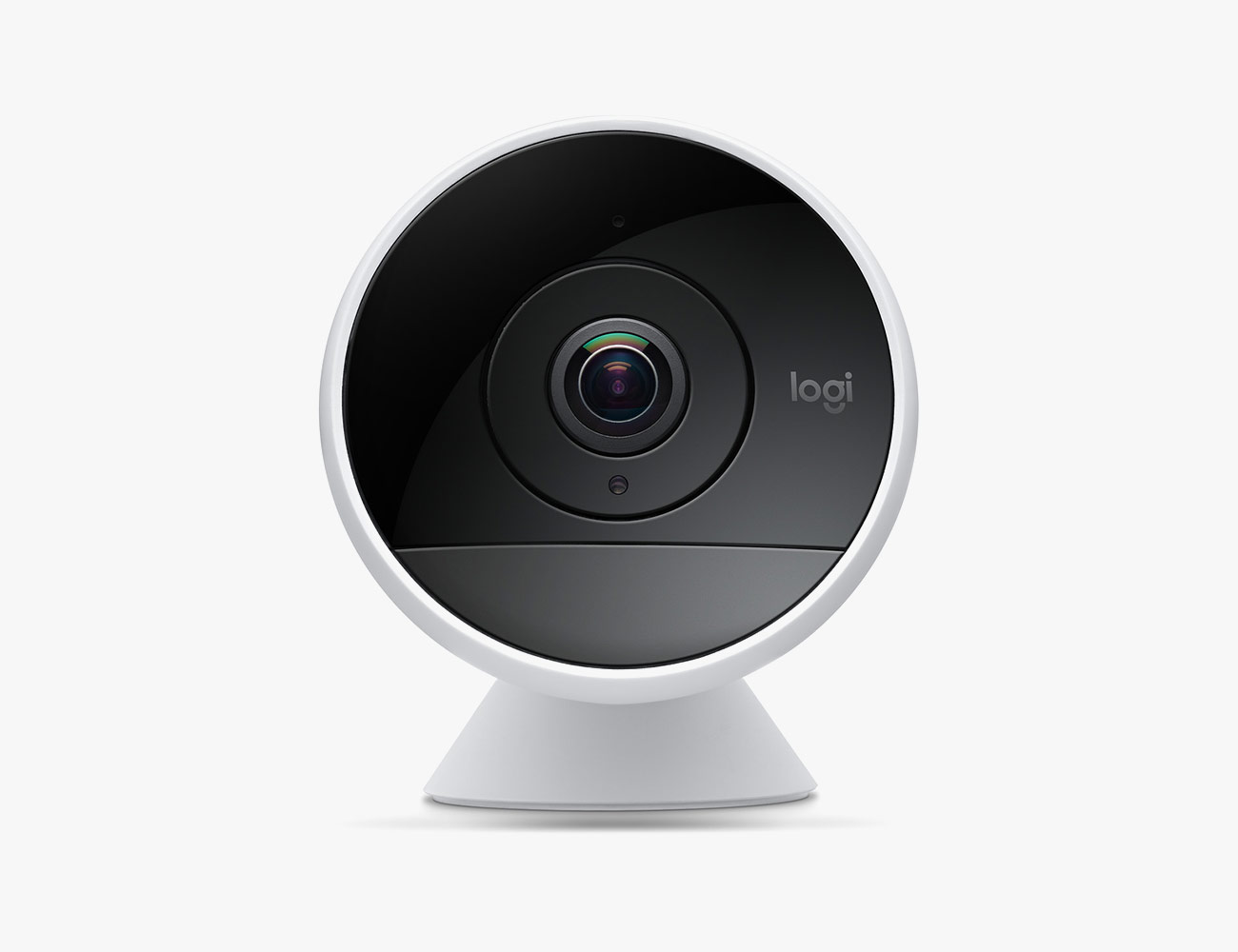
The Smart Home Camera: Logitech Circle 2

Most smart home cameras, somewhat surprisingly, aren’t compatible with Apple’s HomeKit. Of those that are, Logitech’s Circle 2 is the most popular. It can be set up indoors or outdoors (yes, it’s weatherproof), and you can swap out its traditional base with a wall/window mount. A little forewarning: the Circle 2 can be purchased in wired or wire-free models, but HomeKit only works with the wired model. This smart security camera is also compatible with Alexa and Google Assistant.

The Baby Monitor: Arlo Baby ($200)

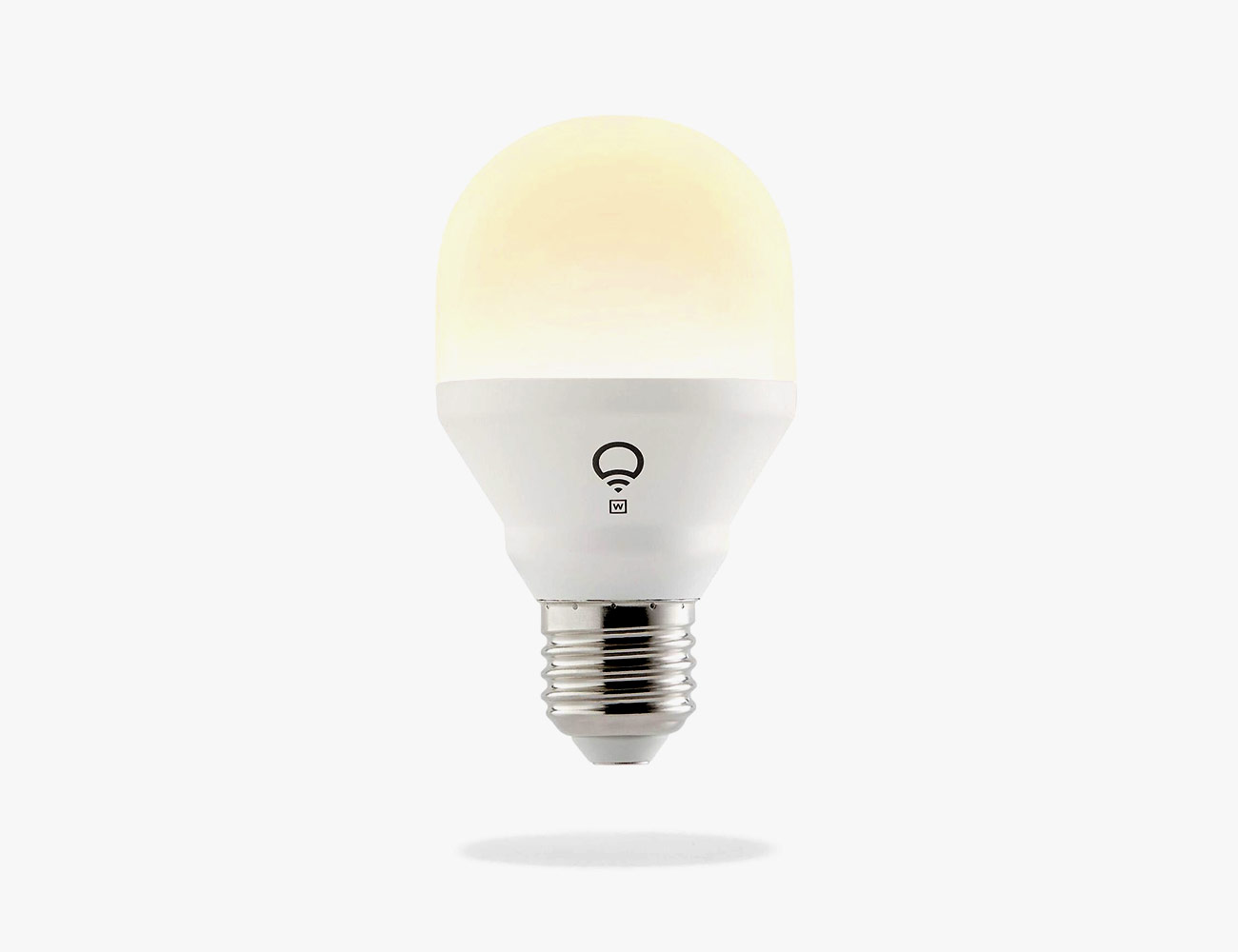
The Smart Light: LIFX Mini White

The LIFX Mini White is our favorite smart light that works with Apple HomeKit. At just $20, it’s one of the most affordable smart lights you can buy. And, because all of LIFX’s smart lights have built-in Wi-Fi, it’s really easy to install and setup — you don’t need to buy a separate smart home hub or bridge.

The Upgrade: LIFX Mini Color ($30)

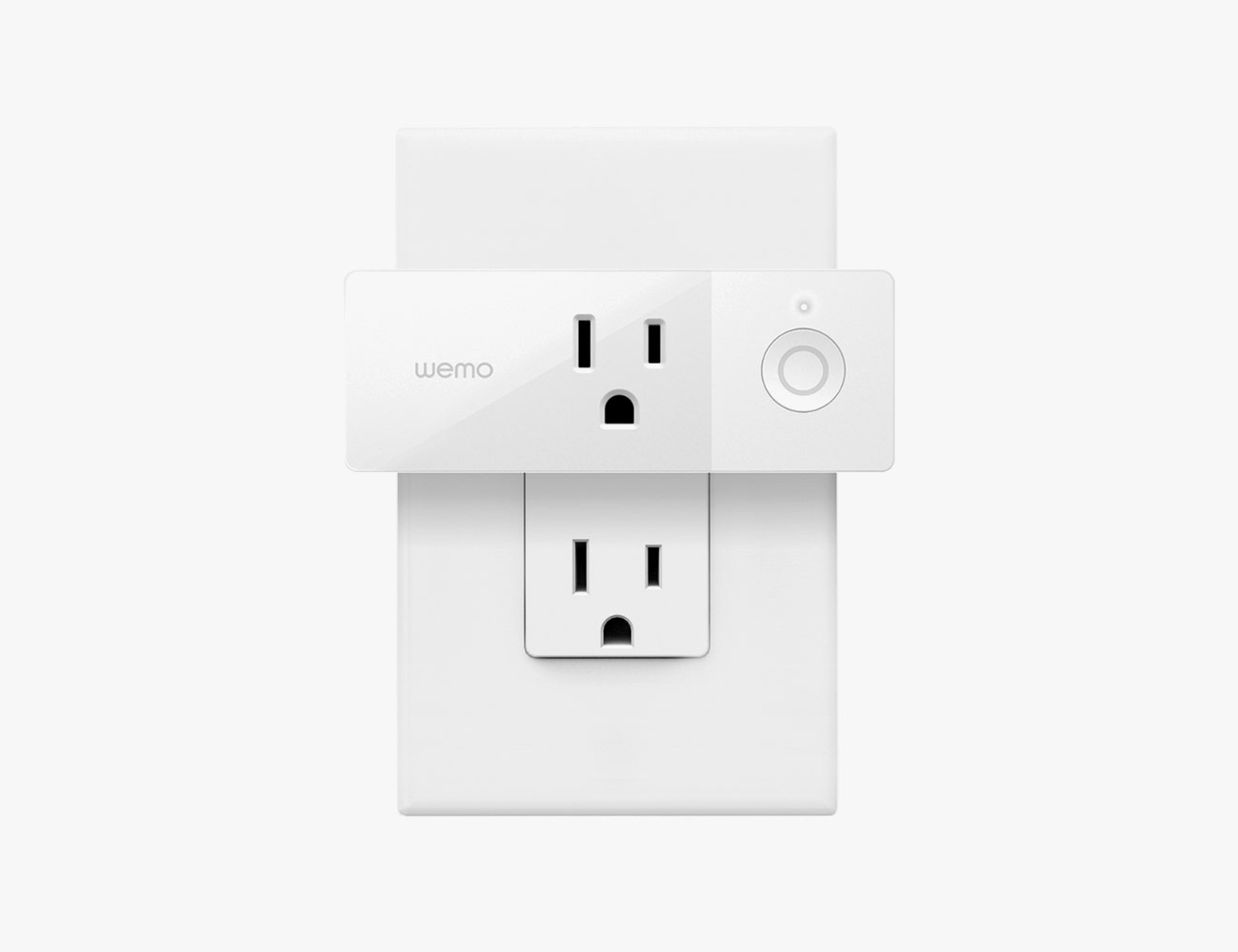
The Smart Plug: Wemo Mini Smart Plug

The Wemo Mini Smart Plug is a super-popular smart plug that is compatible with Apple HomeKit, Google Assistant and Amazon Alexa. From the perspective of an Apple smart home, this little plug is a great way to control various electronic devices — such as lamps, tabletop fans, diffuser, space heaters and A/C units — from your iPhone or iPad, or with even your voice. Using the Wemo mobile app, you can also set automatic schedules for various plugs to turn on and off.

The Upgrade: ConnectSense Smart Outlet 2 ($60)

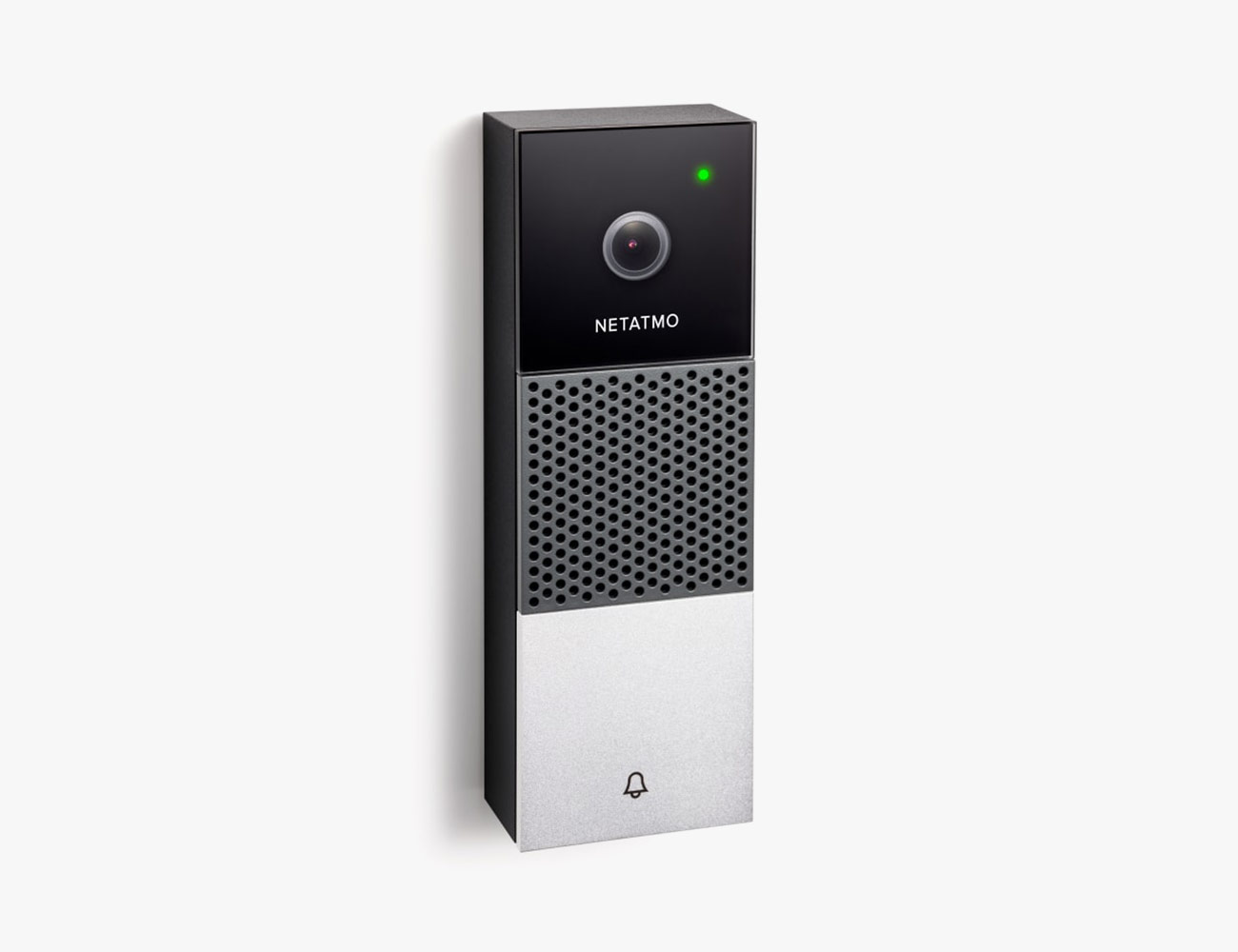
The Smart Doorbell: Netatmo Smart Video Doorbell

This is really the only smart video doorbell that’s currently compatible with Apple HomeKit and, unfortunately, it’s not actually available yet. Netatmo announced it last January and it’s expected to be released before the end of 2019. Like other video doorbells, it promises to give you 24/7 live feed of your door as well as send you smartphone notifications whenever somebody rings your doorbell.

Alternatives: N/A

The Google Smart Home

The biggest strength of a Google smart home is that Google’s Assistant is by far the smartest of the currently existing bunch with the ability to understand questions in context, process complex search queries, and more Google-service-related superpowers every day. Google’s ecosystem is a great pick if you’ll be relying on the assistant as much for question-and-answer work as you will be for home automation, or if you’re already deep in Google’s ecosystem in terms of using services like Calendar, or a Pixel phone.

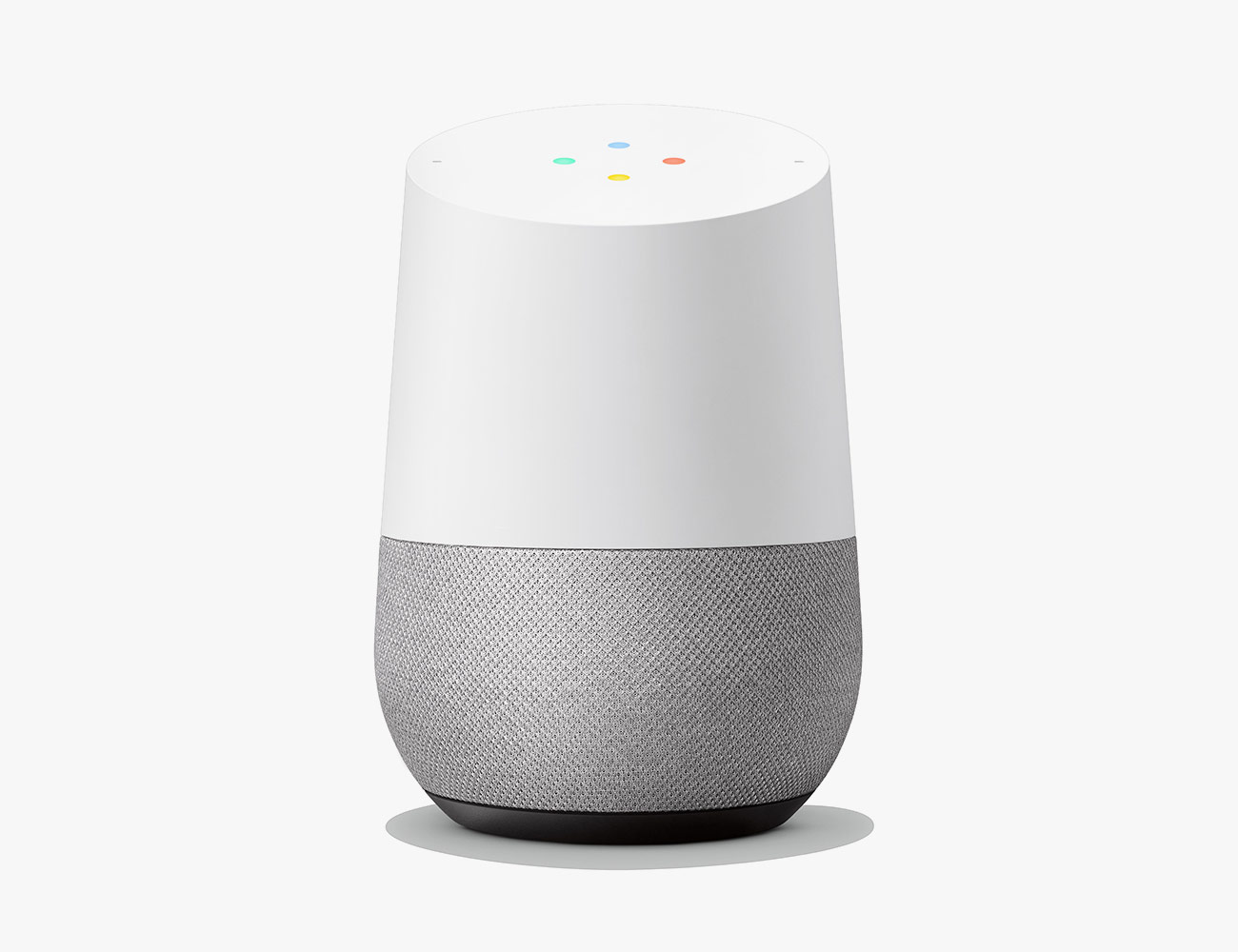
The Smart Speaker: Google Home

At around $100, the Google Home is a great middle-tier smart speaker. It sounds significantly better the the Nest Mini, Google’s new entry-level smart speaker, and it allows you summon music from most streaming services with your voice (the big absentee is, go figure, Apple Music). Maybe more importantly, it gives you a direct line of access to the smartest virtual assistant available today, Google Assistant.

The Upgrade: Sonos One ($199)

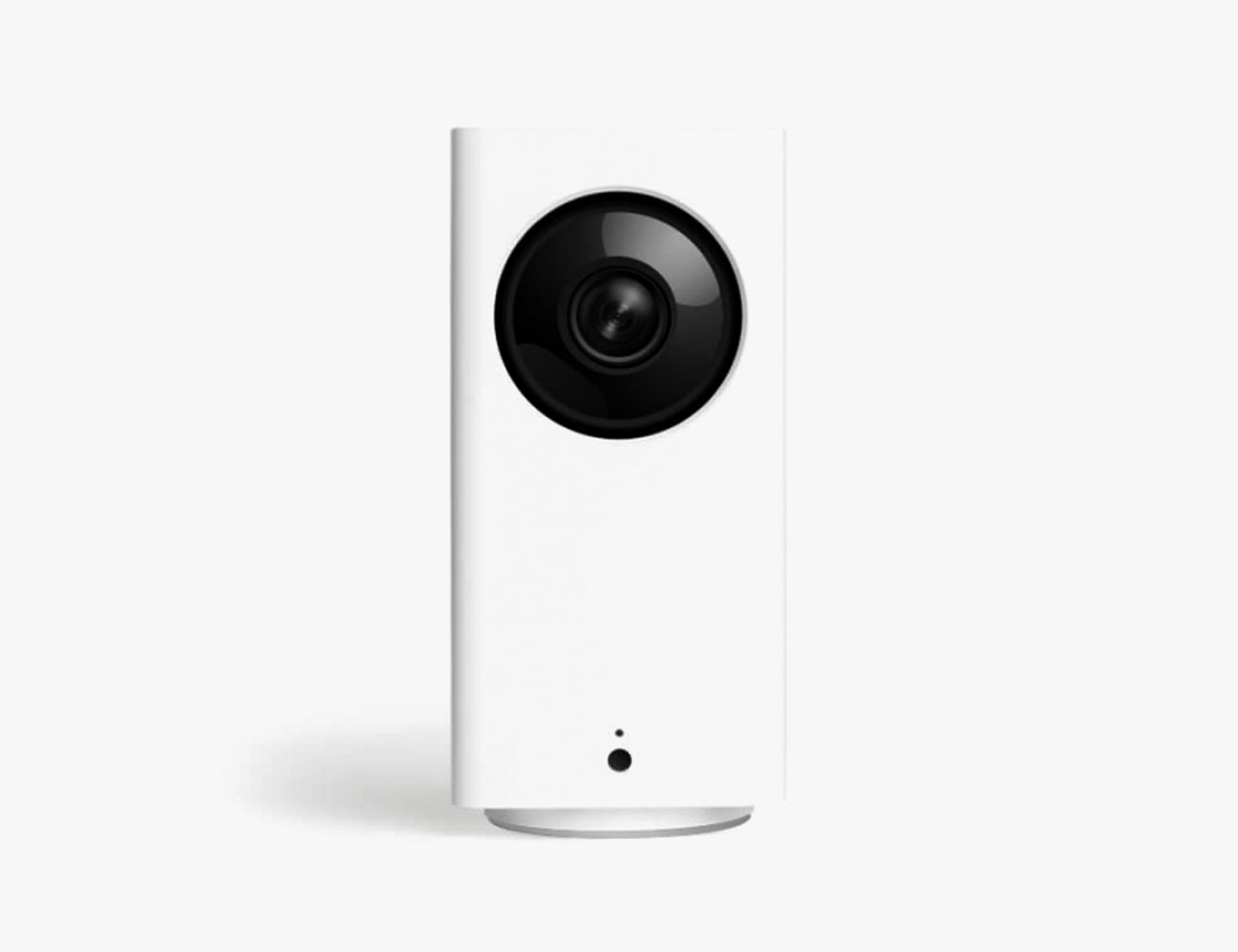
The Smart Home Camera: Wyze Cam Pan

What makes the Wyze Cam Pan really great is that, in addition to being pretty cheap, it’s one of the few smart cameras that allows you to “pan” and tilt the camera’s view from within the app. You don’t have to perfectly position the camera in just the right spot to see who is entering or leaving your house, or what the dog is doing, because within the app you can get the camera to rotate left and right 360 degrees, or tilt up or down. This camera also works with Amazon Alexa.

Affordable Option: Wyze Cam ($20), Nest Cam Indoor ($199)

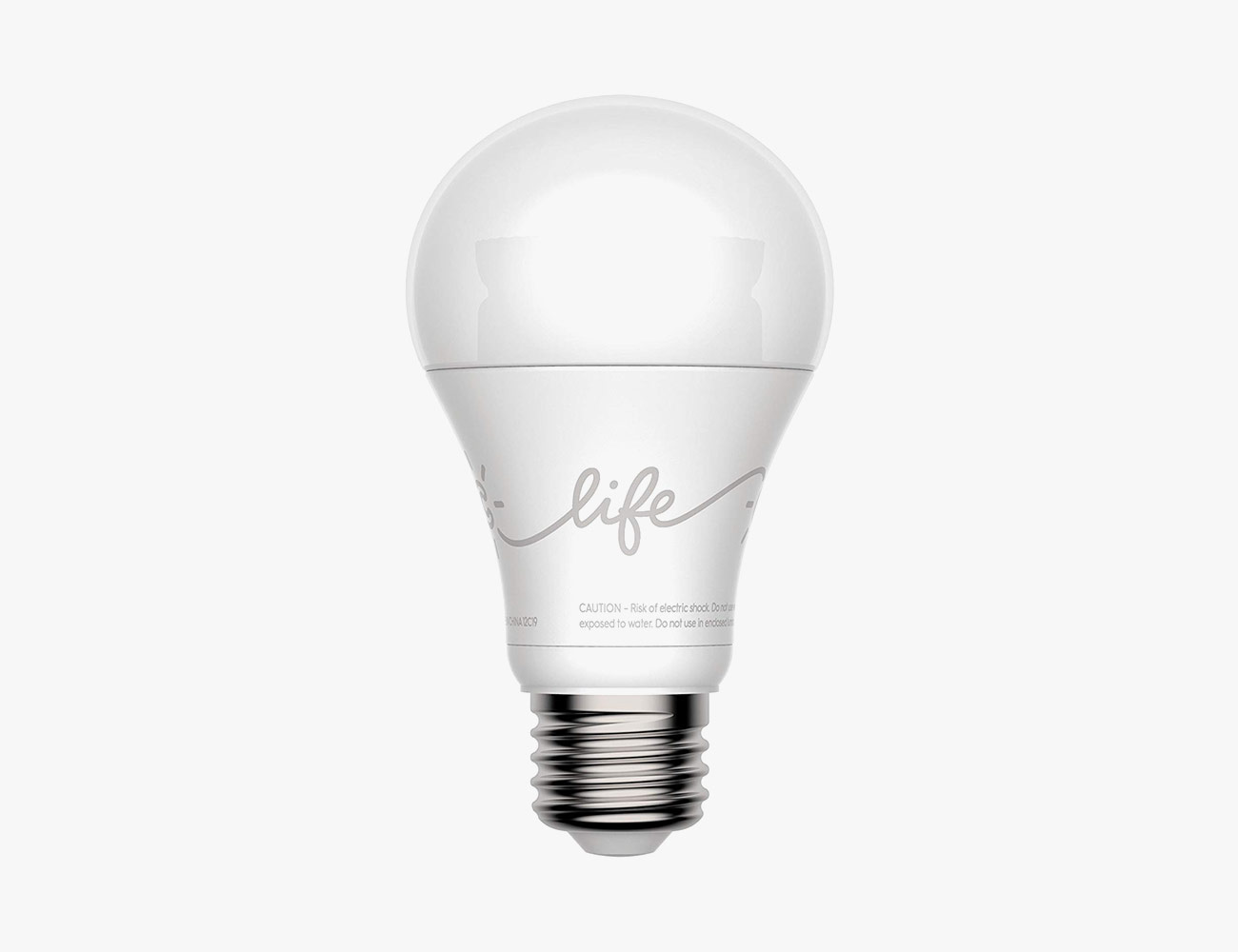
The Smart Light: GE-C Smart Bulb

GE’s smart bulbs are probably the best entry-level smart bulbs for a Google smart home as they work seamlessly with Google Assistant. In fact, Google actually sells smart light starter kits ($45) consisting of a GE-C Smart Bulb and a Google Home Mini.

Affordable Option: Wyze Bulb ($8)

The Smart Plug: Aukey Wi-Fi Smart Plug

Google doesn’t makes its own smart plugs, so you’re going to have to look to a third-party solution. These by Aukey are a great affordable option. They’re easy to setup and, afterward, you’ll be able to control your home appliances and electronics with your voice.

The Upgrade: Kasa Smart Wi-Fi Plug Mini ($15)

The Smart Doorbell: Nest Hello

The Nest Hello is probably your best bet when it comes to smart doorbells that work with Google Assistant. Google owns Nest, meaning this Nest device is going to be easiest to integrate into a Google smart home. It doesn’t hurt that this is also one of the best-reviewed smart doorbells you’ll find.

Affordable Option: Ring Video Doorbell 2 ($139)

The Amazon Smart Home

Amazon’s Echo speaker kicked off the smart speaker craze and, as a result, got in on the ground floor. A huge amount of products play nice with Amazon’s Alexa assistant. Alexa also has the distinction of being able to directly order things from Amazon, which makes this the obvious choice if you’re a Prime member and/or are constantly making orders. The downside? Alexa isn’t the smartest assistant of the bunch, but she’s excellent at her strength of navigating Amazon for you.

The Smart Speaker: Amazon Echo (3rd Gen)

Amazon’s third-generation Echo was released this past fall and delivers iterative upgrades over its predecessor. It sounds slight better and looks a little bit nicer. If you’re looking for Alexa smart speaker that’s affordable and is pretty good for listening to music, this is the perfect entry-level smart speaker.

The Upgrade: Sonos One ($199)

The Smart Home Camera: Ring Indoor Cam

Amazon owns Ring, so any of its smart home cameras are going to work seamlessly with the Alexa app. The Indoor Cam, specifically, is a great entry-level option because it’s super affordable and delivers many of the same features as Ring’s and Amazon’s more expensive smart cameras.

The Upgrade: Ring Stick Up Cam ($100)

The Smart Light: Wyze Bulb

At $8, you’re not going to find a cheaper smart bulb than the Wyze Bulb. The other cool thing about this bulb is that you can use “Alexa” voice commands to turn it on, per usual, but you can also adjust its brightness or color temperature, too.

The Upgrade: Philips Hue White and Color Ambiance ($200/4-pack)

The Smart Plug: Amazon Smart Plug

The Amazon Smart Plug is specifically designed for people who have an Alexa smart speaker in their house. You can plug a much of different things into this smart plug — lamps, Christmas lights, fans or a coffee maker — and you can then turn it on and off using Alexa voice commands.

The Upgrade: Koogeek 2-in-1 Smart Plug ($20)

The Smart Doorbell: Ring Video Doorbell 2

The big thing with Ring Video Doorbell 2 is that it uses a rechargeable battery, meaning there’s no wire work to worry about and it’s super easy to install. The Alexa integration is great especially for people who have one of Amazon’s smart displays, or a Fire TV, because you can summon a live 1080p feed on the screen with your voice whenever you want.

The Upgrade: Ring Doorbell Pro ($179)

Note: Purchasing products through our links may earn us a portion of the sale, which supports our editorial team’s mission. Learn more here.

6 Ways to Make Your Old Laptop Feel Like New Again

That fresh-out-of-the-box performance you get from your laptop when you boot it up for the first few times doesn’t last, unfortunately: as programs and files start to clutter up the system, and more and more software updates roll down the pipe, as the years go by you can start to see some serious slowdowns.

You don’t have to just sit back and accept this gradual slide into obsolescence though—we’ve rounded up six of the most effective tricks for making your laptop feel like its younger self again. Give some (or all) of these a try and it’ll be like having a brand new machine…. almost.

1. Clear out the clutter

What’s the difference between your computer when you got it and your computer now? A whole host of programs and apps, many of which you probably don’t even need any more. Uninstalling as many of them as you can should give your laptop a bit more room to breathe.

We’re not suggesting you take off everything from your system (at least not yet), but stick to the essentials: get rid of games you haven’t played in an age, and applications you tried for a bit but then abandoned. You can easily install this software again, if needed.

The same principle goes for the extensions and add-ons weighing down your browser too — get rid of the ones you don’t really need or have completely forgotten about, and your web browsing should speed up (fewer extensions mean fewer potential threats to your security as well)

|

2. Lighten the startup load

As your laptop gets older, more and more of the applications you install will want to start up at the same time as the operating system. As this list grows, it can seriously impact the time it takes for your computer to get ready to use.

Sometimes this sort of behavior can be really useful, if you want to have a Plex movie library or a Steam gaming console available as soon as your laptop springs into action. Often though you don’t really need these programs launching alongside the OS, especially if you rarely use them. You can just launch them when you need them instead.

On Windows, open Settings (via the cog icon on the Start menu), then choose Apps and Start-up to see a list of programs starting up with the OS. You can also launch Task Manager (search for it from the taskbar), then open the Start-up tab to disable more low-level processes. On macOS, from System Preferences (in the Apple menu), choose Users & Groups and then Login items.

Don’t go too crazy here and start removing things that could be essential services (a quick web search should help with identification). Just take out the programs you recognize that you know don’t need to be launching alongside Windows or macOS.

|

3. Make sure you’ll always have room to breathe

Whether your laptop uses an old mechanical hard disk drive or a more modern SSD, getting close to running out of storage space can have a negative impact on the performance of your computer.

It’s not just that you’ve got nowhere to install apps and save files. Spare hard drive space is often used as an overflow for system memory. So when you’ve got too many programs or files open at once, Windows or macOS will temporarily park some of the data on disk until it’s needed again.

As this available overflow space runs out, the system has to do more juggling, and can start acting sluggish if you’re trying to do a lot at once. Really, the more space disk space you’ve got, the better. A portable SSD like Samsung’s 500 GB T5 can go a long way to making sure you always having breathing room.

4. Enlist some outside help

Various laptop-cleaning applications are out there, if you know where to look, which can give you a hand with tidying up the cluttered mess that your computer has become. Wise Duplicate Finder (Windows) and Duplicate File Finder Remover (macOS), for example, can spot and erase duplicate files for you—both are free to use with paid-for upgrades available in the app.

As an all-in-one system cleaner, IObit Advanced SystemCare works well for Windows: it cleans out temporary and junk files that you don’t need, and even tidies up the Windows registry settings file that can often become bloated. The software is free to use, with a paid-for pro upgrade available for more features.

On macOS, CleanMyMac is well worth a look if you want to boost the performance of your MacBook. It can free up space on your disk drive, optimize the performance of your apps, get rid of programs you’re no longer using. The software will set you back $35, but it’s very comprehensive, and a free trial is available.

That’s not a comprehensive list, but those are some of the best options out there—be wary of installing anything from developers who aren’t well known and don’t have a solid bank of user reviews to their name.

|

5. Use your operating system’s built-in tools

Both Windows and macOS come with a handful of built-in utilities that can put a bit more zip back in your laptop. For example, run the Defragment and Optimize Drive tool in Windows (search for it from the taskbar), and you can get Windows to tidy up the local hard drive and make it easier for applications to use.

Another Windows app you can search for from the taskbar is Disk Clean-up. This particular tool removes files on disk that you don’t actually need—temporary files, old system update files, cached files from the web, and so on. As you select each category you can see how much space you can free up.

Over on the macOS side, open the Apple menu, click About This Mac, and then switch to the Storage tab. If you then click Manage, you’ll see a host of clean-up options for your Mac, from deleting temporary files to wiping downloaded movies you’ve watched (you can always download them from Apple again).

On both macOS and Windows, make sure all the latest software updates are downloaded and installed (either Update & Security from Settings in Windows, or Software Update from the About This Mac dialog). This makes sure you’re running all the latest optimizations and bug fixes for your operating system.

|

6. The nuclear option

This one is not for the faint of heart, but it is the most effective: go right back to the beginning and start again with a fresh install of Windows or macOS. Before you do this, you should of course make sure all your files are safely backed up somewhere else, and that you can easily reinstall all your applications and games, because everything is going to be wiped.

The process is actually very straightforward in Windows. If you open up Settings (via the cog icon on the Start menu), then click Update & Security, then click Recovery, you can reset your PC. You’ll be left with a brand new version of Windows, and your laptop should run as it originally did.

The process on macOS is a little more involved. You need to restart your Mac, then hold down Command+R as it reboots. When the macOS Utilities window appears, choose Reinstall macOS, and follow the instructions on screen. When everything is done, your laptop will restart again.

Reinstalling Windows or macOS is so effective at making your laptop feel like new, you might want to think about doing it regularly—every few months or so. Just make sure your important files can be quickly restored afterwards (tools like OneDrive on Windows and iCloud on macOS are making this easier all the time).

|

Note: Purchasing products through our links may earn us a portion of the sale, which supports our editorial team’s mission. Learn more here.

Jony Ive’s Best Designed and Most Influential Apple Products of All Time

A version of this article originally appeared in Gear Patrol Magazine with the headline “The Ive Touch.” Subscribe today

At Apple, Jony Ive transformed tech products from bland, clunky gadgets to sleek, sexy and very mainstream objects of desire. Start here, with his greatest hits, and soon you’ll see his signature design language everywhere you look.

When Apple announced in June that Jony Ive, the company’s chief design officer and Steve Jobs’s “spiritual partner,” would be leaving the company after nearly three decades, the tech world let out a collective audible gasp. Ive is responsible for some of the most iconic modern products ever created — by Apple, or anyone else. The iMac. The iPod. The iPhone, iPad and the Apple Watch. It was Ive, along with the late Jobs, who helped drag Apple back from the brink of bankruptcy in the late ‘90s before turning it into the world’s most valuable company.

Ive started at Apple in 1992, when the company was struggling financially and Jobs was off running NeXT. When Jobs returned in 1997 he immediately promoted Ive, who had been thinking about leaving the company, to run Apple’s product design team. His first assignment: turn the “boring beige box” Macintosh 128K into something cheaper, prettier and more popular.

Ive responded with the iMac. Released in 1998, it showcased his new design direction for the brand: fun and accessibility. Instead of focusing on hard-to-understand specs like chip speeds and RAM, Apple would deliver products that “dispensed positive emotions,” according to Leander Kahney in Jony Ive: The Genius Behind Apple’s Greatest Products. The iMac was transparent and colorful, like a big gumball dispenser. There was nothing else like it, or even close.

Over the next two decades, Ive leaned into the feel-good factor while designing products that were meant to be equal parts beautiful and functional — and often, as with the iPod, iPhone and more, landing on forms that were truly ground-breaking. Ive refined the minimalist and simplistic approach of his idol, the industrial designer Dieter Rams, along the way developing an obsession with thinness and rounded edges, two of many hallmarks that have become synonymous with Apple’s now-iconic design language.

That the most influential product designer in the world is leaving Apple raises many questions about its future. But don’t expect answers any time soon. As Jon Gruber, among the most fervent journalists who cover Apple, wrote in a recent Daring Fireball article: “We’ll still be seeing Ive-designed hardware five years from now. It is going to take a long time to evaluate his absence.”

Recognizing his genius, on the other hand, is quite simple indeed.

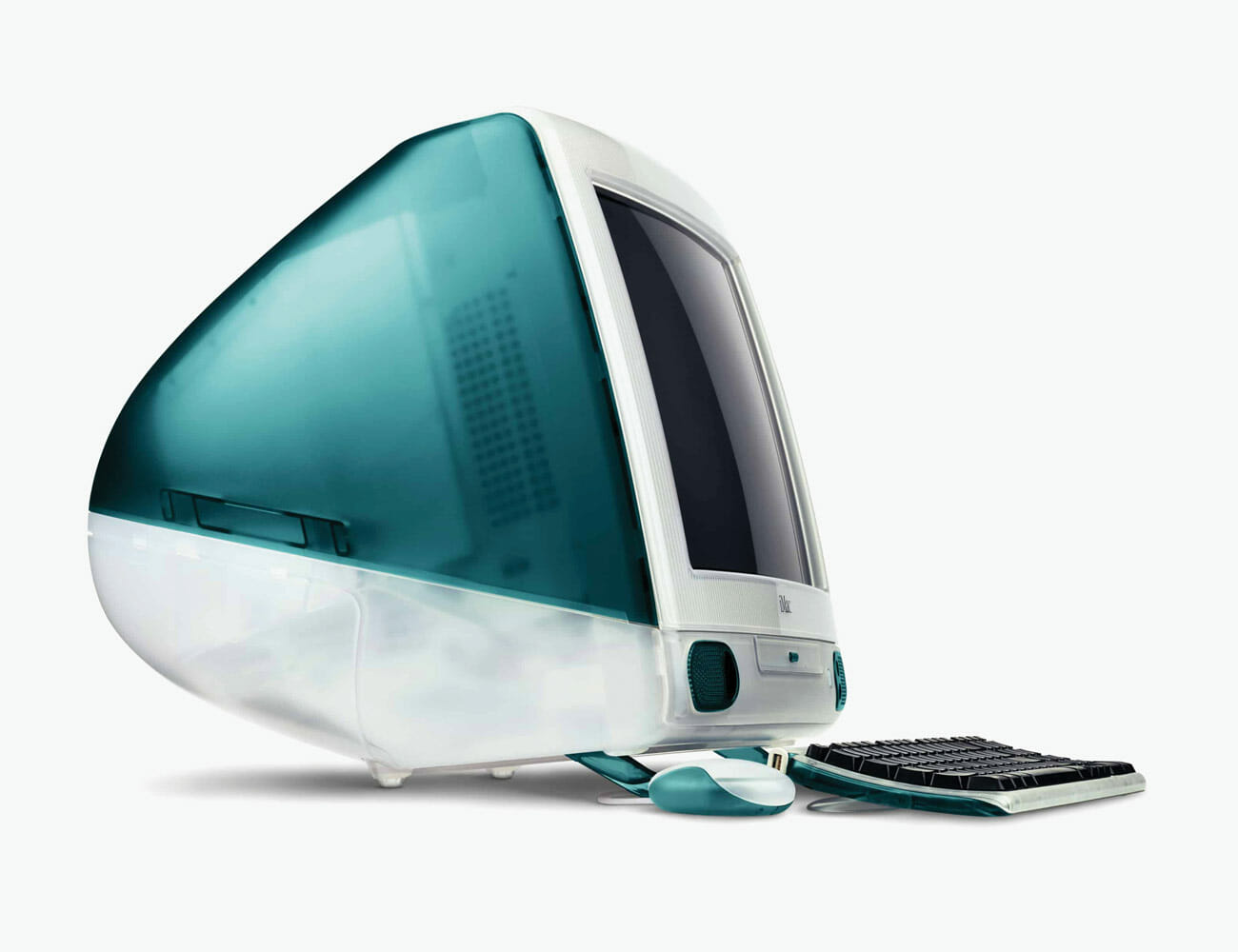
iMac G3

The iMac G3 — yes, the one from Zoolander — was the first Apple product where users could really feel Ive’s influence. It was playful, with a see-through shell, and came in thirteen colors; to this day, it remains the most colorful computer in Apple’s history. And it was a massive success, selling 800,000 units in the first five months and effectively propelling Apple into an entirely new era, with Ive at the design helm.

Year: 1998
Signatures: Translucent shell, rounded case back, lack of floppy-disc drive

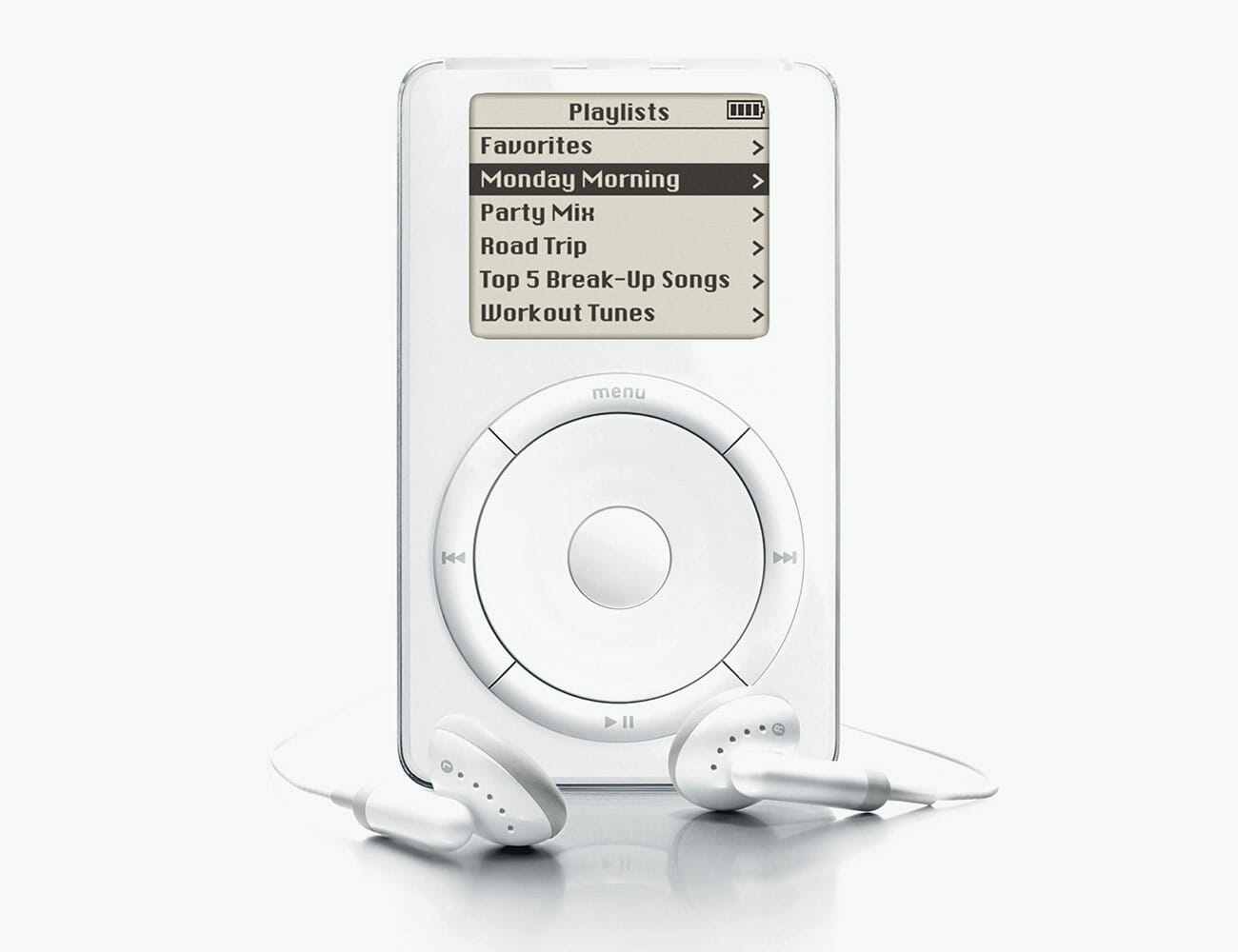
iPod

The first iPod was an instant classic. It put thousands of songs in peoples’ pockets at a time when most portable music players could hardly store a regular-length CD. But the real beauty of the iPod design was its brilliantly simple click wheel: a new user could pick up the device and intuitively figure out how to change songs and scroll through albums and artists without ever glancing at an instruction manual. Two decades later, it remains addictively satisfying to use.

Year: 2001
Signatures: Mechanical scroll wheel, rounded edges, aluminum body

iPhone

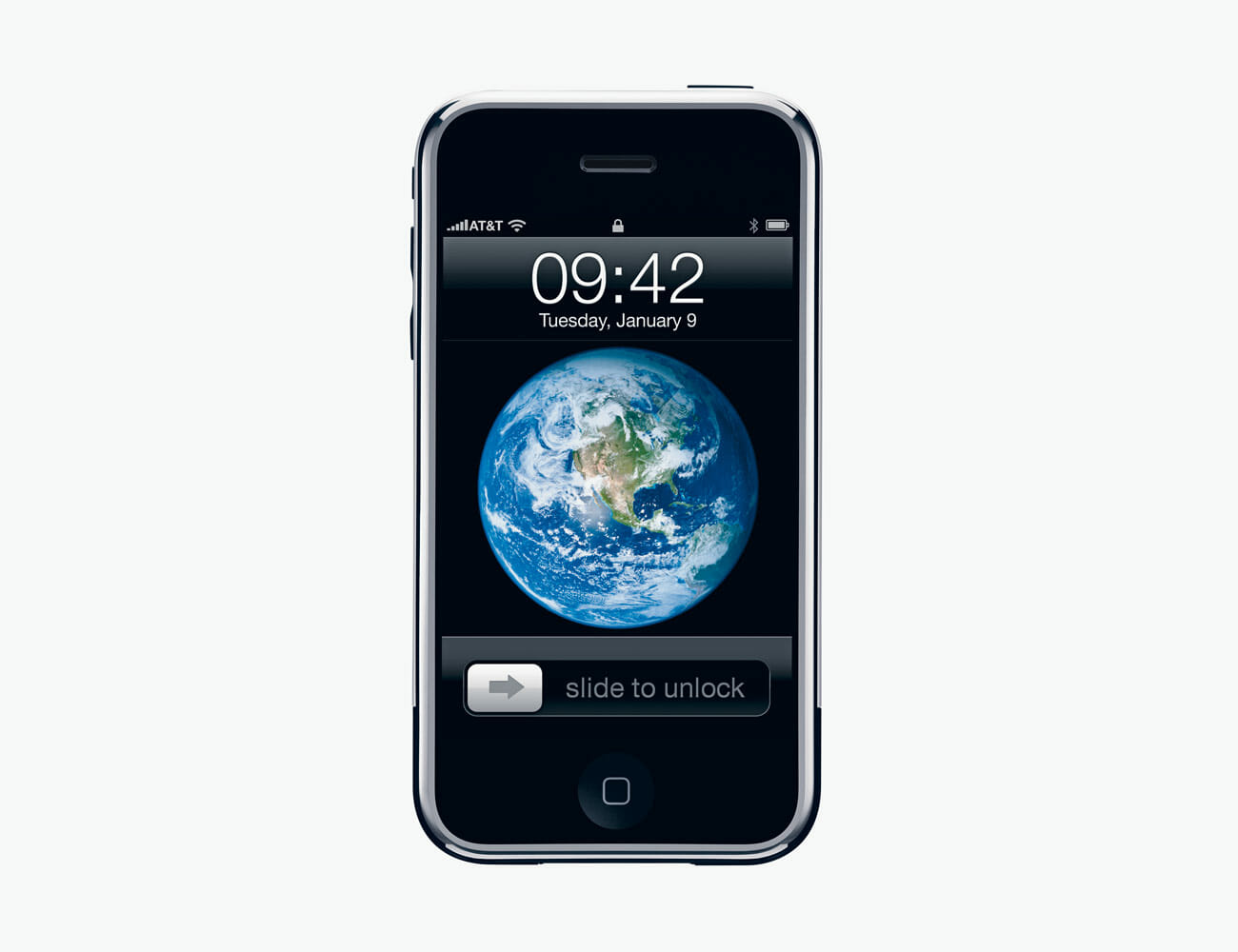
Of all the important products that Apple has created, the iPhone is the most relevant to the company itself: iPhone sales account for two-thirds of the company’s revenue. Back in 2007, when Apple released the first-generation iPhone, it was the company’s first device with a multi-touch technology in the touchscreen — suddenly you could interact with your phone by rotating the screen, pinching to zoom, or swiping up, down and side-to-side. The demand was
enormous: Apple sold its millionth iPhone just 74 days after its release.

Year: 2007
Signatures: Multi-touch technology, portable music-player functionality, rounded edges

iMac

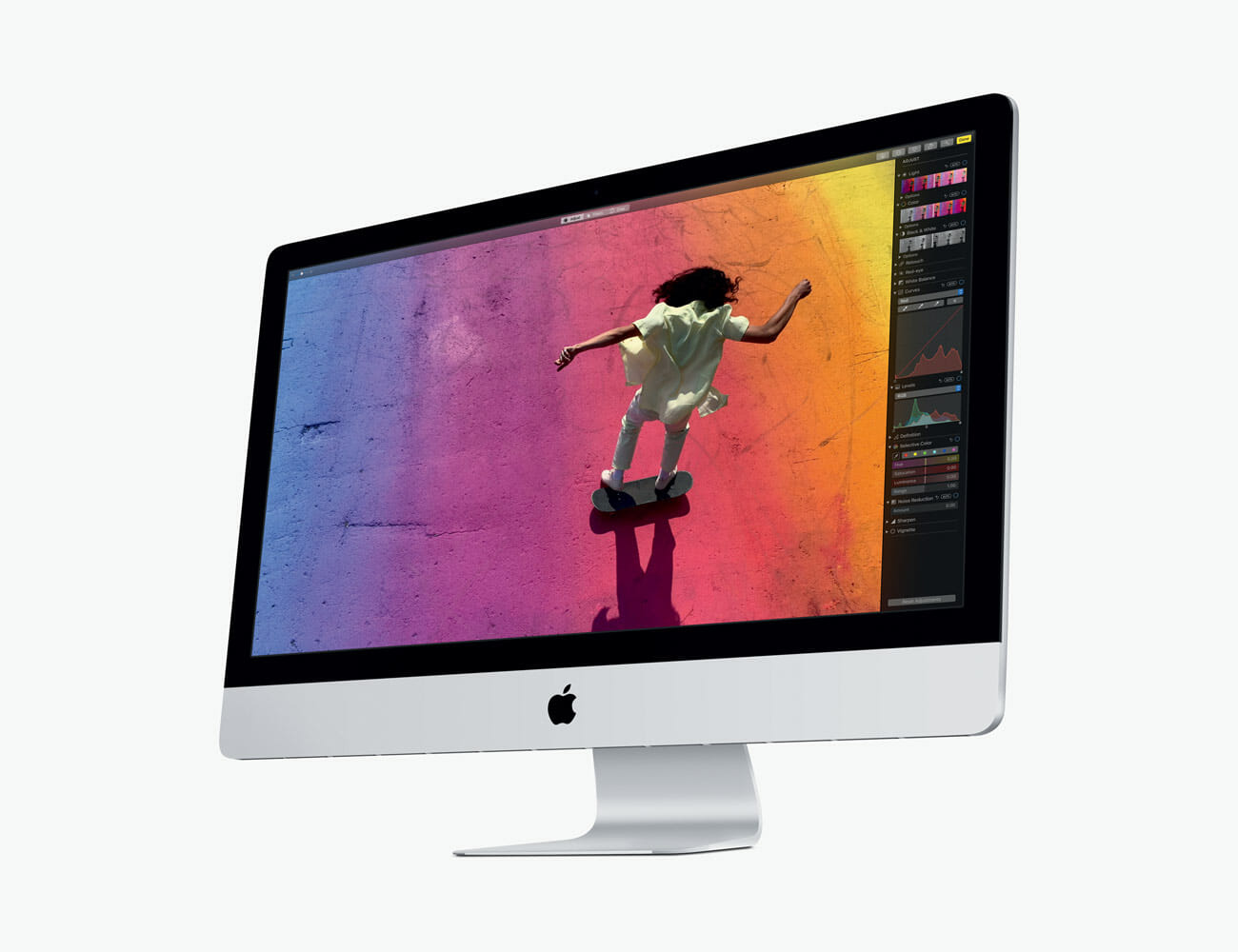
Every company making all-in-one desktops continues to copy the groundbreaking design language of the 2012 iMac: a slim neck supporting a glass display such that it looks as if the monitor is floating in midair. Even Apple knows better to mess with a classic; today’s iMacs appear largely the same. As such, some Apple die-hards to consider this timeless design to be the spiritual successor to the first personal computer, the 1984 Macintosh.

Year: 2012
Signatures: Extra-thin monitor, antireflective display, aluminum and glass body

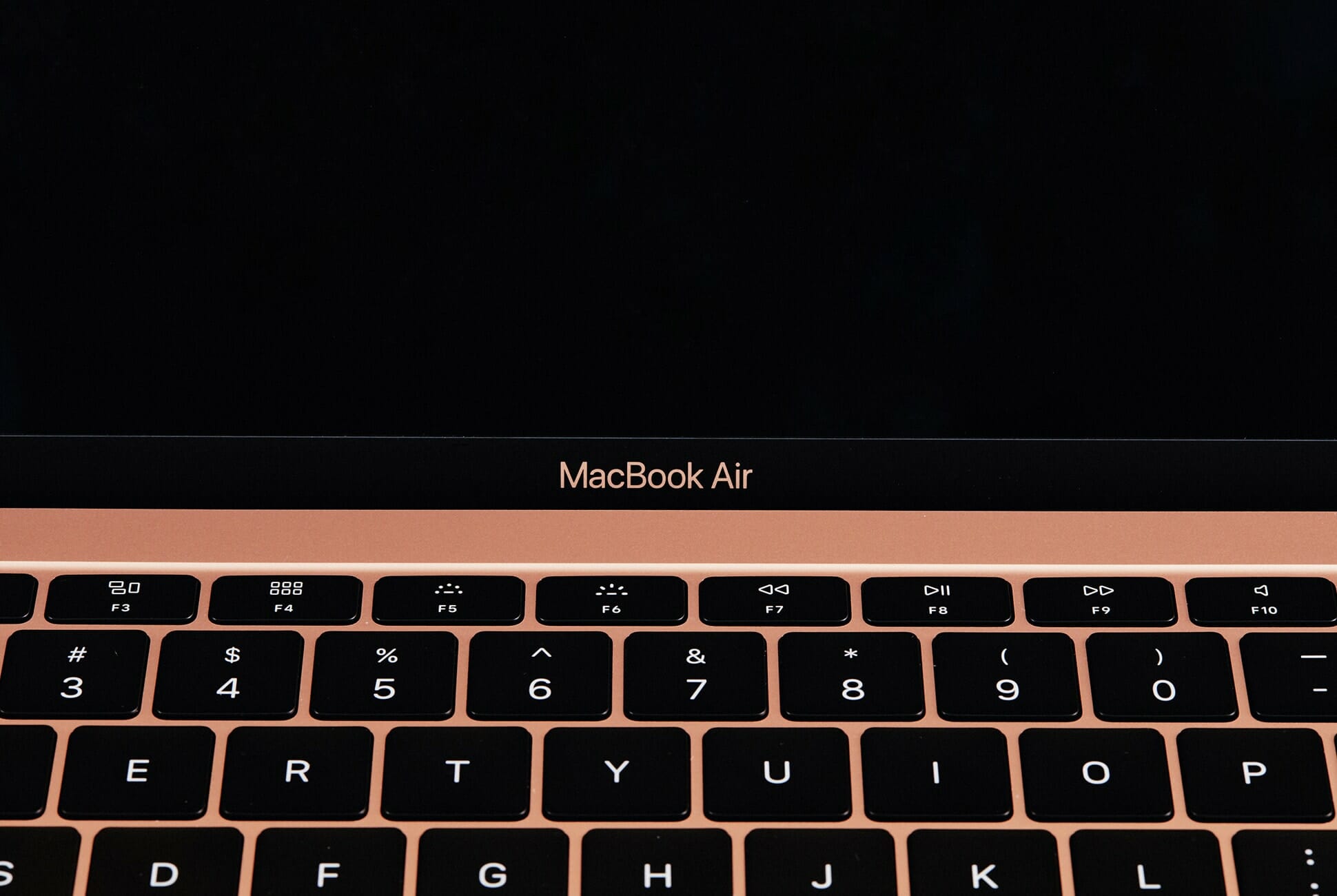
Macbook Air

Perhaps no Apple product has garnered as much immediate awe as the first MacBook Air. When Steve Jobs introduced it at one of the company’s famous keynote addresses, he produced it, like a magic trick, from a plain manila envelope to a chorus of amazed ooohs and aaahs and whistles. The latest version, released in 2019, is the thinnest and lightest yet, weighing just 2.75 pounds and only 0.61 inches thick — that’s thinner than a first-generation iPod.

Year: 2008
Signatures: Incredibly thin, sleek aluminum body, lightweight

Apple Watch

The Apple Watch is a prime example of Ive’s exacting attention to detail. An avid watch collector, he consulted seven horological experts to make sure it felt like a true timepiece, instead of just another smartwatch. The digital crown on the Series 4, for example, is one of the most intricate mechanisms ever created by Apple; its subtle haptic feedback gives the all-digital smartwatch an unmistakably mechanical feel.

Year: 2015
Signatures: Digital crown, aluminum and glass body, square face with rounded edges

Apple Park

Many believe that Ive stuck around Cupertino as long as he did just to see Apple Park to completion. People are already calling the 2.8 million-square-foot circular campus his magnum opus, and it’s fair to say that Apple Park is indeed a product — just one made for the company rather than its customers. Ive thought about everything, from the way teams would sit with one another to the specific curvature of the glass, to make sure Apple’s massive new headquarters spoke the same the design language he’d been translating for 22 years as Apple’s lead designer

Year: 2017
Signatures: Infinity-loop design, enormous curved glass walls, open workspace

Is Your Apple TV Acting Weird? Here’s How to Fix It

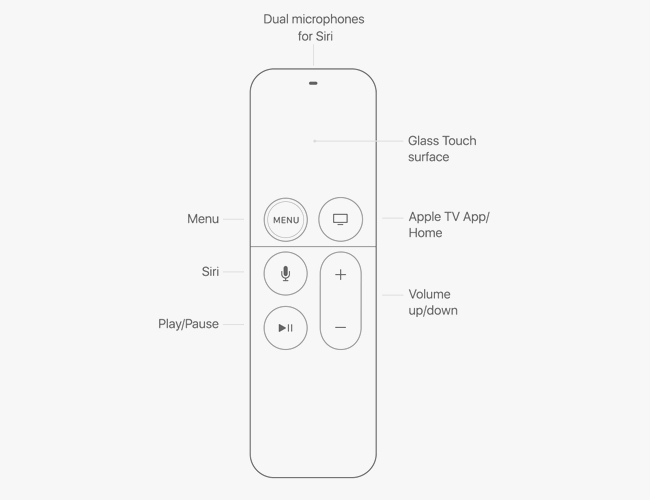
If you own an Apple TV HD ($149) or Apple TV 4K ($179+), you’ve probably noticed that your Siri Remote hasn’t been working like it used to. That’s because, with the latest tvOS (which you’ve probably set your Apple TV to update to automatically), Apple changed the default settings of the remote’s Home button.

When you previously pressed the Home button on the Siri Remote, it would send you to the Home screen. With the updated tvOS, however, pressing the Home button now sends you to the Apple TV app. If you’re like me (a creature of habit), who uses the Home button to quickly switch between apps, like Netflix, YouTube, Amazon Prime Video, Hulu or HBO Go, this can be frustrating update.

Fortunately, there’s a quick fix.

• Open the Settings app, which is located on the Home Screen.

• Select Remotes and Devices.

• Select Home Button.

• Instead of “Apple TV App,” select Home Screen.

And that’s it.

The updated button scheme on the Siri Remote now that tvOS 13.0 is live.

The whole idea behind this switch-up is pretty obvious: Apple wants as many people as possible to subscribe and watch the new shows on its new streaming service, Apple TV+, which costs $5 per month.

If you are an Apple TV+ subscriber, there’s a good chance you may like these new Home button settings — and that’s fine. If that’s true, there’s something else you should know to get you up to speed. A single press of the Home button will now take you to the “Up Next” section in the Apple TV App. If you then press the Home Button a second time, it will take you to the Home screen.

Happy streaming.

This 55″ TCL Roku 4K LED TV Is on Sale for Half Off

There was a time when putting a 55″ television in your home or office for less than $600 required waiting in line before the sun came up on Black Friday while you were still in…

Dominate The Game Using The Scuf Vantage 2 Controller For The PS4

Precision and response time are crucial in order to win over your opponent, which is why there is a market for professional-grade accessories. Among all the platforms available, PC gamers have an insane number of choices when it comes to input devices. Meanwhile, console gamers normally use first-party controllers for reliability. However, with Scuf controllers such as the Vantage 2, it won’t be long before you are racking up wins against your rivals.

If you are a competitive type of gamer, reflexes, skills, and a deep understanding of the game’s meta can spell success. On the other hand, the type of gear in your arsenal can likewise become the key to victory. Unlike regular controllers, Scuf offers a customizable alternative that can adapt to your playstyle. Holding an ergonomic gamepad that can be tweaked to suit your needs is definitely an enticing offer.

As the name already implies, the Vantage 2 is the second-generation model for the PS4. You should know that this type of controller is perfect for all types of games. Nevertheless, it truly shines when it comes to shooters. The problem with most first-party controllers is the configuration. By default, most of the basic actions are mapped on the face buttons. This makes it difficult to perform other functions without taking your thumb off the right analog stick.

In contrast, the Scuf Vantage 2 features four programmable paddles on the back. This allows you to aim and press the buttons you need using your fingers that grip the controller in the first place. Furthermore, users can adjust the height of the thumbsticks and even take out the vibration motors to reduce the gamepad’s weight. Overall, the versatility it brings to the table is exceptional.

Get it now: here

Images courtesy of Scuf

This Simple Trick Will Boost the Audio Quality of Spotify and Apple Music

Here is a little-known fact about streaming services like Spotify and Apple Music: they all let you listen to audio at different resolutions. A lesser-known fact: the default playback setting on most of them isn’t the highest.

You might be thinking, ‘Why would anybody choose to listen to worse audio?’ Well, the short answer is that compressed audio files take up less space on your phone. And without a good set of headphones or speakers, it can be hard to tell a difference.

But it’s there.

When high-res is turned on, the soundstage is bigger and you can more easily distinguish between the mids and highs; sometimes you can even hear where the musicians and vocalists are standing in relation to one another on the stage or in the recording studio.

Here’s how to make sure you’re getting the most out of Spotify, Apple Music, Amazon Music Unlimited and YouTube Music.

Spotify

Default Audio Quality: 96 kbit/s
Max Audio Quality: 320 kbit/s
Cost: $9.99 per month

By default, Spotify streams 96 kbp/s audio tracks. Premium subscribers can upgrade to 320 kbp/s, which is a very high-quality stream, but still not on the same level of audio quality found on a CD.

To adjust the audio quality:

• Go to Settings > Music Quality > Very high

Apple Music

Default Audio Quality: N/A
Max Audio Quality: 256 kbp/s
Cost: Apple Music costs $9.99 per month

Apple Music streams at a bitrate of 256kbps, which seems lower than Spotify’s 320 kbp/s at face value, but it’s not exactly like-for-like because Apple Music uses its own AAC audio codec. Apple also defaults to audio of the highest quality, assuming your device is connected to Wi-Fi. When streaming over cellular, however, the audio quality goes down.

To change this:

• Open the Settings app > Music > Mobile Data > Streaming > High-Quality Streaming

Amazon Music Unlimited

Default Audio Quality: N/A
Max Audio Quality: 256 kbp/s
Cost: Amazon Music Unlimited costs $9.99 per month, or $7.99 if you’re a Prime subscriber

Amazon has two “entry-level” music streaming services, Prime Music and Music Unlimited, both of which are able to stream audio at a maximum of 256 kbp/s. If you’re unfamiliar, Prime Music is free for Prime subscribers while Music Unlimited costs $9.99 per month (without Prime) and gives you access to way more songs, as well as some audio customization options. By default, Amazon Music doesn’t stream at its highest audio quality, so you’ll want to adjust that.

To adjust the audio quality:

• Open Amazon Music app > click the vertical dots in the upper right corner of ‘Browse” page > Settings > Streaming audio quality > High

Amazon just announced a high-quality music streaming service, Amazon Music HD, which is able to stream lossless audio (the same or better audio quality than a CD). The company claims it’s able to stream HD (850 kbp/s) and Ultra HD (3,730 kbp/s) tracks. It’s a direct competitor to Tidal and costs $14.99 or $12.99 per month for Prime members.

YouTube Music

Default Audio Quality: 128 kbp/s
Max Audio Quality: 256 kbp/s
Cost: YouTube Music costs $9.99 per month

Google’s streaming service, YouTube Music, is popular amougst Android users as it delivers the best integration with other Google services, including Google Assistant. It streams in 128 kbp/s by defalt in “Normal” quality, but Premium subscribers can also select a “High quality” option to stream 256 kbp/s audio.

To adjust the audio quality:

• Open the YouTube Music app > select your profile picture > Settings > Audio quality on Wi-Fi > High (or Always High)

Note: Purchasing products through our links may earn us a portion of the sale, which supports our editorial team’s mission. Learn more here.

Are You Listening to High-Res Audio? You Should Because You’re Paying for It

Here is a little-known fact about streaming services like Spotify and Apple Music: they all let you listen to audio at different resolutions. A lesser-known fact: the default playback setting on most of them isn’t the highest.

You might be thinking, ‘Why would anybody choose to listen to worse audio?’ Well, the short answer is that compressed audio files take up less space on your phone. And without a good set of headphones or speakers, it can be hard to tell a difference.

But it’s there.

When high-res is turned on, the soundstage is bigger and you can more easily distinguish between the mids and highs; sometimes you can even hear where the musicians and vocalists are standing in relation to one another on the stage or in the recording studio.

Here’s how to make sure you’re getting the most out of Spotify, Apple Music, Amazon Music Unlimited and YouTube Music.

Spotify

Default Audio Quality: 96 kbit/s
Max Audio Quality: 320 kbit/s
Cost: $9.99 per month

By default, Spotify streams 96 kbp/s audio tracks. Premium subscribers can upgrade to 320 kbp/s, which is almost the same level of audio quality found on a CD.

To adjust the audio quality:

• Go to Settings > Music Quality > Very high

Apple Music

Default Audio Quality: N/A
Max Audio Quality: 256 kbp/s
Cost: Apple Music costs $9.99 per month

Apple Music streams at a bitrate of 256kbps, which seems lower than Spotify’s 320 kbp/s at face value, but it’s not exactly like-for-like because Apple Music uses its own AAC audio codec. Apple also defaults to audio of the highest quality, assuming your device is connected to Wi-Fi. When streaming over cellular, however, the audio quality goes down.

To change this:

• Open the Settings app > Music > Mobile Data > Streaming > High-Quality Streaming

Amazon Music Unlimited

Default Audio Quality: N/A
Max Audio Quality: 256 kbp/s
Cost: Amazon Music Unlimited costs $9.99 per month, or $7.99 if you’re a Prime subscriber

Amazon has two “entry-level” music streaming services, Prime Music and Music Unlimited, both of which are able to stream audio at a maximum of 256 kbp/s. If you’re unfamiliar, Prime Music is free for Prime subscribers while Music Unlimited costs $9.99 per month (without Prime) and gives you access to way more songs, as well as some audio customization options. By default, Amazon Music doesn’t stream at its highest audio quality, so you’ll want to adjust that.

To adjust the audio quality:

• Open Amazon Music app > click the vertical dots in the upper right corner of ‘Browse” page > Settings > Streaming audio quality > High

Amazon just announced a high-quality music streaming service, Amazon Music HD, which is able to stream lossless audio (the same or better audio quality than a CD). The company claims it’s able to stream HD (850 kbp/s) and Ultra HD (3,730 kbp/s) tracks. It’s a direct competitor to Tidal and costs $14.99 or $12.99 per month for Prime members.

YouTube Music

Default Audio Quality: 128 kbp/s
Max Audio Quality: 256 kbp/s
Cost: YouTube Music costs $9.99 per month

Google’s streaming service, YouTube Music, is popular amougst Android users as it delivers the best integration with other Google services, including Google Assistant. It streams in 128 kbp/s by defalt in “Normal” quality, but Premium subscribers can also select a “High quality” option to stream 256 kbp/s audio.

To adjust the audio quality:

• Open the YouTube Music app > select your profile picture > Settings > Audio quality on Wi-Fi > High (or Always High)

Note: Purchasing products through our links may earn us a portion of the sale, which supports our editorial team’s mission. Learn more here.