All posts in “tech”

What You Need to Know About Laptop Charging

Can this charge my laptop? It’s a common question for anybody who’s lost or misplaced their laptop charger and is frantically seeking an alternative. If you’re like most people in such a situation, you’re going to use any random charger with your MacBook or USB-C laptop, plug it in and hope it starts charging. Sometimes you get lucky. Sometimes not so much.

The good news is that we’re living in a day-and-age where basically every new laptop charges via USB-C — it doesn’t matter if it’s made by Apple, Dell, HP or Lenovo. The confusing part is that not every USB-C wall adapter is capable of charging your laptop. If you’re looking to have some of the most common questions about laptop charging answered, look below.

Is there a minimum wattage required to charge a laptop?

This is a little vague. Typically, a wall adapter or portable charger has to output at least 29-watts or 31-watts to power a laptop. This, of course, will vary depending on how intensive your power consumption is. For instance, if you have a larger laptop or your running heavy-duty programs, a 30-watt wall adapter might not be able to charge your laptop as fast as you’re draining it. A safe range for a wall adapter is between 45-watts and 96-watts — those will definitely be able to charge your laptop (with normal use).

What is Power Delivery (PD) and does the wall adapter need it?

Power Delivery (PD) is a charging standard that allows a charger to output higher currents and higher voltages, thus allowing you to charge your smartphone or laptop from 0% to 100% in a shorter time. And yes, PD is the only charging standard that can charge a laptop.

That said, just because a charger supports PD, doesn’t necessarily mean it can charge your laptop. PD technology can be integrated into many devices whose power outputs can range from 18-watts to 100-watts. For instance, Anker’s 18-watt Power Delivery charger and Aukey’s 18W PD Fast Charger are both designed to fast charge your smartphone, not your laptop.

What is GaN? And how does it affect charging?

GaN stands for Gallium Nitride and it’s a new buzzword in the world of charging technology. Essentially, it’s a new material that is way more energy- and space-efficient than silicon, the traditional material used in wall adapters, so GaN chargers can be smaller and lighter, but also still really powerful. Anker has been a leader in GaN chargers, releasing the PowerPort Atom PD 1 last year, but a lot of other charging companies are catching on. There are even rumors that Apple will include a 65-watt GaN charger with its next MacBook Pros.

Not all laptops charge at the same speeds.

It’s not just about how powerful the wall adapter is. A lot of it has to do with how much power the laptop can take as well. Different laptops support different power inputs. The newest MacBook Pros support a max power input of 96 watts, for instance, while the newest MacBook Airs are significantly less than that. This means that not every USB-C laptop will be able to charge at the same speeds, no matter how powerful the charger’s power output.

The other thing is that not all USB-C ports are the same. Specifically, not all USB-C ports support Power Delivery and not all of them accept charging. Also, not every USB-C cable supports PD. So if you’re wondering why your laptop isn’t charging even when plugged in, it could be an issue with the charging port or the charging cable you’re using.

Alternative Laptop Chargers

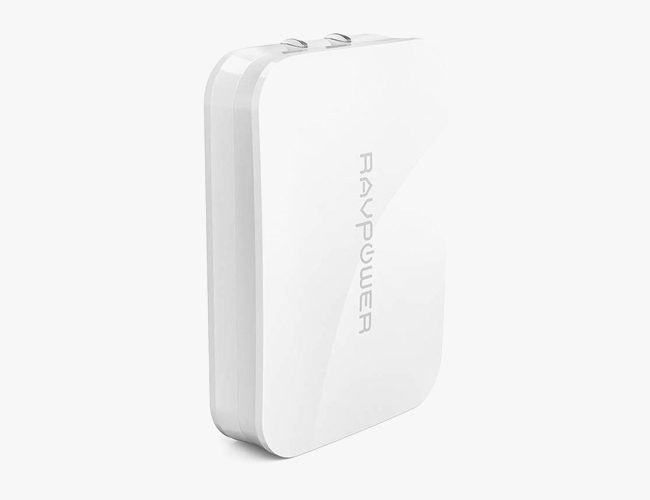
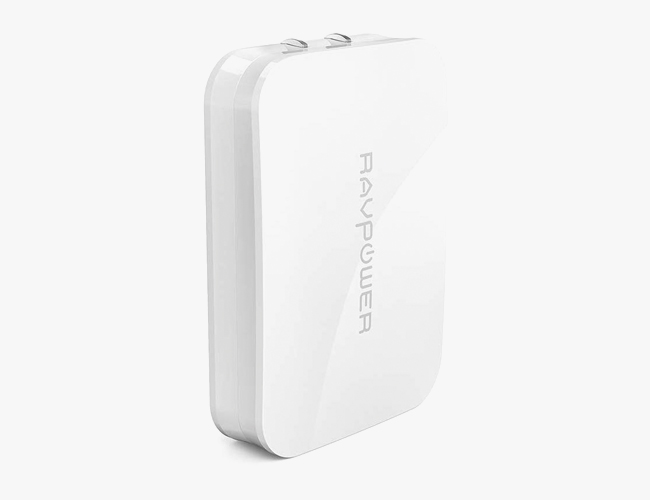
RavPower 45W PD USB-C Charger

This tiny wall adapter is a great example of how GaN is impacting charging size. It can fit in your pocket, but it’s also more powerful than the stock 30-watt adapter than comes with a MacBook Air.

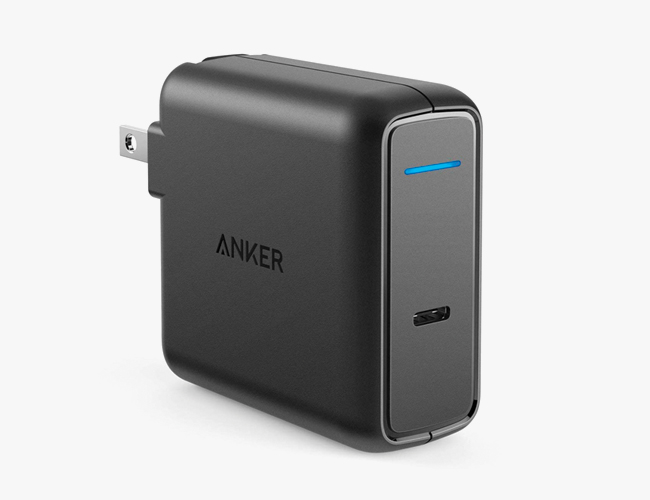
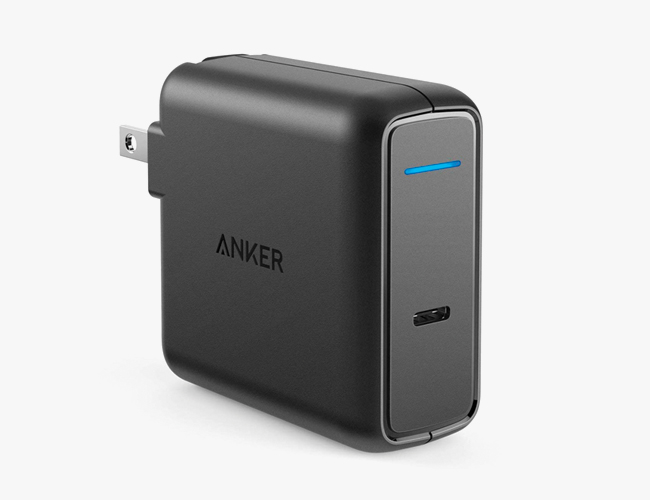
Anker 60W USB-C Power Adapter

This is 30-percent smaller than the 60-watt charger that comes with the latest 13-inch MacBook Pros. It’s also way cheaper and available in black.

Aukey Omnia Duo 65W Dual-Port PD Charger

Aukey’s new Omnia Series of wall adapters are up to 66-percent smaller than the stock adapter that comes with the latest 13-inch MacBook Pros. This model (above) can output 65-watts from one of its USB-C PD ports, but only when used only, and 45-watts out of each of its USB-C PD ports when its simultaneously charging two devices..

Note: Purchasing products through our links may earn us a portion of the sale, which supports our editorial team’s mission. Learn more here.
Tucker Bowe

Tucker Bowe has been on Gear Patrol’s editorial team since 2014. As a Tech Staff Writer, he tracks everything in the consumer tech space, from headphones to smartphones, wearables to home theater systems. If it lights up or makes noise, he probably covers it.

More by Tucker Bowe | Follow on Instagram · Twitter · Contact via Email

How to Know If a Charger Can Charge Your Laptop

Can this charge my laptop? It’s a common question for anybody who’s lost or misplaced their laptop charger and is frantically seeking an alternative. If you’re like most people in such a situation, you’re going to use any random charger with your MacBook or USB-C laptop, plug it in and hope it starts charging. Sometimes you get lucky. Sometimes not so much.

The good news is that we’re living in a day-and-age where basically every new laptop charges via USB-C — it doesn’t matter if it’s made by Apple, Dell, HP or Lenovo. The confusing part is that not every USB-C wall adapter is capable of delivering enough juice to charge your laptop. If you’re looking to have some of the most common questions about laptop charging answered, look below.

Is there a minimum wattage required to charge a laptop?

It depends. Typically, a wall adapter or portable charger has to output at least 29-watts or 31-watts to give a laptop more power than it consumes by just being on. This, of course, will vary depending on how intensive your power consumption is. For instance, if you have a larger laptop or your running heavy-duty programs, a 30-watt wall adapter might not be able to charge your laptop as fast as you’re draining it. A safe range for a wall adapter is between 45-watts and 96-watts — those will definitely be able to charge your laptop (with normal use).

What is Power Delivery (PD) and does the wall adapter need it?

Power Delivery (PD) is a charging standard that allows a charger to output higher currents and higher voltages, thus allowing you to charge your smartphone or laptop from 0% to 100% in a shorter time. And yes, PD is the only charging standard that can charge a laptop.

That said, just because a charger supports PD, doesn’t necessarily mean it can charge your laptop. PD technology can be integrated into many devices whose power outputs can range from 18-watts to 100-watts. For instance, Anker’s 18-watt Power Delivery charger and Aukey’s 18W PD Fast Charger are both designed to fast charge your smartphone, not your laptop.

What is GaN? And how does it affect charging?

GaN stands for Gallium Nitride and it’s a new buzzword in the world of charging technology. Essentially, it’s a new material that is way more energy- and space-efficient than silicon, the traditional material used in wall adapters, so GaN chargers can be smaller and lighter, but also still really powerful. Anker has been a leader in GaN chargers, releasing the PowerPort Atom PD 1 last year, but a lot of other charging companies are catching on. There are even rumors that Apple will include a 65-watt GaN charger with its next MacBook Pros.

Not all laptops charge at the same speeds.

It’s not just about how powerful the wall adapter is. A lot of it has to do with how much power the laptop can take as well. Different laptops support different power inputs. The newest MacBook Pros support a max power input of 96 watts, for instance, while the newest MacBook Airs are significantly less than that. This means that not every USB-C laptop will be able to charge at the same speeds, no matter how powerful the charger’s power output.

The other thing is that not all USB-C ports are the same. Specifically, not all USB-C ports support Power Delivery and not all of them accept charging. Also, not every USB-C cable supports PD. So if you’re wondering why your laptop isn’t charging even when plugged in, it could be an issue with the charging port or the charging cable you’re using.

Some Chargers That Can Definitely Charge Your Laptop

RavPower 45W PD USB-C Charger

This tiny wall adapter is a great example of how GaN is impacting charging size. It can fit in your pocket, but it’s also more powerful than the stock 30-watt adapter than comes with a MacBook Air.

Anker 60W USB-C Power Adapter

This is 30-percent smaller than the 60-watt charger that comes with the latest 13-inch MacBook Pros. It’s also way cheaper and available in black.

Aukey Omnia Duo 65W Dual-Port PD Charger

Aukey’s new Omnia Series of wall adapters are up to 66-percent smaller than the stock adapter that comes with the latest 13-inch MacBook Pros. This model (above) can output 65-watts from one of its USB-C PD ports, but only when used only, and 45-watts out of each of its USB-C PD ports when its simultaneously charging two devices..

Note: Purchasing products through our links may earn us a portion of the sale, which supports our editorial team’s mission. Learn more here.
Tucker Bowe

Tucker Bowe has been on Gear Patrol’s editorial team since 2014. As a Tech Staff Writer, he tracks everything in the consumer tech space, from headphones to smartphones, wearables to home theater systems. If it lights up or makes noise, he probably covers it.

More by Tucker Bowe | Follow on Instagram · Twitter · Contact via Email

Waste Too Much Time on Your Phone? These Apps Can Help

All of the tech in your life can certainly make your day-to-day easier, but overindulgence can be a problem. Chances are you know it all too well first hand: too much time spent staring at screens can waste your time and make you feel like trash. The problem has gotten so widespread (and the desire for solutions so fervent) that companies like Apple and Google have had to sit up and take notice—you’ll find tools for limiting your screen time and looking after your digital wellbeing built right into the latest versions of Android and iOS.

Besides these integrated tools, a whole host of other third-party apps can help you stay off your phone and laptop, or at least make you more mindful of the time that you do spend on these devices.

Options inside Android and iOS

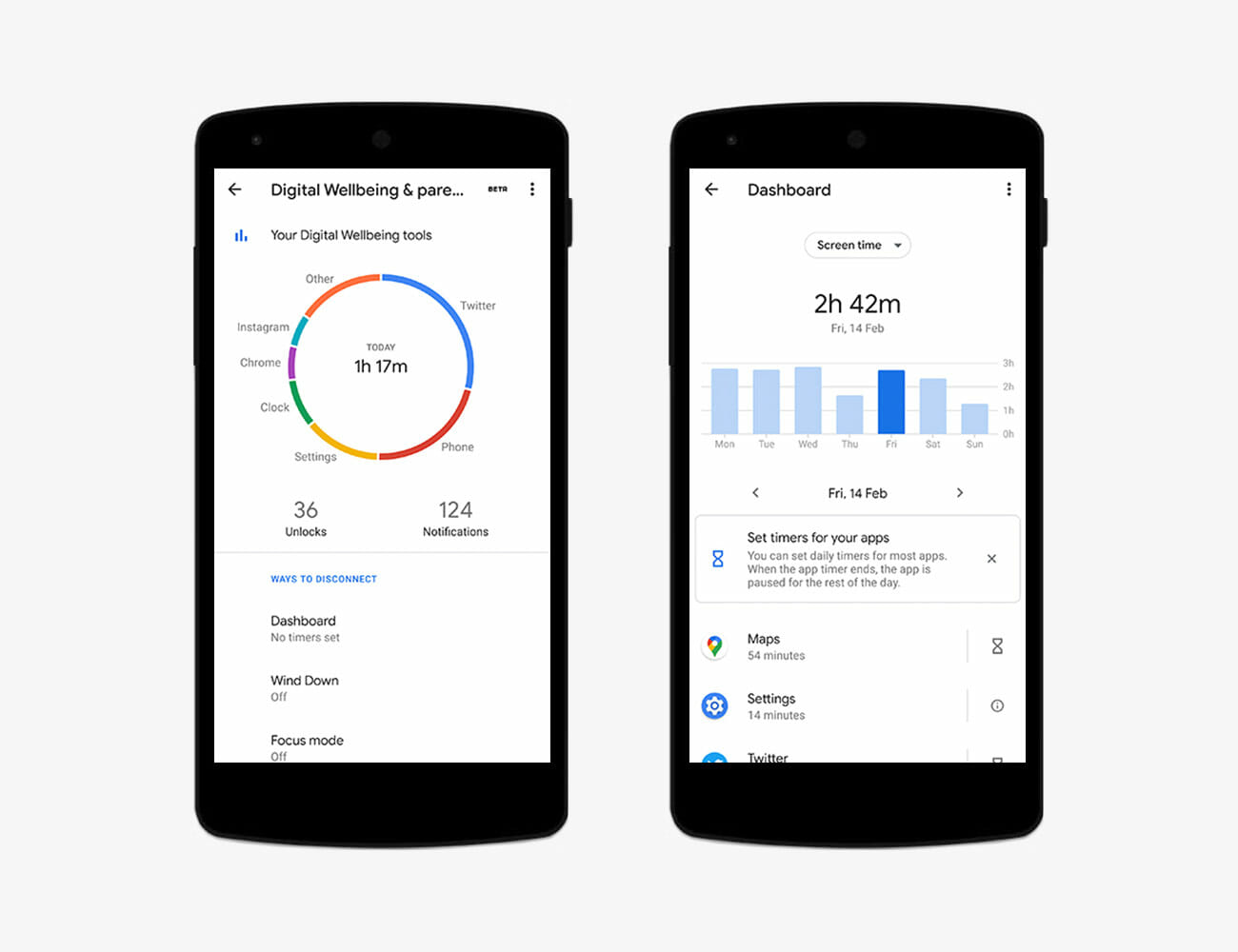
If you’ve got Android 9 or Android 10 on your phone, you should find Google’s Digital Wellbeing tool in the Settings menu (if it isn’t showing, try downloading it from here). It runs in the background to show you how much time you’re spending in various apps and on your phone as a whole, and how many notifications you’re receiving. In this capacity, it will function as a diagnostic tool to help you identify any problem spots you’ve failed to notice so far.

To put limits on particular apps on your phone, tap Dashboard and then the egg timer icon next to one of the apps listed: timers can be set from five minutes to 23 hours 55 minutes, and restrict how much time you’re allowed to spend in an app during a day (the timers all reset at midnight).

Lorem ipsum dolor sit amet, consectetur adipiscing elit.

Other options include Wind Down (for dimming your phone and blocking notifications late at night), and Focus mode (for blocking notifications from certain apps for a certain amount of time). You can access the classic Do Not Disturb mode here too, which stops your phone from disturbing you during the hours you set.

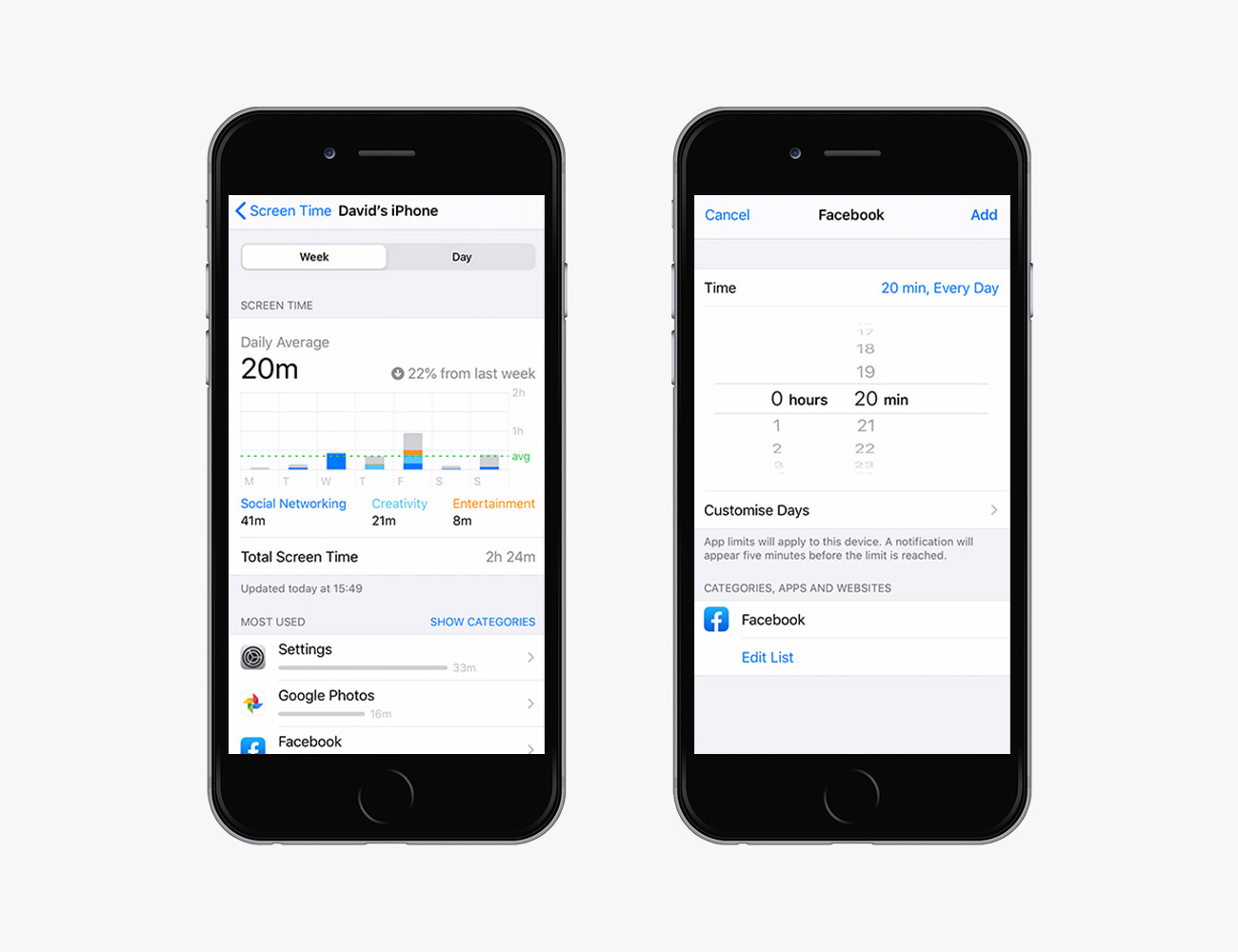
Over on iOS, a similar set of options can be found by choosing Screen Time from Settings. Again, you can see how much time you’re spending on your phone, and which apps you’re spending the most time in, as well as how many notifications you’re getting and how many times you’re unlocking your phone.

Tap App Limits to set daily limits on how much time you can spend in particular apps—you can set these limits by app or by app category (social networking, games, entertainment and so on). The daily limit can be as low as a minute or as high as 23 hours 59 minutes, and you can set different limits for different days, if necessary.

Screen Time on iOS

Elsewhere in the Screen Time, you can choose Downtime to set specific time periods where only certain apps are allowed to operate, and Communication Limits to choose who can contact you during Downtime and when you’re using your phone normally.

The limits that Android and iOS impose aren’t too difficult to override—and you can simply go back and turn them off again of course—but these measures will at least attempt to keep you honest about your promises to yourself, and will force you to admit defeat if you go so far as to disable them.

More apps for you phone

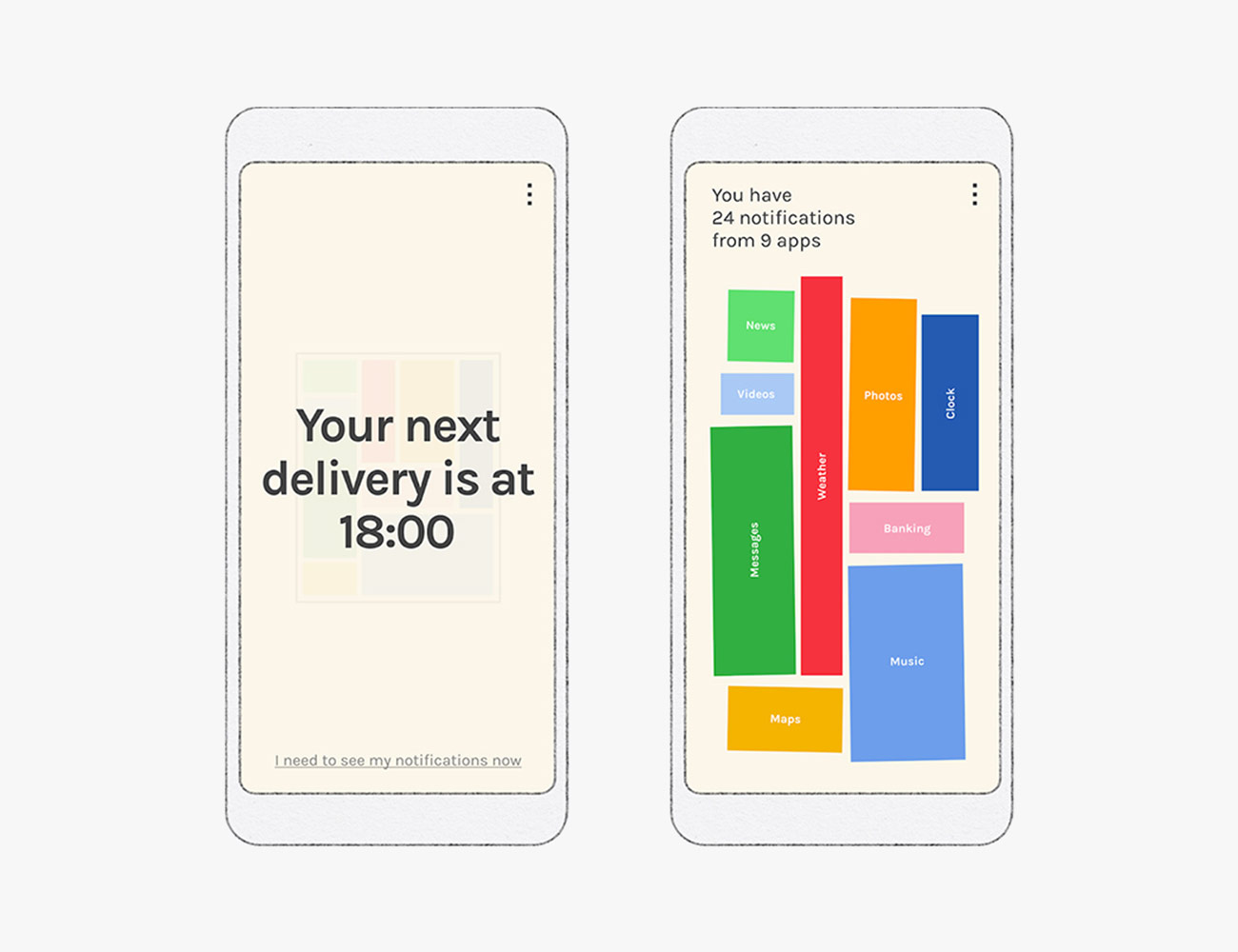
In addition to the settings built into your operating system, there are plenty of third-party apps that will gladly try to help you spend less time on your phone, or to at least think about it. Some of them are made by Google,–classified by the search giant as ‘experimental’ — include Unlock Cloc (Android) and Screen Stopwatch (Android) which replace your lock screen with information about how much you have been using your phone  so you are forced to confront it.

Desert Island (Android) restricts the number of apps you can use during a day, while Post Box (Android) holds your notifications until certain times—so you’re not interrupted every five minutes. Paper Phone (Android) takes the most essential parts of your phone and puts them on a printed sheet, while Envelope (Android) also uses a print out, this time to limit your phone’s capabilities.

Photo: Google

Away from Google’s digital experiments, which are only available for Android, you’ve got plenty of options. Forest (Android and iOS) is one of the simplest and most fun—the more time you spend away from your mobile device, the bigger your digital forest will grow. It might not sound like much of an incentive, but it helps, and you get plenty of stats about your phone usage over time as well.

For something a little more comprehensive, try Space (Android, iOS, Chrome). Dedicated to helping you find the right “phone/life balance”, it lets you set goals for how many times you’ve checking your phone each day, put limits on how much of your day you’re spending inside apps, and set aside time to focus without the distractions of your mobile device.

The app can be customized in a variety of ways—by whitelisting certain contacts and apps that aren’t restricted, for example—and will give you tips on cutting down on phone time as well. You can even gamify the process by “competing” against friends and family. A one-off $2 payment gets you more features and removes the ads inside the app.

Photo: Space

Apps for your laptop

You won’t find as many digital life coaching apps for Windows and macOS, but you do have some options. For a start, the Screen Time app for iOS has a macOS equivalent, so you can track how much time you’re wasting and how much time you’re using to be productive across all your Apple devices: open the Apple menu, then System Preferences, then Screen Time.

RescueTime is one of the best and longest-running time tracking apps out there, and it works across Windows and macOS as well as mobile platforms to help you work out how well you’re spending your time. It stays out of the way in the background, reporting on the apps and sites you’re using, and then presenting all this data in a useful, intuitive way.

RescueTime

You can use the app to set yourself goals (only 30 minutes of social media a day), log projects over time, see how productive you’re being day-to-day and block out specific distractions (from games to YouTube). What’s more, you get plenty of features for free before you have to start a subscription (starting at $7 per month).

Freedom isn’t free—prices start at $7 a month—but you can test it out for 30 days before paying to see if it’s for you. Freedom is geared more towards blocking out distractions rather than tracking your time, though it can do that as well up to a point. It works across phones as well as computers. You can even use it to block out the entire internet if you really need to get down to some work, plus block access to specific sites and specific apps at specific times.

You don’t necessarily have to use something as fully featured as RescueTime or Freedom though. StayFocusd, for instance, is a simple Chrome extension that limits your time on websites that you decide aren’t helping your productivity. Set which apps you want to block and when, and StayFocusd takes care of the rest.

Distract Me Not is a nicely put together option for Firefox: you can shut out distractions (block access to certain websites) with a push of a button, and set certain sites as exempt if you need to. The browser extension also lets you set up a custom message that appears whenever you try and access a blocked site, so you can remind yourself to stay on task.

Note: Purchasing products through our links may earn us a portion of the sale, which supports our editorial team’s mission. Learn more here.

The Best and Worst Parts of the Most Extreme Phone Camera Yet

Brand: Samsung
Product: Galaxy S20 Ultra
Release Date: 03/13/20
Price: $1,400
From: samsung.com

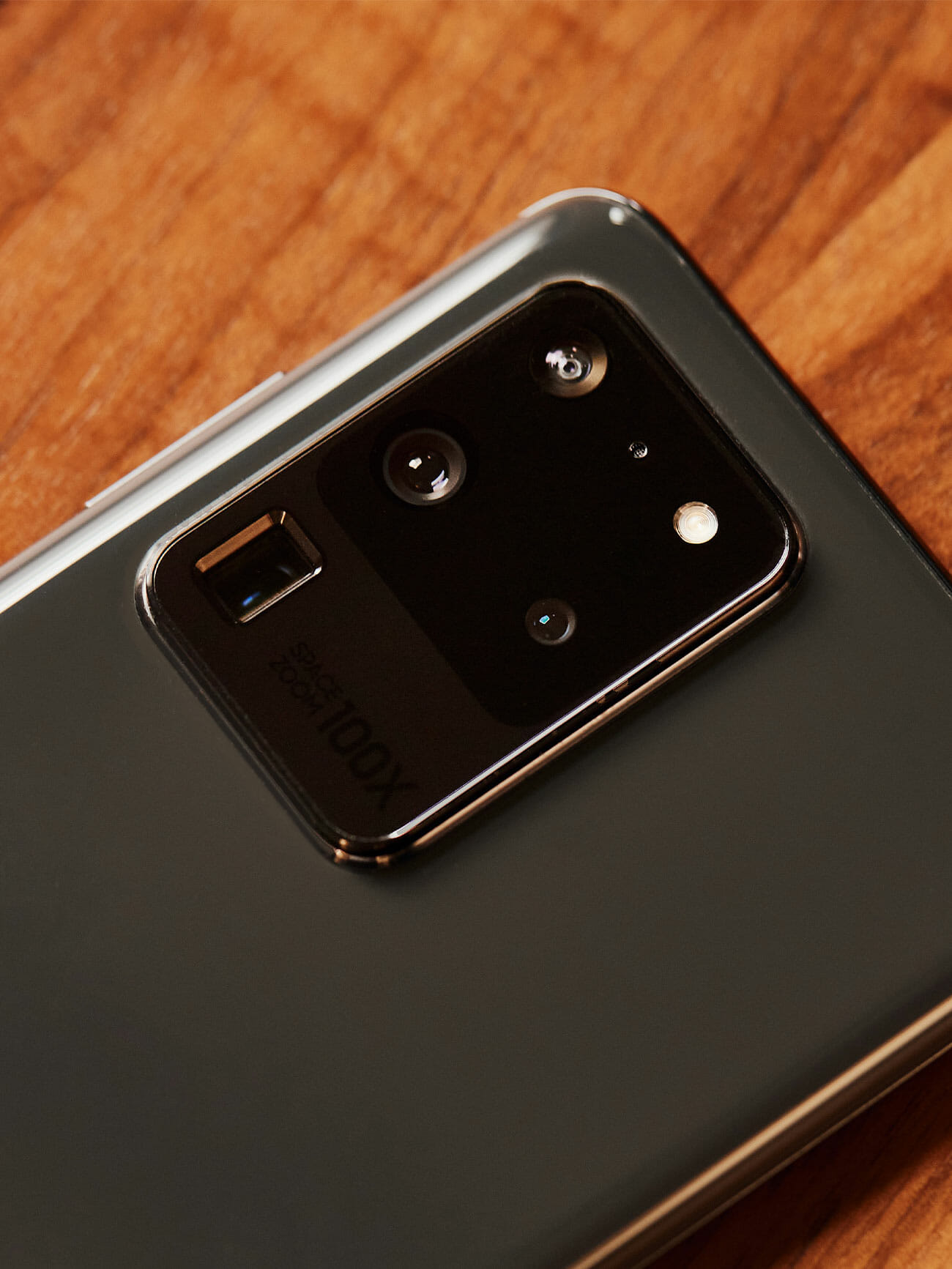
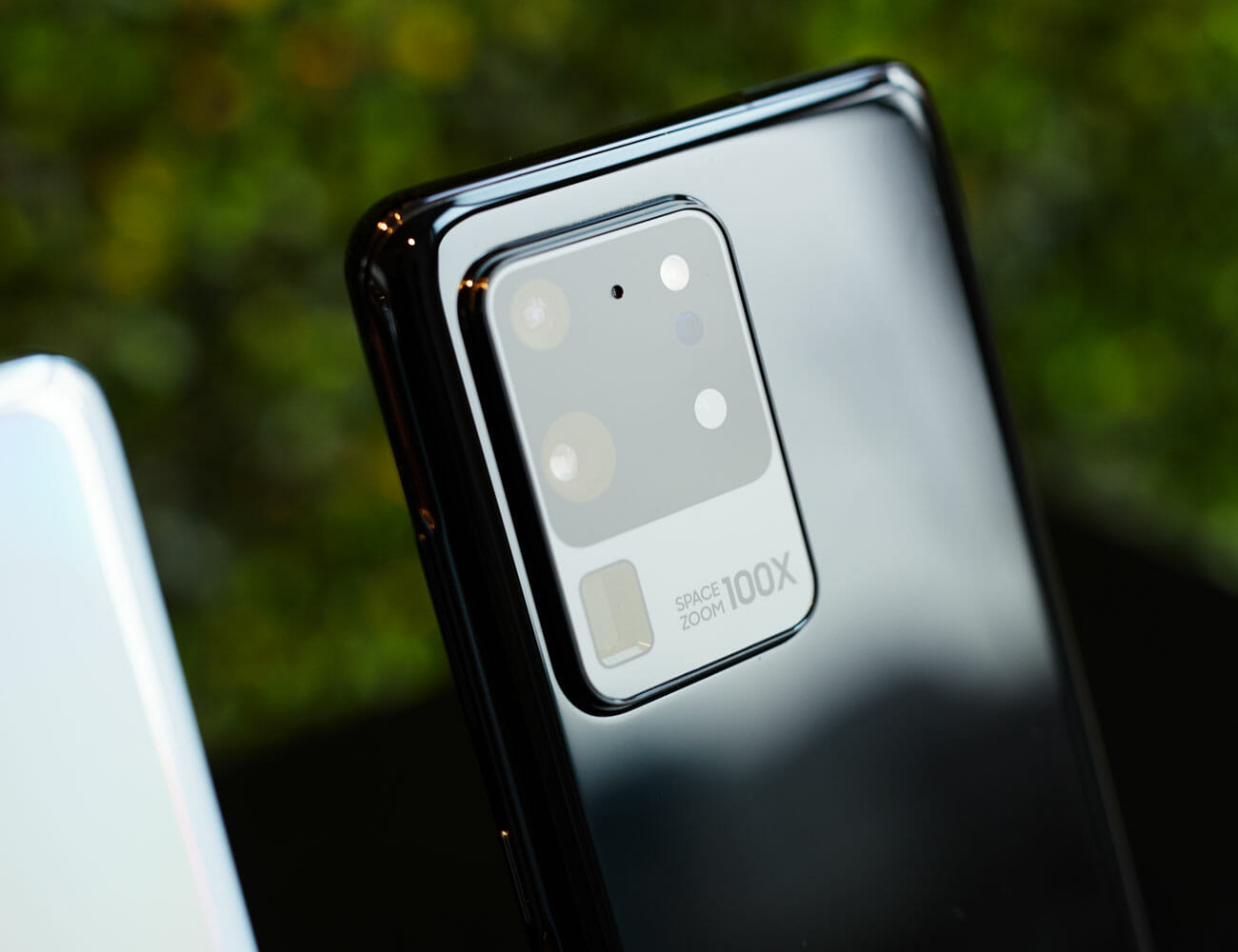
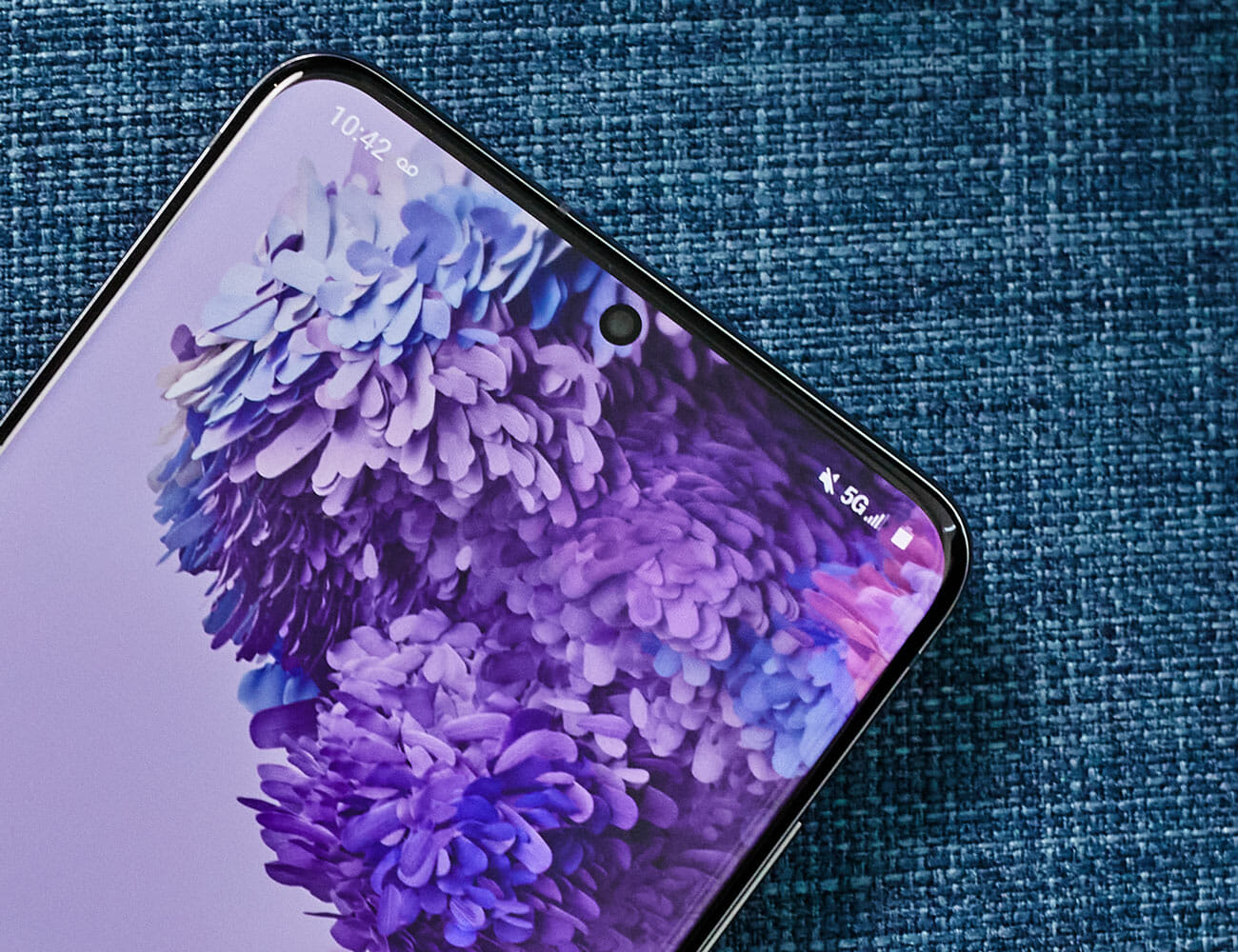
There are plenty of places to start a discussion about the Samsung Galaxy S20 Ultra, the new flagship phone of Samsung’s next, renamed generation of its Galaxy S line. There’s the dual-band 5G connectivity, the 120Hz screen. Also, of course, the sky-high $1,400 starting price. But the question that jumped out to me the most when I first saw this beast, with its impressive 10x optical zoom and unheard of 100x digital zoom, is whether that camera is a revelation or a gimmick. The answer? Well, it’s both.

The S20’s ability to zoom optically up to 10x is a terrific feature, and the ability to zoom that deep without destroying image quality is a freedom I enjoy even if I use it less than I expected in practice. Beyond, to the 100x and even the more modest 30x zoom, the downsides start to overpower any practical application. Yes, it is a great party trick, but I can hardly imagine, like, using it.

10X optical zoom is incredible, but niche.

In case you forgot, zooming works like this. Optical zoom uses physical lenses to magnify your picture, letting you get closer with no compromise in image quality. Digital zoom takes a picture, crops it and enlarges, giving you chunkier pixels the further you zoom. By using a sideways mounted lens and a prism to fit inside a large but manageable camera bump, the S20 lets you get that deep 10x zoom guilt free, which is definitely incredible.

Shooting around with the S20, I found this was great for a few of my pet projects, like getting crisp, close up pictures of interesting features on buildings, and I figure it would be similarly great for shooting wildlife from a distance, or getting close ups at a concert or sporting event. At 10x magnification, it is a little difficult to hold the camera still enough to get a clean shot, especially in low light conditions or with one hand. I spent more time using 5x purely for ease of use. But that impressive zoom can help you get shots you’d otherwise need an honest-to-god zoom lens on an actual camera to capture. It’s sick, even though I didn’t find quite as many uses for it as I expected.

100x zoom is as awesome as it is useless.

If you need a steady hand for 10x, you need an actual tripod for 100x. Once you get above 10x, keeping your target in the frame while you press the button feels more like balancing a broomstick on your finger than using a point-and-shoot. It is a hopeless exercise to try this one-handed, and it is still barely manageable with two. The camera app shows you a handy mini-map in the top of the screen that you can use for reference, which is crucial since the ultra-zoom picture from the viewfinder will be nigh unintelligible. But it can only help so much since the physical act of aiming is wildly challenging.

Now don’t forget this is also digital zoom, which means you are losing image quality at the same time. The S20 boasts some machine learning tech that ostensibly helps repair your ridiculously cropped image but it can’t work miracles. Your final images, if you somehow manage to stay on target to get the shot, are basically as high resolution as a watercolor painting. I can maybe, theoretically, imagine a case where this would be useful, if you were trying to get a faraway shot as evidence instead of art. I mean, it’s cool for a second! But at best it is a party trick.

The S20 Ultra is more than just its camera, obviously.

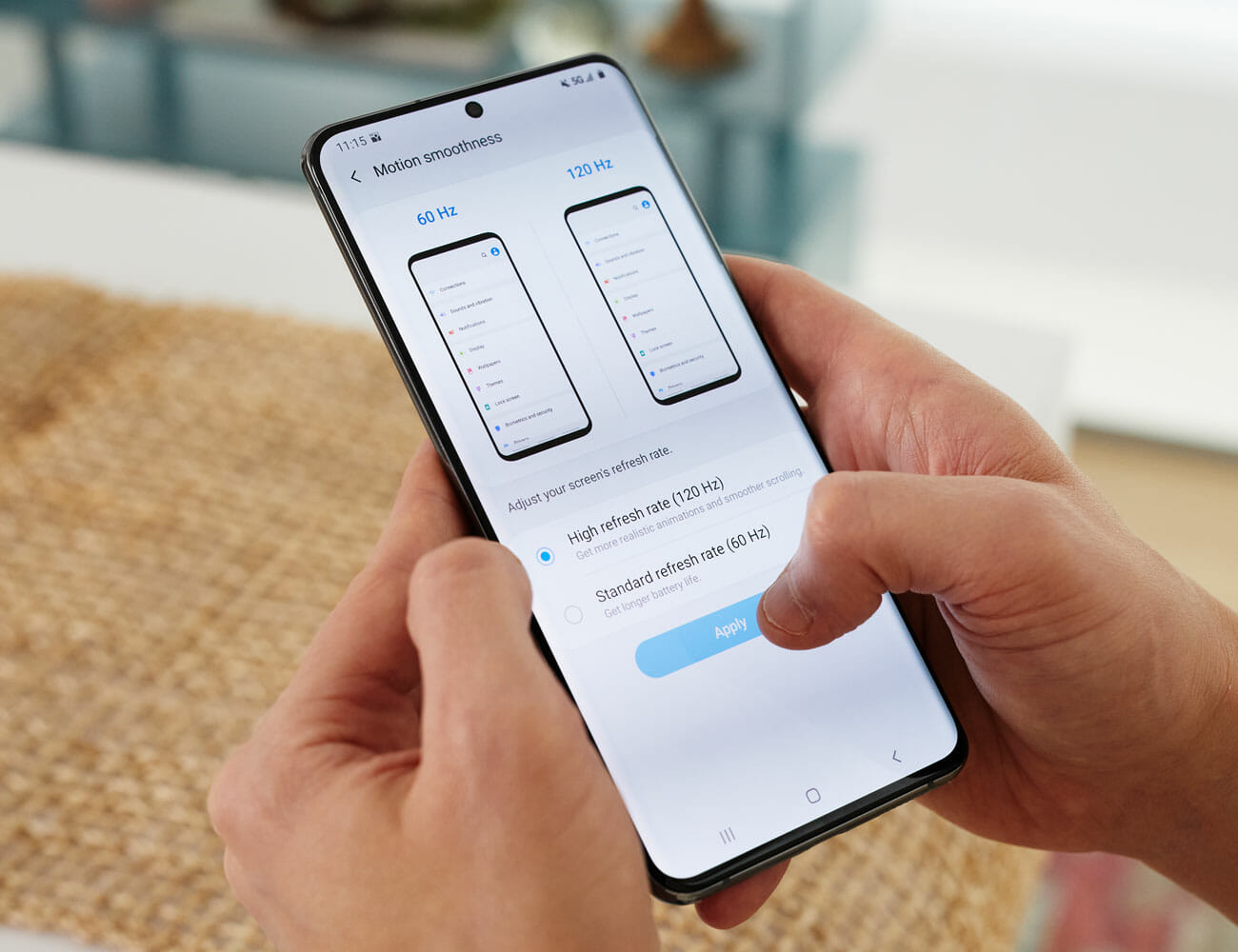
Of course, the S20 has more going on than just its camera. With dual-band 5G connectivity, the S20 Ultra and its little brother, the S20+, can deliver the face-melting 10 Gbps-and-higher speeds the best 5G connections will be able to offer, if you can find them. Meanwhile, the baseline S20 only supports the slowest flavor of 5G. Its screen, with a silky smooth 120hz refresh rate, is beautiful though tests indicate it robs you of about the hours of battery life to have it turned on. These are both features that, like the camera, are objectively impressive but maybe not practically useful for most people. And at a $1,400 price point to start ($1,600 with maxed out specs!!!!!!) it is very hard to recommend this phone as a sensible purchase, especially when the S20 and S20+ sport more modest prices ($1,000 and $1,200) and less intense cameras (3x optical, 30x digital) that still push the limit of practicality.

It’s still ultra cool though.

Samsung provided this product for review.

Note: Purchasing products through our links may earn us a portion of the sale, which supports our editorial team’s mission. Learn more here.
Eric Limer

Eric Limer is Gear Patrol’s tech editor. A resident of Weehawken, NJ, his current obsessions include mechanical keyboards, mechanical pencils and Formula 1.

More by Eric Limer | Follow on Instagram · Contact via Email

This New GPS Running Watch Is Way Cheaper Than Any Apple Watch

<!–This New GPS Running Watch Is Way Cheaper Than Any Apple Watch • Gear Patrol<!– –>

Made by Timex


Timex just announced a new GPS smartwatch for runners and other endurance athletes. It’s called the Timex Ironman R300 GPS and it’s interesting for a number of reasons. It has an always-on display and can track your sleep. It’s water-resistant down to 30 meters. It has an extremely impressive 25-day battery life (but only when the GPS is turned off). And it has access to a number of workouts and training regimens from elite athletes and coaches. Most interestingly, however, is that the Timex Ironman R300 GPS costs just $120 — and it’s available right now.

If you’re familiar with other GPS running watches, by the likes of Garmin, Suunto, Fitbit and Apple, most of them are significantly more expensive than $120. Of course, Timex already has its Ironman line of GPS running watches, of which the all-new Ironman R300 GPS is the most advanced and most expensive. Timex’s previous high-end Ironman watch, the Ironman GPS ($100), is $20 cheaper but it also lacks a dedicated heart rate sensor, more advanced coaching features and the nicer display.

Rrice is the real kicker here. At just $120, the Timex Ironman R300 GPS poses an interesting dilemma for endurance athletes: do they really want to spend upwards of $400 on a new Apple Watch or dedicated GPS running watch? If your main use-case is just for running, maybe spending a lot less makes sense. And that’s exactly what Timex is hoping for.

Note: Purchasing products through our links may earn us a portion of the sale, which supports our editorial team’s mission. Learn more here.
Tucker Bowe

Tucker Bowe has been on Gear Patrol’s editorial team since 2014. As a Tech Staff Writer, he tracks everything in the consumer tech space, from headphones to smartphones, wearables to home theater systems. If it lights up or makes noise, he probably covers it.

More by Tucker Bowe | Follow on Instagram · Twitter · Contact via Email

<!–

–>

<!– –><!–

–>

How Ikea Is Getting Into the Speaker Business

Ikea, with its affordable, assembly-required chairs and shelving units, is the largest furniture retailer in the world. But that hasn’t meant that the growth is over. In just the past few years, the Swedish goliath has been dipping its hands into tech as well, trading in charging cables, wall adapters and wireless chargers, and a launching a whole home division — named Trådfri which is Swedish for “wire-free” — with smart light bulbs, smart blinds and other smart sensors. But one of its notable, growing sectors, is the furniture giant’s growing suite of speakers.

Björn Block, the leader of Ikea’s Home Smart division, will tell you that this focus is actually nothing new for Ikea, which sold records in its stores as early as the 1970s. It also launched its Renn range of hi-fi products around that time, consisting of a turntable, amplifier and a pair of bookshelf speakers. While it doesn’t sell hi-fi products or vinyl records anymore (although it does have copious vinyl storage options, as you’d expect), it does sell more speakers than ever.

Ikea upped its audio game last year with the much-anticipated speaker collaboration with Sonos, consisting of two bookshelf speakers and a table lamp speaker, which paired Sonos calling cards — same app, similar acoustic abilities — with affordable Ikea style. And the mixture proved a great success, with 30,000 Symfonisk speakers sold on the first day they went on sale in August 2019.

It was also the first time Ikea had ever sold a non-Ikea product in its stores, though the co-branded speakers are available exclusively through Ikea’s stores. But Ikea isn’t dependent on Sonos for sound. It has its own audio division located in Älmhult, Sweden, that’s dedicated to developing its own line of first-party speakers. Here is a look at what Swedes have to offer so far.

Ikea Eneby Bluetooth Speakers

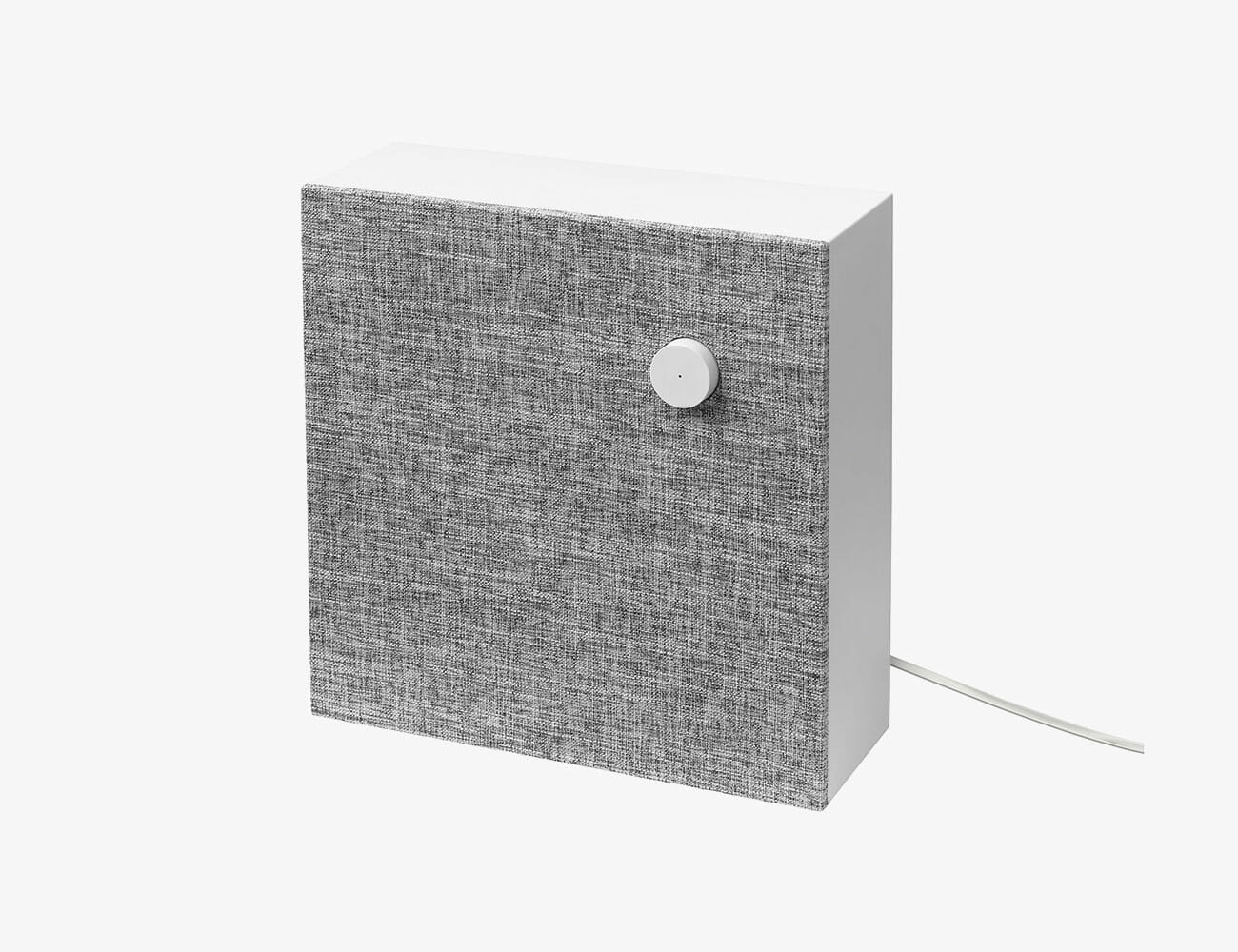
The Eneby line of home speakers is fully designed and developed by Ikea. There are two different sizes, an 8-inch and a 12-inch model, both of which share a minimalist design, a simple and multi-functional volume knob, and a surprisingly powerful sound. There’s also a portable option, which is smaller yet just $25. If you don’t have Wi-Fi or don’t want to pay over the odds for a speaker, the Eneby line is for you.

| |

Frekvens Speakers

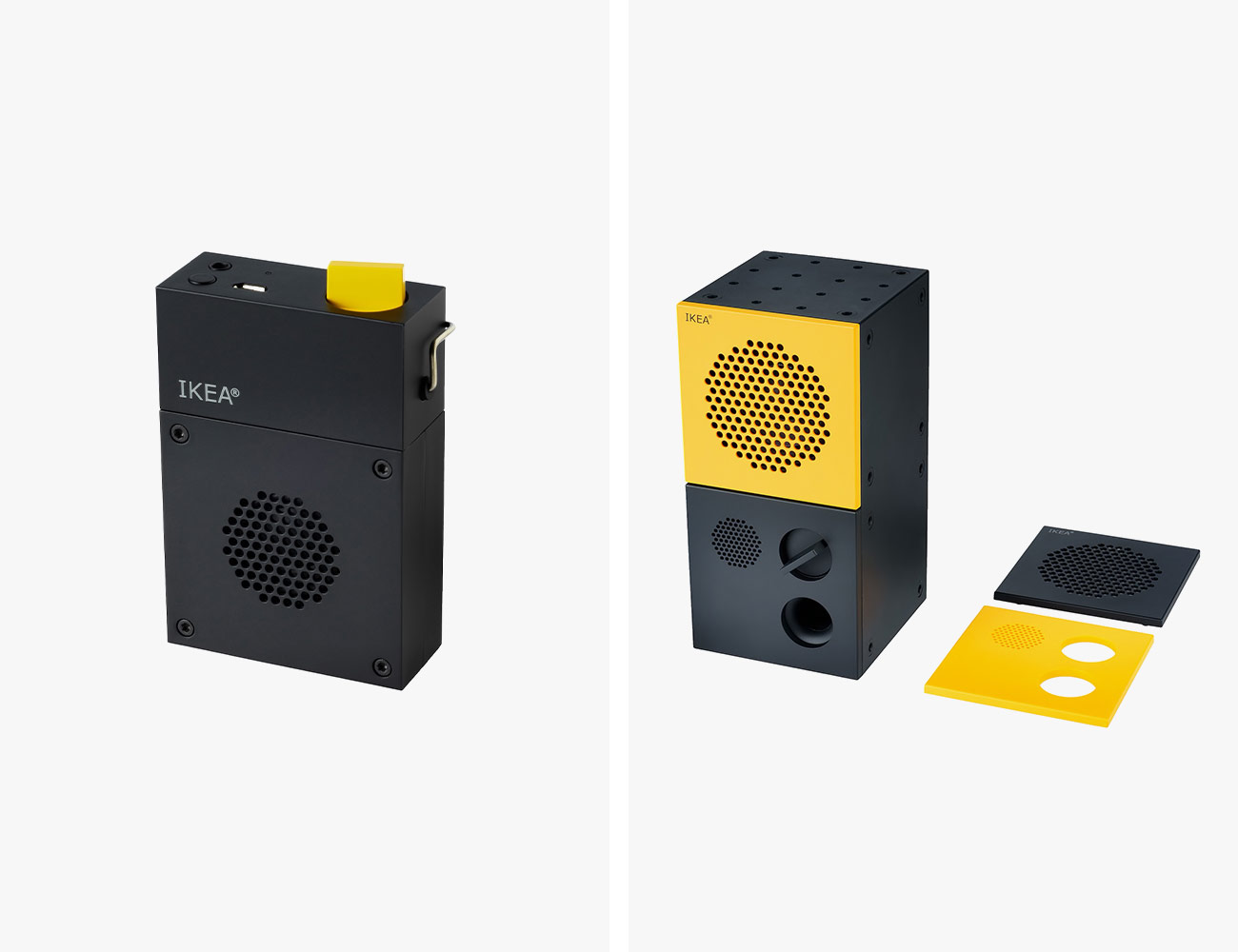
The Frekvens collection is a one-time collection between Ikea and Teenage Engineering that was just released in early 2020. There are two Frekvens speakers. The first is a $70 party speaker and a smaller, more portable $20 speaker option that actually has a belt clip. Both are portable Bluetooth speakers that are kind of quirky, which is Teenage Engineering’s modus operandi. You can also buy a subwoofer combo or a $10 base for your speaker, in case you want to spice things up.

| |

Symfonisk Speakers

The best way of looking the Symfonisk range of speakers, which means “symphony” in Swedish, is that they’re the cheapest Sonos speakers you can buy — specificially the bookshelf speaker. They work exactly the same, and sound very similarly, to Sonos’s own Play: 1 speakers. The Table Lamp speaker is a little more niche, but highlights how Sonos likes to blend home furniture with sound.

|

Tucker Bowe

Tucker Bowe has been on Gear Patrol’s editorial team since 2014. As a Tech Staff Writer, he tracks everything in the consumer tech space, from headphones to smartphones, wearables to home theater systems. If it lights up or makes noise, he probably covers it.

More by Tucker Bowe | Follow on Instagram · Twitter · Contact via Email

Hot Wheels Gives Us The Cybertruck Way Ahead Of Tesla

We have to admit that when Tesla took the covers off the Cybertruck, it left us awestruck at the sight of its unconventional design. Instead of the sleek curves found on most modern vehicles, what we get is a rugged angular beast. Further adding to its futuristic aesthetics is the fact that it is a zero-emission vehicle. That’s right, it runs on batteries, which should keep you squarely in Mother Nature’s good graces. While the actual pickup truck is still more than a year off, Hot Wheels has your back with a 1:10 scale R/C Cybertruck.

The brand has been making some of the best collectible toys since 1968 and also offers bigger scale toys. If you prefer an even smaller version, there’s also the 1:64 scale R/C Cybertruck up for pre-order right now. Getting back to the topic, the 1:10 model is a limited-edition item that collectors will love to own.

We consider it as a great chance to take the own a piece that represents an automotive marvel of the future. Just like its full-size counterpart, you can expect this R/C machine to handle off-road terrain like a boss. Hot Wheels claims that it can even manage a scale speed of up to 250 miles per hour. Its all-wheel-drive system should mimic the real thing.

Other cool features to expect include a removable Tonneau “Vault” cover, a telescopic tailgate that turns into loading ramp, and functioning headlights/taillights for low-light visibility. Hot Wheels even throws in a reusable cracked window vinyl sticker to remind us of Elon Musk’s iconic presentation snag. A full charge of its 9.9V, 3,300mAh battery should give up to an hour of pure fun. The R/C Cybertruck will retail for $400.

Grab yours: Here

Images courtesy of Hot Wheels

You’ll Regret Not Using a Password Manager. Here’s How to Make Sure You Won’t

If you’re not sure why password managers matter, imagine losing access to all your accounts. Or worse, access falling into the wrong hands. Your emails, your photos, your credit cards, your bank accounts, all of the logins that make up your digital life.

Writing down passwords on a notepad or, even worse, just using the same password for everything, may have served you well so far, but you’re playing with fire. And while built-in browser tools are getting better at managing (and suggesting) passwords themselves, a dedicated tool will almost always be a better bet. It’s built for the purpose, and it will work across all your devices and various browsers.

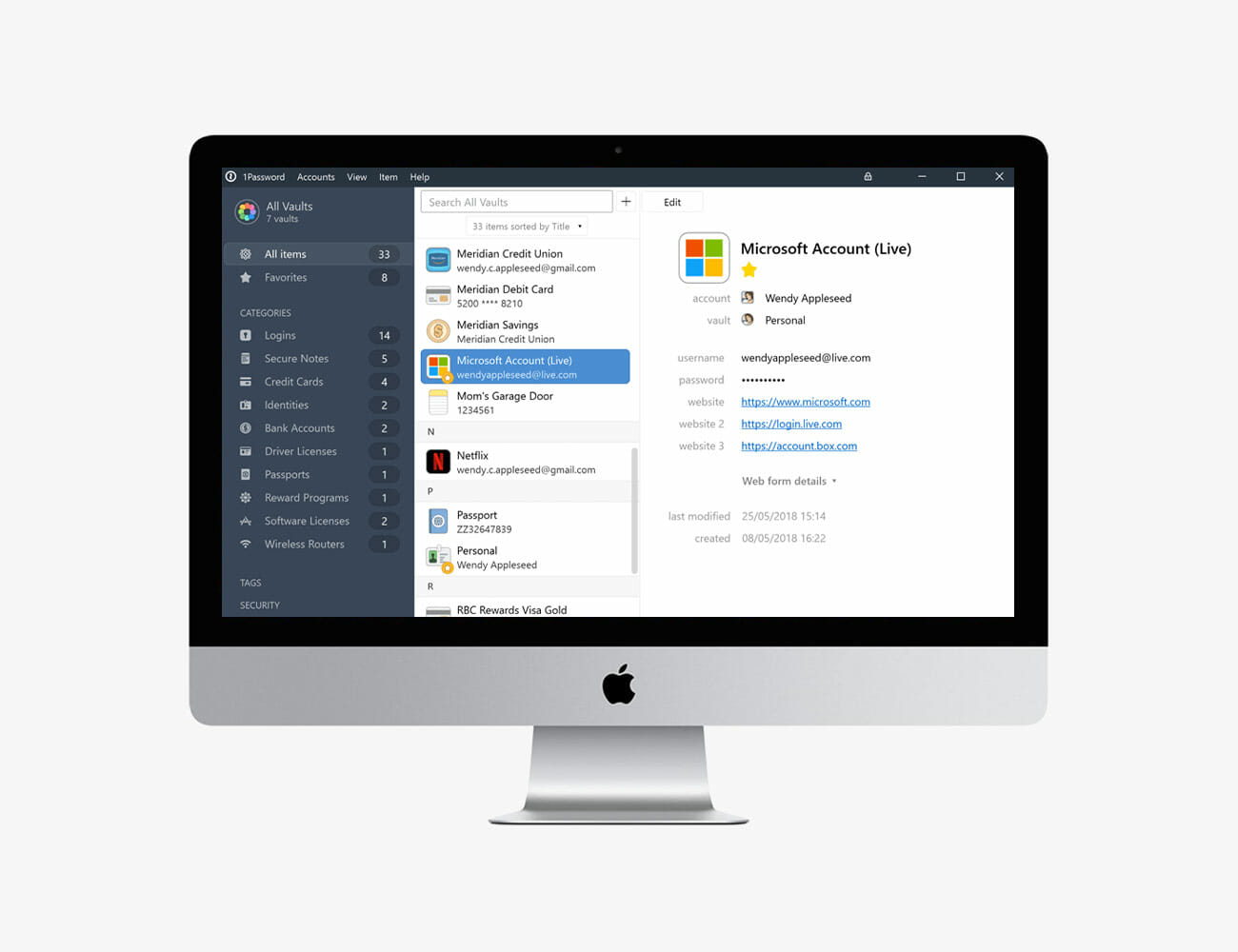
The job of all password managers is essentially the same. Chiefly, they remember the login credentials for your various accounts, but also autofill login forms and help you generate strong, unique passwords with ease. Access to this treasure trove of information is controlled by a master password, so you only need to remember one.

These apps are now available across all the various desktop and mobile platforms, offering support for two-factor authentication and various other protocols that add more layers of protection to guard against unauthorized entry to your key digital accounts. Many will also go the extra distance to help you manage credit card details, address information and anything else you need in a web browser but want to protect from prying eyes.

When it comes to making a choice of which app to settle down with, the good news is that almost all of them will treat you well.  The main differences you’ll find when comparing password managers are the software interfaces, the pricing structures, and the various bonus features. The biggest decision is not so much which one to use but rather the choice to knuckle down and start taking your password security seriously before its too late.

LastPass

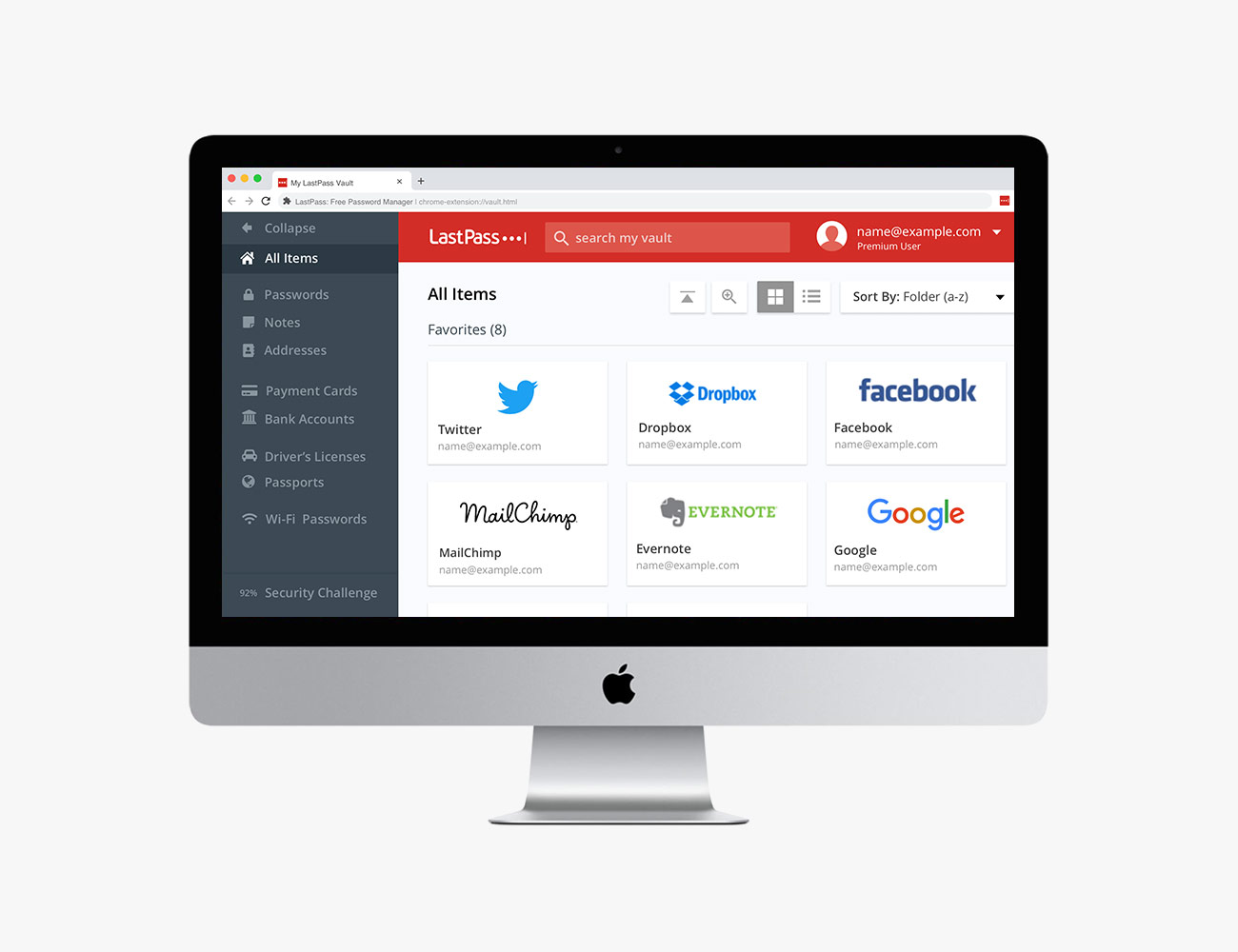
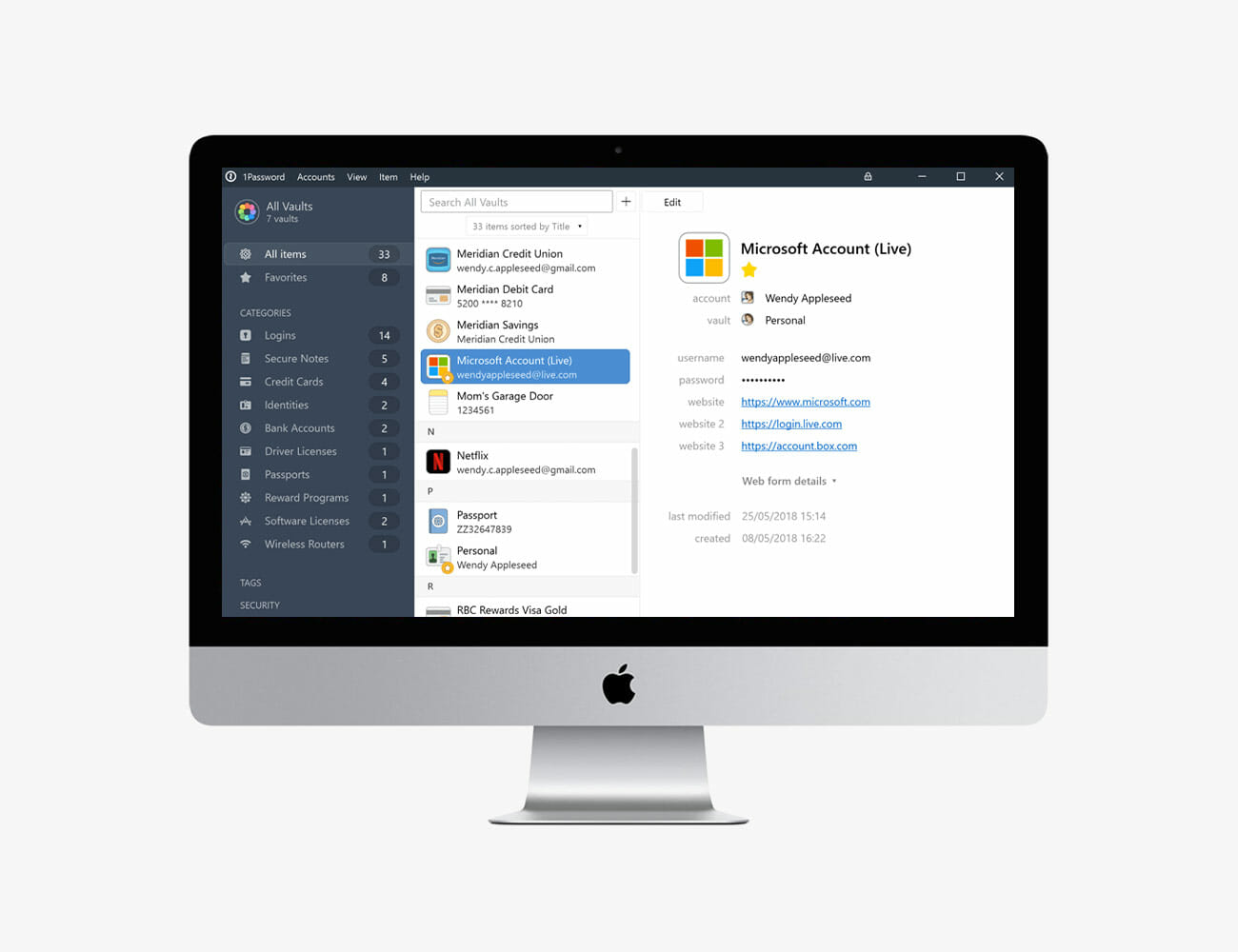
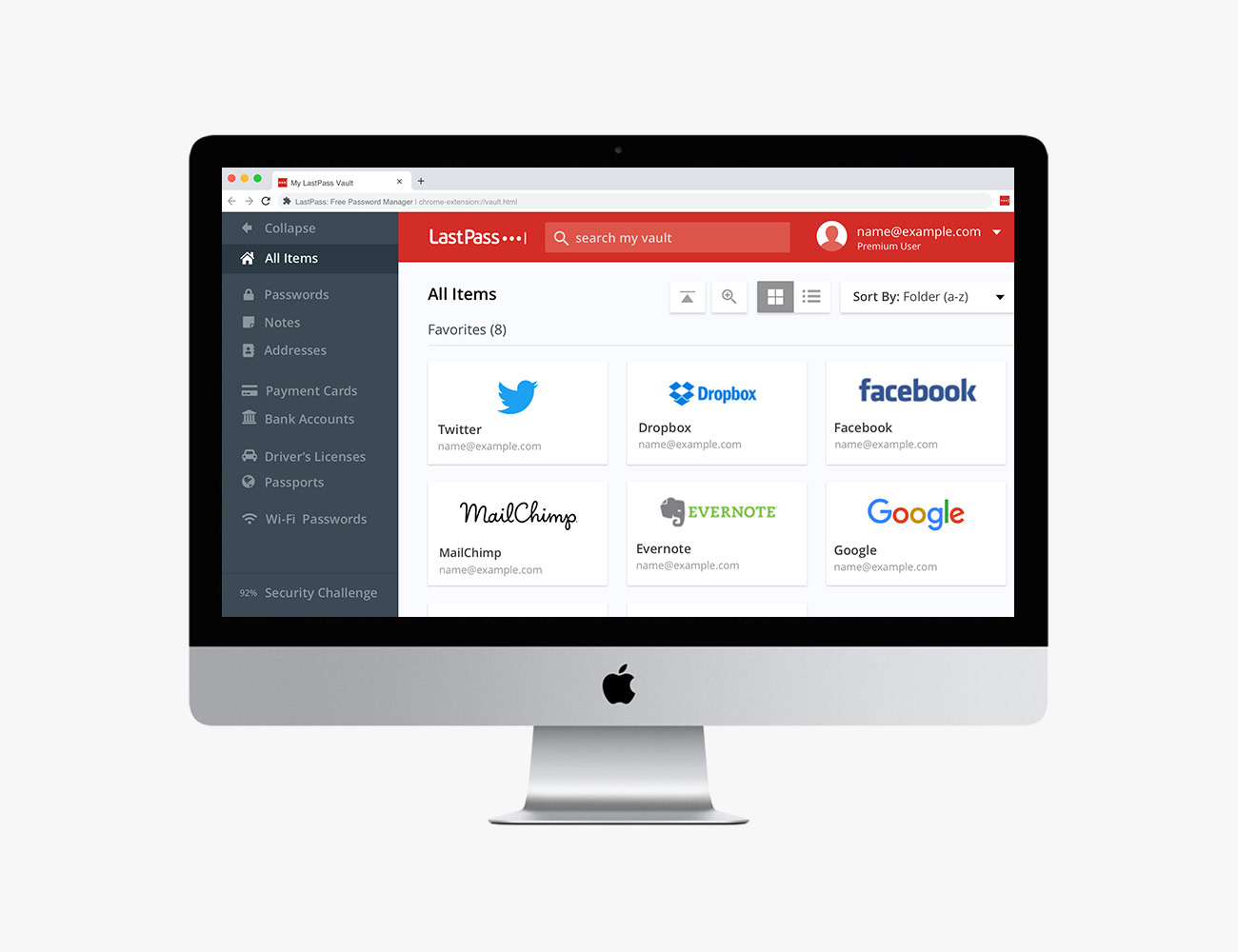
Notable for having one of the best free tiers in the business, LastPass is available on just about every device out there and compatible with all the popular apps and services. If you want a lot of features without having to pay anything, then it’s well worth considering.

Best Free Option

Price: Free, $3/month for premium
From: Lastpass.com

What We Like: The apps (including the web interface) are clear and clean, it’s possible to store a huge amount of information privately, and everything works smoothly. The family option is a welcome one as well, letting you share files and folders with family members and manage everyone’s passwords and private data through a single account dashboard.
What We Don’t Like: There are no major drawbacks to LastPass that we can see, though other services offer a broader range of extra features (for an extra price), including VPNs and additional identity theft protection. Overall, it’s a polished and reliable product.

1Password

1Password often scores highly in ‘best of’ lists of password managers, and it’s not difficult to see why: It takes care of managing all your passwords and private information with a user-friendly, intuitive approach that takes away all the stress and friction from logging in.

Best User Experience

Price: $3+/month
From: 1Password.com

What We Like: The design and interface of the apps is just about the best we’ve come across, jumping between devices is easy, it offers biometric protection (logging in with a face or fingerprint) across the board, and even audits the strength of your existing passwords for you. Categories and tags make organizing your saved data simple too.
What We Don’t Like: Perhaps the only downside to 1Password – which maybe isn’t a downside – is that there’s no free tier. There is a free 30-day trial, but you need to enter your card details right at the start. Apart from that, everything is really impressive.

Dashlane

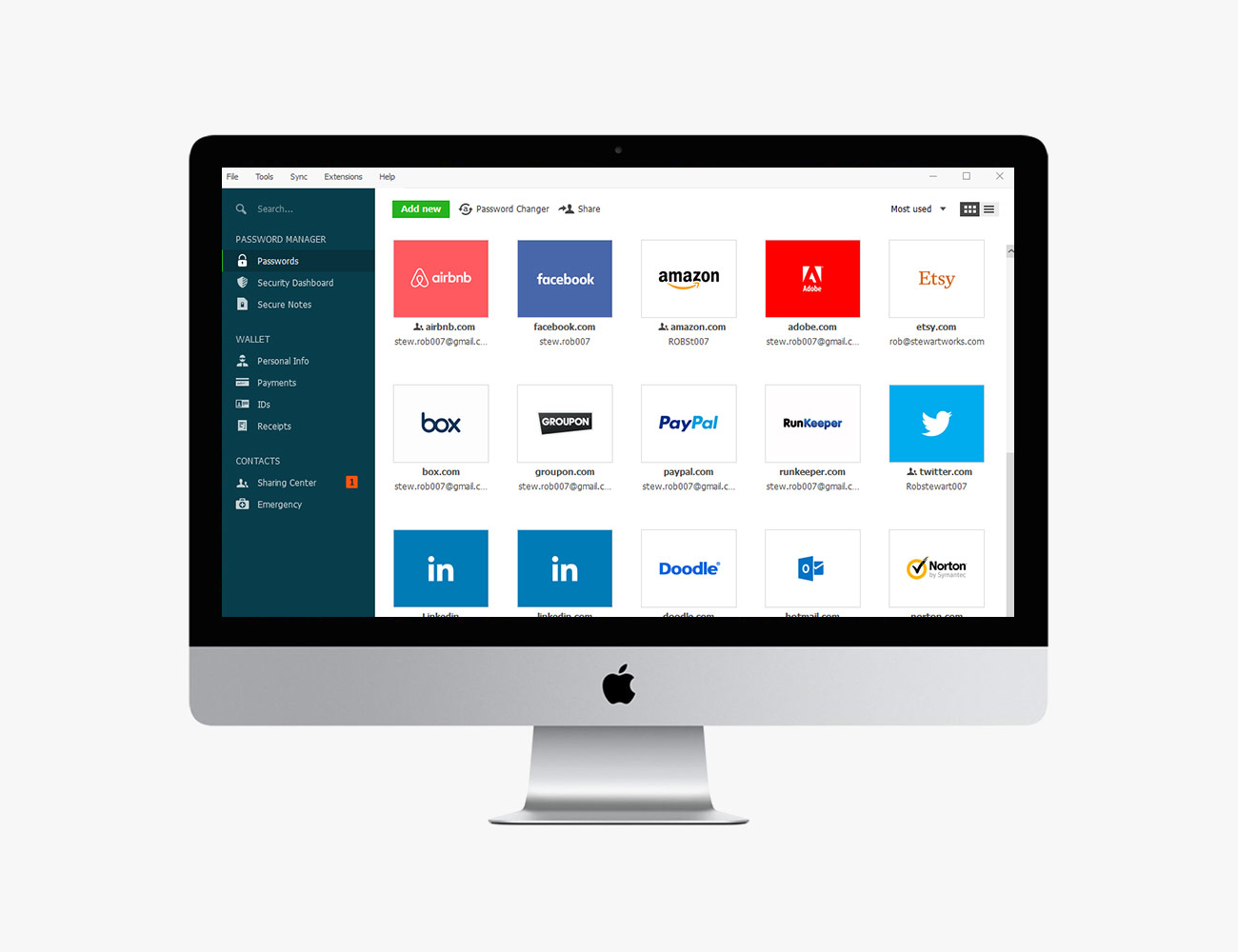
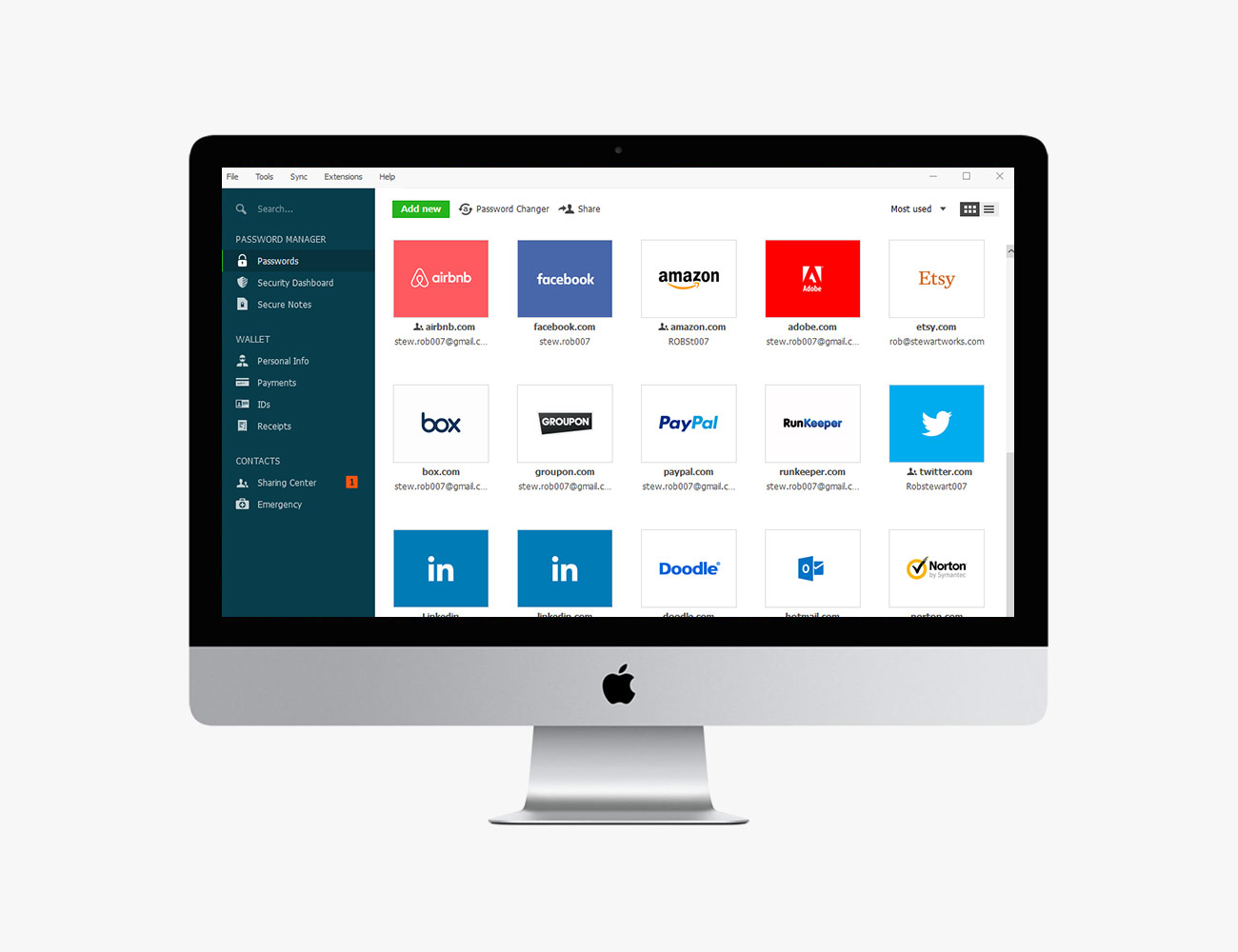
Dashlane is hard to beat as far as password managers go, with top-quality apps across every platform, thoughtful features everywhere (like the ability to import passwords from your browser), and a bunch of (paid-for) extras like a VPN tool and an inbox scanner.

Best Premium Extras

Price: $3.33/month
From: dashlane.com

What We Like: Just about everything, from the elegance of the Dashlane apps to the way it just works in the background while you go about your business. It’s notable for the number of extras you get besides the basics of managing passwords and secure data, extras which include monitoring the dark web for any mentions of your passwords.
What We Don’t Like: It’s hard to pick any faults in Dashlane, which is a breeze to use across iOS, Android, macOS and Windows. It doesn’t offer quite as much as LastPass on the free tier though (users are limited to using Dashlane on just one device, for example).

Bitwarden

Perhaps Bitwarden’s biggest selling point is that it’s open source—your passwords stay protected and you’re using code that’s publicly developed and publicly available, improving transparency and security. Almost all the key features are available for free.

Honorable Mention

Price: Free, or $10/year
From: bitwarden.com

What We Like: It’s free to use across as many devices as you like, the premium level is the cheapest out there, and it does a straightforward job of managing your passwords and other data. Bitwarden is audited by independent security experts, lets you securely share passwords with other people, and can generate new, strong passwords for you too.
What We Don’t Like: It’s fair to say that Bitwarden doesn’t have the same level of polish and user-friendliness as the other password managers we’ve mentioned here, though it’s by no means difficult to use. Extras like VPNs and data breach warnings aren’t included.

How to Build a Smart Home

So you want to build an entry-level smart home and you don’t want it to cost a fortune. Good news: that’s totally possible. Here are the reasons to choose Apple, Amazon, or Google, and the best entry-level devices to get you off the ground. Read the Guide

Note: Purchasing products through our links may earn us a portion of the sale, which supports our editorial team’s mission. Learn more here.

Why You Need a Password Manager (And Four to Try)

If you’re not sure why password managers matter, imagine losing access to all your accounts. Or worse, access falling into the wrong hands. Your emails, your photos, your credit cards, your bank accounts, all of the logins that make up your digital life.

Writing down passwords on a notepad or, even worse, just using the same password for everything, may have served you well so far, but you’re playing with fire. And while built-in browser tools are getting better at managing (and suggesting) passwords themselves, a dedicated tool will almost always be a better bet. It’s built for the purpose, and it will work across all your devices and various browsers.

The job of all password managers is essentially the same. Chiefly, they remember the login credentials for your various accounts, but also autofill login forms and help you generate strong, unique passwords with ease. Access to this treasure trove of information is controlled by a master password, so you only need to remember one.

These apps are now available across all the various desktop and mobile platforms, offering support for two-factor authentication and various other protocols that add more layers of protection to guard against unauthorized entry to your key digital accounts. Many will also go the extra distance to help you manage credit card details, address information and anything else you need in a web browser but want to protect from prying eyes.

When it comes to making a choice of which app to settle down with, the good news is that almost all of them will treat you well.  The main differences you’ll find when comparing password managers are the software interfaces, the pricing structures, and the various bonus features. The biggest decision is not so much which one to use but rather the choice to knuckle down and start taking your password security seriously before its too late.

LastPass

Notable for having one of the best free tiers in the business, LastPass is available on just about every device out there and compatible with all the popular apps and services. If you want a lot of features without having to pay anything, then it’s well worth considering.

Best Free Option

Price: Free, $3/month for premium
From: Lastpass.com

What We Like: The apps (including the web interface) are clear and clean, it’s possible to store a huge amount of information privately, and everything works smoothly. The family option is a welcome one as well, letting you share files and folders with family members and manage everyone’s passwords and private data through a single account dashboard.
What We Don’t Like: There are no major drawbacks to LastPass that we can see, though other services offer a broader range of extra features (for an extra price), including VPNs and additional identity theft protection. Overall, it’s a polished and reliable product.

1Password

1Password often scores highly in ‘best of’ lists of password managers, and it’s not difficult to see why: It takes care of managing all your passwords and private information with a user-friendly, intuitive approach that takes away all the stress and friction from logging in.

Best User Experience

Price: $3+/month
From: 1Password.com

What We Like: The design and interface of the apps is just about the best we’ve come across, jumping between devices is easy, it offers biometric protection (logging in with a face or fingerprint) across the board, and even audits the strength of your existing passwords for you. Categories and tags make organizing your saved data simple too.
What We Don’t Like: Perhaps the only downside to 1Password – which maybe isn’t a downside – is that there’s no free tier. There is a free 30-day trial, but you need to enter your card details right at the start. Apart from that, everything is really impressive.

Dashlane

Dashlane is hard to beat as far as password managers go, with top-quality apps across every platform, thoughtful features everywhere (like the ability to import passwords from your browser), and a bunch of (paid-for) extras like a VPN tool and an inbox scanner.

Best Premium Extras

Price: $3.33/month
From: dashlane.com

What We Like: Just about everything, from the elegance of the Dashlane apps to the way it just works in the background while you go about your business. It’s notable for the number of extras you get besides the basics of managing passwords and secure data, extras which include monitoring the dark web for any mentions of your passwords.
What We Don’t Like: It’s hard to pick any faults in Dashlane, which is a breeze to use across iOS, Android, macOS and Windows. It doesn’t offer quite as much as LastPass on the free tier though (users are limited to using Dashlane on just one device, for example).

Bitwarden

Perhaps Bitwarden’s biggest selling point is that it’s open source—your passwords stay protected and you’re using code that’s publicly developed and publicly available, improving transparency and security. Almost all the key features are available for free.

Honorable Mention

Price: Free, or $10/year
From: bitwarden.com

What We Like: It’s free to use across as many devices as you like, the premium level is the cheapest out there, and it does a straightforward job of managing your passwords and other data. Bitwarden is audited by independent security experts, lets you securely share passwords with other people, and can generate new, strong passwords for you too.
What We Don’t Like: It’s fair to say that Bitwarden doesn’t have the same level of polish and user-friendliness as the other password managers we’ve mentioned here, though it’s by no means difficult to use. Extras like VPNs and data breach warnings aren’t included.

How to Build a Smart Home

So you want to build an entry-level smart home and you don’t want it to cost a fortune. Good news: that’s totally possible. Here are the reasons to choose Apple, Amazon, or Google, and the best entry-level devices to get you off the ground. Read the Guide

Note: Purchasing products through our links may earn us a portion of the sale, which supports our editorial team’s mission. Learn more here.

How to Get AirPlay 2 on Your Old Bose Speakers

<!–How to Get AirPlay 2 on Your Old Bose Speakers • Gear Patrol<!– –>

It’s a Free Update


If you have an older Bose speaker, there’s a good chance that it could now support AirPlay 2. The company recently announced that it was rolling out a firmware update (24.0.7), now through February 25, that would add AirPlay 2 to all Bose SoundTouch speakers. This includes five of the popular SoundTouch speakers:

    • Bose SoundTouch 10, ($200 $160)
    • Bose SoundTouch 20 Series III, ($331+)
    • Bose SoundTouch 30 Series III, ( $499)
    • Bose Wave SoundTouch Music System IV, ($599)
    • Bose SoundTouch 300 soundbar, ($699 $399)

(The AirPlay 2 update will also be available for some of Bose’s older home entertainment systems, too.)

If you have one of these speakers, you can check for the update by logging into the SoundTouch app and accepting the update. If there’s no software update available — don’t panic. It’s a slow roll-out, according to Bose, but it will be available before February 25.

As for AirPlay 2 support, it comes with a couple of advantages. It allows you to integrate the Bose SoundTouch speaker with other speakers that support AirPlay 2 in a multi-room sound system; this means you could potentially link it up with Apple’s HomePod or newer Sonos speakers. AirPlay 2 also makes it easier to play music straight from your iPhone or iPad, by swiping down and accessing the iOS control center. It also means you can more easily stream from Apple Music or iTunes.

Note: Purchasing products through our links may earn us a portion of the sale, which supports our editorial team’s mission. Learn more here.
Tucker Bowe

Tucker Bowe has been on Gear Patrol’s editorial team since 2014. As a Tech Staff Writer, he tracks everything in the consumer tech space, from headphones to smartphones, wearables to home theater systems. If it lights up or makes noise, he probably covers it.

More by Tucker Bowe | Follow on Instagram · Twitter · Contact via Email

<!–

–>

<!– –><!–

–>

6 Desk Pads that Will Improve Your Workspace

Desk pads, or desk blotters, may not be as common a sight in offices or on desktops as they once were but they are still a great option to consider whether you’re looking at them for practical or stylish purposes. They provide a better surface to write on than the hard surface of your desk — either used on their own or paired with traditional blotter paper — and they can protect your desk in the process — or cover up any damage it may have already incurred.

Even if you aren’t writing on them, they can serve as an effective substitute for a mouse pad, and they can come in sizes large enough to make for a great non-slip base for your laptop or keyboard.

Here are a few of our favorites.

RISSLA Desk Pad

Price: $35
From: ikea.com

Ikea offers some basic, no-frills desk pads for less than $10 if you’re just looking for something to protect your desk, but it’s worth shelling out a little extra cash for the company’s RISSLA Desk Pad if you want a bit of a more complete package. It’s fairly large at 33 7/8″ x 22 7/8″, and it has both a lip along the front edge to hold it in place on your desk and a handy flap on the left side that you can tuck papers or other belongings under. The synthetic leather material is also made from 80% recycled paper, although you’re out of luck if you had your heart set on a color other than black.

Satechi Eco-Leather Deskmate

Price: $35
From: amazon.com

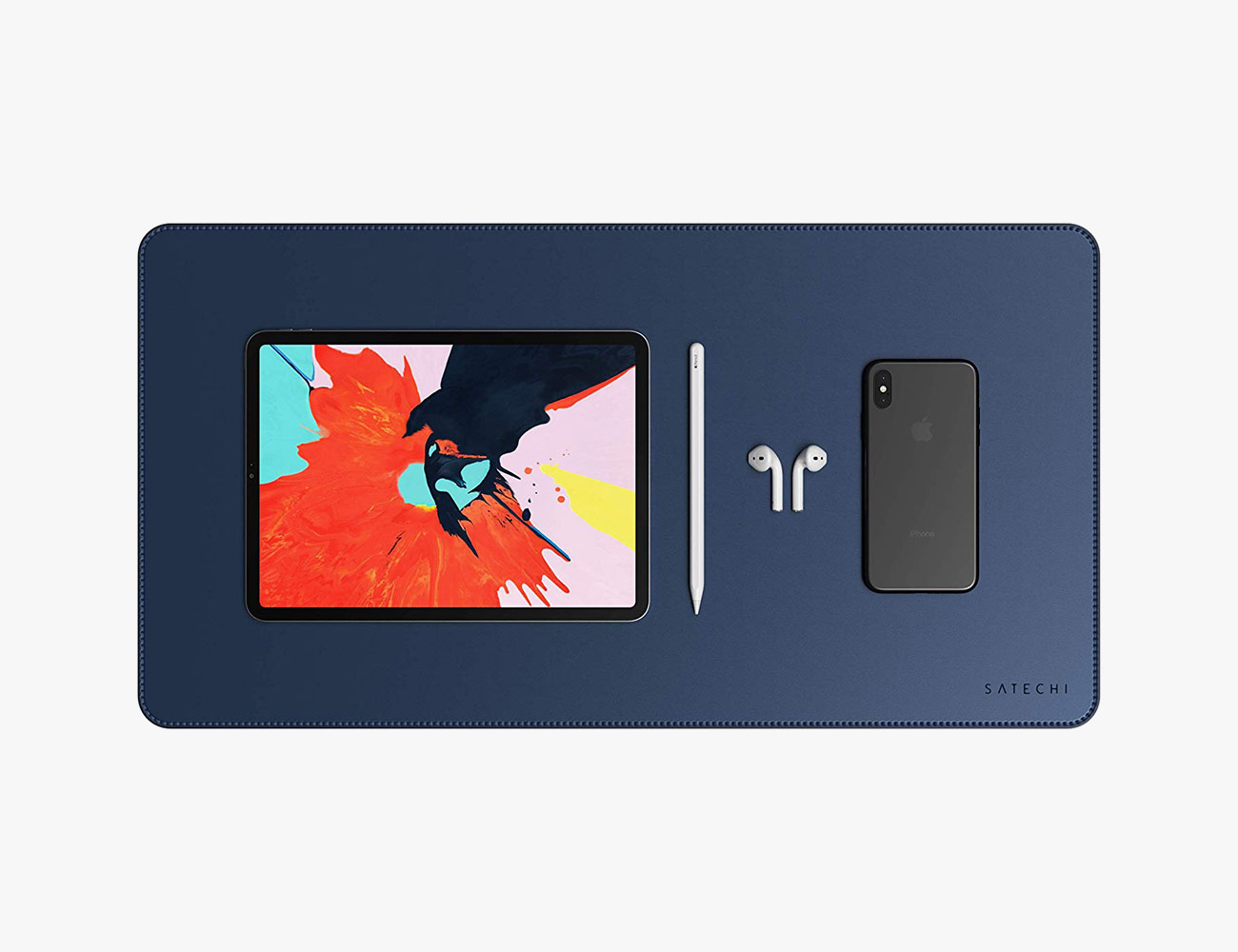
If you’re looking to keep things simple and streamlined on your desk, then Satechi’s Eco-Leather Deskmate might be just what you’re after. It’s available in your choice of blue, black or brown, and is a good choice for smaller desks (or larger desks you don’t want to cover up too much) at 23″ x 12.2″ in size. You can use your mouse on the desk pad itself, but Satechi also makes some separate matching mouse pads that you can pair with the desk pad if you find that things are getting a little too cramped.

Dacasso Black Leather Desk Mat

Price: $133
From: amazon.com

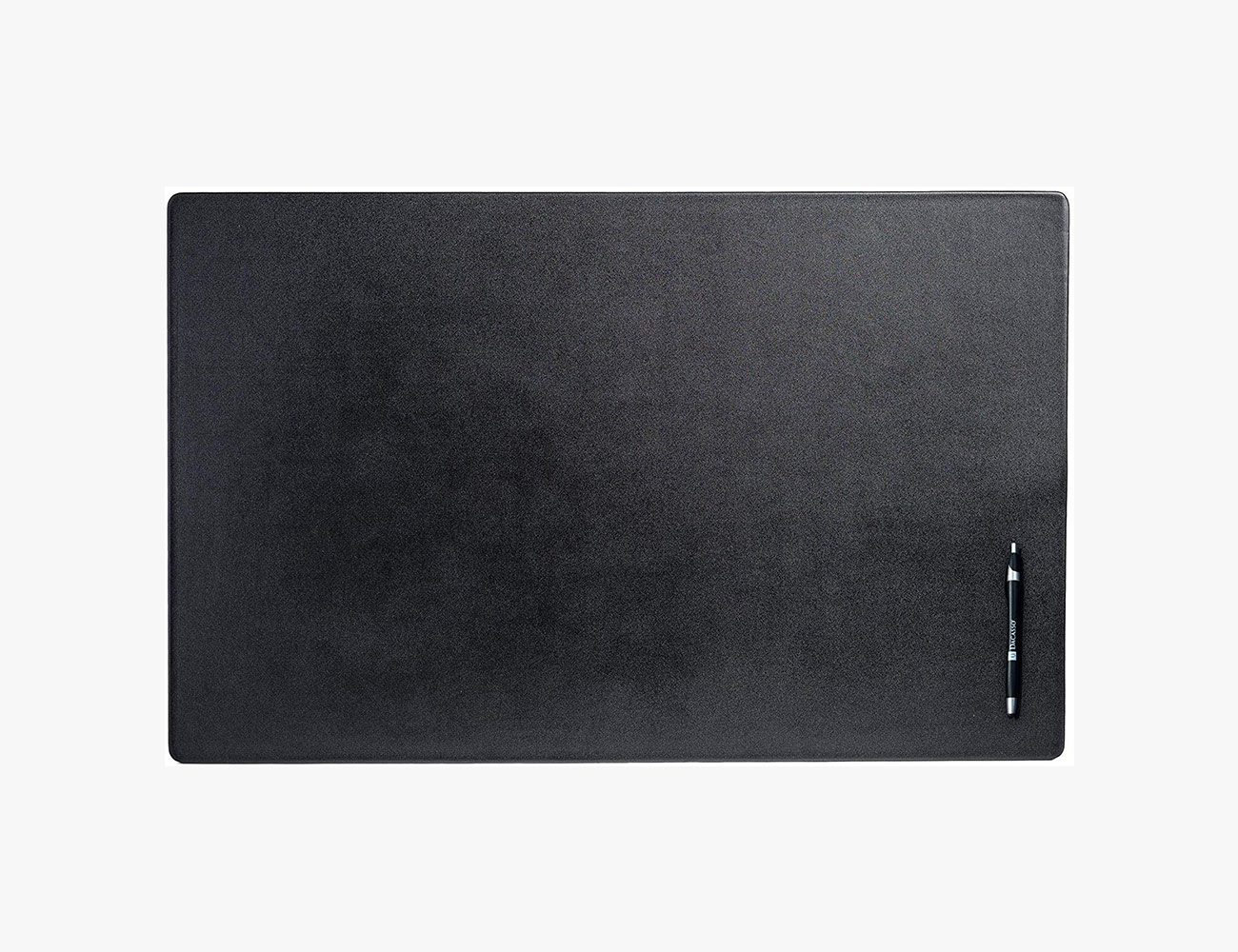
Dacasso is one of the bigger names when it comes to desk pads, and the company makes a wide range of options to suit just about anyone’s needs. This leather desk pad with a felt backing is available in black or brown and in a range of sizes, and can add a higher-end touch to your desk as well as providing a great writing surface. If you’re looking to go fully old school, you can opt for a model with side rails and add some of Dacasso’s blotter paper in your choice of color.

Staples Faux Leather Desk Pad

Price: $20
From: staples.com

They might not be able to match Dacasso’s desk pads as far as fit and finish goes, but Staples’ faux leather desk pads should fit the bill for anyone looking for a traditional style desk pad at a more affordable price. They’re available in black, brown or blue, and come with side rails that can accommodate blotter paper, or simply be used whenever you need a place to tuck away business cards or other papers.

OrangeArt Modern Linen & Ecru Blotter

Price: $36
From: orangeartstore.com

Another classic type of desk pad, this stylish desk blotter from OrangeArt (made by the company in New England) measures 14″ x 20″ in size and comes with ecru blotter paper that will provide you with a soft, comfortable writing surface. The four linen corners also serve as spots to let you keep important papers or business cards close at hand, and offer a nice alternative to the leather or vinyl options that are more commonplace.

AUKEY Extended Mouse Mat

Price: $25
From: amazon.com

This extended mouse mat from Aukey may not offer as good a writing surface as the other desk pads on this list, but it could be the better option if you’re mainly looking for something to put under your mouse and keyboard. It’s a mouse pad first and foremost, so there won’t be any issues with tracking or accuracy, and it’s big (35.4” x 15.75”) and spill-resistant, so it’ll provide plenty of protection for your desk. It’s also fairly understated as far as gaming accessories go, although a version with built-in RGB lighting is also available for those so inclined.

The 8 Essential iPhone 11 Cases of 2020

When choosing a case for your iPhone, there is no clear-cut “best overall” winner. A lot of it depends on you and how you use and treat your iPhone. Do you want a super-thin case so that your iPhone fits nicely in your pocket? What about a case that add some extra protection? Or do you want a case that doubles your iPhone’s battery life? To make things easier, we’ve picked the best iPhone 11 and iPhone 11 Pro cases in a number of different categories. Pick the one that best fits your needs.

The Best iPhone Cases of 2020

Mophie Juice Pack Access

Best Battery Case

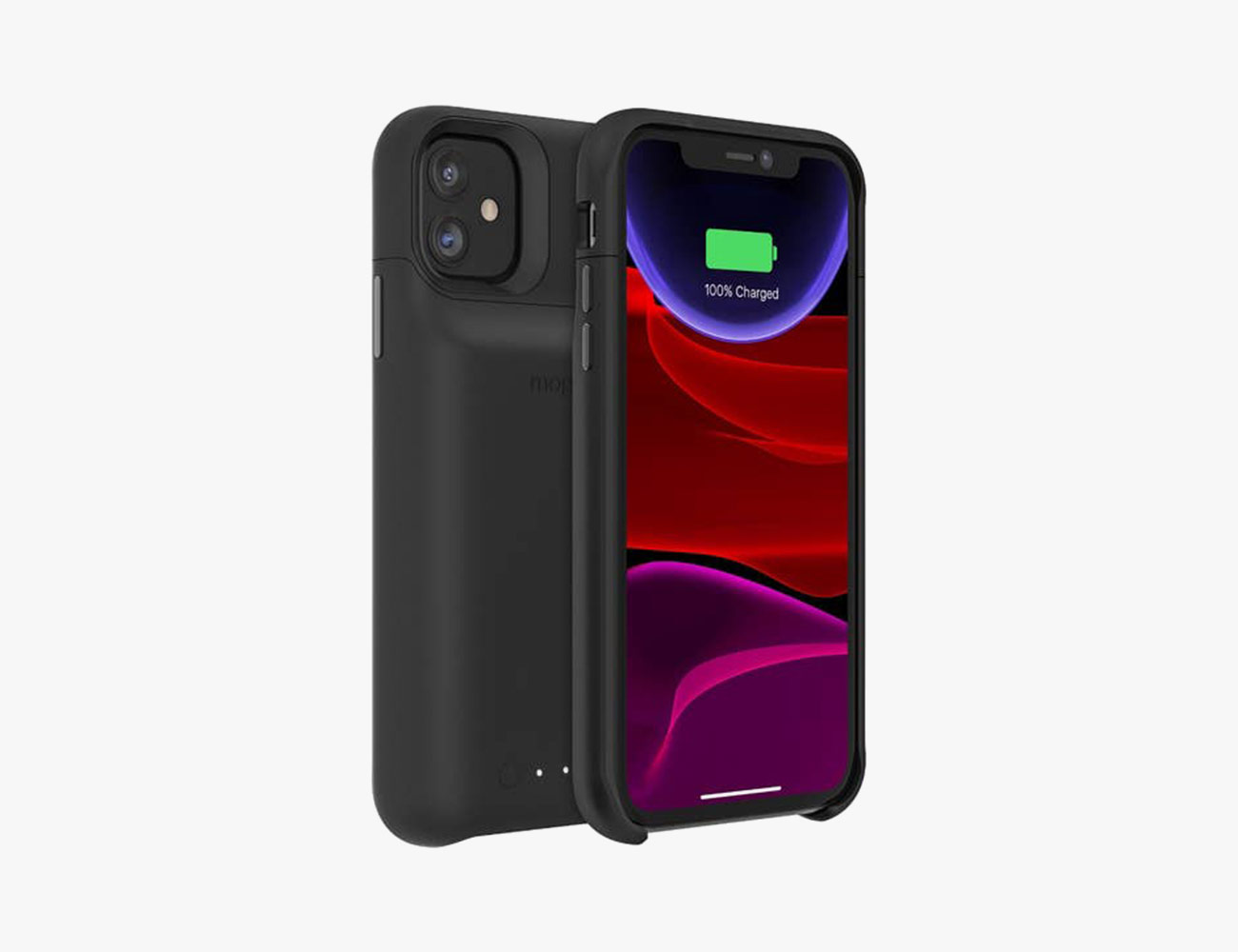
Apple’s battery case, the Smart Battery Case ($129), is great — but it’s so darn expensive. Mophie’s alternative is significantly more affordable, plus it leaves the Lighting port exposed so you can charge your iPhone and listen to wired headphones at the same time.

Also good: Moment Battery Case ($90 $50)

| |

Apple Clear Case

Best Clear Case

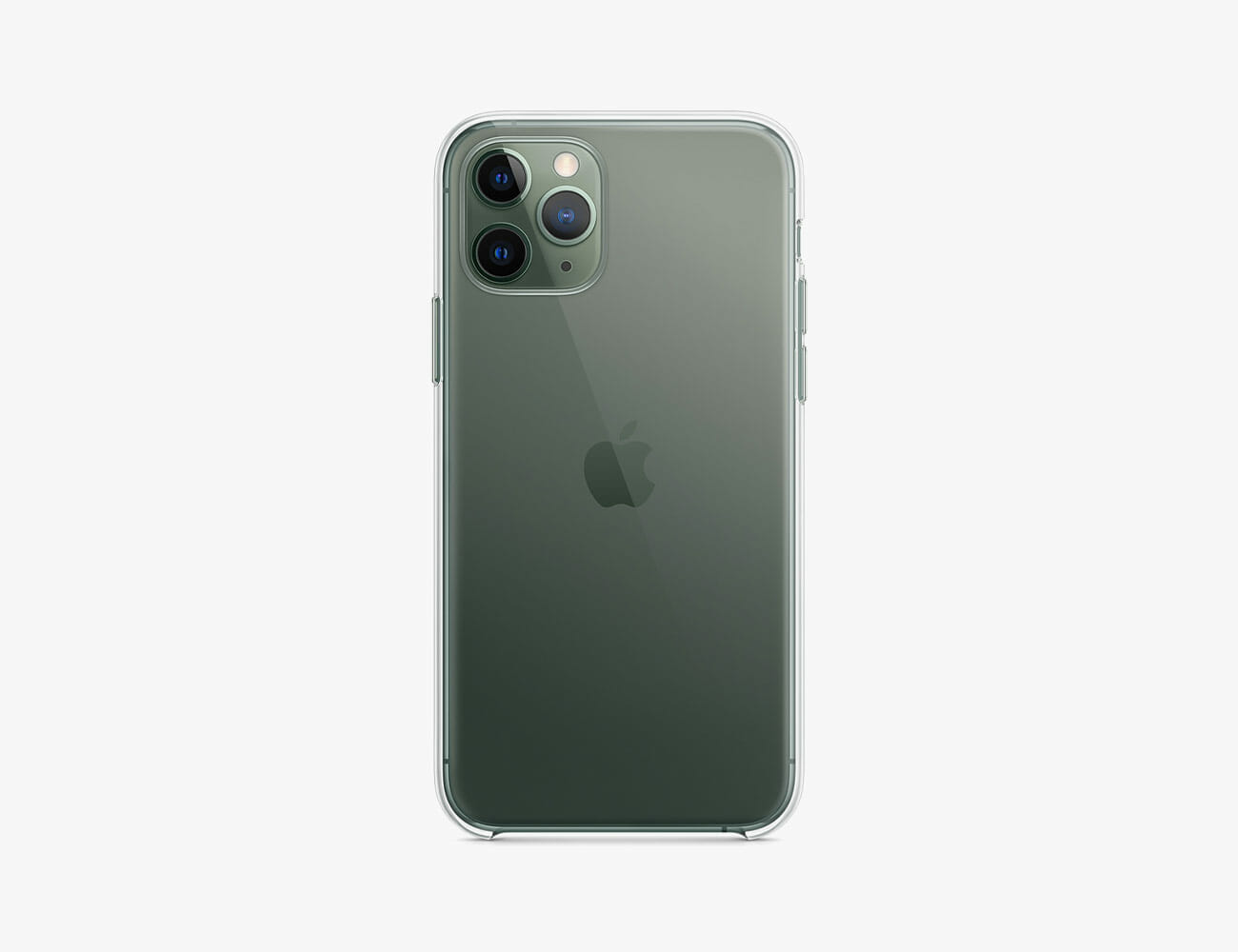
There are admittedly a lot of translucent cases you can buy for the iPhone 11, but they aren’t much cheaper (if at all) than the one Apple sells. Plus, Apple’s Clear Case just feels great in your hand.

Also good: Peel Super Thin, Clear ($29)

| |

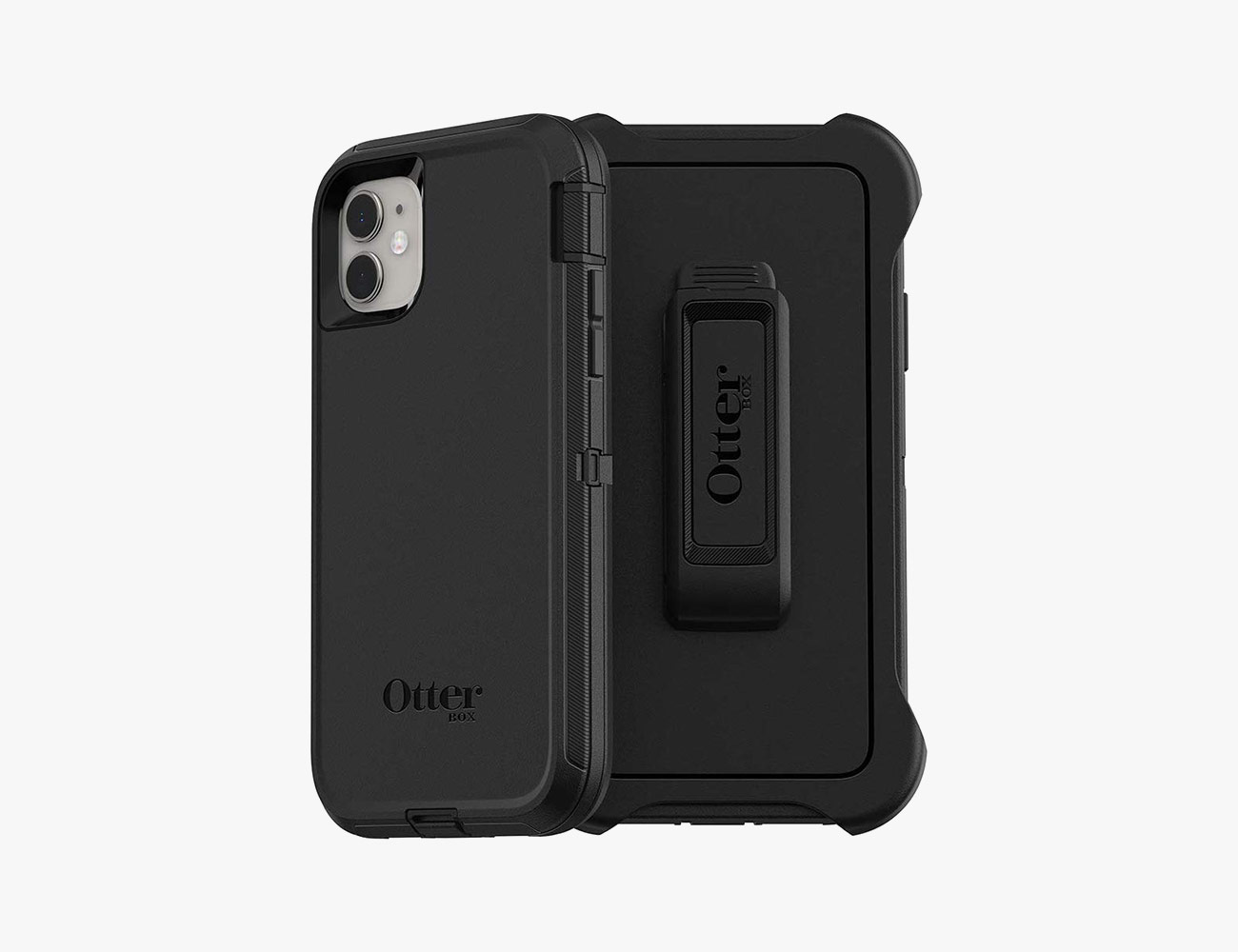
Otterbox Defender Series

Best Protective Case

Otterbox’s smartphone cases continue to be the go-to rugged option, and its Defender series is what the company is best known for. It’s really grippy, virtually shatterproof and it comes with a hands-free kickstand.

Also good: Catalyst Impact Protection Case ($40)

| |

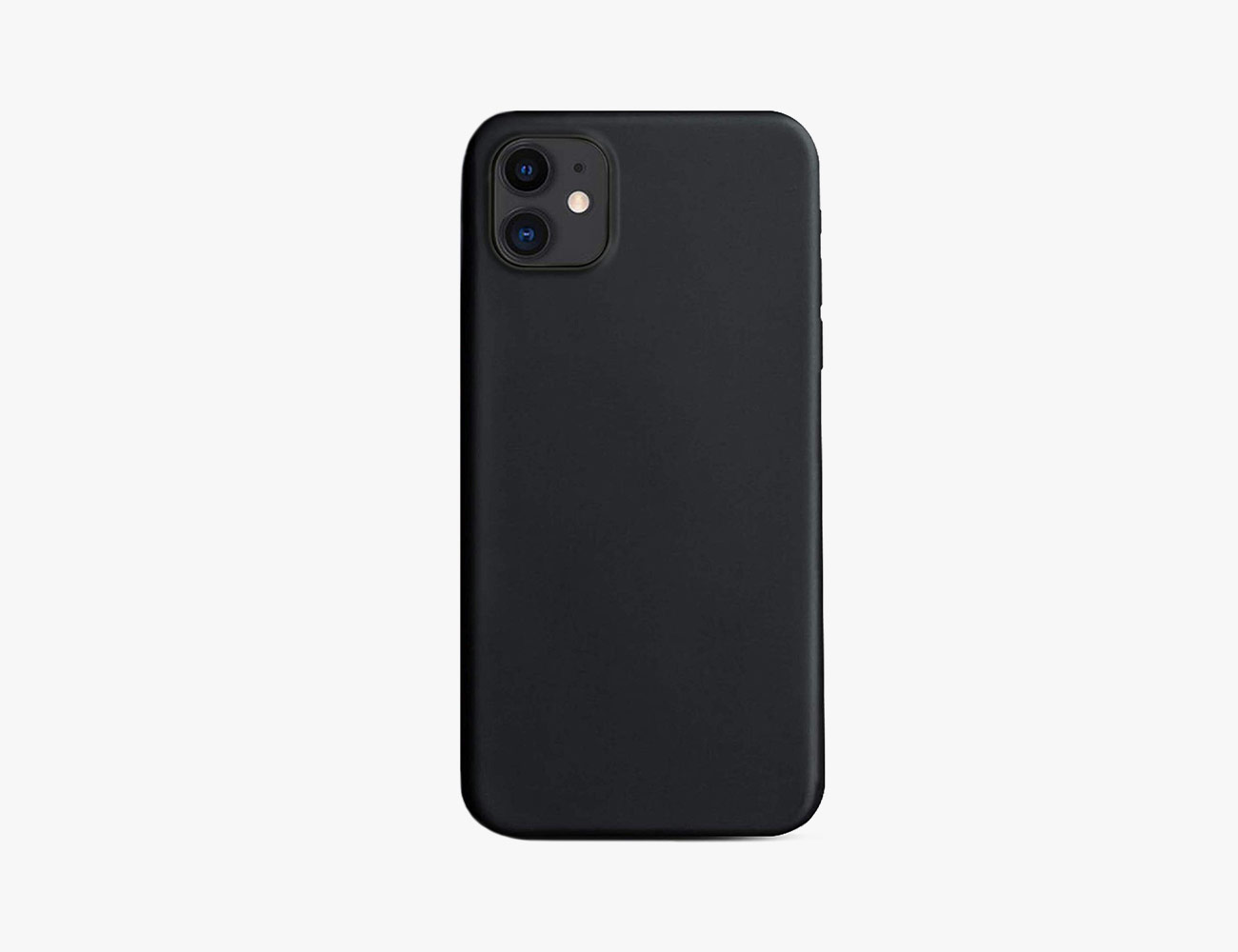
Peel Super Thin

Best Thin Case

If anybody who wants a little more grip, but doesn’t want to add any real thickness to their iPhone — Peel continues to make our favorite smartphone cases. And they are available in many different colors.

Also good: Apple Silicone Case ($39)

| |

Moment iPhone Case

Best Photography Case

The big thing with Moment is that they make additionally lenses — everything from fisheye to anamorphic — that you can attach to your iPhone and take ever better photos. But you need Moment’s case to attach the lenses. Any one of their cases are a great option for a vlogger or an all-around creative.

Also good: Olloclip Case ($40 $20)

| |

Nomad Rugged Tri-Folio

Best Wallet Case

We’re assuming that if you’re looking for smartphone case to replace your wallet, you want it to be nice. (Because wallets are nice, generally.) Nomad’s option fits the bill because it’s made of genuine leather and its tri-fold design makes it easy to store both cards and cash.

Also good: Speck Presidio Wallet Case ($45 $20)

| |

Otter + Pop Symmetry Series

Best PopSocket Case

Let’s face it: PopSockets are hella popular. And with this case, PopSockets teamed up with Otterbox to integrate its PopGrip into a rugged smartphone case. It’s the best of both worlds. It’s also available in a range of colors.

| |

Apple Leather Case

Best Leather Case

Apple makes leather iPhone cases in all sorts of colors: yellow, green, blue, black and traditional brown. Like all genuine leather, the best part of these cases is that they patina and look better over time. Surprisingly, Apple doesn’t sell a leather case for the vanillia iPhone 11.

An alternative: Nomad Rugged Case ($50)

|

Note: Purchasing products through our links may earn us a portion of the sale, which supports our editorial team’s mission. Learn more here.
Tucker Bowe

Tucker Bowe has been on Gear Patrol’s editorial team since 2014. As a Tech Staff Writer, he tracks everything in the consumer tech space, from headphones to smartphones, wearables to home theater systems. If it lights up or makes noise, he probably covers it.

More by Tucker Bowe | Follow on Instagram · Twitter · Contact via Email

Marshall’s New Noise-Canceling Headphones Look Cool As Hell

<!–Marshall’s New Noise-Canceling Headphones Look Cool As Hell<!– –>

Monitor II ANC


Marshall just announced the Monitor II ANC, its first pair of over-ear noise-canceling headphones. The new headphones have USB-C charging (a first for Marshall’s headphones), a 30-hour battery life with ANC turned on, and a new collapsible design for easy travel. They’ll be available in mid-March and cost $320.

Marshall has been in the headphones business for a few years and it makes a bunch of different in-ear, on-ear and over-ear models. All of them share Marshall’s signature rock ‘n’ roll design — all-black with brass details — that was made famous by the company’s iconic amplifiers. Like most of its other headphones, the Monitor II ANC will only be available in black. And, if we’re being honest, they look pretty freakin’ cool.

Now, these aren’t the company’s first pair of noise-canceling headphones. That title belongs to the Mid ANC ($280), which are a pair of on-ear noise-canceling headphones that was released in 2018. It actually seems a bit odd that it’s taken so long for Marshall to release over-ear noise-canceling headphones, given the category’s popularity. But alas, the Monitor II ANC headphones are here.

Given the price, the Monitor II ANC headphones are going to be going up against some strong competition; namely, the Bose QuietComfort 35 II and Sony WH-1000XM3. We can’t speak to the sound qualities or noise-canceling skills of the Monitor II ANC headphones just yet, but they differently pack a lot more style than Bose’s and Sony’s flagship noise-canceling headphones. They are also a little cheaper (although both Bose’s and Sony’s offerings are frequently discounted).

The Monitor II ANC headphones are available for pre-order right now on Marshall’s website.

Note: Purchasing products through our links may earn us a portion of the sale, which supports our editorial team’s mission. Learn more here.
Tucker Bowe

Tucker Bowe has been on Gear Patrol’s editorial team since 2014. As a Tech Staff Writer, he tracks everything in the consumer tech space, from headphones to smartphones, wearables to home theater systems. If it lights up or makes noise, he probably covers it.

More by Tucker Bowe | Follow on Instagram · Twitter · Contact via Email

<!–

–>

<!– –><!–

–>

A Powerful Camera and 5 Other Things to Know About Samsung’s New Smartphones

Samsung just announced its latest pack of flagship smartphones. In total, there are three. The Galaxy S20 (6.2″) and the Galaxy S20+ (6.7″) are the next generations of the Galaxy S10 and Galaxy S10+ smartphones, complete with a new naming scheme. And then there’s the Galaxy S20 Ultra (6.9″), which is an all-new supercharged phone with an unprecedentedly good camera.

Save for the huge rectangular camera systems on the back, the Galaxy S20s look very similar to their predecessors, but there are a number of huge differences hiding in plain sight. Here’s what you need to know:

A Better Camera with Big, Big Zoom

Cameras continue to be a primary reason people upgrade their smartphones and Samsung’s new Galaxy S20 family goes big on this front. According to Samsung, the Galaxy S20’s sensor is three times larger than the Galaxy S10’s, giving it better low-light shooting capabilities, better clarity and the ability to capture super high-res photos (up to 64-megapixels on the Galaxy S20 and S20+, and up to 108-megapixels on the Galaxy S20 Ultra). That extra resolution is crucial when you are trying to zoom in digitally or crop in the latter of which helps you shoot better landscape or group photos, or zoom-in or crop them in post.

And the zoom is where Samsung Galaxy S20 smartphones really stand out. The Galaxy S20 Ultra, the most impressive of the bunch in this regard, has a sideways optical zoom lens tucked into its camera bump, sporting its own 48-megapixel sensor. The result is that it can zoom up to 10x optically, that is to say, with no decrease in quality. And from there, it can zoom up to 100x digitally, though you’ll suffer some loss of quality at extremes like that. On the Galaxy S20 and S20+, the optical zoom is 3x, with a max of 30x digitally. This is still decently better than the 2x optical zoom and 10x digital zoom on the Galaxy S10.

8K Video and Night Hyperlapses

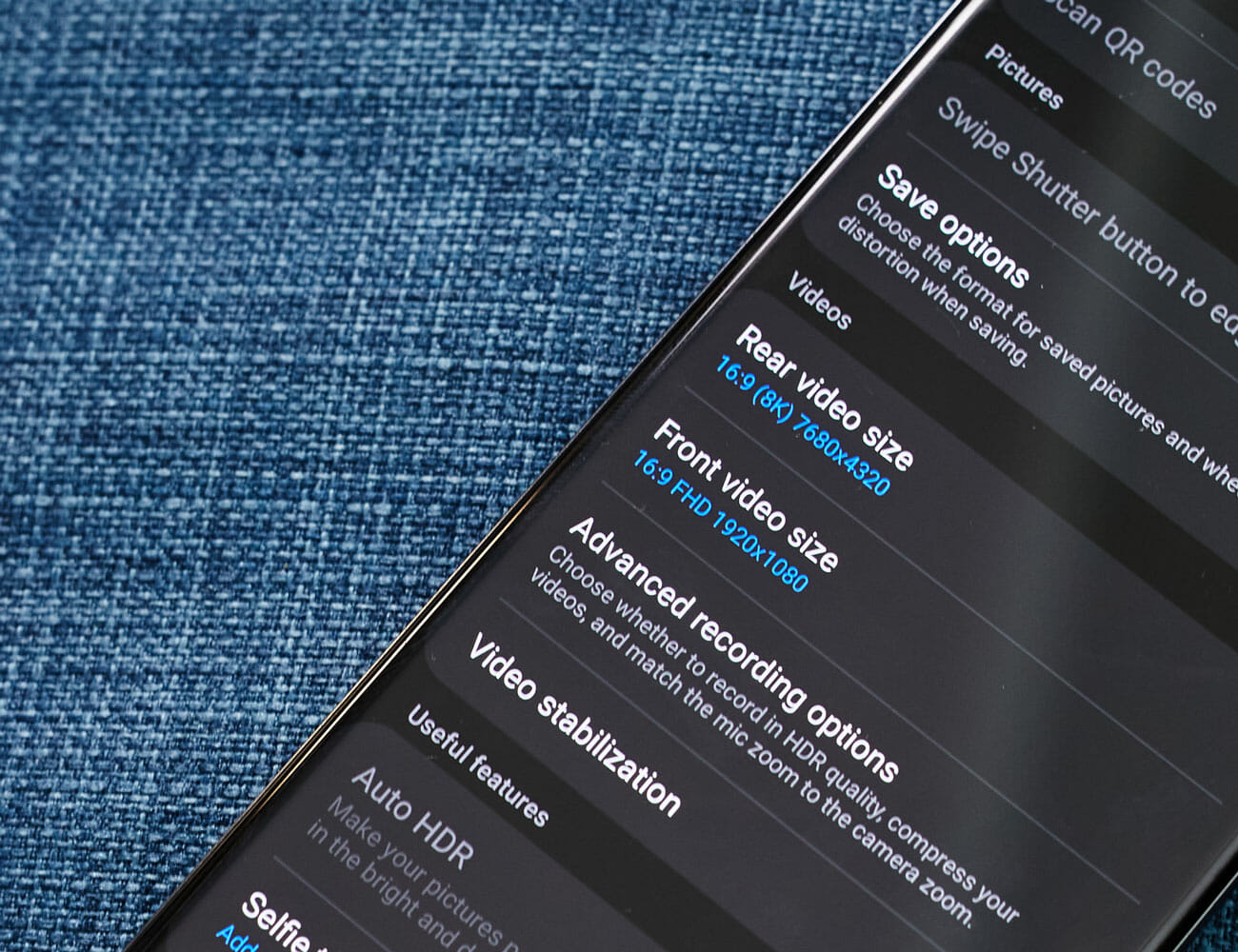
All three Galaxy S20 smartphones are, for the first time, capable of recording 8K video at 24fps. They have Samsung’s built-in tools that let you edit videos in 8K or downconvert them to 4K if you want to share with somebody who doesn’t have a device that can view 8K content. Samsung improved the image stabilization when recording videos, as well.

Additionally, all Galaxy S20 smartphones have a new “Night Hyperlapse” feature that allows you, with a simple tap, to shoot long exposures at night. There’s a new “Single Take” mode that allows the camera to take 10 seconds of video, but the smartphone will also take photos with all its different lenses, so you’ll get a lot of different photos and a 10-second video.

Bring on 5G, Baby.

The Galaxy S20, S20+ and S20 Ultra is Samsung’s first family of smartphones that are all 5G-enabled. Last year, Samsung launched the Galaxy S10 5G, which was the company’s first 5G smartphone, but it was more expensive and very limited. This year they’re all getting that 5G treatment by default — but they don’t all sport the same 5G speed.

The Galaxy S20+ and S20 Ultra — the two bigger smartphones and more expensive smartphones — will have slightly better and faster 5G capabilities than on the regular Galaxy S20. This is because they support both flavors of 5G, sub-6 and hyper-fast-but-extremely-short-range millimeter wave, while the Galaxy S20 only supports the slower but more broadly available sub-6. Essentially, this allows the Galaxy S20+ and S20 Ultra to unlock 5G’s most extreme speeds, but only if you have a plan that supports it and you’re inside the coverage range.

A 120Hz Refresh Rate

At first glance, it might seem like Samsung hasn’t done much to change the displays on its Galaxy S20 lineup. They’re still dynamic AMOLED and they look virtually identical. (The front camera still has that hole-punch design, which Samsung says the S20’s is slightly smaller than on the ones on the S10.) But these are Samsung’s first smartphones to have a 120Hz refresh rate, which is double the refresh rate on the S10, and gives on-screen animations an uncanny smoothness and makes them even better for mobile gaming (less lag, more accuracy).

Additionally and related to gaming, Microsoft’s Forza Street is going to be available on Galaxy devices, which is the first time you’ll be able to play the game on mobile.

Note: The default refresh rate on all Galaxy S20 smartphones is 60Hz, but you can change it to 120Hz in Settings. There’s no adaptive refresh rate like we’ve seen some other smartphones, where it automatically switches between 120Hz and 60Hz depending on what you’re doing.

A Cool New Way to Share Music

The Galaxy S20 has a feature called “Music Share” that allows you to share out your Bluetooth connection from your device to other devices. Essentially, if you are streaming music from your smartphone to a Bluetooth speaker or your car’s radio, “Music Share” allows your friend to connect to your smartphone (via Bluetooth) and then play their music. It eliminates the need to unpair and re-pair your smartphone. It’s an innovative way to distribute the DJ responsibilities at a party or on a long road trip.

Price, Availability and Everything Else

All of Samsung’s Galaxy S20 smartphones will come with a 25-watt charger in the box, and the S20 Ultra will support up to 45-watt charging. The base models for every smartphone will come with 12GB of RAM and 128GB of storage, with 512GB storage configurations available on the Galaxy S20+ and S20 Ultra.

Preorders for all Galaxy S20 devices will start on February 21 and run through March 5. They’ll be available to buy online and in stores on March 6. The Galaxy S20 starts at $1,000. The Galaxy S20+ starts at $1,200. And the Galaxy S20 Ultra starts at $1,400. If you pre-order any of these devices you’ll get a $100, $150 or $200 credit, respectively, to Samsung.com.

Save $100 on This Limited-Edition Commuter Bike

Priority Bicycles x Gear Patrol Commuter BikePriority Bicycles x Gear Patrol Commuter Bike

The Gear Patrol Commuter, made in tandem with Priority Bicycles, was inspired by — and tested on — the streets of New York City. Streamlined for your everyday grind, it a pairs a durable, easy-to-maintain feature set with an understated colorway you won’t find anywhere else. Buy Now: $899 $799

Note: Purchasing products through our links may earn us a portion of the sale, which supports our editorial team’s mission. Learn more here.
Tucker Bowe

Tucker Bowe has been on Gear Patrol’s editorial team since 2014. As a Tech Staff Writer, he tracks everything in the consumer tech space, from headphones to smartphones, wearables to home theater systems. If it lights up or makes noise, he probably covers it.

More by Tucker Bowe | Follow on Instagram · Twitter · Contact via Email

Flaunt fashion using the Samsung Galaxy Z Flip Thom Browne Edition

Despite the series of leaks ahead of its official reveal, the Galaxy Z Flip still manages to draw people’s attention. During a secret meeting with its partners and mobile service providers at CES 2020, Samsung presented a new smartphone. Moreover, the manufacturer confirmed it was a foldable handset with fashion in mind. Now shortly after its reveal at Unpacked 2020, the South Korean consumer electronics giant presented the Thom Browne Edition.

As with most of its high-profile product collaborations, Samsung hands over the designing responsibilities to the capable hands of its partners. This time, it just so happens that this tie-in grants a stylish vibe to an already attractive mobile device. The regular version, already touts a premium build with three eye-catching colourways: Mirror Purple, Mirror Gold, and Mirror Black.

Most would classify the latter as the only masculine option for those who don’t fancy the former two. Now, the Thom Browne Edition of the Galaxy Z Flip gives consumers with deep pockets to flaunt an exclusive look. Just like some of the brand’s high-class menswear, the clamshell phone sports a business-like classic grey finish.

In addition to the new shade is the fashion house’s signature colours on the Corning’s Gorilla Glass 6 exterior. Just like a three-piece suit, the Thom Browne Edition comes in an elegant box with two more gadgets to match your smartphone. There’s a Galaxy Watch Active 2 and the latest Galaxy Buds+ wireless earbuds. Please note that the latter two are also in theme with the overall design. Unlike the original Galaxy Z Flip which costs around $1,380, the special edition commands a $2,480 cost of ownership.

Own this exclusive handset now

Images courtesy of Samsung

The Rarest Game Console Ever Can Be Yours… For Just $360,000

<!–The Fabled ‘Nintendo PlayStation’ Only Costs $360,000 (So Far) • Gear Patrol<!– –>

Not everyone gets to own a Nintendo PlayStation


Back before Nintendo decided to make the cartridge-based Nintendo 64 and before Sony decided to make its line of disc-based PlayStation consoles, there was a brief collaboration between the two giants. The result? The rare, prototype “Nintendo PlayStation.” It obviously never came to market, but a prototype is up for auction and may well go for upwards of $1 million.

Its original owners came into possession of the strange piece of video game history through a bankruptcy auction that included items from a former Sony CEO. The strange device, one of only about 200 hundred prototypes ever made, is the only surviving console known to have survived. The auction, which will continue for 21 more days, has already attracted big bids, with the price already up to over $300,000 and is attracting attention from people with mountains of cash, who you’d be hard-pressed to outbid.

The owners of the console reportedly turned down a $1.2 million offer to purchase the device outright, which says plenty about how high they expect the number to go. This could wind up being the most expensive video game console of all time.

Note: Purchasing products through our links may earn us a portion of the sale, which supports our editorial team’s mission. Learn more here.
Eric Limer

Eric Limer is Gear Patrol’s tech editor. A resident of Weehawken, NJ, his current obsessions include mechanical keyboards, mechanical pencils and Formula 1.

More by Eric Limer | Follow on Instagram · Contact via Email

<!–

–>

<!– –><!–

–>

The One Camera Trick You Didn’t Know Your iPhone Could Do

<!–The One Camera Trick You Didn’t Know Your iPhone Could Do<!– –>

Did you know you can take full-page screenshots with your iPhone? Apple rolled out the new feature with iOS 13 and it’s largely gone unnoticed. There’s also a catch, as you can’t take a full-length screenshot of everything. It only works on webpages in Safari. If you use Chrome as your default web browser, you’ll only be able to take regular-sized screenshots. Likewise, you won’t be able to take full-page screenshots within apps like Twitter, Spotify or anything outside of Safari.

How to Take Full-Page Screenshots on Your iPhone

1. Your iPhone or iPad must be running iOS 13 or later.
2. Open Safari and go to an article that you want to take a screenshot.
3.
Take a screenshot as you normally would.

    • To take a screenshot on an iPhone X or later: press the side button and the volume up button at the same time.
    • To take a screenshot on an iPhone 8 or earlier: press the side button and the Home button at the same time.

4. Once the screenshot is taken, tap the preview link that appears in the bottom left-hand corner of your screen.
5. You’ll then be given the option to save the image as “Screen” or “Full Page.” Select the latter.
6. Select “Done” in the top left corner of the screen.

Once the full-page screenshot is taken, you’re given the option to easily mark up and edit the PDF — which makes it easy to do a bunch of neat things. If it’s an article, you can circle or underline different important points (like a teacher editing a student paper). If it’s an image, you can also draw over it or magnify certain areas. If it’s a document that needs signing, you can also quickly add your signature.

The other catch with taking full-page screenshots is that the image needs to be saved as a PDF, meaning once you capture it you won’t be able to find it in your Photos app. You’ll have to save these PDFs in your Files app, instead.

Note: Purchasing products through our links may earn us a portion of the sale, which supports our editorial team’s mission. Learn more here.
Tucker Bowe

Tucker Bowe has been on Gear Patrol’s editorial team since 2014. As a Tech Staff Writer, he tracks everything in the consumer tech space, from headphones to smartphones, wearables to home theater systems. If it lights up or makes noise, he probably covers it.

More by Tucker Bowe | Follow on Instagram · Twitter · Contact via Email

<!–

–>

<!– –><!–

–>

Sony SRS-LSR200 Portable TV Speaker

Sony has a long history of developing products no one thought they needed, and the new Sony SRS-LSR200 Portable TV Speaker is the perfect example of that. Equal parts remote control and far-flung listening device,…


Related Stories


The Fabled “Nintendo PlayStation” Only Costs $360,000 (So Far)

<!–The Fabled “Nintendo PlayStation” Only Costs $360,000 (So Far) • Gear Patrol<!– –>

Have a million dollars to drop?


Back before Nintendo decided to make the cartridge-based Nintendo 64 and before Sony decided to make its line of disc-based PlayStation consoles, there was a brief collaboration between the two giants. The result? The rare, prototype “Nintendo PlayStation.” It obviously never came to market, but a prototype is up for auction and may well go for upwards of $1 million.

Its original owners came into possession of the strange piece of video game history through a bankruptcy auction that included items from a former Sony CEO. The strange device, one of only about 200 hundred prototypes ever made, is the only surviving console known to have survived. The auction, which will continue for 21 more days, has already attracted big bids, with the price already up to over $300,000 and is attracting attention from people with mountains of cash, who you’d be hard-pressed to outbid.

The owners of the console reportedly turned down a $1.2 million offer to purchase the device outright, which says plenty about how high they expect the number to go. This could wind up being the most expensive video game console of all time.

Note: Purchasing products through our links may earn us a portion of the sale, which supports our editorial team’s mission. Learn more here.
Eric Limer

Eric Limer is Gear Patrol’s tech editor. A resident of Weehawken, NJ, his current obsessions include mechanical keyboards, mechanical pencils and Formula 1.

More by Eric Limer | Follow on Instagram · Contact via Email

<!–

–>

<!– –><!–

–>

5 Best All-in-One Turntables that Simplify the Vinyl Experience

Listening to vinyl isn’t as simple as asking Alexa or opening Spotify on your smartphone, and that’s part of the reason why people love it. The act of choosing a record, placing it and dropping the stylus, that requires more attention. And as a result, you’re more likely to appreciate the music more. For those just starting out, building your own hi-fi system can be intimidating — we’re here to help.

Most entry-level hi-fi systems require more than just a turntable and a pair of speakers. In the past, most turntables needed a separate component, a phono preamp (or phono stage), to amplify the turntable’s normally weak signal. Otherwise, it wouldn’t be powerful enough to drive the speakers. According to Audio Advice, a turntable’s signal “is about 1,000x lower than the signal coming from a CD player or a streaming device.”

Today, it’s common for turntables to have their own built-in amplification, meaning they have a built-in preamp and don’t require you to have a separate component; you can hook the turntable directly up to passive speakers and it’ll just work. We call these “all-in-one turntables” and you really just need a pair of speakers and speaker cables to listen to music.

There are different kinds of “all-in-one” turntables. Most entry-level options have built-in Bluetooth or Wi-Fi, either of which affords you the option to stream music from services like Spotify or Apple Music to your system, without actually having to play a vinyl record. It combines the best of analog and modern streaming. Some all-in-one turntables even have speakers built right into them, but we probably wouldn’t recommend them.

The Downside of All-In-One Turntables

The big advantage of purchasing an all-in-one turntable is that it’s simple to use. You just get some cables, hook it up to your favorite bookshelf speakers and it’ll just work. As far as disadvantages, there are two that jump out.

First, an all-in-one turntable might sacrifice a little bit of audio quality. Since all of the components are built into the turntable, it could add extra noise and vibrations to the system, thus preventing the stylus to read the record as accurately. That said, a high-quality all-in-one turntable will be able to mediate this problem, with a sturdier platter and other higher-quality components.

Second, upgradeability. Most all-in-one turntables are designed to be the finished article, not to be tinkered with, and this kind of eliminates the fun of building out a system. This is especially for audiophiles who like to add separate components to the system, upgrading over time and improving/refining the sound signature. On the flip side, some all-in-one turntables actually allow you to turn off their built-in preamp and add your own. This way you can upgrade your system down the road without having to replace your turntable.

Passive vs Powered Bookshelf Speakers: Which to Choose?

When it comes to bookshelf speakers, you’re going to encounter a few different types — but not all are designed to work with an all-in-one turntable. Passive bookshelf speakers are your best and safest bet. These speakers have no built-in amplification and don’t need to be connected to a power source. You connect them to your turntable with its built-in preamp, and that’s basically it. It’s a pair of speakers that you can just plug into your all-in-one turntable (via RCA cables) and it’ll just work.

Powered bookshelf speakers are the other option, but we don’t really recommend them. They won’t work with most all-in-one turntables because these speakers have their own built-in phono preamp and amplification and they work with the turntable’s built-in preamp. The loop-around is that some all-in-one turntables allow you to turn off their built-in phono preamp. If your turntable does, then you’ll have to turn its preamp off in order for it to work properly with your powered speakers.

A Manual or Automatic Turntable?

You’re going to also decide whether to buy manual or an automatic all-in-one turntable, which simply refers to how the turntable operates. A manual turntable requires you to “manually” lower the tonearm and place the stylus, then pick it up when the record is over. While an automatic turntable does this “hard” work for you (after pressing a button).

The advantage of an automatic turntable is that it makes playing records even easier. It also eliminates any issue of placing the stylus incorrectly, which can then scratch and potentially ruin the record. The advantage of a manual turntable is that it makes listening to music feel more deliberate. It also requires you to pay more attention — picking tracks and then lifting the tonearm when the record is finished — which many people think is the point of listening to vinyl in the first place.

There shouldn’t be any difference in the sound quality of a manual and an automatic turntable.

Buying Guide

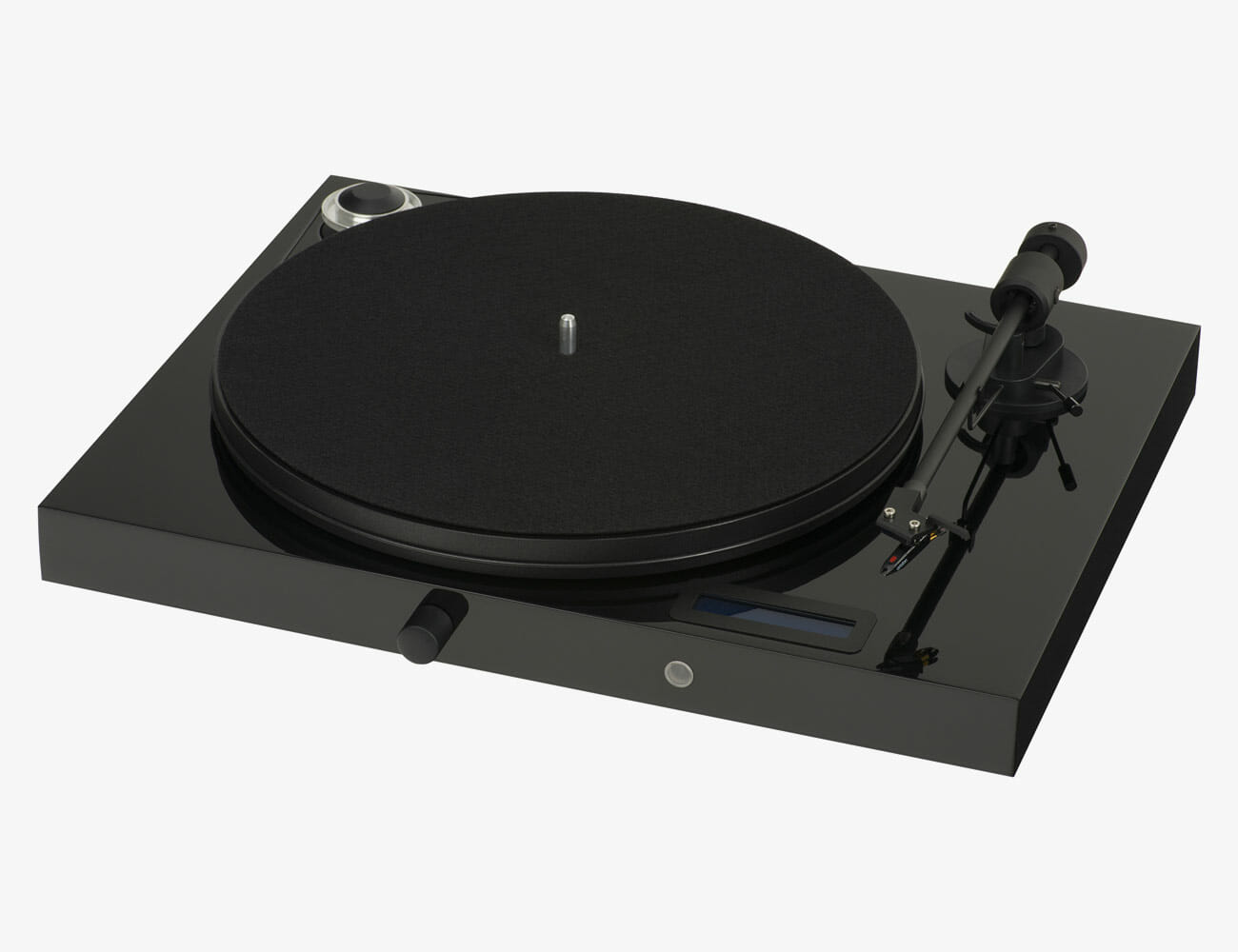
Best All-in-One: Pro-Ject Juke Box 3

Pro-Ject’s latest vinyl turntable, the Juke Box E, is really a terrific entry-level hi-fi system; if you’re willing to spend a little more, this is probably the best option for most people. It has a power amplifier and phono stage built right into its body, plus a Bluetooth receiver (which is a rarity) so you can stream music without actually playing any records. All you need is some cables and a pair of bookshelf speakers.

Key specs

Turntable: Belt drive
Automatic or Manual: Manual
Tonearm: 8.6″ aluminum
Preamp: Yes
Connectivity: Bluetooth

|

Budget Pick: Audio-Technica AT-LP120XUSB
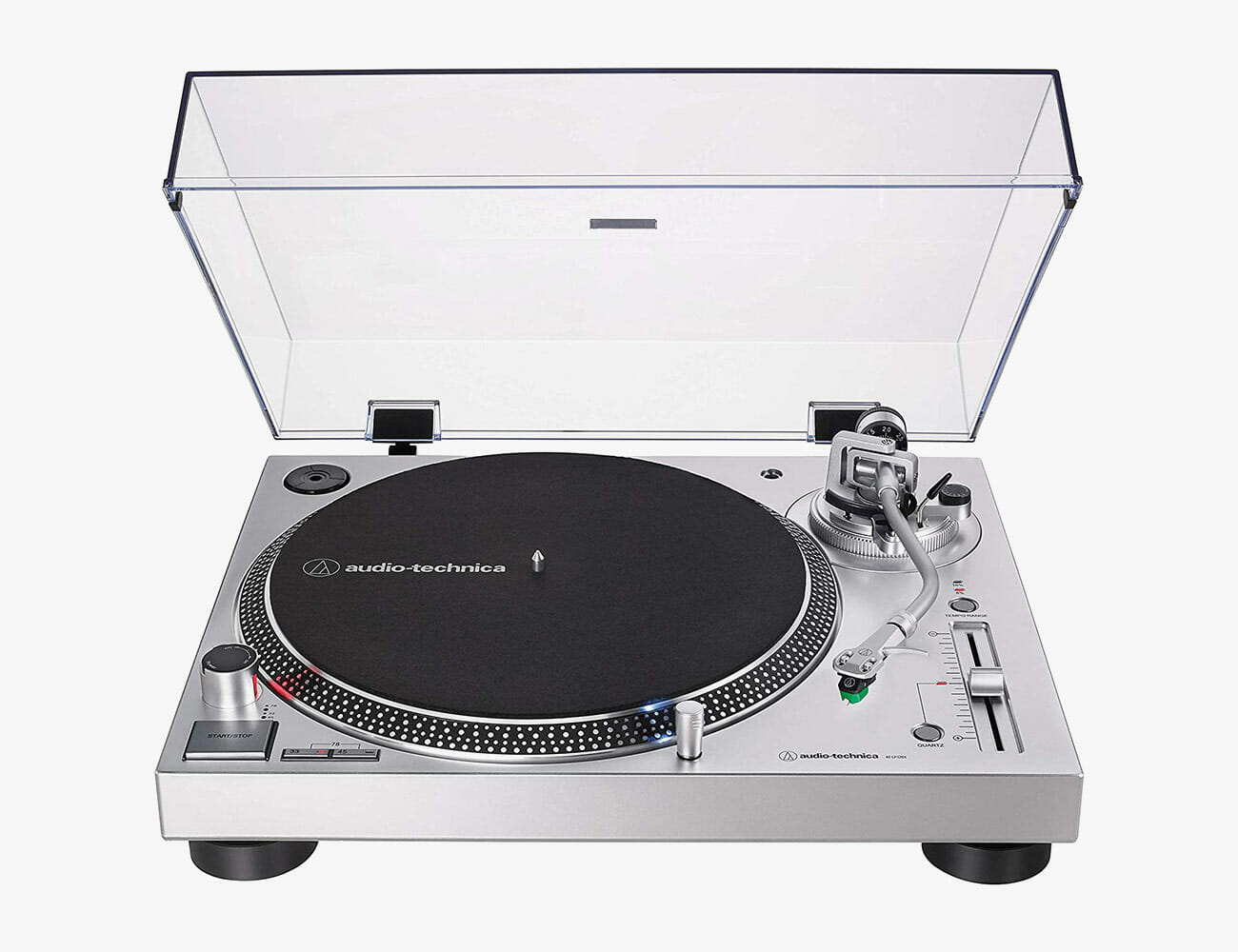
First things first: Audio-Technica’s LP120XUSB is a USB turntable, meaning you can play and record records at the same time. This is a great way to turn your vinyl into digital music files, so you can listen to them without a turntable or record nearby. More importantly, the LP120XUSB has a built-in phono preamp, so all you need is some passive or powered bookshelf speakers to hook up to it.

Key specs

Turntable: Direct drive
Automatic or Manual: COPY
Tonearm: S-shaped tone arm with hydraulically damped lift control
Preamp: Yes
Connectivity: USB (Mac- and PC-compatible)

Editor’s Pick: Fluance RT81
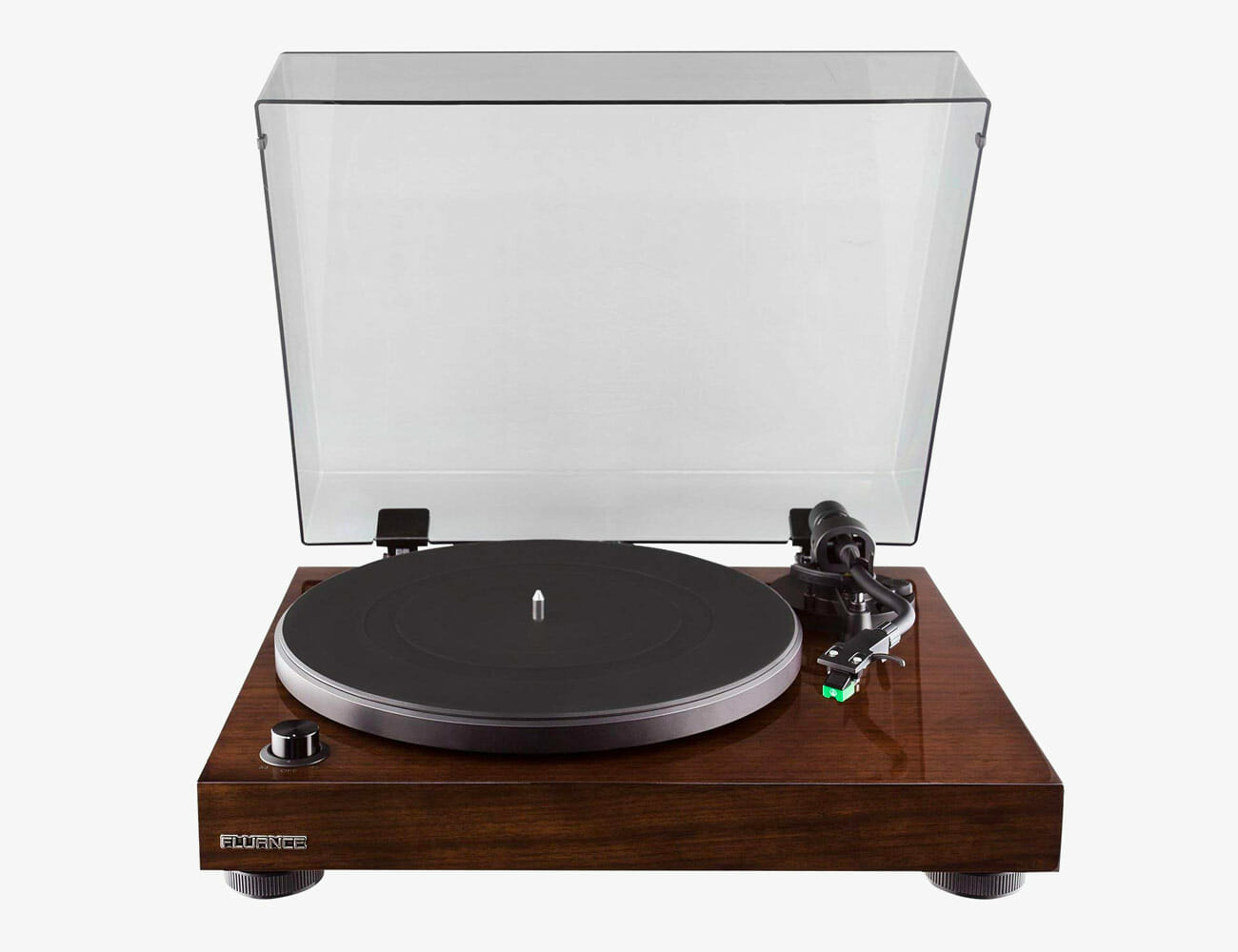
Fluance has always specialized in home theater systems and hi-fi speakers, but it wasn’t until 2016 that the Canadian-based audio company got into turntables when they introduced the Fluance RT81 and RT80. The RT81 is the higher-end model and features a solid wood body, as opposed to the RT80’s hollow one, and it’s a really beautiful –yet still affordable – turntable. It has a built-in Texas Instruments preamp that you can turn on or off, enabling you to buy upgraded external pre-amp and further customize your setup.

Key specs

Turntable: Belt drive
Automatic or Manual: Manual
Tonearm: S-shaped tonearm with an adjustable counterweight
Preamp: Yes
Connectivity: RCA

|

Best USB Turntable: Sony PS-HX500

Like the Audio Technica LP120, this is a USB turntable that’s capable of playing and digitizing your vinyl records. But Sony’s PS-HX500 is more bespoke and is a direct-drive turntable – probably the better option if you don’t plan on spinning the record like a DJ. And, of course, it has a built-in phono preamp, which you can turn off or on depending on if you want to upgrade to better external preamp.

Key specs

Turntable: Belt drive
Automatic or Manual: Manual
Tonearm: straight tonearm
Preamp: Yes
Connectivity: USB (Mac- and PC-compatible)

The Grail: Symbol Audio Modern Record Player

The Modern Record Player by Symbol Audio is admittedly different from everything else on this list. That’s because it’s not just a turntable. It’s a true all-in-one system with an integrated turntable, a custom class AB amplifier and custom-engineered, built-in speakers. It’s designed with a unique three-phase isolation system to eliminate distortion. The feather in its cap is that by request Symbol Audio can add Bluetooth, Chromecast, Sonos Connect or Airport Express so you can wirelessly stream music the way you want. (It just looks classy as hell, too.)
Key specs

Turntable: Belt drive
Automatic or Manual: Manual
Tonearm: RB110 tonearm
Preamp: Yes
Connectivity: Bluetooth, Chromecast, Sonos Connect, Airport Express (add-ons)

Note: Purchasing products through our links may earn us a portion of the sale, which supports our editorial team’s mission. Learn more here.
Tucker Bowe

Tucker Bowe has been on Gear Patrol’s editorial team since 2014. As a Tech Staff Writer, he tracks everything in the consumer tech space, from headphones to smartphones, wearables to home theater systems. If it lights up or makes noise, he probably covers it.

More by Tucker Bowe | Follow on Instagram · Twitter · Contact via Email