All posts in “tech”

Restore Your Files Fast: Tips on How to Retrieve Your Files and Use Data Recovery Software for Mac

If you have lost some of your files, it does not mean that you will never see them again. Usually, the problem is much smaller than we picture, and the problem can be solved in a few clicks. Here is a guide for you on how to recover files on Mac as well as some tips on what you should do if you lost all of your files and don’t know what to do. Learn more about effective data recovery here.

The Best Ways to Restore Your Data and Files

The situation in which you lose your files is not something you want to experience. But if you have such a problem, you can still fix it. Here are the steps to recover deleted files on Mac and forget about your problems with files:

  1. Check the trash bin. Who knows, maybe you were thinking about something else and did not notice how you deleted the files. There is always a chance of something like that happening, so even if you don’t remember how it got deleted, still it is best to make sure that the trash bin is empty.
  2. Search through other folders. Check every folder where you could have put your files without noticing it. Same as for the trash bin: you might not even remember that you did something, but it will turn out that the files were just moved to another folder.
  3. Back up your files. Before you do anything to restore data on Mac, first you should make sure that none of the files that are still saved on the computer are safe and sound. Save your data on Google Drive or another platform, and start working on solving the problem.
  4. Install special software. To retrieve data on Mac fast and easy, you can always use some special apps or programs that will help you do that. There is a variety of different options on the internet, so all you have to do is just to choose the right one. You can use some free mac data recovery software to get your files back. But keep in mind that you should always check if the app is fine to use before downloading it.
  5. Think about a situation in which you might have damaged your Mac incidentally. Sometimes, our devices stop working properly because of some bugs that are happening due to the recent damages. In such a case, the only thing you can do is just to turn for help to the special service that will repair your Mac for you.
  6. Talk to the technician. If you have no idea about what happened to your computer and how you can fix it, talk to the professional who will be able to share a piece of advice with you. The expert will also be able to help you out with installation of the special data recovery software for Mac, so you would be able to use such an app more effectively.

Step-by-Step Video Tutorial

[embedded content]
Keep Calm and Restore Your Files Easily

If you realize that some of your files are missing, it is not a reason to panic. There are good chances that all of your files can be recovered with ease, so instead of worrying and stressing out too much, try to take an action and do everything you can to get your private data back. There are many great apps and programs that can help anyone manage this problem, even if you don’t know a lot about such things.

Your Home Office Needs a Trackball. Here’s Why.

For decades, the standard set of tools for computing has been more or less set in stone. When you sit at a desk, you use a keyboard for typing in words and you use a mouse to point and click things. If you have a laptop, maybe you use its touchpad. If you’re really out there, you might use a Magic Trackpad or its equivalent. And that’s fine! It’s OK to be normal, but if you really want to the next level of comfort and productivity at your desk, it’s time to put away childish things and upgrade. My friend, you should be using a trackball.

Trackballs, while a little tough to get the hang of, are rarer than they should be. And they’re more comfortable, more useful, more efficient and dare I say cooler than every alternative, and now that I’ve seen the light after years of missing out, I’ll never go back. If you make the switch, and you should, you’ll see what I mean. Let me make the case.

The Case Against the Venerable Mouse

For all their popularity, there are a ton of reasons not to use a traditional mouse. First and foremost is the ergonomics. Do you ever get pain in your wrist after a long stint at the computer? I know I used to, and if you’re using a standard mouse, it’s no wonder. It might feel like you are in a resting state, but various parts of your hand and arm are actually tense. If you hold your mouse with a so-called “claw” grip, muscles on the back of your hand are too. Worse yet, standard mouse posture, with your palm parallel to the desk, keeps your forearm in a perpetually twisted state. Twisting your wrist to the left or right as you point and click can cause further stress. Also, you may not have it (yet), but “mouse elbow” is real.

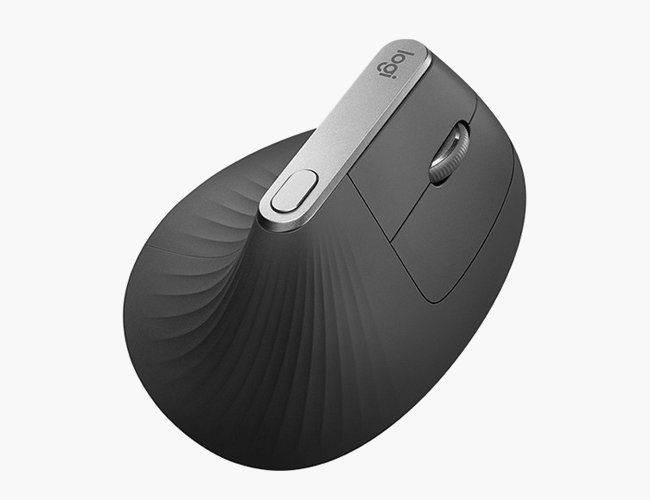
One solution to this problem is a vertical mouse which holds your wrist in a better position like the Logitech MX Vertical. But even a vertical mouse requires precious acreage on your desk. Unless your sensitivity is through the roof, you’ll always need a decent amount of room to slide the dang thing around, lift it up, set it down and then slide it around again. And if a glass of water or can of soda encroaches on that space, you’re asking for trouble.

Standalone trackpads, with their stationary footprint, are an improvement and can offer some fun gesture controls depending on your computer’s operating system, but come with their own downsides. All that swiping and tapping can still tweak your wrist and, worst of all, clicking and dragging becomes a true nightmare. If only there were a way to solve all of these problems at once…Surprise, there is! It’s called a trackball.

Why You Should Try a Trackball Instead

Completely stationary, a trackball lets you dial in a comfortable, relaxed position and keep it all day every day while simultaneously freeing up your desk for mugs, post-its, chargers — whatever you want. There are a wide variety of vastly-different trackballs, so you have creative license to figure out which model works best for you.

The choice between designs that offer a small ball you control with your thumb or a larger ball you operate with your index or pointer gives you a variety of control options and ergonomic setups the world of mice just can’t match. What’s more, trackballs virtually all include a wealth of extra, programmable buttons to customize to your various needs. To top it all off, they’re uncommon, exotic and, by this nerd’s definition, even cool.

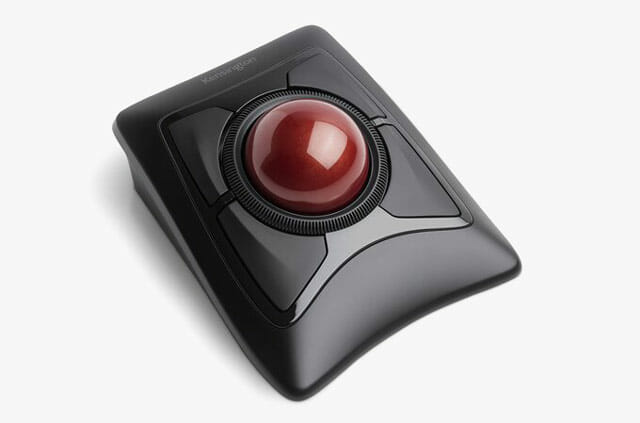
Kensington Expert Wireless

My first trackball

• Ambidextrous design
• Four programmable buttons
• Physical scroll wheel
• Included wrist wrest
• Wireless connection by Bluetooth or USB

Price: $75

I started exploring trackballs after a bout of ulnar wrist pain that dogged me constantly and would flare up after long days at the office. Sitting stationary at your desk all day isn’t ideal for fitness, but maintaining a comfortable and healthy posture is crucial to your arm and joint health while you are doing it. And if you don’t have a Repetitive Stress Injury (RSI) or similar pain from your time with a mouse, good! But it’s worth being proactive to avoid. If you don’t believe me, just ask the guy who invented Kirby.

The first trackball that I bought was the Kensington Expert Wireless ($75), and it was for the extremely shallow reason that I liked the way it looked, but it turns out to have a whole host of other features that make it appealing. I’m righthanded, but its symmetrical design makes it a rare option that also works for lefties. And while folks swear by trackball models that put a smaller, marble-sized ball under your thumb, but I instantly fell in love with the cue-ball design that lets me pilot my pointer with my more dexterous index and middle fingers. Switching overtook a little bit of getting used to, a few weeks of minor fumbling with the cursor, but the improvement in comfort was immediate and extreme. It was love.

Once I got acquainted with my Kensington, I knew I would never go back, but I did want to go forward and explore more. For all its appeal, the Expert Wireless has a few flaws that were a particular problem for me. Chiefly, instead of any sort of scroll wheel, it has a scroll ring that loops around the ball. It’s a joy to spin around and around and around, but it requires just enough wrist movement that it still can cause me a bit of pain. And while its included wrist rest works well enough, its relatively flat design left a little to be desired. So I decided to dig a little deeper.

That’s when I discovered the Elecom Huge ($55), a common sight on Reddit’s haven for trackball nerds. With its mitten-shaped design, it’s almost obscenely comfortable to use, and the thumb-mounted left-click button and traditional scroll wheel mean that I never have to move my wrist at all — a small improvement that feels almost magical in practice.

Elecom Huge

My current trackball

• Hand-shaped ergonomic design
• Eight programmable buttons
• Physical sensitivity switch
• Wildly comfortable sculped palmrest
• Wireless connection by Bluetooth or USB

Price: $55

The buttons on the Elecom Huge are, frankly, a little bit overkill. In addition to left and right click, the Huge has three programmable function buttons, a scroll wheel that clicks in and tilts up and down and forward and back buttons for your browser. Without the help of third party software (I use a program called Steermouse), you won’t be able to reprogram them all, but you’d be hard-pressed to come up with uses for each. So far, having a copy and paste buttons within finger’s reach has been my particular joy.

But what I think I love most about the Huge is its amazing aesthetic. Your mileage may vary when it comes to style, but for my money, it’s a sharp, neo-Thinkpad antidote to the theoretically-all-white-but-eventually-dingy aesthetic of Apple’s hegemonic peripheral mice and keyboard. Its swooping palmrest and the ruby red crown jewel, which is surrounded by an army of buttons, make the Huge seem more like something you’d use to pilot a spaceship than a mouse cursor. It’s a visibly strange and specialized tool, but it’s one that I’ve learned to master. Also, it gives me a nerdy but endless sense of satisfaction whenever I lay hands on it.

That, I think, is perhaps my best argument for trying a trackball. Or at least it’s my favorite. For cubicle cowboys and desk jockeys, it’s easy for an unassuming computer to melt into the background with whatever mouse and keyboard you were assigned by IT. And if that’s not a problem for you, great! But the right keyboard, the right trackball, can give you a sense of ownership and agency that adds a spark of joy to your day when you sit down to get to work. You’re not just using any computer, you’re using your computer, tricked out just how you like. Yes, it’s a nerdy endeavor, but you’re sitting there all day either way. Might as well be comfortable, and maybe even have a little fun.

Note: Purchasing products through our links may earn us a portion of the sale, which supports our editorial team’s mission. Learn more here.
Eric Limer

Eric Limer is Gear Patrol’s tech editor. A resident of Weehawken, NJ, his current obsessions include mechanical keyboards, mechanical pencils and Formula 1.

More by Eric Limer | Follow on Instagram · Contact via Email

7 Simple Productivity Tricks to Get the Most Out of Your PC

In its more than three decades of development, Windows has packed in so many tools, features, and options, that you’d be forgiven for not knowing all the productivity tricks you can take advantage of. Here’s how to wring every last drop out of Microsoft’s flagship operating system.

1. Block the distractions


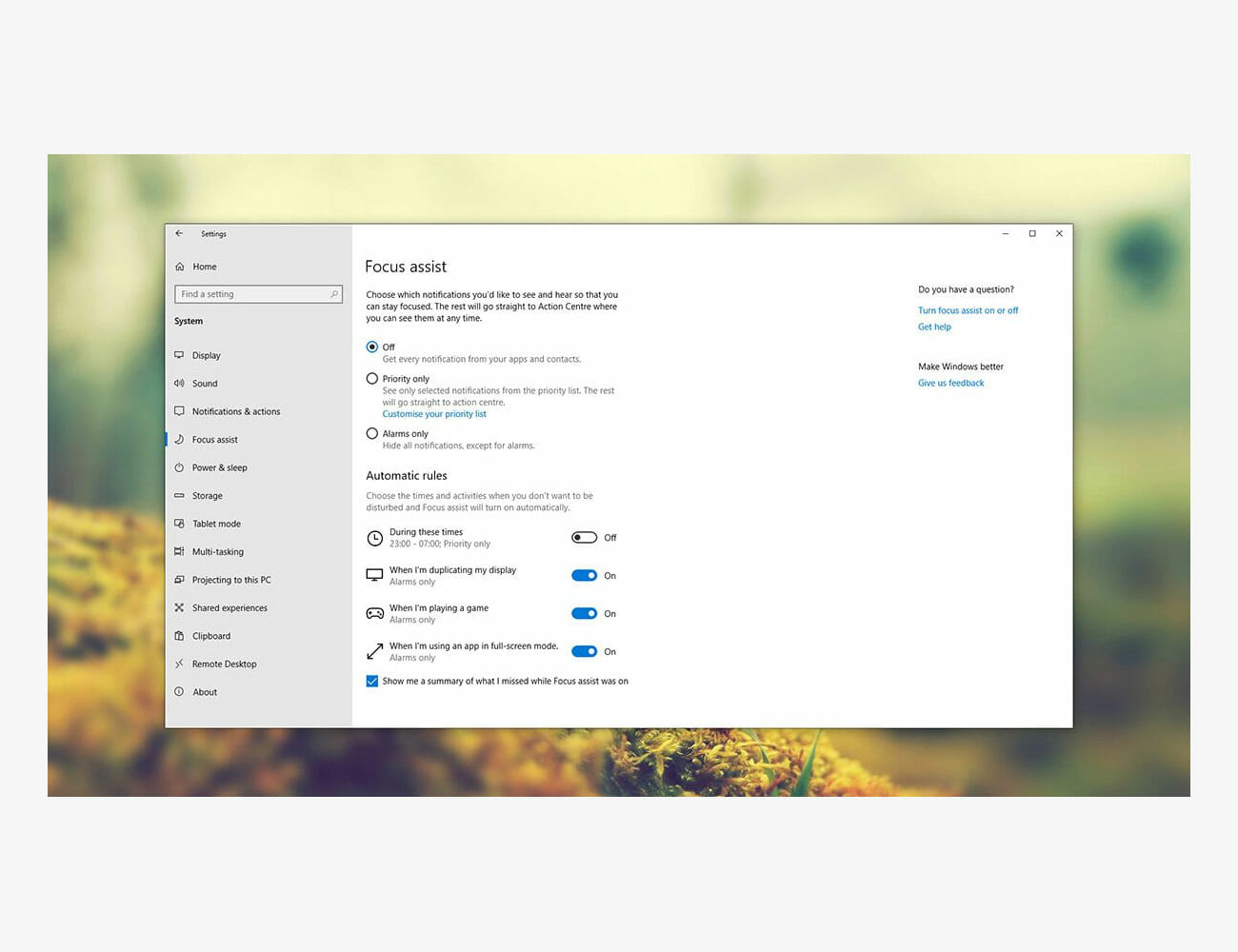
Do Not Disturb isn’t just a mode for your smartphone, because Windows comes with something very similar called Focus Assist. It quietens down notifications and postpones other interruptions so you can get on with some serious work, and the mode can be enabled manually or automatically.

Open Windows Settings via the cog icon on the Start menu, then choose System and Focus assist. Set the times when you want the mode to turn on automatically, or enable it using the check boxes at the top (you can still allow alerts from apps you give priority too, if you want). Focus Assist can also be switched on from the Action Center (click the notification button to the far right of the taskbar).

2. Pin websites and apps to the taskbar


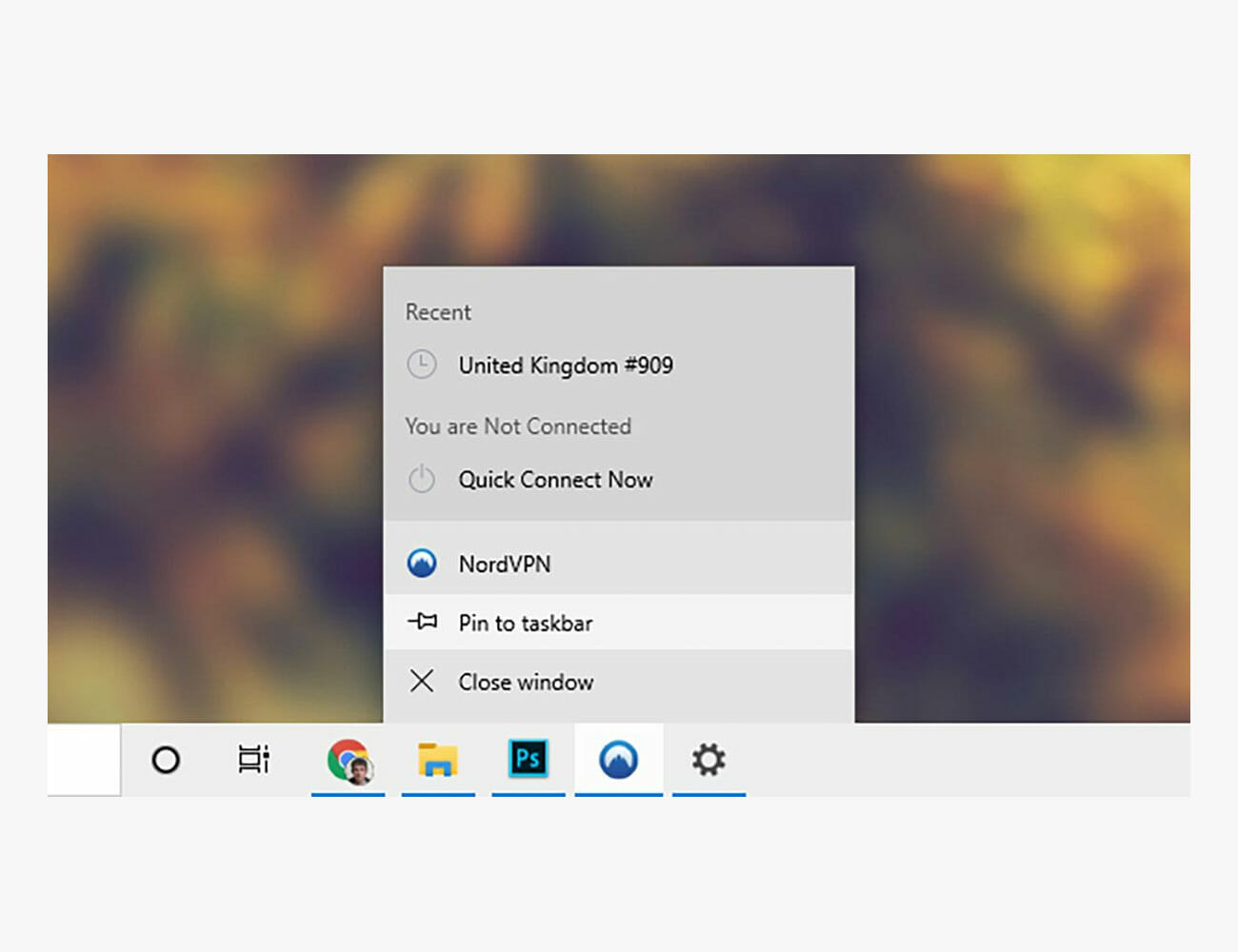
Open applications appear on the taskbar but you can make it easier to get to the programs and the websites you use most often by pinning your favorite shortcuts to the taskbar permanently. Right-click on a program then choose Pin to taskbar to do exactly that.

To pin websites to the taskbar, fire up the Microsoft Edge browser that comes as part of Windows itself. When you’ve got the website you want to pin open on screen, click the three dots in the top right corner of the Edge interface, and choose Pin this page to the taskbar.

3. Keep more on the clipboard


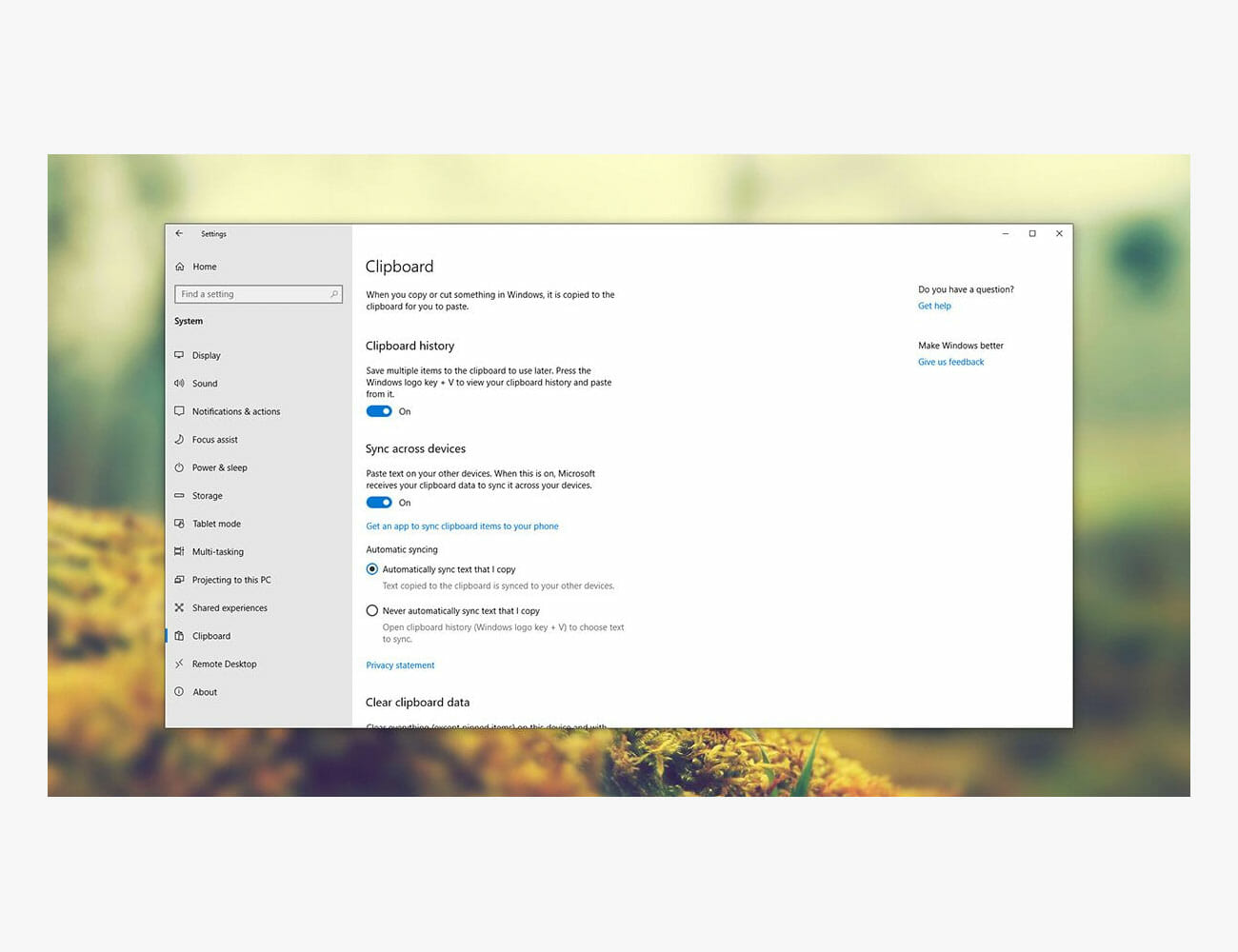
The Windows clipboard now goes beyond the basics to help you juggle multiple images, text and website addresses at the same time. From the Windows Start menu, click the cog icon then choose System and Clipboard to set up the various available features.

Turn on Clipboard history to save multiple items to it, and by enabling Sync across devices you can access the same clipboard items from any device that you’re signed into using your Microsoft account. To see the contents of the clipboard, hit Win+V.

4. Talk it out


Windows now comes with a very simple dictation tool for inputting text via your voice wherever text input is accepted: Just press Win+H to start talking. To configure the feature, open Windows Settings via the cog icon on the Start menu, then select Ease of Access and Speech.

Cortana is around too, enabling you to run web searches, set reminders, check your schedule and much more. To turn on the “hey Cortana” voice shortcut, open up Windows Settings (the cog icon on the Start menu), then choose Cortana and Talk to Cortana, and turn the top toggle switch on. Alternatively, click the Cortana button by the taskbar search box and start talking.

5. Snap your windows in place


Keep your desktop windows organized and your desktop less cluttered by snapping open app windows into place: Try dragging the title bar of a window to the left or right of the display, and watch it snap to half the screen space (or use Win+Left arrow or Win+Right arrow to do the same trick).

It means it’s easier to compare documents or websites side by side, and saves you a lot of clicking between open windows. You can also snap windows into a corner of the display (add the Up arrow or Down arrow to the shortcuts we just mentioned to do this via the keyboard), and fit up to four on screen at once. Click in the very bottom right-hand corner to see the desktop again.

6. Expand your desktop space


Maybe you need a bit more room than one Windows desktop affords. You could plug in an external monitor, but you can also create extra desktops with Windows’ own multiple desktops tool: Click the Task view button (just to the right of the search box on the taskbar) or press Win+Tab, then New desktop at the top.

Open application windows can be dragged between desktops—just pick them up and drag them from the Task view screen—while the taskbar and desktop wallpaper gets shared across all your desktops. It’s a great way of getting more room for the jobs you’ve got to do, or separating out different programs for different projects.

7. Work faster with AutoHotkey

Free productivity utilities for Windows don’t come much better than AutoHotkey, which essentially enables you to program your own keyboard shortcuts and macros—launching particular actions using a few well-chosen key presses.

The program can take some getting used to, and requires a little basic coding, but the tutorial and Script Showcase are good places to start. You can launch programs or open folders with mouse gestures, type out your full address just by entering “myad”, log the time you spend in certain apps, and so much more besides.

Note: Purchasing products through our links may earn us a portion of the sale, which supports our editorial team’s mission. Learn more here.

All the Games We’re Playing to Stay Sane This Weekend

The weekend is on the horizon, and thanks to COVID-19, you should probably be spending it inside. In order to try and stave off the cabin fever, a lot of us here at Gear Patrol have been getting back in touch with our gamer sides. Here’s what we’ve been playing, and what you might want to check out as well!

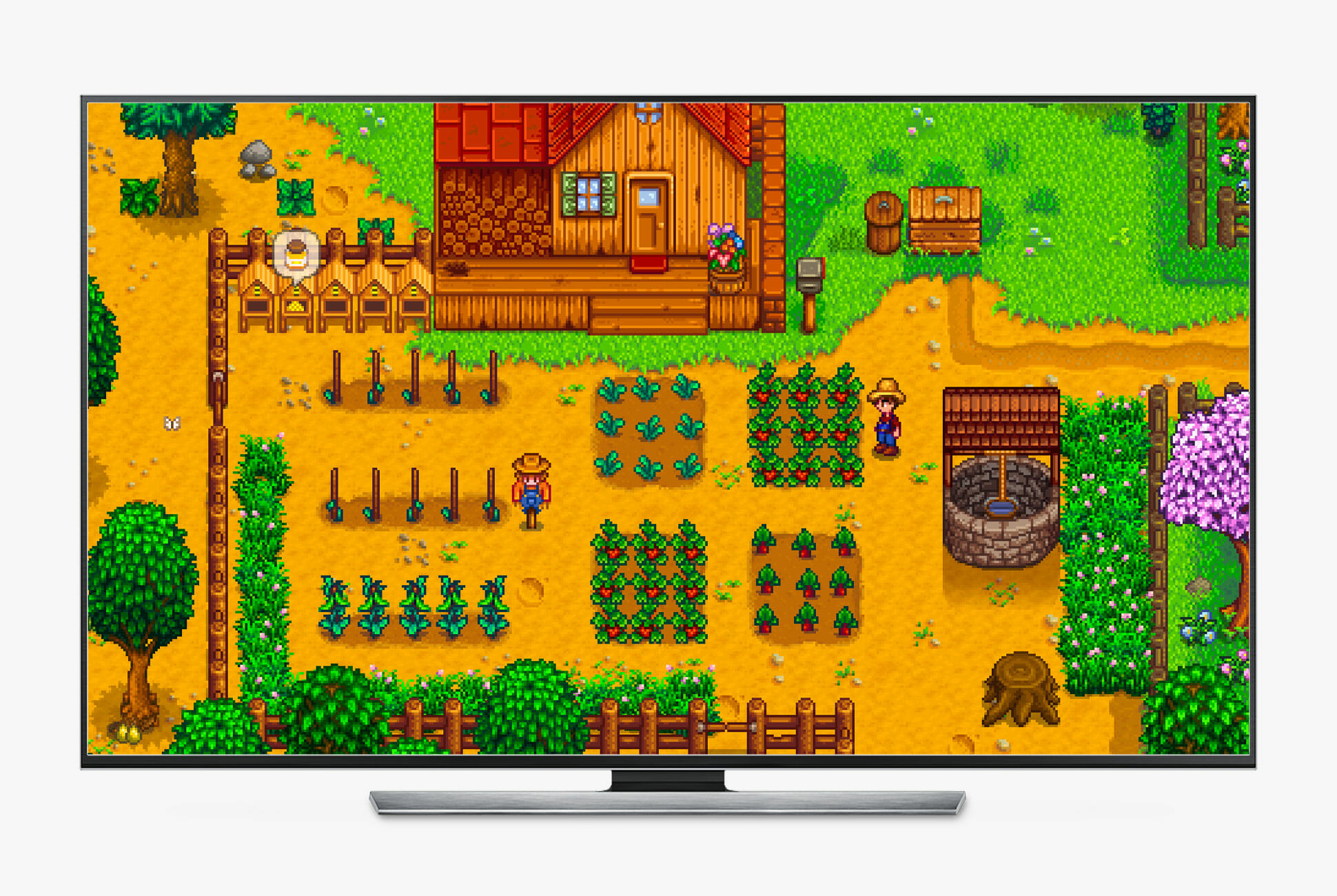
Stardew Valley

Quit your job, head to your grandfather’s farm and try and give purpose to your life. Doesn’t sound like the worst idea these days, right? Generally, think of Stardew Valley as a mix of Minecraft, Animal Crossing and Pokemon. Which is to say, it’s incredibly good at making the hours drift away. — Henry Phillips, Deputy Photo Editor

| |

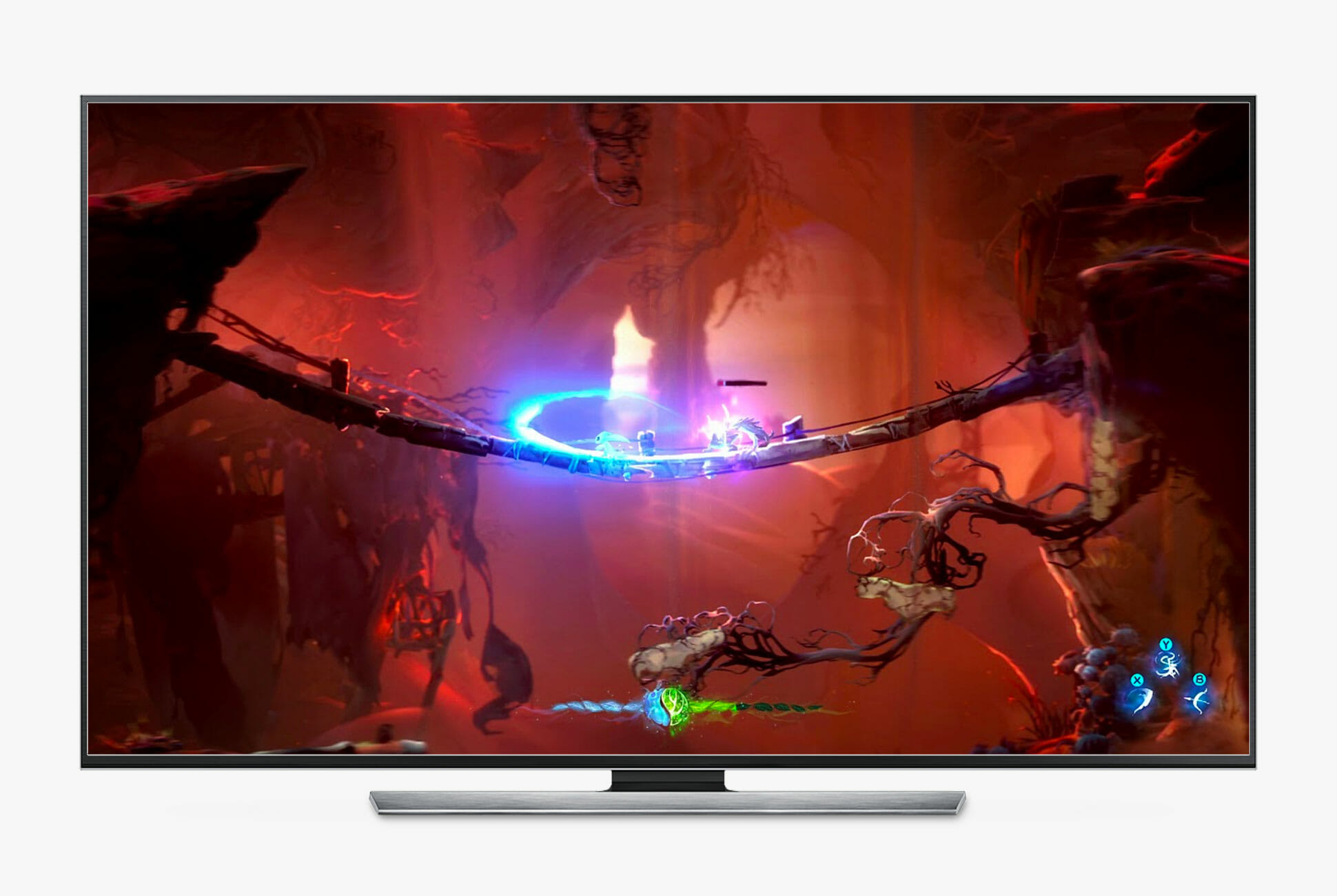
Ori and the Will of the Wisps

This game literally just came out last week and I love everything about it. It’s a beautiful, challenging platforming game with an epic soundtrack. It’s also a sequel so if you haven’t played the first game, go treat yourself to Ori and the Blind Forest first, and get a double dose of fun. — Tucker Bowe, Senior Staff Writer

|

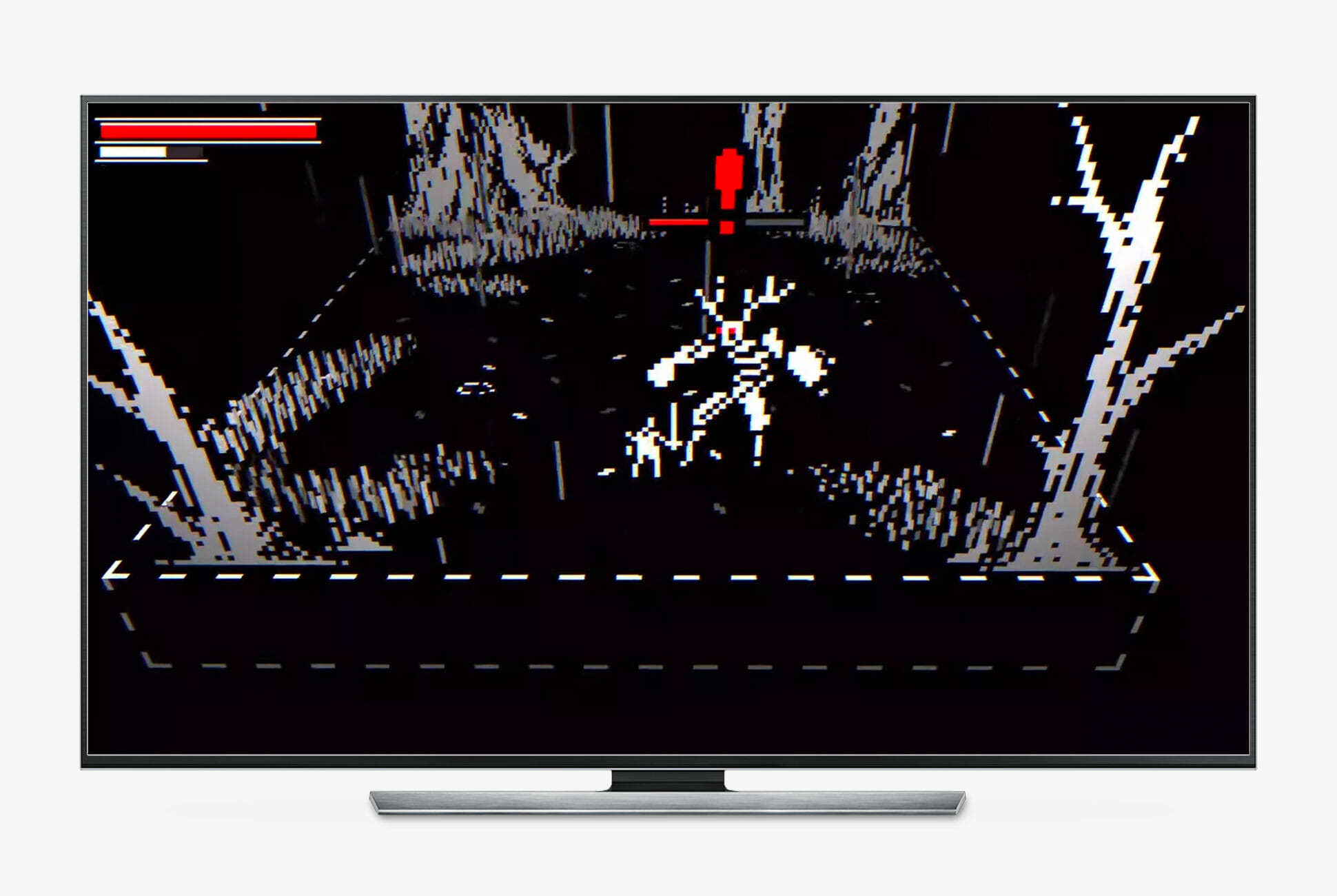
Bleak Sword

I’m playing Bleak Sword now because my current gaming system is just my laptop with Apple Arcade. The game is lo-fi, easy to grasp, and challenging. — Joe Tornatzky, Creative Director

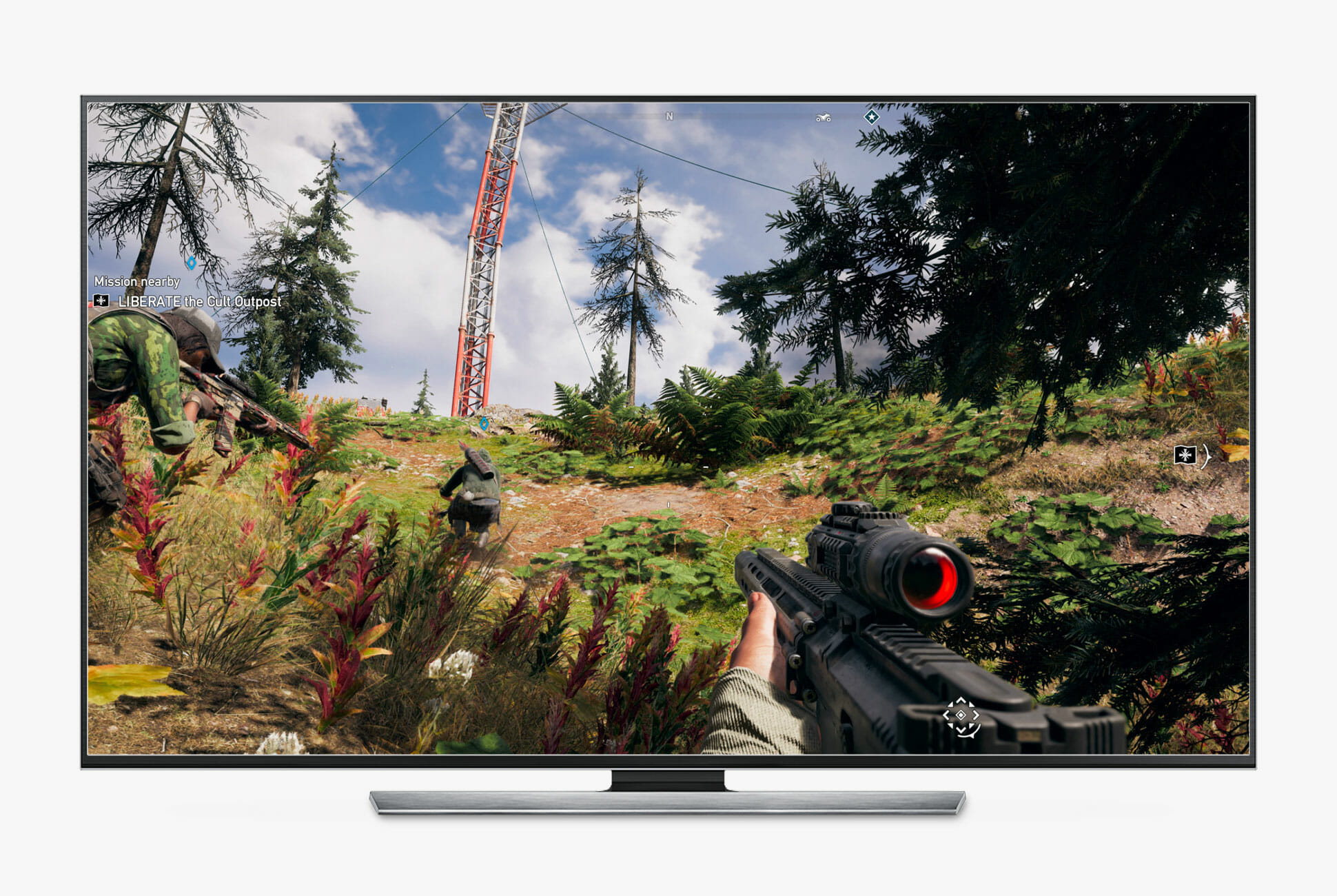
Far Cry 5

I was terrified of losing my mind in isolation, so I pounced on a great Xbox One S All-Digital deal and bought Far Cry 5 as well. It’s an open-world first-person shooter, so — not to go toooo dark – in case there is some sort of apocalyptic-cult scenario that goes down in the near future, let’s just say… I’ll be ready. — Nick Caruso, Coordinating Producer

| |

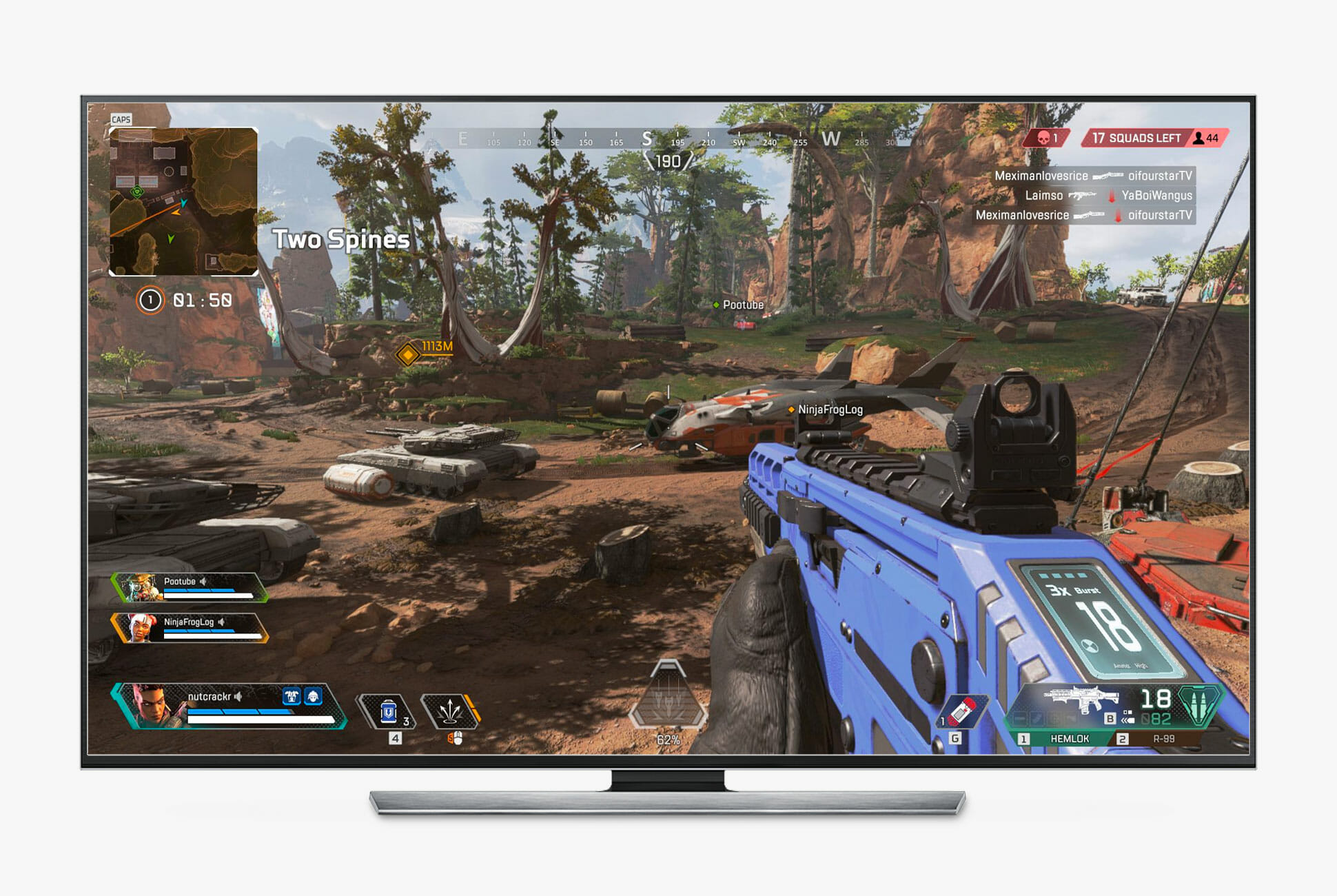
Apex Legends

Apex Legends is free to download, and is a whole lot of fun. It’s a pretty standard battle royale game, but the three person teams makes it great for playing with friends, and the 12 characters all have unique abilities that makes the meta really enjoyable. — Scott Ulrich, Editorial Associate

| |

Rocket League

This is easily the most played game in my inventory. I own it on Steam, Xbox and Switch, and I’m not nearly good enough for how much I play which is why I play more and round and round we go. — Andrew Siceloff, Director of Video

| |

Call of Duty: Warzone

COD is finally moving into the battle royale genre with Warzone, and it freaking rips! With 150 players and a stunning map bigger than anything I imagined was possible, I’m easily occupied for hours on end. If you told me 5 years ago that a game like this could exist, I would have told you to shut the hell up. — Chandler Bondurant, Staff Photographer

| |

Outer Wilds

What better way to escape a bleak reality than to play a sci-fi exploration game about… the end of the world. Whoops! Despite the thematic relevance, Outer Wilds is a charming space exploration game from the lineage of Myst where you explore the secrets of a strange, alien solar system in 22-minute bursts as time loops around and around for a mysterious reason. I’ve had so much fun exploring dozens of unreal worlds to uncover the reason that the sun keeps exploding, and if you like puzzle-y games, you will too. Better yet, it is currently available on Xbox Game Pass, one of the best deals in gaming right now. — Eric Limer, Tech Editor

| | |

FIFA 20

Our office has a lot of soccer fans in it, and with the English Premier League falling victim to a coronavirus postponement, FIFA 20 is our way of warding off no-sports-sadness and the ill effects of social distancing. We’re playing Pro Clubs mode at the moment, which limits each user control to a specific player on the field, and I can’t recommend it enough. It’s pure chaos. — Will Price, Assistant Editor, Home & Design

| |

Note: Purchasing products through our links may earn us a portion of the sale, which supports our editorial team’s mission. Learn more here.

Now’s The Time to Support Photographers By Buying a Print (or Three)

Here at Gear Patrol, we have been riding out the COVID 19 pandemic by working remotely, beaming into the “office” from everywhere from Florida to Vermont. It isn’t business as usual, but we’re still publishing. For millions, of course, this isn’t the case. And one group that’s particularly close to our hearts — and mine specifically as Deputy Photo Editor — is freelance photographers.

As purse strings tighten and travel restrictions continue, photographers have been left stuck scrambling to figure out what a 1099 livelihood looks like in April 2020. One answer is selling prints, which presents you with the opportunity to support quality art and quality artists while simultaneously sprucing the walls in your “home office” that you’ll be staring at quite a bit.

Here are some of our favorite photographers (including some Gear Patrol alums), who are selling prints of their stellar shots. And, of course, any photographer you admire will appreciate your support in these trying times. To top it all off, Simply Framed — our mail-in framer of choice — offers a 10 percent discount for Gear Patrol readers using the code GEARPATROL.

Amy Shore

A prolific, UK-based car photographer, Amy Shore is offering 10% off her huge selection of prints right now using the code NEWSHOP10 (but only until 4/29 so act quick). To learn more about Amy, read our profile on her here.

|

Brenden Clarke

Formerly a multimedia producer at Gear Patrol, Brenden has a variety of prints as well as his recently published book “Above The Midnight Half” — diving into the world of unsanctioned running races in New York City — available for sale.

|

Brett Curry

A Los Angeles based cinematographer and photographer, Brett has a whopping 60 prints up for sale shot on film and digital ranging from stark landscapes to more abstracted studies of architecture and neon.

|

Chris Delorenzo

You’ve likely seen Chris’s work in Gear Patrol. He shot the cover for the second issue of our print magazine, among others. Head to his newly-minted print site for hydro-centric abstracts and landscapes available up to gigantic 40x60s.

|

David Zhsu

David’s a New York City based photographer who fired up a print sale in response to current events. Head there for affordable prints of everything ranging from landscapes to motorcycles.

|

Growl Bros

You’ve seen Justin Weaver and Chris McClure’s work on Gear Patrol when they shot a story on climbing (and biking down) the tallest volcano in the world. They’re running a print sale and will be donating $50 of each print to either the Atlanta-based The Giving Kitchen or No Kid Hungry.

|

Jeremy And Claire Weiss

Claire and Jeremy, collectively known as Day19, are posting a print per day of their past work (think everything from David Lynch to Icelandic Horses) with each print sale’s proceeds going to a specific small business in need of help. Check out their Instagram feed for daily updates and support some local businesses!

|

Lauren Segal

Lauren worked with Gear Patrol most recently when she shot a profile of polymath cookbook author Nathan Myhrvold for the magazine. Her recently-launched print shop has a wide variety of options, but we’re partial to the travel cityscapes.

|

Megan Baker

Based in Austin, Texas, Megan Baker is going above and beyond and running a pay-what-you-can print sale whose proceeds are going entirely to Austin-based freelance artists and service industry workers affected by COVID-19 disruptions. Pretty much everything on her site/Instagram is available.

|

Molly Steele

Molly is selling a variety of open- and limited-edition prints on her site but is also running a pair (currently) of flash sales on Instagram.

|

River Jordan

River is a prolific photographer who’s shot for everything from Filson to Nike and is running a print shop full of insanely gorgeous landscapes.

|

Roman Spataro

On April 6th, Roman Spataro is launching a publication called “Home Before The Harvest” and associated prints.

|

Steven Clouse

Steven’s print shop is full of pastel, geometric prints but the real magic lies in the “Custom Print” option where you can head to his Instagram and pick anything that stands out.

|

Wyatt Clough

Wyatt’s main work is video but he’s selling a photo zine shot in Tokyo exploring the city’s quiet suburbs. The zine’s the main attraction but there are four beautiful prints to compliment it.

|

Bonus: Holly Tyler

While not a photographer, Holly’s outdoor (and cycling) specific illustrations are worth calling out as a fantastic way to commemorate a race or a favorite bike (or cyclist!).

|

This $20 Smart Scale Can Just About Do It All

<!–This $20 Smart Scale Can Just About Do It All • Gear Patrol<!– –>

It Measures Way More Than Weight


Wyze, the company best known for its incredibly affordable smart home cameras and security systems, is branching out further into the home and, for the first time, it’s getting into the smart fitness game. That’s right, smart fitness. Wyze just announced two products, a smart scale and smart fitness band, that are both incredibly affordable and can do, well, quite a lot.

First up is the Wyze Scale. It’s a smart digital scale that measures weight, body fat and lean mass. Heck, it can even measure your heart rate. These metrics are then tracked in the Wyze app, but the Wyze Scale is also compatible with the other health apps you likely already use, including Apple Health or Google Fit (with support for FitBit and Samsung Health expected to come soon). The best part is the Wyze Scale only costs $20, which is cheaper than most digital scales on the market that don’t have any “smarts.”

The Wyze Band is the company’s first wearable. It’s being advertised as an activity tracker (it can track steps, heart rate and sleep) and a smart home assistant (it has Alexa built-in), but the real reason you’d get the Wyze Band is if you have any of the company’s other smart home devices. For instance, if you have one of Wyze’s smart cameras you tell them you’re home (so they stop sending you notifications) with a tap of your wrist. The Wyze Band costs just $25, which is incredibly cheap, but it also has a lot of competition in the wearable market.

|

Note: Purchasing products through our links may earn us a portion of the sale, which supports our editorial team’s mission. Learn more here.
Tucker Bowe

Tucker Bowe has been on Gear Patrol’s editorial team since 2014. As a Tech Staff Writer, he tracks everything in the consumer tech space, from headphones to smartphones, wearables to home theater systems. If it lights up or makes noise, he probably covers it.

More by Tucker Bowe | Follow on Instagram · Twitter · Contact via Email

<!–

–>

<!– –><!–

–>

What’s the Difference Between $300 and $1,000 Bookshelf Speakers?

People like good sound, obviously, but to different ends and different extreme. There’s upgrading to a soundbar or a two-channel home theater system so you can better hear dialog on TV. Then, there’s building a bonafide home hi-fi system and spending thousands on various speakers, connections, sources and other electronics.

Odds are, if you clicked on this post, you might have a set of bookshelf speakers. Maybe a $150-$300 setup, connected either an A/V receiver or a home turntable setup. Maybe you’ve also considered an upgrade. But what, exactly will that expense get you? Especially if you creep up into the $1,000 range?

According to Scott Orth, the director of audio and acoustic systems at Sound United, and a professor of Electroacoustics at the Johns Hopkins Peabody Instutite, there are a few angles from which to answer the question. First, the ojective and scientific. “The sources that you’re listening to have a certain amount of information and the better your loudspeakers are the more they can extract that information, the less error there is and the clearer it comes through and the more you get from it.” As your speaker quality improves, the better justice they do to high quality recordings. Literally. Objectively. Full stop.

But there’s also  what Orth calls “the emotional side.” Higher fidelity speakers are able to extract more information, so the sound is more realistic and the experience of listening is more engaging. Simply put: the more you hear, the more emotion you feel.

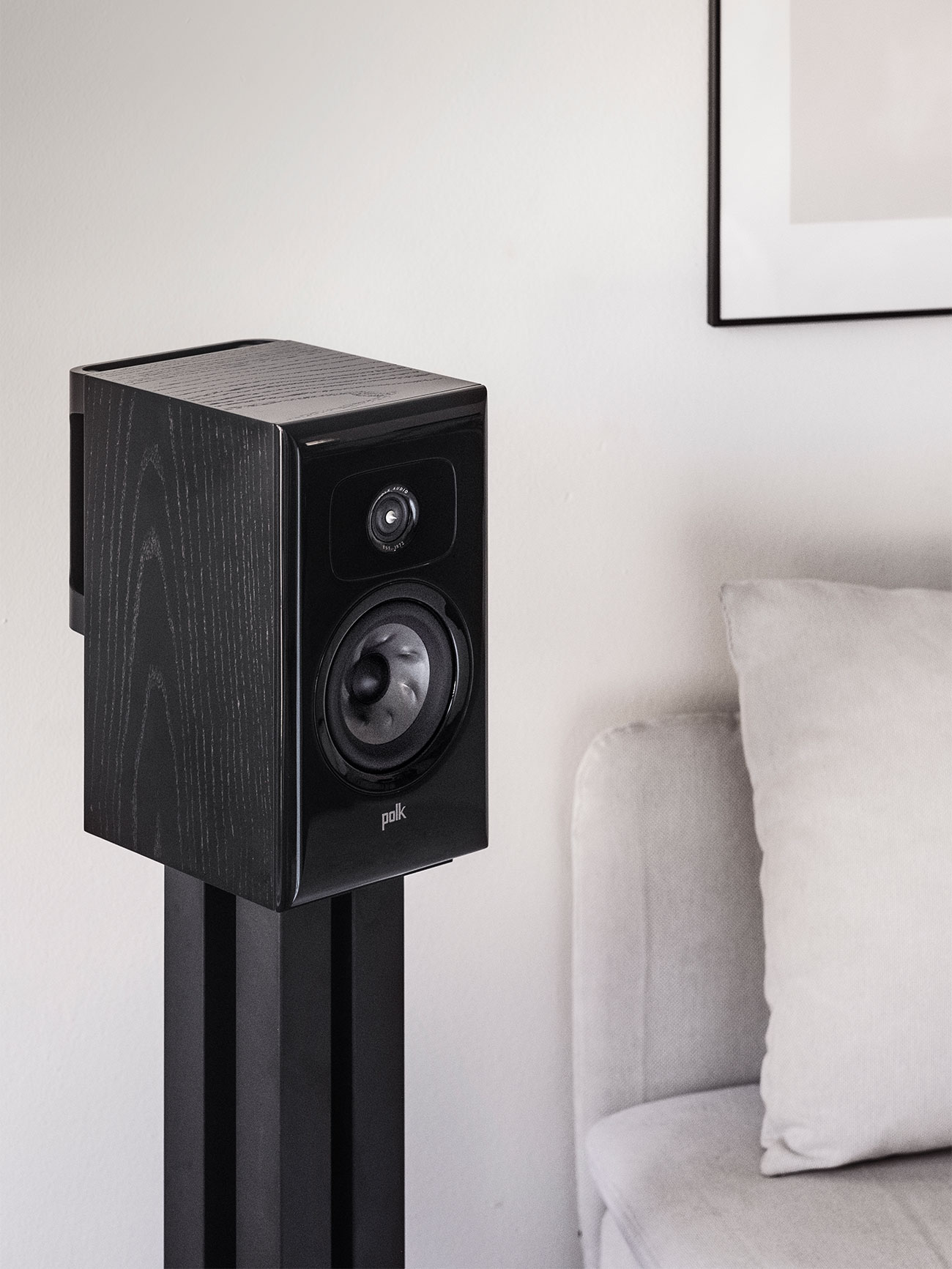
Polk Audio is a 50-year-old audio company based in Baltimore. They’re best known for making affordable hi-fi speakers. The Legend Series (picture) are the “best speakers Polk has ever made.”

Of course this is just a detailed way to state the obvious: A pair of lesser bookshelf speakers are going to sound worse than higher-end bookshelf speakers. How do they sound better? What specifically are you getting for your money. The truth is: it’s everything, it’s a little bit of everything.

“When you move up in price in speakers, what happens is that you are paying for not just the level of detail that you can hear, but the level of engineering that goes into the speaker,” says Michael Greco, a senior director in Polk Audio’s loudspeaker division. Better cabinets are going to be more expensive by their physical nature. They need to be heavy, thick or have bracing — anything that makes it rigid so it’s not vibrating anywhere but the transducers. The trick is to find something that’s not too heavy but still has all the properties of high stiffness and high damping to keep the panels from vibrating. “You’re buying that level of thought and that level of detail from the engineering team to give you that immersive experience.”

Size is also a big factor. According to Greco, a 6-inch driver in a small box might play loud, but it’s not going to go very low in frequency. A 5.25-inch driver in the same size box might not play as loud, but it will go low in frequency. So there’s this kind of trade-off and that’s part of what you pay for in some speakers. You’re paying for a larger box so you can have more bass. This is one of the main reasons why high-end bookshelf speakers are also bigger.

But making a bigger speaker isn’t as simple as just scaling up a small one. The larger the speaker — specifically, the speaker cabinet — the more difficult it is to keep its panels from vibrating. “A small box has less trouble than a larger one, but it’s all about the internal bracing that we do to try to keep the larger cabinets from vibrating like that,” Orth said. “So larger [isn’t always better], but this thicker is always better if you can afford to do that.” Thicker material will always be stiffer than thinner material.

The Legend Series consists of two sets of bookshelf speakers, the L100 and the L200, the latter of which are slightly bigger and higher-end.

So what does that look like practically? You can find an instructive example in Polk Audio’s lineup. Take Polk’s L100 ($1,199) a significant price bump from its $120 T15s. The extra order of magnitude in purchase price gains you improvement in materials, parts and other bits of engineering that add up to an objective improvement. “The T15 goes down to maybe 190Hz and the L100 goes down into the 50Hz ranges, so there’s a lot of difference there. On the high frequencies, I think we measured the pinnacle tweeter out to 50kHz, which is where dogs and bats hear.”

Of course, the speakers are just one link in the chain of an excellent audio system, and you have to have the right equipment to properly power them — you can’t just integrate hi-end speakers into your current system and expect them to sound their best. Yet, the speakers remain the foundation, if you find this audio quality worth the premium you’ll pay for it.

“The advice that I always give people is to buy your speakers first and spend as much as you can afford,” Greco said. “And then buy the electronics second.” Electronics will change over time, while speakers tend to last, which make them an excellent foundation that will only pay dividends as you upgrade the rest of your setup.

As for how much should you spend on speakers versus the other electronics in your system, Greco says it should be an even 50/50 split — maybe 60/40 in favor of the speakers. “I don’t think you’re going to be sorry if you spend a little bit more on the speakers because, after all, that’s what you hear. It’s the speakers.”

Note: Purchasing products through our links may earn us a portion of the sale, which supports our editorial team’s mission. Learn more here.
Tucker Bowe

Tucker Bowe has been on Gear Patrol’s editorial team since 2014. As a Tech Staff Writer, he tracks everything in the consumer tech space, from headphones to smartphones, wearables to home theater systems. If it lights up or makes noise, he probably covers it.

More by Tucker Bowe | Follow on Instagram · Twitter · Contact via Email

A Beginner’s Guide to Pro-Ject’s Excellent Turntables

Even if you only have a passing interest in vinyl and hi-fi, you undoubtedly have heard (or seen) a Pro-Ject turntable. They’re known for the distinct design, bright colors (sometimes) and excellent sound quality. Of course, the secret sauce of the Austrian company is its ability to keep such high-performing turntables at a relatively affordable cost. And it’s been able to do that by producing almost everything in-house.

Pro-Ject has engineering and manufacturing facilities in Austria, Czech Republic and Slovakia. In addition to turntables, Pro-Ject makes a range of other hi-fi components, such as phono stages, DACs, preamps and amplifiers, many of which it integrates into its turntables. This practice has helped Pro-Ject keep its costs down and thus become a really successful hi-fi company.

“I started Pro-Ject to bring as many people as possible to the world of hobby hi-fi, especially in the 1980s when CD players were extremely expensive and generally inaccessible,” said Heinz Lichtenegger, the founder of Pro-Ject Audio. “At this time, I realized that a good turntable could sound even better than a CD, however, there were no quality turntables available that were low cost. So, in 1991 I decided I had to make one.” Nearly 30 years later, the company is still known for just that: audiophile-grade turntables at affordable prices.

Today, Pro-Ject makes many different turntables that are designed for every type of vinyl enthusiast, from beginner to seasoned audiophile. And these turntables can range anywhere from $300 to over $16,000. To help navigate the different lines of turntables, we had the man himself, founder Heinz Lichtenegger, to walk us through each line.

Just Getting Started

The Primary Line

What is it?
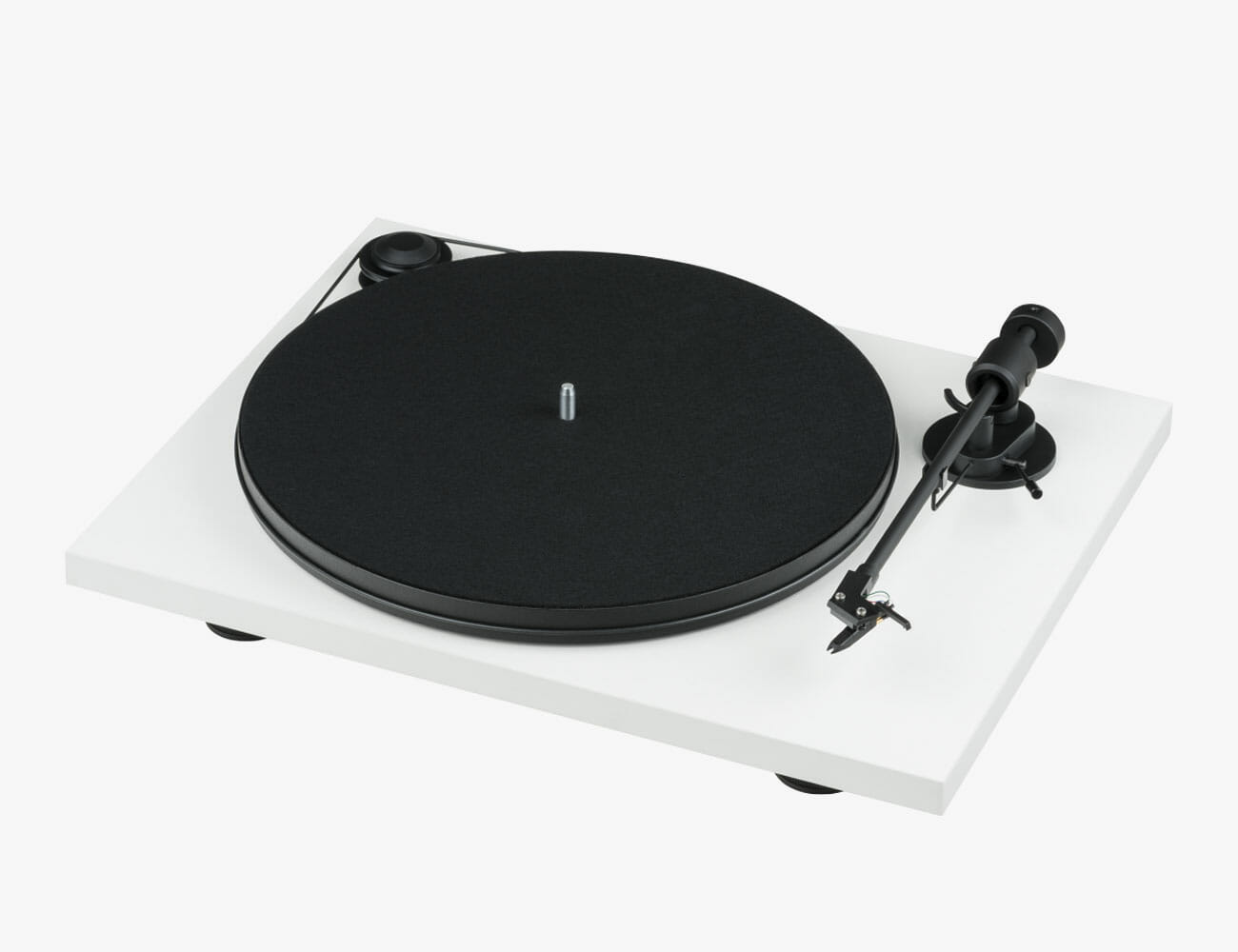
The Primary line is the most affordable line of turntables that Pro-Ject makes. Starting at $200, it borrows design elements from both the company’s Debut and Essential lines, and makes them out of slightly fewer materials. There are also fewer models to choose from within the Primary line, so instead of customizing the turntable to fit your needs, you’re basically deciding whether you want the Primary E or the Primary E Phono, the latter of the two has a built-in preamp.

What Heinz Lichtenegger says:
“The Primary Line is designed for people who have a limited budget (around $200) but want a real hi-fi turntable beyond a piece of plastic, this customer understands the complexities of setting up a turntable. [It’s] designed with a tonearm perfect for the high-quality Ortofon cartridge with preset tracking force and anti-skating, allowing users to just plug and play while remaining a handmade product made of quality materials without any resonating hollow spaces.”

T Line

What is it?
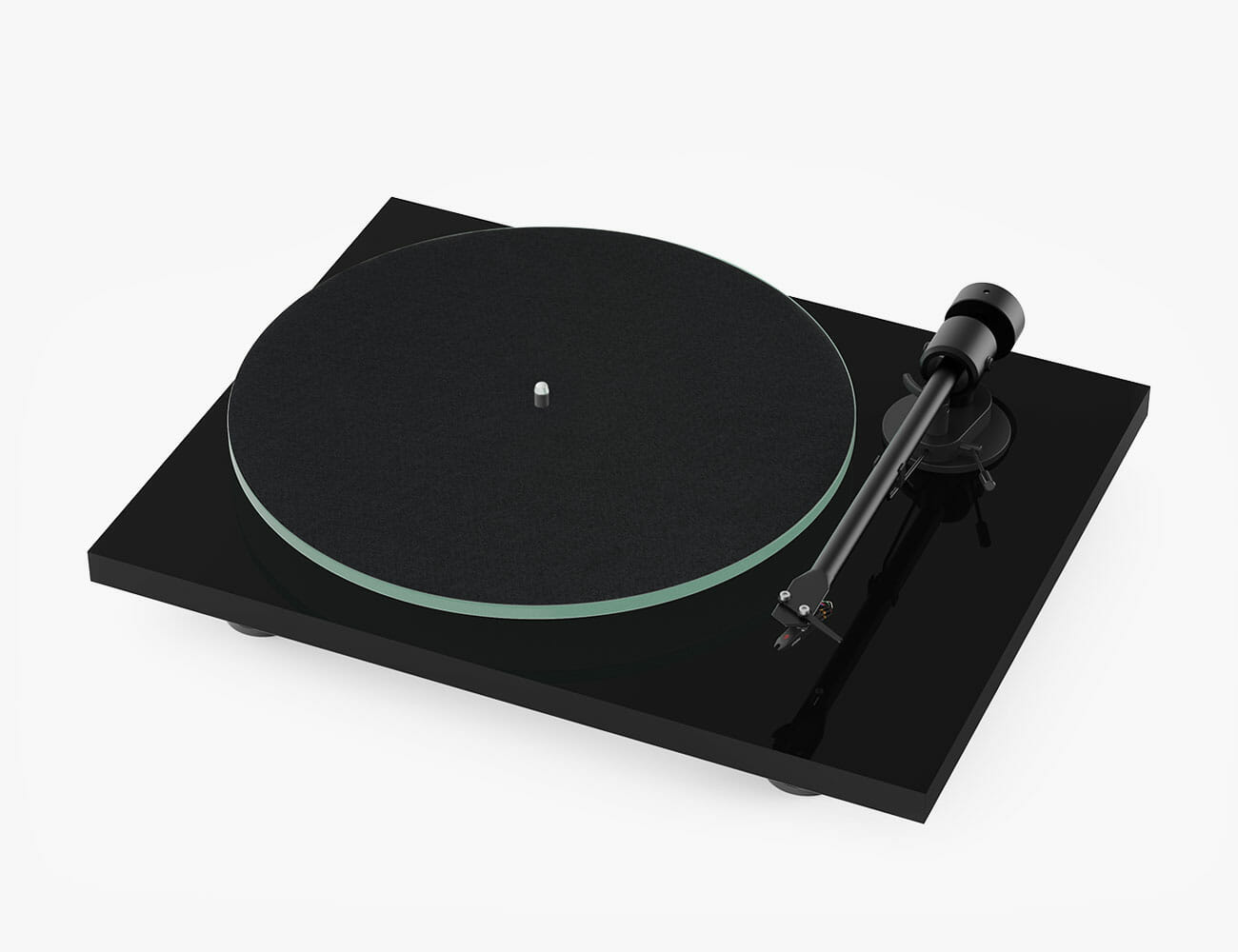
The T Line is one of Pro-Ject’s new lines of mid-range turntables. It’s priced between the Essential and Primary lines, so it’s still relatively affordable, but one of the biggest reasons why you’d buy a T Line over something else has to do with its visuals: It has a striking platter that’s made of tempered glass. It only comes in three models. There’s the baseline T1, which requires an external phono stage and a powered amplifier; the T1 Phono SB, which has a built-in phono stage; and the T1 BT, which also has a Bluetooth transmitter for connection to a powered speaker or AV receiver.

What Heinz Lichtenegger says:
“The tempered glass platter is not only a good solution to a resonance-free heavy platter, it also is more visually attractive than, for instance, the minimalistic designed MDF platter used on the Primary Line.”

The Essential Line

What is it?
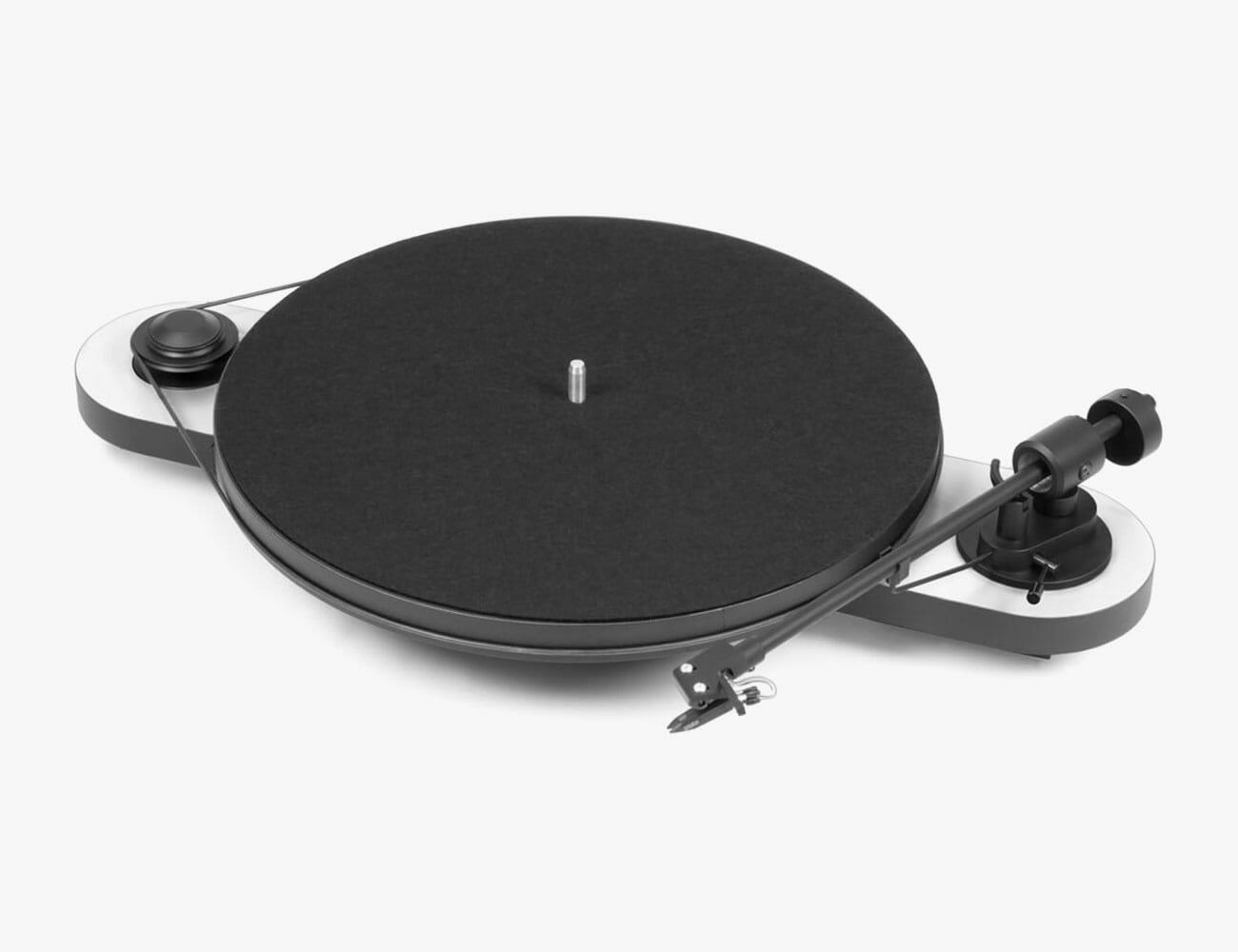
The Essential line is made up of a variety of mid-range turntables, each of which is designed to work with a specific hi-fi setup. For example, the baseline Essential III is designed for those who want to use their own preamp and speaker, while the Essential III Phono has a built-in preamp so you can connect directly to a powered speaker (like a Sonos Play:5). There are several other models, including the Essential III HP, which is for customers who mainly listen through headphones, but the point is that you can match this turntable to fit your needs. And you can buy one for right around $300.

What Heinz Lichtenegger says:
“The Essential line was designed as an alternative to the feature-laden, low cost, low-quality turntables that began flooding the market several years ago. By allowing the buyer to focus on the features that they cared about, and not pay for features they wouldn’t use, we were able to design a very high-performance European-built player for music lovers on a tight budget.”

The Juke Box Line

What is it?
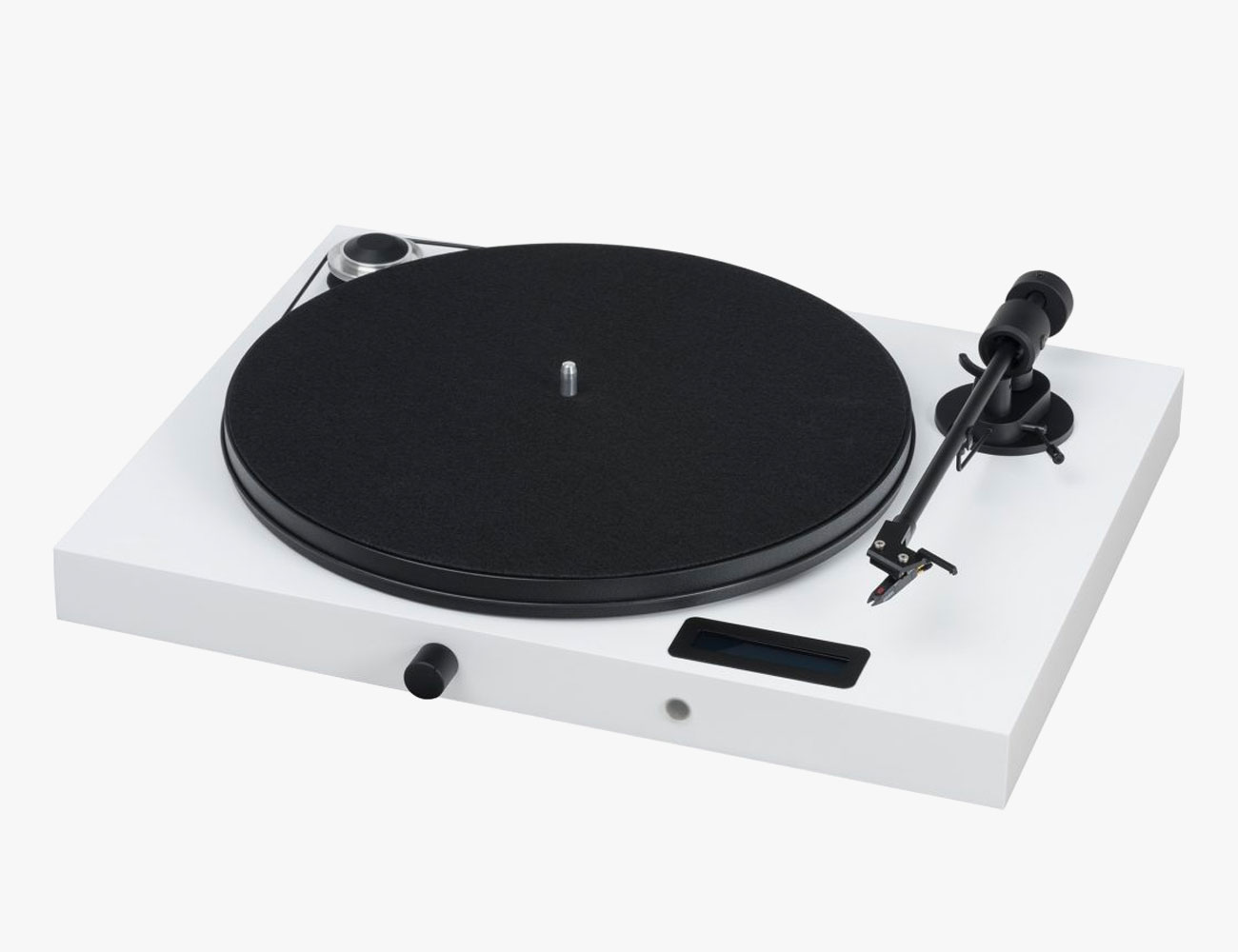
The Juke Box line is another one of Pro-Ject’s midrange line of turntables, but they’re specifically designed for people who want an all-in-one solution. The Juke Box E, for example, consists of record player, phono stage, Bluetooth receiver, line pre-amplifier and power amplifier. It requires you only to connect a pair of passive bookshelf speakers to complete the system. (The Juke Box S2 is essential an upgraded version of the Juke Box E.)

What Heinz Lichtenegger says:
“The Juke Box package is also very cost-effective, for the price of a better streaming speaker or soundbar, you get a real HiFi, stereo system including a turntable and Bluetooth module to stream from an external music source.”

The Upgrade

The Debut Line

What is it?
The Debut line is the company’s other mid-range line of turntables, along with the Pro-Ject’s Essential line, but it’s a little nicer. While similar in looks and features, the Debut line has a couple of notable upgrades over the Essential line that are designed to reduce noise and distortion, such as a heavier platter, higher-quality feet and a motor that’s decoupled from the from the plinth. It’s worth noting that the Debut Carbon (DC), which starts at $399, is by far thecompany’s most popular turntable.

What Heinz Lichtenegger says:
“The Debut is our superstar. Revolutionary in its price range, the Debut boasts a heavy 8-coat lacquered MDF chassis, heavy platter, suspended motor, carbon tonearm, and an expensive (over $100 USD) cartridge from Ortofon. These are all features usually found in a higher-priced item. The first choice of any music lover who looks for an audiophile turntable at a low cost.”

The RPM Line

What is it?
The RPM Line is a range of higher-end turntables that are still relatively affordable. The have a distinct look, with a teardrop-shaped plinth. The RPM Line consists of five different models, ranging from the RPM 1 Carbon ($499) to the high-end RPM 10 Carbon ($3,499); as you go up in numbers, the turntable gets upgraded up with better materials, technologies and features.

What Heinz Lichtenegger says:
“The RPM Line is designed for audiophiles who want to have the best quality available within its price range and are happy to live with slightly unconventional product design. The RPM Line’s teardrop shape plinth and non-rectangular chassis cause less resonance (as in high-end speaker designs) and the motor is free standing and isolated at 100 percent to eliminate rumble or vibration. There are many little audiophile features (such as spiked cones and inverted bearing) that target the product to the discerned audiophile.”

The X Line

What is it?
The X Line is one of Pro-Ject’s most recent lines of turntables. You can think about the X1 as a high-end turntable that’s still relatively affordable. It starts at $899, but that price increases rapidly with the higher-end models that have more robust parts, such as a bigger chassis, better isolation feet, better bearings, heavier better platter, better tonearms and better cartridges.

What Heinz Lichtenegger says:
“The X Line is for people seeking the highest sound quality in a traditional design — including dustcover and hinges. From the X1, these units are ‘no compromise’ and 100-percent correctly designed turntables including all of the features an audiophile dreams of.”

The High-End

The Classic Line

What is it?
Now we’re getting into the “high end.” The Classic Line consists of two turntables, the Classic $1,099 $899) and the Classic Evo ($1,699), both of which are designed for hi-fi entusiants with a refined taste. The turntables have an elegant, retro design, such as a thick platter, and brushed metal top-plate that looks like it’s built directly into the wooden plinth.

What Heinz Lichtenegger says:
“The Classic is a traditional sub-chassis turntable designed for a user who needs to have their speakers close to the turntable, perhaps in a more restricted living environment. [It has] a nostalgic appearance with its retro design reminiscent of the 1960s and 70s, but upgraded with modern technology such as precision CNC’ed pulley, diamond knife-cut sub and main platters created for the highest precision, and sub-chassis isolation by modern rubber dampers (TPE, thermoplastic elastomers) instead of the traditional springs.”

The S-Shape Line

What is it?
The S-Shape Line is a range of high-end turntables that get their name from their “S”-shaped tonearm that’s made of aluminum. The aluminum is heavier than carbon, which is what Pro-Ject makes most of its other turntable tonearms out of, and this results in a softer; the result is that the S-Shape Line sounds different — softer, less open — than many of the company’s other turntables.

What Heinz Lichtenegger says:
“Pro-Ject likes dynamic and openness, therefore, we use carbon tonearms which give you the highest speed and transparency possible. However, not everyone likes this feature and we aim to reach as many music lovers as possible. The heavier aluminum S-shape arms deliver a sound that’s rounder, more relaxed and softer. They also allow the use of a detachable headshell to choose a variety of cartridges, which can be changed quickly and easily.”

The Signature Line

What is it?
This is Pro-Ject’s pinnacle line. Both the Signature 10 and the Signature 12 are high-end turntables that compromise nothing. They each have mass-loaded sub-chassis, a floating turntable design and a unique S-shaped tonearm. They’re designed for a truly engaged audiophile.

What Heinz Lichtenegger says:
“The Signature 12 ($12,000) is unique in its ability to control motor resonances better by a flywheel drive. My personal problem in my system is that I have about 40 different cartridges and have my favorites for different music. I prefer the speed of my carbon tonearms, but I need the flexibility of an S-shape arm which allows fast change. By using an ultra-low friction uni-pivot tonearm bearing, I am able to reach a traditional aluminum close to the speed of a carbon arm.”

Note: Purchasing products through our links may earn us a portion of the sale, which supports our editorial team’s mission. Learn more here.
Tucker Bowe

Tucker Bowe has been on Gear Patrol’s editorial team since 2014. As a Tech Staff Writer, he tracks everything in the consumer tech space, from headphones to smartphones, wearables to home theater systems. If it lights up or makes noise, he probably covers it.

More by Tucker Bowe | Follow on Instagram · Twitter · Contact via Email

This e-Bulli from eClassics is an electrified 1966 Volkswagen T1 Samba

We have been featuring some of the most innovative electric vehicles (EVs) for a while now. As much as we love traditional rides with combustion engines, zero-emission alternatives are definitely much better. So far, there are only a few manufacturers aside from Tesla that have mass-produced EVs for consumers. Meanwhile, Volkswagen is one of many high-profile carmakers teasing several all-electric models down the line. To show off its capabilities the company is turning a 1966 T1 Samba into an environmentally-friendly microbus called the e-BULLI

While we are still eager to finally see VW’s I.D. lineup make their way to showrooms across the globe, this fancy project will do for now. Engineers from the German manufacturer are giving the iconic 1966 T1 Samba a substantial transformation. Those of you who love the classic look will find it intact albeit with a new paint job.

With a flashy new coat on, the e-BULLI is ready to flaunt its electrifying makeover. After gutting its petrol-loving drivetrain, Volkswagen is replacing everything with sustainable systems. Gone are the original instrument panels as digital versions take over. In place of its fuel tank now sits a 45-kWh battery pack to power the 61 kW electric motor.

The single-speed gearbox even features a B gear for regenerative purposes. The e-BULLI’s all-electric configuration gives it a top speed of 81 miles with a maximum range of 124 miles. Moreover, the CCS charging system can take it from zero to 80% in approximately 40 minutes. The interior likewise receives some subtle upgrades but generally looks as the 1966 T1 Samba did before the conversion. On the other hand, we would also recommend waiting for the Volkswagen I.D. Buzz releasing in 2022.

Order yours now: here

Images courtesy of eClassics

Here’s a No-Brainer Upgrade for Your Home Office

I get it. Your laptop already has its own keyboard attached. The computer at the office came with a flat little keyboard for you to use and it works just fine. Why would you want to spend potentially hundreds of dollars to replace something you already have and which works fine?

A mechanical keyboard isn’t strictly better than what you already have on your desk. It can’t instantly make you a better or faster typist. But the draw of mechanical keyboards isn’t about functionality or efficiency. These keyboards just feel better. They look cooler. You can trick them out in your own style. Because the device you surely use for so much of your working day should be more than just a tool. It should be a source of pleasure. Every cubicle keyboardist at least deserves the joy of finding the perfect weapon of choice and wielding it every day.

Great First Keyboards

Mechanical Keyboards 101

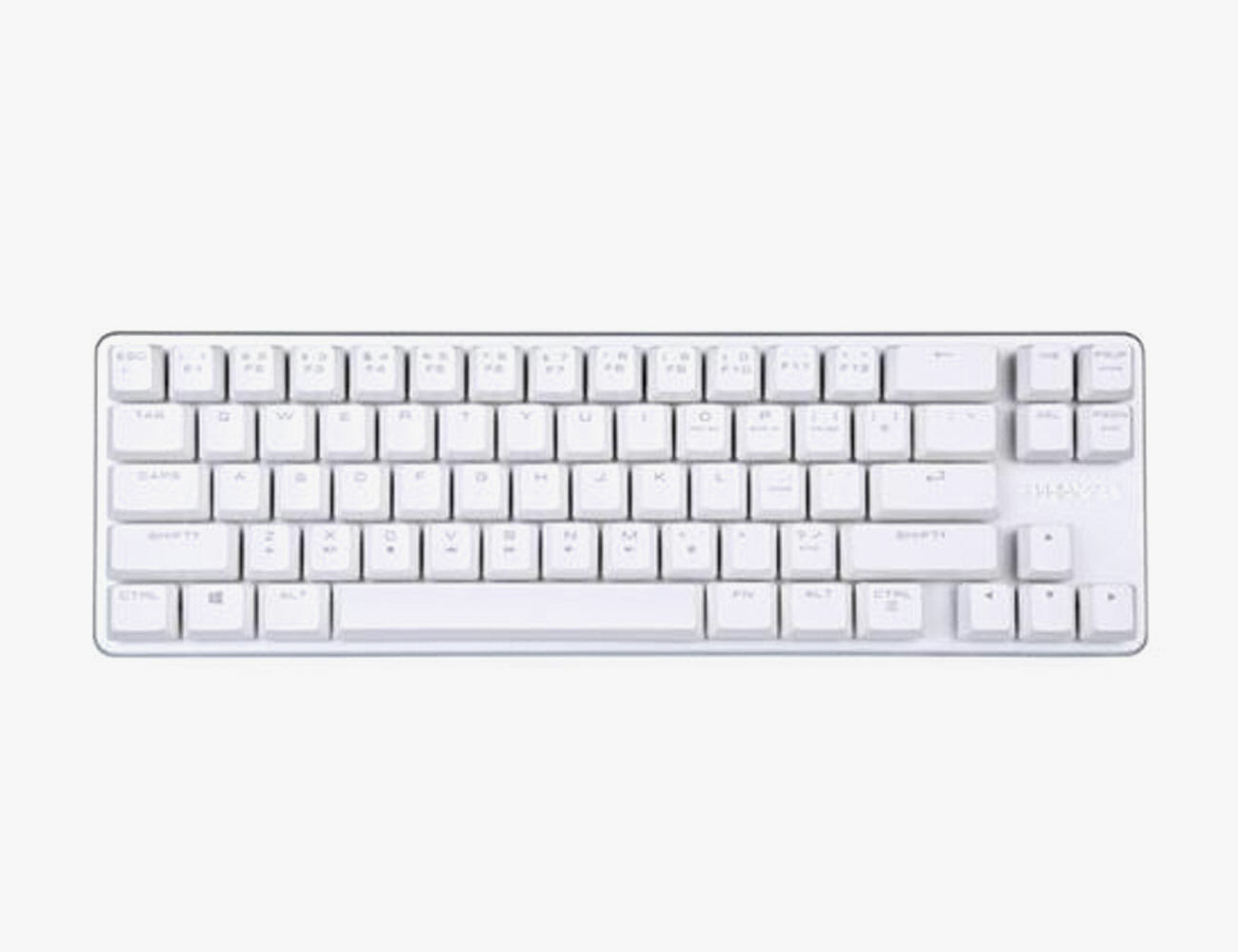
The Budget Starter: Qisan Magicforce 68

If you’re really on the fence, the Qisan Magicforce 68 is the keyboard for you. Chinese made, these boards are extremely cheap but punch well above their weight. Prices tend to fluctuate over time, as well as from model to model depending on what color and switches you’d like. But if you’re looking to get in on the cheap, there’s no better entry point. The best part about getting a cheap board for your first time out? It’s a great excuse to spring for something expensive the next time around once you have a handle on what it is you actually like.

The Upgrade Pick: Drop ALT
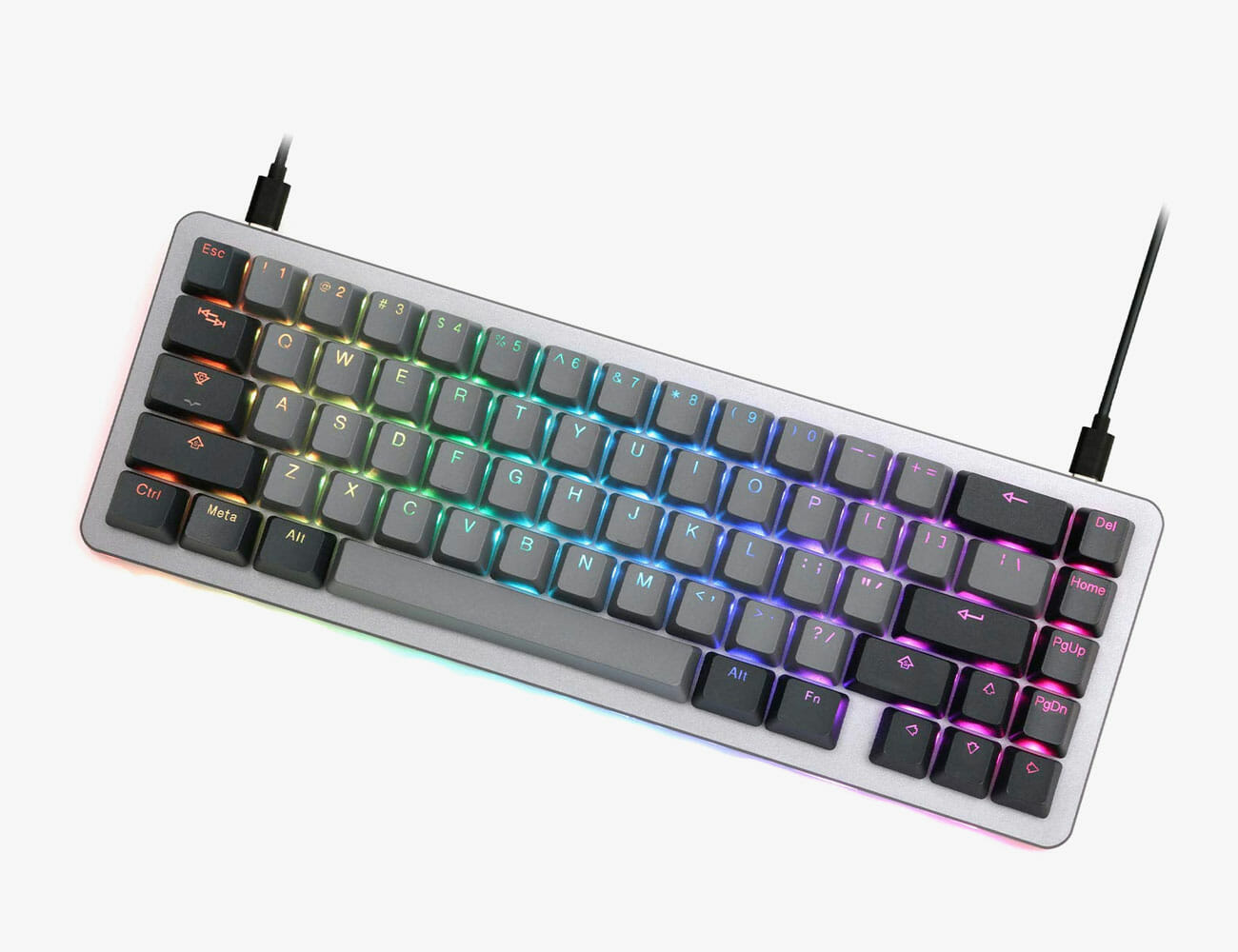
The Massdrop ALT is admittedly a bit expensive, but there is a good reason to shell out: it is, in a manner of speaking, an infinite number of keyboards at once. Most mechanical keyboards have switches that are permanently soldered in, so if you want to try a new kind of switch, you’ll have to buy a new keyboard that has them. The ALT, on the other hand, has “hot-swap switch sockets,” which means that you can replace both they keycaps and the switches with ease. That means that if you decide you want to try a new flavor of switches, all you have to do is buy a handful from a wholesaler and install them yourself, saving you a lot of money and space versus buying more keyboards. Its 65 percent design is also, to my mind, the perfect layout, though the larger and more expensive Massdrop CTRL can give you a tenkeyless option.

Made-to-Order: Custom WASD Keyboards
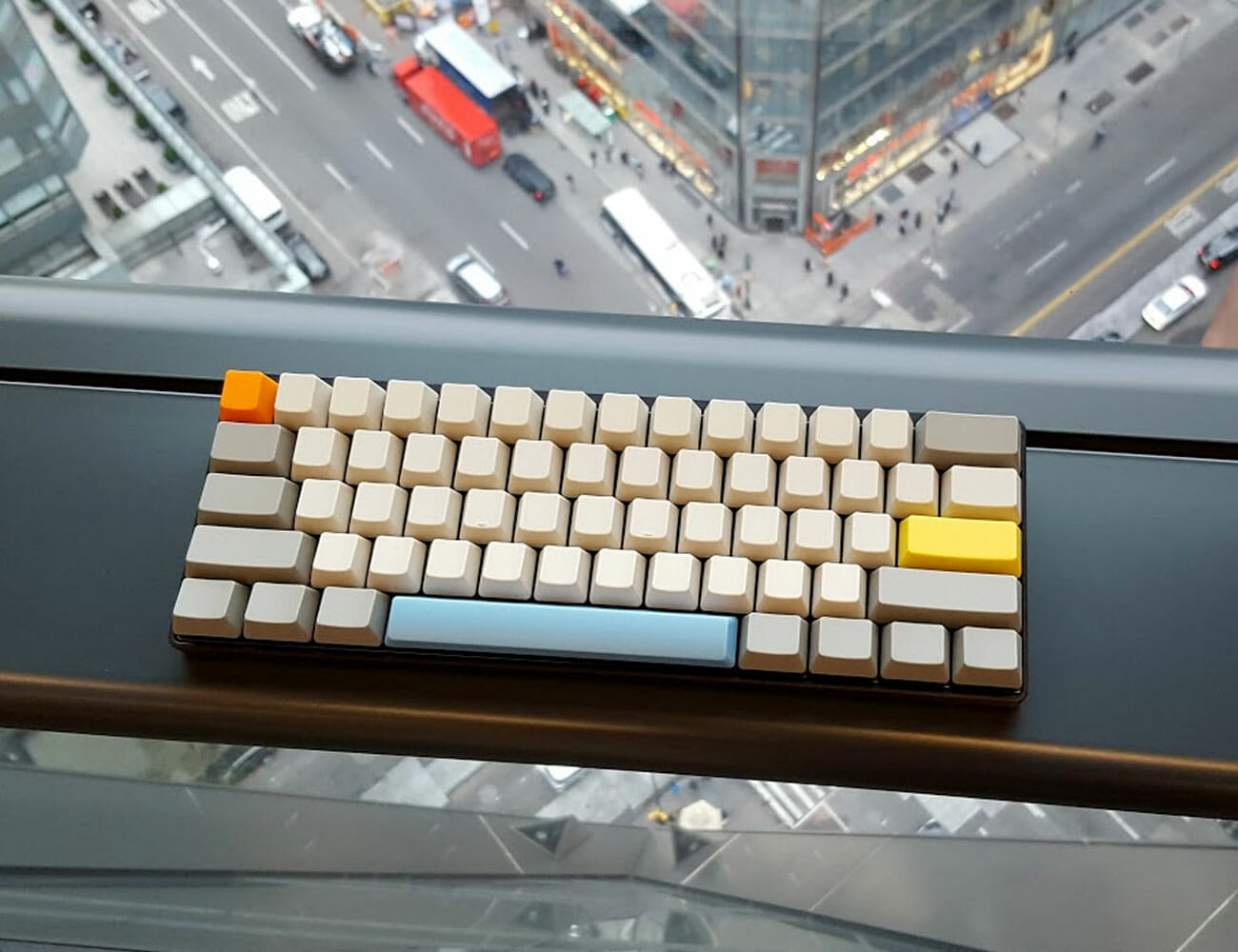
A slightly cheaper but still terrific option is a custom keyboard from WASD Keyboards. WASD offers full-size, ten keyless, and 60 percent sizes, along with the most popular flavors of switch, and case colors of black and white. But the best part is that these keyboards come with custom caps that you can design down to the individual key. While these caps are far from the highest quality and may show signs of wear pretty quickly if they feature printed legends, they are a terrific way to get your first taste of how addictively fun it is to trick out your own custom board. My very first mechanical keyboard (that’s it, right up there) was a 60 percent from WASD with brown switches, though if I could go back in time, I’d opt for a tenkeyless with clears instead.
Protip: Don’t pick an ISO layout with the big weird enter key. That makes finding custom keysets that fit your board much, much harder.

Great First Keyboards

Mechanical Keyboards 101
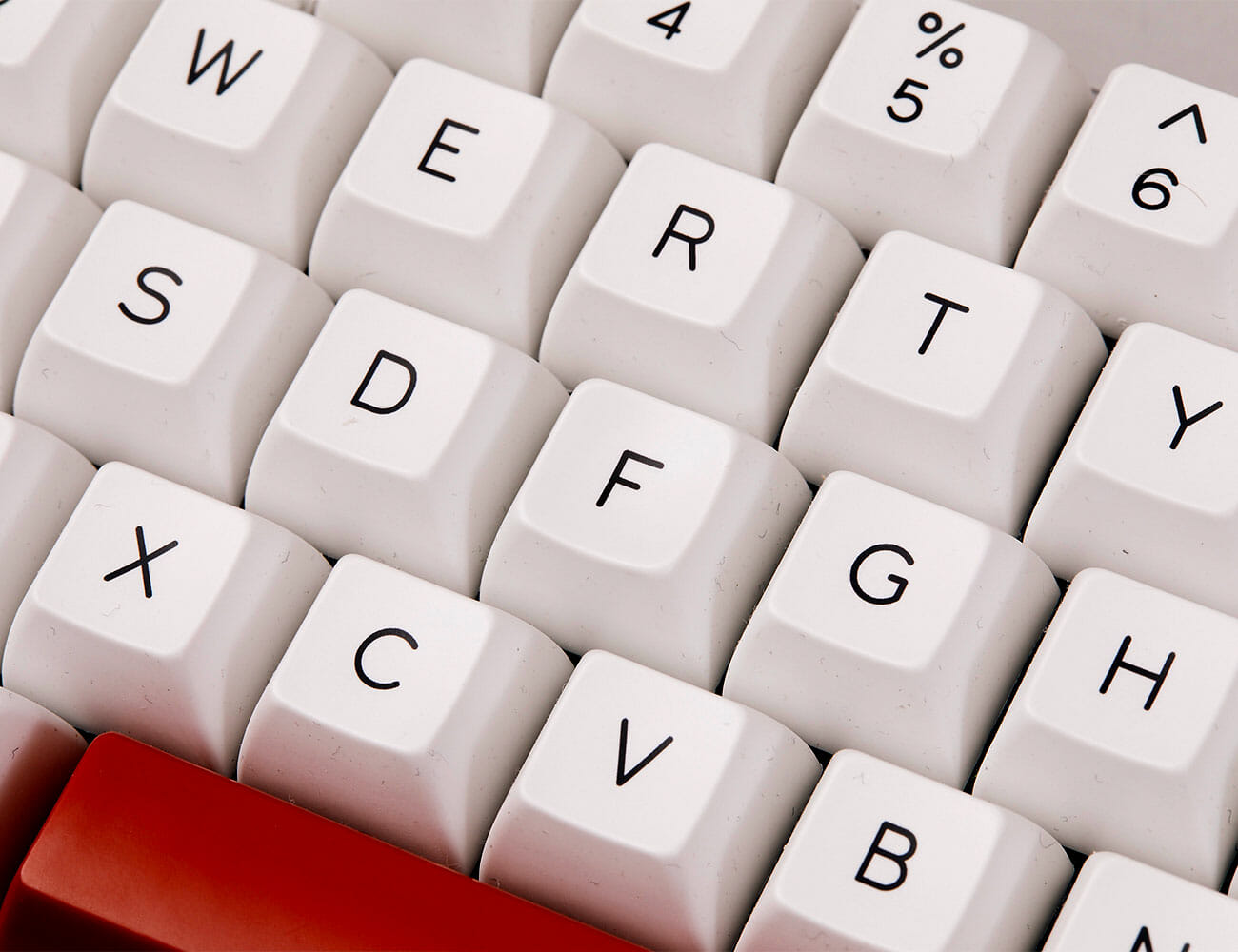

Selecting Switches

If you don’t know much about the keyboard that’s currently on your desk, it’s almost certainly what’s known as a “membrane” keyboard. These contain within them a layer of flexible rubber domes — almost like a layer of bubble wrap — between the keycaps you press with your fingers and the electronics underneath which send an electric signal to your computer. These domes are what give your keyboard that “snap” (at best) or “mush” (at worst), when you press the keys.

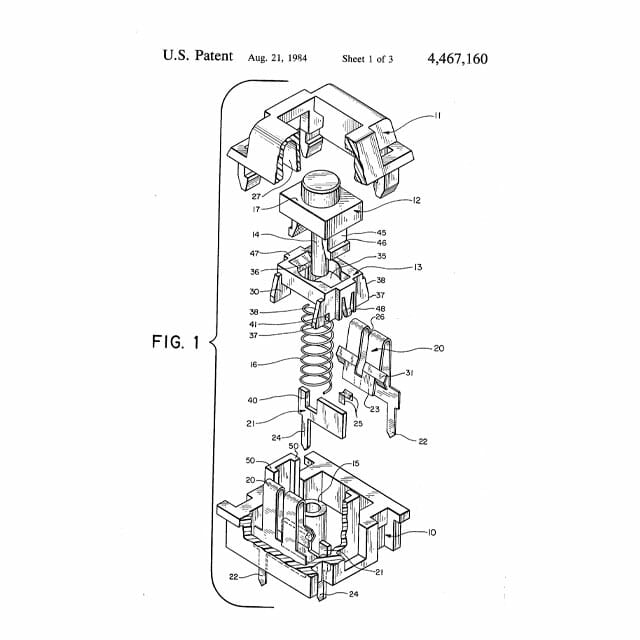
Mechanical keyboards, by contrast, have a discrete plastic mechanism under each key. These tiny devices, the switches, are what give a mechanical keyboard its feel, which can vary wildly depending on what kind of switches you choose to use. There are hundreds of varieties, many of which are hard for even aficionados to tell apart, but for a newb there are three main flavors to consider: “linear,” “tactile,” and “clicky.” Each of these three flavors tends to come in two varieties of stiffness, where a stiffer switch requires more force to press down.

Off-brand switches

Cherry is the brand-name keyboard switch manufacturer, but its patent on the iconic design has expired. “Clones” from Gateron or Razer are all functionally identical. Generally, colors also indicate the same sensation across brands, but double check for the universal keywords “tactile,” “linear,” and “clicky” when buying boards with non-Cherry switches.

Linear switches are switches that simply go up and down with no gimmicks. When you press a linear switch, you’ll feel it depress smoothly until it’s all the way down. This is the vanilla of mechanical switches: it is very good and very enjoyable but it is also very simple. If you see a switch called a “red” or a “black,” it is almost certainly a linear switch. Blacks are typically the stiffer of the two.

Clicky switches are the other end of the spectrum. Clicky switches have two parts inside of them that smack against each other as you press them down, which results in a satisfying sensation for your fingers as well as a clicky noise that you may enjoy but that other people in the room will almost certainly hate. If you see a switch called a “blue” or a “green,” it is almost certainly a clicky switch, and greens tend to be the stiffer of the two.

Tactile switches are something of a fusion of these two options. Tactile switches have “bump” on the way down, a small physical sensation that is reminiscent of a click, but much more subtle and, perhaps more importantly, entirely inaudible. Tactile switches are a little rarer than linear or clicky switches, but are very popular among enthusiasts for this best-of-both worlds-quality. They’re also, by far, my favorite. If you see a switch called a “brown” or a “clear,” it is almost certainly a tactile switch, and clears are generally the stiffer of the two.

Related Video: How to Build a Mechanical Keyboard

[embedded content]

There is also a flavor of switches called “Topre,” but that’s a whole other can of worms you can open on your own if you’d like.

Our recommendation: Your first consideration for your choice be sound. Don’t buy clicky switches if you work within earshot of family or coworkers!!! Their high-pitched clicks tend to be particularly irritating to bystanders. While linear and tactile switches lack an annoying “click,” they do still make considerably more noise than a membrane keyboard. If that prospect makes you self-conscious, my go-to solution is not to give up the dream but rather to convince a coworker to buy a mechanical keyboard as well so you are not alone. You can also opt for specialized keyboards that are designed to be quiet, but even these make noise.

The second consideration is feel. You can buy switch testers like this 9-Key Cherry Tester ($18) which will give you the opportunity to feel everything you’ve just read about, and for a reasonable price. But beware: pressing one switch with one finger is barely indicative of what it feels like to type on keyboard full of that switch. If you have a friend with a mechanical keyboard, certainly ask to try theirs. Otherwise, just take the plunge with whatever seems appealing. Personally, I prefer tactile, but enjoy linears as well!


Size and layout

Once you’ve settled on your switches, the hard part is over. But there are still a few more considerations. Keyboards come in a wide variety of shapes and designs. Some are truly wacky, but sticking with more traditional rectangular boards, you have three main options as to size and style.

But what about gaming keyboards?

So-called “gaming keyboards” from companies like Razer make up a huge part of the mechanical keyboard market, and are very competent boards even for non-gamers. Their general aesthetic is a little….polarizing, but that is about the only meaningful difference between them and non-“gaming” keyboards. Follow your bliss!

Full-size keyboards have all the keys you could ever want: a full suite of letters and numbers (obviously) but also arrow keys, a row of F1-F12 function keys above the numbers and a dedicated numpad. This is your safest bet, with a few minor downsides. Bigger mechanical keyboards are generally more expensive, and they have a larger footprint on your desk.

Tenkeyless boards are a full-size keyboard, but without the numpad. Simple! After all, you can just pick up a numpad separately if you really miss it.

60 percent keyboards dispense with the numpad, but also function keys and, most notably, arrow keys. In lieu of dedicated keys for these functions, 60 percent boards make use of a feature called layering. Just like you would hold shift to access the “layer” of keys where symbols like @ and * live on a normal keyboard, 60 percent keyboards use an additional “function layer” to give you temporary access to the keys it is missing. Some slightly larger keyboards known as 65 or 68 percent keyboards, find a way to cram in those arrow keys somewhere by getting creative with the size of certain keys.

There are also even smaller boards, but that’s a conversation for another day.

Our recommendation: Unless you use the numpad on a very regular basis, get a Tenkeyless. Smaller 60 percenters are very popular for their minimalism and portability, but I would advise against choosing any keyboard that does not have arrow keys. If you’re anything like me, you will miss them far, far more than you expected to.


What’s your next upgrade?!

Typing on a mechanical keyboard is a blast, but it is only half the fun. The other half, and the truly addictive (and expensive) part is tricking it out. Unlike membrane keyboards where the keycaps are typically permanently attached to the board, a mechanical keyboard’s keycaps are removable. This means that you can pull off that stock plastic and replace it with all manner of colorful alternatives. This is how you turn the mechanical keyboard you bought into your mechanical keyboard.

Budget sets of replacement caps can be found on Amazon in the $30-50 range. But while colorful and widely available, they’re generally made out of low quality plastic and a pretty limited variety of colors. More esoteric and high-quality keysets are generally produced in small runs, are only available for limited times through boutique websites and may cost as much if not more than what you paid for the keyboard itself.

For an idea of the range of options that are trendy with enthusiasts, scope out a mechanical keyboard haunt like r/mechanicalkeyboards on Reddit. For an idea of what is available for purchase at the moment, you can scope out reputable boutique retailers like Drop, Pimp My Keyboard, and Originative Co. Just be prepared to wait; orders for new keysets are often taken long before the keys themselves are actually in production.

For a smaller upgrade, you can also purchase custom keys one by one. Some novelty keys, like the ever-popular “Sadster” can be had for as little as a dollar. Other “artisan” keys are made by hand or produced using handmade casts. These highly collectible keys are truly stunning and unique works of art, but they’re also wildly expensive. Artisan keycaps from Jelly Key (some of the best in the biz) will run you $50 or more for a single key.

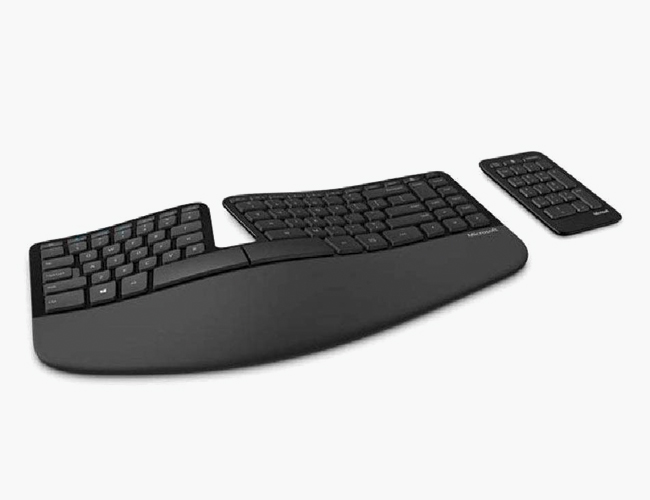
And then, of course, there is the matter of your next keyboard because, let’s face it, there will be another. While it is too much to go into right here right now, just know that there is a wide, wide world of tiny keyboards, strangely-shaped ergonomic keyboards and, of course, the prospect of building one yourself.

Our recommendation: Any, or all, of the above! Just do something, because otherwise you’re only having half the fun you could be.

Eric Limer

Eric Limer is Gear Patrol’s tech editor. A resident of Weehawken, NJ, his current obsessions include mechanical keyboards, mechanical pencils and Formula 1.

More by Eric Limer | Follow on Instagram · Contact via Email

The 2020 MacBook Air: Still the King of Lightweight Laptops

Last week, Apple announced a new MacBook Air. It’s more of an update to the previous model, really, because the new “2020” MacBook Air looks basically the exact same as the one that was released in 2018. It’s the same size and has pretty much the exact same display, but Apple did a couple of things to make the 2020 MacBook Air feel like a significant upgrade.

It doubled the base storage (now 256GB) and doubled the performance (thanks to Intel’s 10th-generation CPUs), and kept the price low. You can buy a new MacBook Air for just under $1,000 and it’s the model that most people should buy. (On the 2018 model, we recommended that most people go with 256GB configuration because 128GB probably wasn’t going to be enough, but that drove the price up to $1,399, which isn’t cheap.)

But the biggest improvement has to do with the keyboard. It’s a brand-new keyboard — or rather, it’s the same keyboard that Apple put into its recent 16-inch MacBook Pro, just without the Touch Bar — and it’s much “clickier.” The keys have been upgraded with scissor switches instead of the butterfly switches that all MacBooks have had for roughly the last five years, and these new scissor switches allow for more key travel. Basically, the keyboard feels like a real keyboard and less like a flat surface you are forced to stab your fingers into.

I’ve been using the new MacBook Air for the last four days and I’ve found that it’s a real pleasure to type on. And I don’t say that lightly. I own a 2017 MacBook Pro, which has the flatter keyboard, and I just can’t stand it. It’s unpleasant and my number of typos skyrocket. The only real solution I’ve found is to use a wireless keyboard at home and at work which, annoyingly, makes a laptop far less portable.

Working perpetually from home at my parents’ house in New Jersey, thanks to COVID-19, that standard laptop portability is more important than ever. I’ve got no external monitor. No wireless keyboard or mouse. And with this new MacBook keyboard, I’m barely missing the Logitech keyboard I use at the office at all.

If you’re looking for a new lightweight laptop, the new MacBook Air really feels like the one to beat.
Of course, if you need the extra horsepower of a MacBook Pro, the updated Air isn’t going to do you much good. It’s still a lightweight laptop after all and isn’t meant for the big demands of creative professionals. Fortunately, Apple is expected to release a new MacBook Pro sometime in the near-ish future. And you can expect it to have this same great keyboard.

Note: Purchasing products through our links may earn us a portion of the sale, which supports our editorial team’s mission. Learn more here.
Tucker Bowe

Tucker Bowe has been on Gear Patrol’s editorial team since 2014. As a Tech Staff Writer, he tracks everything in the consumer tech space, from headphones to smartphones, wearables to home theater systems. If it lights up or makes noise, he probably covers it.

More by Tucker Bowe | Follow on Instagram · Twitter · Contact via Email

The Perfect Apple Desk Setup, Four Ways

No two people work alike — our vocation and habits make sure of that. What most of us can relate to, though, is the need to curate our home or office workstations the way we want. And we’re all dipping our hands into the same pool of devices — computer, mouse, keyboard and speakers — and hoping the right mix will allow us to become our most productive, efficient and creative self. So what to choose?

At Gear Patrol, we gravitate towards an Apple workstation. Its Mac line is secure and dependable — and damn pretty as well — plus all Apple computers seamlessly integrate with the iPhone most of us already own. Still, walk around our offices and you’ll notice that no two setups are identical. Some have desktops. Others have laptops, with no — or multiple — external monitors. There are standing desks, too, along with every kind of over-ear cans you can imagine.

Since everybody works differently, there really isn’t a perfect desktop setup — so we’ve created four for four different people. There are the minimalist and high-end setups, depending on how much you want to spend or how clutter-free you want your workspace. And there are desk-tied setups and ones that have no problem being packed up and going mobile. All are rooted in a Mac. And all have a little flair. A good desktop setup can be used for work and play, remember.

The Apple Laptop Basic Setup


Despite proclamations to the contrary, the smartphone hasn’t antiquated the computer. Not even close. A laptop still provides more processing power, memory and versatility than any smartphone could ever hope to. Don’t underestimate the bigger screen and an actual keyboard, either. This basic setup is for the person who can’t always be confined to a desk. Even if there aren’t too many frills, everything works seamlessly with each other. Plus, this specific power bank can juice the MacBook Pro for a few extra hours.

The Details
MacBook Pro 13-inch (2019), $1,299+
Apple AirPods, $159+
Alvin Cutting Mats, $12+
iPhone 11, $699+
AmazonBasics Surge Protector, $13
Omni 20 USB-C, $199

The Apple Laptop Power User


This setup combines the best of both worlds. It’s rooted around a 16-inch MacBook Pro, so it can be taken mobile if need be, but it’s really optimized to run like a high-end desktop. There’s a separate wireless mouse and keyboard, so you don’t have to be right up near the screen. Speaking of which, the huge curved display is an Excel user’s dream. (It’s also pretty awesome for gaming.) The finishing touches — superb desktop speakers, external hard drive Leica CL and elegant desk mat — will make this desktop difficult to leave, and be refreshing to return to.

The Details
16-inch MacBook Pro, $2,399+
Apple Magic Keyboard with Numeric Keypad (Space Gray), $149
Bose Headphones 700, $399
iPhone 11 Pro, $999+
Nomad Wireless Charging Base Station, $90+
LaCie Rugged 2TB External Hard Drive, $139
AmazonBasics Surge Protector (Not Pictured), $11
Satechi Universal Vertical Aluminum Laptop Stand, $45
LG 34WK95U Curved Monitor, $1,500
Audioengine A2+ Powered Speakers, $249
Killspencer Desk Mat, $195
Leica CL, $2,795+

The Apple Desktop Basic Setup


Even in this age of portability, there’s still a place for a traditional desktop. It’s more upgradable than a laptop and you generally get more for less, in terms of better processor, better graphics chipset, bigger screen and more storage. And, of course, its fixed location naturally helps you separate work from everything else. This setup is designed to gel effortlessly together, while still maintaining a clean, clutter-free desk.

The Details
Apple iMac 21.5-inch with Retina 4K Display, $1,099+
Magic Trackpad 2, $149
Magic Keyboard, $99
Apple AirPods Pro, $199
Satechi Desk Mat, $35
Bose Companion 2 Series III, $99
iPhone 11, $699+
Apple Watch Series 3, $199+
Mophie 3-in-1 Charging Pad, $140

The Apple Desktop Power User


The ultimate desktop setup doesn’t include a desktop — let that sink in. Instead, we’ve combined the top-of-the-line MacBook Pro with two 4K monitors (connected via Elgato’s powerful dock, which can also connect one 5K display), powerful desktop speakers and several other accessories that’ll maximize productivity. Just step back and revel in its glory. No desk mat needed.

The Details
16-inch MacBook Pro, $2,399+
LG 4K Displays (2x), $700/ea
Logitech Craft Keyboard, $200
Logitech MX Master 2S, $100
Meridian Explorer2 Digital to Analog Converter, $199
Bowers & Wilkins PX7, $350
Audioengine A5+ Powered Speakers, $499+
Master & Dynamic Headphone Stand, $80
Apple Watch Series 5, $399+
Elgato Thunderbolt 3 Dock, $277+
Yeti Rambler Lowball, $20
iPhone 11 Pro Max, $1,099+
Nikon D850, $2,999+
Mophie Wireless Charging Base, $60
Note: Purchasing products through our links may earn us a portion of the sale, which supports our editorial team’s mission. Learn more here.
Tucker Bowe

Tucker Bowe has been on Gear Patrol’s editorial team since 2014. As a Tech Staff Writer, he tracks everything in the consumer tech space, from headphones to smartphones, wearables to home theater systems. If it lights up or makes noise, he probably covers it.

More by Tucker Bowe | Follow on Instagram · Twitter · Contact via Email

The Latest Generation of the iPad Pro Is Here

The Apple iPad has long been our favorite device for consuming content on the go, but it’s never been an actual replacement for the laptop because it lacked the full keyboard and mouse support of…

Integrated Amplifiers Are the Future of Hi-Fi, Here Are the Ones to Buy in 2020

?When you’re building your first home stereo system, an integrated amplifier is your best friend. By combining a power amplifier with a preamplifier, buying an integrated amp is not only simpler than hunting for separate components, but it also gives you a good mix of performance and features for less money than you’d spend otherwise. Integrated amps come in all shapes and sizes, run the gamut from $500-5,000, and work best with bookshelf loudspeakers.

Integrated amplifiers have made huge strides in performance as manufacturers have gotten better at integrating the various sections; power, source selection, volume control and connectivity, while minimizing the amount of electrical noise that negatively impacts sound quality. The cherry on top? The signal path between the various sections is shorter in an integrated app, which not only improves sound quality but also means you don’t need as many cables for your system.

Wireless active loudspeakers and one-box integrated amplifiers, which include both wired and wireless digital streaming connectivity, have made a system of various expensive boxes mostly obsolete for the average listener. The resurgence of vinyl has forced manufacturers to include a phono pre-amplifier in most integrated amplifiers and the myriad of streaming services such as Tidal, Qobuz, and Spotify are supported along with playback platforms such as Roon.

Integrated amplifiers are available with a wide range of features and power ratings. You can easily spend anywhere from $350 to $6,500 and have the nucleus of an excellent sounding system for many years to come. The one thing to remember is that better sound quality and a more extensive features list comes with a much higher price tag. The smarter solution is to find a combination of amplifier and streamer that fits into your budget if you are concerned about price/performance. 

Support for wireless streaming has become a standard feature on some integrated amplifiers, including Bluetooth aptX and aptX HD. Both formats are lossy but sound quality has taken a huge jump recently when streaming from your smart device to an integrated amplifier. Many integrated amplifiers now include Optical, USB, and Ethernet connectivity for external streamers or if you use your desktop computer or laptop as your digital source.

Buying Guide

Best Budget Integrated: Cambridge Audio AXA35

Cambridge Audio celebrated its 40th anniversary in 2019 with the launch of the award-winning Edge A integrated amplifier. It’s a reference level piece of hi-fi that shines with every loudspeaker you can throw it. At the opposite end of the price spectrum sits the entry-level AXA35 that delivers more than enough power to drive pricier bookshelf loudspeakers in a very satisfying manner. It does not include an internal DAC or streaming capabilities, but serves as a very confident and robust sounding amplifier that works well with the AudioQuest Dragonfly Cobalt DAC and your smartphone or laptop. Build quality is first-rate and we were quite surprised by the quality of the MM phono stage that shines with cartridges from Grado Labs, Ortofon, and Audio-Technica. 

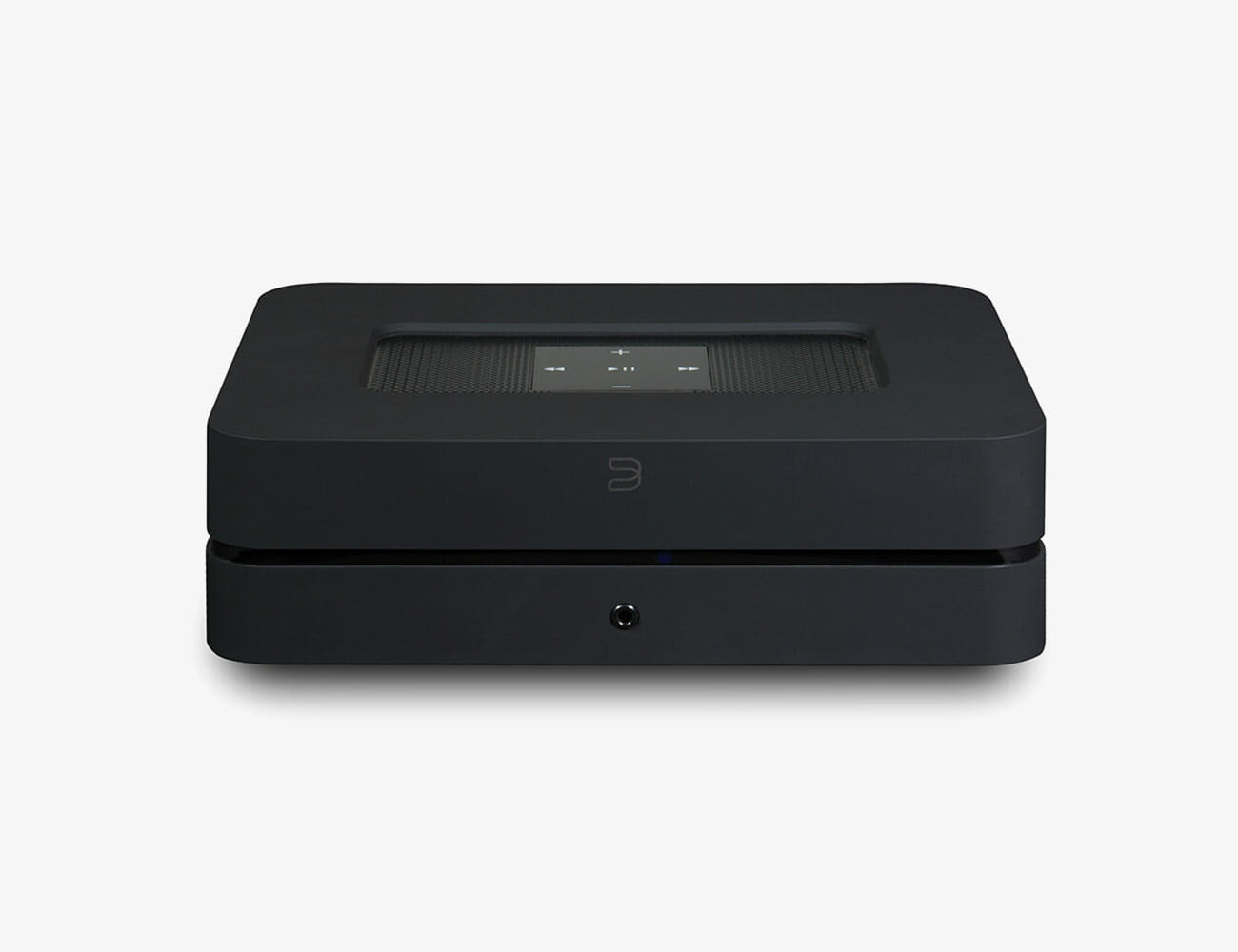
Best MQA Alexa Compatible Integrated: Bluesound PowerNode 2i

It has been almost a year since we first recommended the PowerNode 2i and after a number of firmware updates and the addition of support for MQA (Master Quality Authenticated), it remains the best component of its kind. It can output more than 60 watts per channel and offers outstanding resolution and low-end control. The tonal balance is on the warm side and its internal 32-bit/384kHz DAC improves the sound of any streaming service that you may use. The PowerNode 2i also offers support for Apple AirPlay2 and is one of the first integrated amplifiers to work with Amazon’s Alexa voice control and Google Assistant. The PowerNode 2i now supports HDMI eARC and ARC connectivity and will stream to wireless headphones. 

Best All-Around Integrated: Schiit Audio Ragnarok 2

Domestically produced integrated amplifiers that are affordable, built well, modular and overachieving sonic performers are somewhat difficult to find these days. Schiit Audio builds everything in California and has succeeded at keeping their prices affordable by implementing smart industrial design and not over-engineering their products. The Ragnarok 2 is available in two versions: the fully loaded version for $1,799 which includes a MM phono stage, 24-bit/192kHz Multibit DAC, and a very powerful headphone amplifier, and a more basic version of the integrated amplifier without the phono/DAC modules for $1,499.

The Ragnarok 2 is rated at 60Wpc into 8 ohms and 100Wpc into 4 ohms. It is more than capable of driving difficult loads like the Magnepan LRS planar loudspeakers or large full-range bookshelf loudspeakers like the Q Acoustics Concept 300 with very little effort and reproduces music with real presence and a level of resolution that you expect from far more expensive audio components. If you listen to headphones on a regular basis, the Ragnarok 2 delivers more power than you would ever need for even the most demanding planar magnetic headphones like the Meze Audio Empyrean. 

Best Audiophile Integrated: McIntosh Labs MA352

Hybrid tube integrated amplifiers like the MA352 are aspirational products designed for demanding high-end loudspeakers that require a bottomless reserve of power, and reference level resolution, detail and low-end control. The hybrid design features a tube pre-amplifier, and 200Wpc solid-state amplifier that almost doubles its power into more demanding 4-ohm loads. The attention to detail and tank-like build quality are what you should expect for $6,500 and McIntosh gear never fails to deliver or retain its value long-term. While some may bristle at the absence of streaming capabilities or an internal DAC, the reality is that MA352 requires source components of equal quality to really demonstrate what it can do. Paired with a high-end turntable or streamer, the MA352 puts considerable distance between itself and the rest of the competition – the Cambridge Audio Edge A comes remarkably close with its power, transparency, and high-end internal DAC but loses out somewhat with its cooler tonal balance. 

Note: Purchasing products through our links may earn us a portion of the sale, which supports our editorial team’s mission. Learn more here.

Your Internet Isn’t As Fast As It Could Be. Here’s Why

Fast, reliable internet is never more important than when you’re working from home. Fast, reliable internet isn’t always what you get though, even if you’re paying for a nice speedy broadband connection. Here are a few of the most common reasons that can be, and what you can do about it.

Your router is in a bad spot

It may sound overly simple to put your Wi-Fi woes down to a badly positioned router, but where you place your router can make all the difference in the world. Walls, windows, and floors between you and the router will all degrade the quality of a Wi-Fi signal, with denser materials making more of a dent. It’s not always possible, but ideally, you want your Wi-Fi router as close as possible to the devices you want the fastest speeds for, and with the smallest amount of physical barriers in between.

Household appliances that make use of electromagnetic waves, like microwaves, wireless doorbells, and baby monitors, can also interfere with the transmission of Wi-Fi around the home, so you may have to rejig the configuration of your rooms a little. Use a laptop and a speed test website like this one to test out various spots for your router, and see which one gives you the fastest speeds.

In short: don’t stick your router in the corner of a room just for the sake of neatness if your video game console and computer are over on the other side of the house or apartment. You’re going to be limited to some extent by where your internet gets piped into wherever you live, but placing your router optimally will ensure you’re getting the best out of what you’re working with.

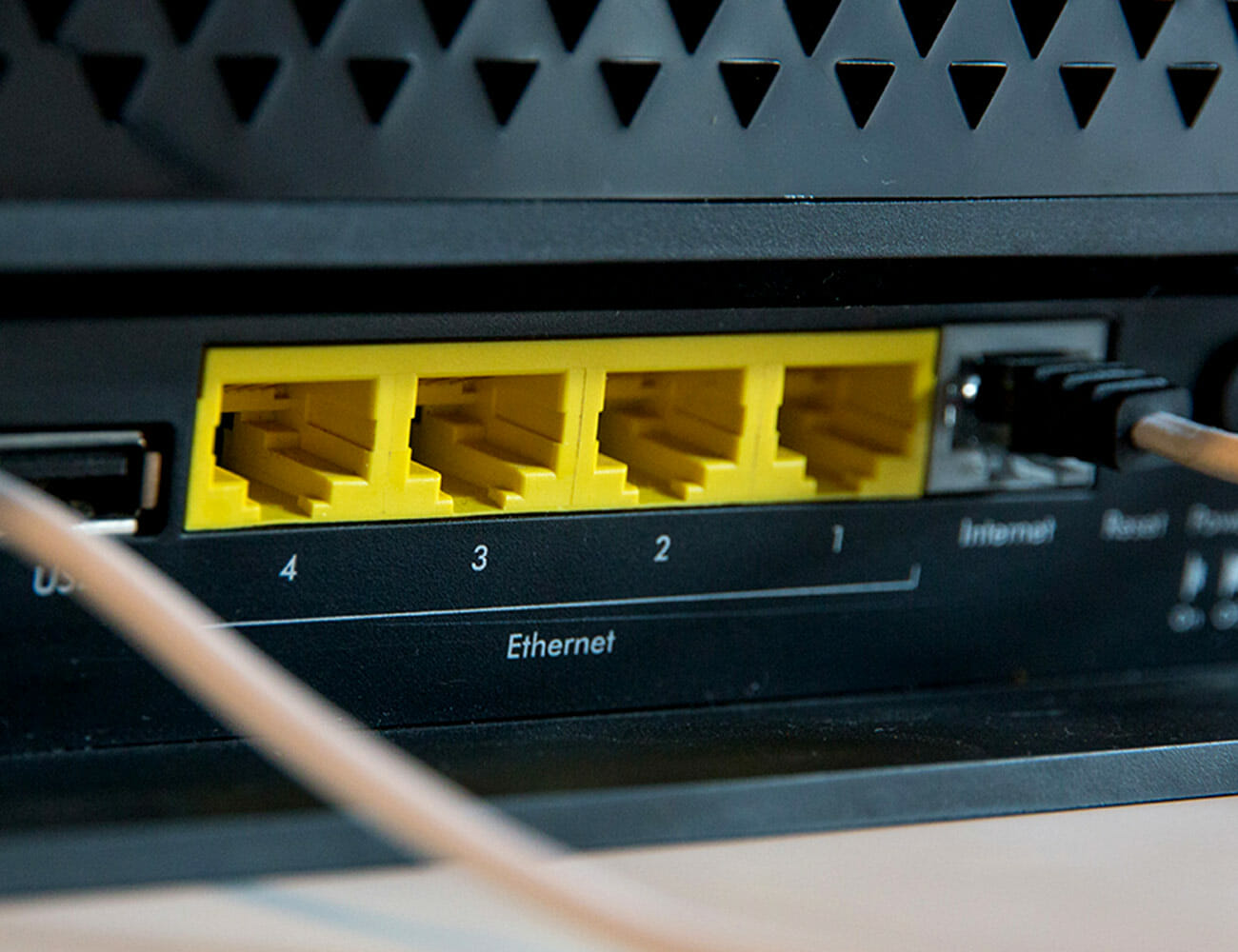
If you’re prepared to put in a little time and effort to the cause, there’s always the option of using some Ethernet cable to route the internet feed coming into your home to a more central location where your router will be placed. If you’re in a multi-floor dwelling, you could also think about mounting the router on a wall or placing it on a shelf, so it’s not that the lowest point.

You need to invest in some new network hardware

There are now a wealth of options for upgrading the Wi-Fi signal being beamed around your home and the first place to start is upgrading your router, especially if you’re just using one that your internet service provider is renting you. Routers like the Netgear XR500 Nighthawk Pro ($300) and the Linksys Tri-Band AC2200 ($157) are a significant investment but with support for the latest wireless protocols, a collection of antennas, and the computing horsepower to juggle a number of simultaneous connections, they are far more capable than cheaper kit.

Wi-Fi extenders or repeaters, meanwhile, take the signal from your router and pass it on further, like a relay runner. The advantage of these extenders is that they’re easy to set up and inexpensive; the disadvantage is that you won’t get the very top speeds as the Wi-Fi gets boosted from the original source. Devices like the TP-Link N300 ($20) and the Netgear EX3700 ($35) will do the job.

Powerline networking is another option — using the electrical wiring in your home to route internet to rooms some distance from your router; you’ll get faster speeds than with a Wi-Fi extender, but you’ll need to pay more. This should work on most modern homes and apartments, but we’d recommend buying from a retailer that offers a simple returns policy just in case. Take a look at devices like the Zyxel AV2000 Powerline Kit ($70) or the TP-Link AV2000 Powerline Adapter ($81).

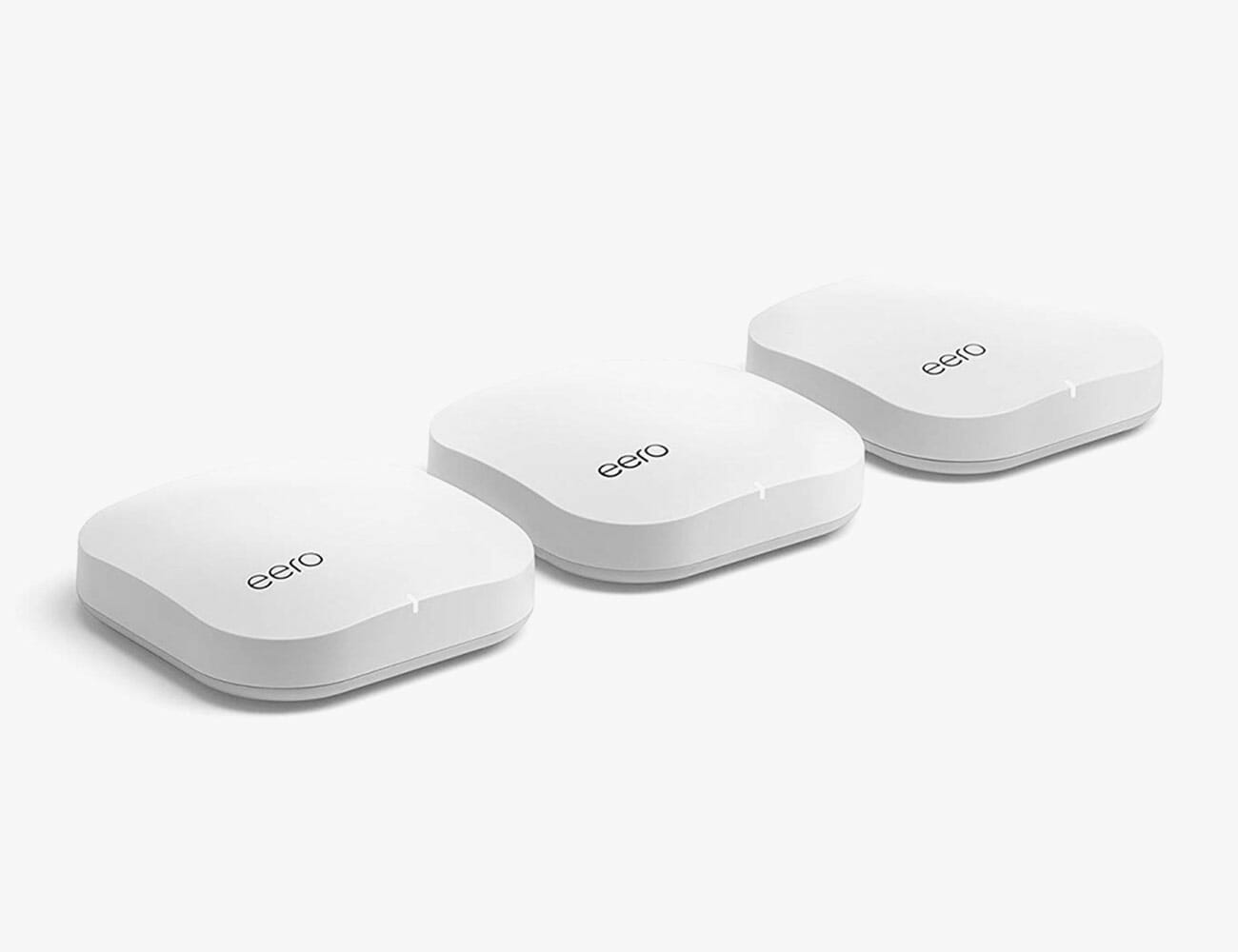
Finally, there is an increasing number of mesh networking kits around: sets of routers that communicate with each other to blanket your home in high-speed Wi-Fi, eliminating dead zones and slow spots. They’re very effective, but at the pricier end of the scale – kits like Google Wi-Fi ($240) and Eero Pro ($400) will replace your single router with several that cooperate to blanket your entire abode in connectivity.

You’re using too many devices at once

Everything that connects to the internet uses up bandwidth — and if you think about how many devices in your home you’ve got online, it’s likely to be a lot. If you want to know for sure, your router will be able to tell you how many devices are connected, if you delve into its settings. Besides simply cutting down the number of gadgets and computers you use simultaneously, there are a few other tricks to try.

Every router uses a particular channel or frequency range, and if you’re in an apartment block where everyone’s router is using the same channel, congestion can impact your performance. A potential solution is to adjust your router’s settings a few steps away from the default, where there might be less interference. Instructions on how to do this should come but in your router’s manual, which you can find online if you don’t still have it hanging around the house.

Most routers now offer what’s known as dual-band technology as well, essentially frequency channels that are more distinct: 2.4GHz (lower speed, greater range Wi-Fi) and 5GHz (higher speed, shorter-range Wi-Fi). Some routers let you switch devices between these two on a device by device basis, or put out two separate networks. Anything that needs higher speeds should be as close to the router as possible and using the 5GHz band. The 5GHz band is also better at dealing with multiple devices at once and doesn’t get as congested as easily, so it’s really the one to go for unless your gadgets are a long way away from the router. Some routers will handle all this configuring automatically, but it’s worth checking to see what your router is doing by default.

Your gadgets are getting too old to make good use of the network you have

If the internet sluggishness is only affecting one of the phones or computers that you’re using at home and not the others, then the problem is more likely to be with that device rather than your network as a whole. While browsing the web isn’t as demanding in terms of system resources as, say, video editing or gaming, older hardware and software can struggle to keep up with the demands of the modern web. Most sites nowadays run more like apps inside your browser rather than static pages, and that can put pressure on memory and processor speed. Older devices, particularly ones that came out during or before 2014, may not even have the hardware necessary to support the latest and greatest (and fastest) Wi-Fi standards.

There’s also the possibility of malware or general cruft. If you are finding the internet is slow on one particular phone or laptop, we’d recommend running a thorough security scan and maybe uninstalling some of the apps, programs, and browser extensions that you’re not regularly using. They could be slowing down your device’s onboard processing, but they could also be beaming information back out into the internet, invading your privacy and clogging your airwaves in the process.

As a last resort, a complete reset of your Windows, macOS, Android or iOS device might help — both in removing unnecessary clutter on the device and clearing out any unwanted malware that’s taken root. If you’re still not getting satisfactory speeds after that, maybe it’s time to think about investing in some new gear.

Note: Purchasing products through our links may earn us a portion of the sale, which supports our editorial team’s mission. Learn more here.

5 Ergonomic Essentials for Your Home Office

The whole idea behind ergonomic gear is that it’s specially designed to relieve pain, improve comfort and increase your overall productivity. If your current mouse, keyboard or office chair isn’t working for you, or it’s causing you pain, maybe it’s time to try an ergonomic alternative.

The Mouse

Logitech MX Vertical: There are a different types of ergonomic mice. Most are horizontal (or traditional), but vertical mouse like the MX Vertical positions your wrist and hand upwards, which is their more natural position. This positioning prevents pronation or your wrist from rolling over.

The Keyboard

Microsoft Sculpt: The unique shape of an ergonomic keyboard is designed to help align the user’s left and right arms in more natural positions, thus reducing and relieving muscle strain. The Sculpt, Microsoft’s ergonomic keyboard, is one of the best and most affordable options out there.

The Laptop Stand

Grovemade Laptop Stand: A laptop stand is designed to prevent you from slouching over your laptop by positioning it at closer to eye level. Grovemade’s laptop stand is made of walnut and looks gorgeous.

The Chair

Blu Dot Daily Task Chair: This is our pick for “the best office chair for your home.” It’s comfortable, adjustable and looks retro in the best possible way.

For more options, check out our buying guide for best office chairs.

The Desk

Fully Jarvis Standing Desk: It’s been proven that sitting for too long isn’t good for you, and it can actually lead to things like diabetes or depression. On the flip side, standing for too long isn’t great for you either. That’s why you need a desk that can do both, like the Fully Jarvis. It’s also really customizable, so you can match it to your home office’s aesthetic.

For more options, check out our buying guide for best standing desks.

Note: Purchasing products through our links may earn us a portion of the sale, which supports our editorial team’s mission. Learn more here.
Tucker Bowe

Tucker Bowe has been on Gear Patrol’s editorial team since 2014. As a Tech Staff Writer, he tracks everything in the consumer tech space, from headphones to smartphones, wearables to home theater systems. If it lights up or makes noise, he probably covers it.

More by Tucker Bowe | Follow on Instagram · Twitter · Contact via Email

Need a Second Screen for Your Mac? You Might Already Have One

<!–Need a Second Screen for Your Mac? You Might Already Have One • Gear Patrol<!– –>

COLOR SUBTITLE


If you, like many many of us, are suddenly and somewhat unexpectedly working from home, odds are you might be missing a second screen that is part of your office setup, but not your _home_ office setup. If you are using a Mac and have an iPad though, you might just be in luck. If you haven’t used Apple’s “Sidecar” capabilities to use your iPad as a second screen, now’s the time.

Announced last year, Sidecar allows any Mac running macOS Catalina to use any iPad running iPadOS 13 as a second screen like any other. All you have to do is connect the two devices by Bluetooth, go to the Settings menu on your MacBook, and enable your iPad as a second screen under the Sidecar submenu. It’s as simple as that!

Granted, your iPad is probably not as large as a full-on display, but the compartmentalization of being able to put certain windows in a separate physical space can still be incredibly helpful.

Note: Purchasing products through our links may earn us a portion of the sale, which supports our editorial team’s mission. Learn more here.
Eric Limer

Eric Limer is Gear Patrol’s tech editor. A resident of Weehawken, NJ, his current obsessions include mechanical keyboards, mechanical pencils and Formula 1.

More by Eric Limer | Follow on Instagram · Contact via Email

<!–

–>

<!– –><!–

–>

Staff Picks: The Cameras We Can’t Live Without

Here at Gear Patrol, we specialize in all sorts of topics from tech to style to cars, and cover our beats using words, pictures, and video. But one common thread that connects every desk and department is an abiding love of all things photography. We rounded up some of the cameras that our staff — some professional photographers, some jubilant amateurs and some in-between — use to capture the world around us and make art, on the clock and off.

[embedded content]

Leica M10

In an age of high megapixels, fast autofocus and faster burst rates, shooting with a Leica rangefinder is slow, deliberate and, frankly, a bit of a pain in the ass. That is to say, it’s a great vacation when your work is modern editorial photography. The M10 is reductionist photography at its finest — no autofocus, no video, just what you’d need to take a singularly great photo. — Henry Phillips, Deputy Photo Editor

Fuji X-T3, Mamiya C330, Yashica T3D

The camera I use the absolutely most is probably the Fuji X-T3. I’ve easily taken more photos with it than any other camera and it also does great video too in 4K60, 1080, or slow-mo. The lens I use most of the time is a 16-55mm F2.8 that’s great for walking around with but pretty massive and bigger than the camera, so I also have a tiny 35mm F2 that’s really tiny if I’m trying to keep it low profile.

I got the Mamiya C330 always wanted a twin reflex camera. I love the way it looks, and I love medium format. It is beefy, way bigger than a Roliflex in part thanks to its actual interchangeable lens, which probably accounts for a lot of the bulk. I got it for really cheap and it definitely likes to act up. It’s an old camera, so while it’s great, it’s just like an old car in that you have to remember there’s going to be problems.

The Yashica T3D is an amazing point and shoot that doesn’t break the bank. It comes with a Zeiss 35mm f2.8 which is surprisingly sharp and coupled with Portra 400, the resulting photos are some of my favorite I have ever taken. I did a photo shoot where I used a disposable point and shoot and missed not having any settings to look at and just work on composition, so I did some research and landed on the Yashica — chiefly as a way to avoid breaking the bank on a Contax T2 or Leica Minilux. Given the form factor and price, I think it’s a no brainer. — Andrew Siceloff, Director of Video

| |

Yashica Mat 124G

I bought this camera back when I was in college as an entry into medium format film. It was affordable, and offered a really sharp 80mm lens. It isn’t without its quirks (shooting with the waist-level finder and looking through the framing lens instead of the taking lens can be cumbersome), but it produces some great results. — AJ Powell, Senior Content Manager, Gear Patrol Studios

Canon 6D

The Canon 6D was my first DSLR, and so far I haven’t found a good enough reason to upgrade. I’m very much just a hobbyist, but I’m consistently impressed by the image quality of the photos I take with my 6D. A feature that I really love is that it can connect to your phone through Wi-Fi, so you can quickly edit photos on the fly if you’re in a pinch. — Tyler Chin, Editorial Associate

Voigtländer Bessa R2M, Pentax 67,Ricoh GR1S

The Voigtlander Bessa R2m is essentially a Japanese Leica. It’s a rangefinder that takes Leica M mount lenses. This, however, is much more affordable than a Leica also has a little bit of hipster appeal since not too many people use them. I’d always wanted to try shooting a film rangefinder and this Bessa R2m just happened to pop up used for a very good price. It’s got an excellent light meter and I’ve been happy with the results.

The Pentax 67 is, to my mind, the best way to create images on large negatives, bar none. It’s easy to load, easy to shoot and produces beautiful results. The negatives measure roughly 6 cm high by 7 cm wide, and capture great amounts of detail. And you also just can’t deny the retro appeal.

Unlike almost all point and shoot film cameras from the 80s, 90s and early 2000s, the Ricoh GR1s isn’t ugly as sin. This camera has some of the best industrial design that I’ve seen, and has aged so well. The electornics inside, by contrast, have not aged well, and are notorious for failing. Folks will say that the Ricoh GR1s is one of the best lenses paired with the worst camera body, and as the pixels on its LCD screen just keep dying, I can’t help but agree. — Hunter Kelley, Associate Designer

| | 

Leica Minilux, Mamiya 645 Pro, Mamiya RZ67 Pro 2, Sony A7R III

The Leica Minilux point and shoot is fantastic. I particularly enjoy the the 40mm 2.4 lens as it makes for some fantastic portraits. Their going price tends to be pretty steep and I’d probably say it’s not totally that typically large chunk of change, but if you score one for a little cheaper, its hard to go wrong.

Like a true millennial, I’ve only just started shooting on film within the past year or so. The medium format Mamiya 645 Pro was my first film camera and I truly enjoy it. The modular system is fantastic as I have a few attachments that allow me to improve my film workflow.

The Mamiya RZ67 Pro 2 is too old, too big, too slow and heavy as hell but damn it, I love it so much. I saved up and finally pulled the trigger on this brick of a photo device about a month ago and cannot wait to use it for years to come. The bellows focus system, precise focus knob and half stop adjustment options are just a few of the reasons I can’t put this beast down.

Most of my photography is shot on my Sony A7R II. It’s been absolutely amazing and I really love it. I’ve put to through hell and back and I think I’ll continue to use it for years to come. The 42 megapixels have been a true game changer for me as I’m able to scale in photographs as well as make larger prints. — Brenden Clarke, Multimedia Producer

| | |

Canon EOS Rebel T5i

Two things I love about this camera: it’s super easy to use and it looks just professional enough to open a few doors when needed. I’ve very much in the amateur photographer category, and like Russell Westbrook, I’m a volume shooter. So I can say with confidence that if you have this camera and you shoot enough, you’re almost certain to strike imagery gold, sooner or later. — Steve Mazzucchi, Outdoors & Fitness Editor

Fuji X100F

I could sit here all day and tell you about the weird film cameras I’ve owned, or the mountains of work I’ve shot on the 5DIV, but I would much rather talk about this little Fuji that’s actually not even mine (thanks Bex). It’s not new, it doesn’t have the biggest sensor or the craziest autofocus, and it’s definitely not weather sealed. That aside, I love it. It’s small, super portable, and it pushes out stellar RAW files with that Fuji color we all know and love. It’s my default walk-around camera, and I take it everywhere with me to use for snapshots and street shooting like I would an iPhone. The only flaw with the X100F is that I’m eventually going to lose it on a trip one day and I’ll be forced to buy another one. — Chandler Bondurant, Staff Photographer

Canon AE-1 Program

Before buying a used Canon AE-1 Program on eBay for something like $200, I learned to shoot film on a hunk of plastic that I found in a friend’s attic. It was a great camera to learn on, but came with its share of imperfections — but not the charming type that make film so fun — and was fully automatic.

The AE-1 Program, which Canon started manufacturing in 1981, does have automatic modes, but it also lets you adjust aperture, shutter speed and ISO to your liking. I bought mine before a ski trip to Kamchatka, Russia, and the developed negatives leave me with nothing to regret of the impromptu purchase. Now I bring it on nearly every trip I take. — Tanner Bowden, Staff Writer

Nikon EM

The Nikon EM was a pretty basic 35mm camera from the late 70s early 80s. That EM stands for “economy model.” It was my dad’s and he gave it to me when I took my first photography class in seventh grade. It’s been my go-to film camera ever since. Both sides of the body have these light leaks that I’ve learned to use to my advantage over the years, especially when shooting with something like Ilford HP5. When I want to trust that I’m going to get the shots I want wherever I go, this is my choice. — Ryan Brower, Commerce Editor

Olympus XA2

Three months ago, I didn’t know the first thing about film photography, but the delightful Olympus XA2 has been a terrific companion on the journey. A dead-simple point-and-shoot, the XA2’s only real setting is its zone-focusing slider, which takes a roll or two of trial and error to get used to, but makes this ridiculously compact (and affordable) camera an amazing EDC camera that is even faster to fire than your iPhone.

I’m sure you know the adage: “The best camera is the one you have with you.” And that is what I had in mind when I decided to go with the Olympus OM-D EM-10 MK2, a plucky Micro Four Thirds shooter, as my first halfway serious camera. I had reservations about the small sensor at the time, and still think about upgrading now and then, but just love the tiny size of this little guy. With a sizable suite of lenses and a truly compact footprint, the EM-10 has accompanied me on many a trip, and really let the photography bug bite by exposing me to all the variety a camera with interchangable lenses can offer.  — Eric Limer, Tech Editor

24 Great Vintage Cameras You Can Still Buy

Vintage shooters from every era still worth adding to your collection. Read the Story

Note: Purchasing products through our links may earn us a portion of the sale, which supports our editorial team’s mission. Learn more here.

Apple Just Fixed the MacBook Air’s Biggest Problem

<!–Apple Just Fixed the MacBook Air’s Biggest Problem<!– –>

Finally, a Good Keyboard


It’s a better time than ever to consider buying a MacBook Air. That’s because Apple just released an updated version of its lightweight laptop with a brand-new keyboard. And yes, that’s a big deal.

The Magic Keyboard on the 2020 MacBook Air has done away with the much-maligned butterfly keys and been upgraded with tried-and-true scissor keys, similar to what are new in the 16-inch MacBook Pro. These scissor keys allow for more travel and just feel way better to type on (at least for most people). The keyboard was pretty much the only real issue with the previous MacBook Air, otherwise it was the perfect lightweight laptop for most people.

The upgraded keyboard is the headline stealer, but Apple updated the internals of the 2020 MacBook Air too. The base model now starts with 256GB of storage (and can go up to 2TB), which is double the base storage of previous models. The new MacBook Airs have been updated with Intel’s latest and greatest (10th-generation) CPUs, which Apple says will give you twice the performance. Aside from that that, the 2020 MacBook looks pretty much identical to the 2019 and 2018 MacBook Airs.

The 2020 MacBook Air is available today and starts at just $999 ($899 for students and educators), which is the same starting price as the previous MacBooks Airs. You’ll find these new MacBook Airs in Apple stores next week, although the current pandemic might cause delays on that front.

Note: Purchasing products through our links may earn us a portion of the sale, which supports our editorial team’s mission. Learn more here.
Tucker Bowe

Tucker Bowe has been on Gear Patrol’s editorial team since 2014. As a Tech Staff Writer, he tracks everything in the consumer tech space, from headphones to smartphones, wearables to home theater systems. If it lights up or makes noise, he probably covers it.

More by Tucker Bowe | Follow on Instagram · Twitter · Contact via Email

<!–

–>

<!– –><!–

–>

The 2020 iPad Pro is the most advanced portable workstation from Apple

After an unreleased copy of iOS 14 was acquired by a certain tech publication, several of Apple’s secrets were exposed. The code confirms that a new low-cost iPhone is on the way as well as several other hardware refreshes. Perhaps one of the more fascinating details surrounds an update to the company’s premium slates. To our surprise, the manufacturer finally confirms all speculation with the announcement of its 2020 iPad Pro series.

Similar to its predecessors, Apple is offering two sizes and two versions for each. There’s an 11-inch and 12.9-inch model to cater to your needs. The Cupertino-based tech group appears to be taking on other 2-in-1 detachable devices out there with a slew of upgrades. We have been nitpicking some of the shortcomings of the iPad Pro and iPadOS. Now, it looks like all our gripes are a thing of the past when it comes out.

Out of the box, the all 2020 iPad Pro models will run on iOS 13.4. Running the show is an octa-core A12Z Bionic chip which is supposedly more powerful than most laptops. Supply chain insiders were on the money with their speculation about the new imaging system. We’re looking at a dual-camera setup with a 12-megapixel main and 10-megapixel ultra-wide.

Meanwhile, Apple is adding an innovative LiDAR system for depth-sensing and augmented reality functionality. An array of five studio-grade microphones turns the tablet into portable media workstation.

Moreover, the new iPad Pro becomes a productivity powerhouse with the help of its Magic Keyboard accessory. This hybrid case/keyboard flaunts a floating cantilever design which offers outstanding flexibility. The keys are finally backlit with the inclusion of a trackpad that supports multi-touch gestures.

Purchase yours now: here

Images courtesy of Apple