All posts in “tech”

All the AirTag Accessories You Need to Know About

Apple is finally releasing its tiny item-tracking devices called AirTags. You’ll be able to buy a single AirTag for $29 or a four-pack for $99, and they will be available on April 30. Given the nature of AirTags — they’re designed to be placed on a wide variety of items and gadgets (and even your pet) — you’ll likely need to buy an accessory to go along with it. (There’s no keychain loop or magnetic clip integrated into AirTag, after-all.)

We’ve rounded all the AirTag accessories below. (Most are only available for preorder right now.

Apple AirTag Leather Key Ring

$35.00

Apple’s leather key ring is available in three different colors: dark blue, brown or red.

SHOP NOW

Apple AirTag Leather Loop

$39.00

This leather loop is designed to attach to your backpack, suitcase or even your belt strap.

SHOP NOW

Apple AirTag Loop

$29.00

This is the same as the above leather loop, except it’s made of a polyurethane material. It’s also available in four colors: orange, yellow, blue or white.

SHOP NOW

Belkin Secure Holder with Key Ring

$12.95

Belkin’s key ring is available in four different colors: white, black, blue or pink.

SHOP NOW

Belkin Secure Holder with Strap

$12.95

The Belkin Secure Holder with Strap can be attached to any number of things, from a golf bag to a suitcase. It’s available in four colors: white, black, blue or pink.

SHOP NOW

Nomad Leather KeyChain for AirTags

$39.95 $29.95

This Horween leather keychain wraps entirely around your AirTag. It’s available in brown (pictured) or black.

SHOP NOW

Nomad Glasses Strap for AirTags

$39.95 $29.95

This pairs a lightweight TPU capsule and a cord that attaches to your glasses or sunglasses. It’s basically a AirTag Croakie.

SHOP NOW

Moment Stretch Fabric Mount for AirTags

$14.99

The silicone capsule has an adhesive back that you can stick to any hard surface, such as a drone, bike, snowboard, kayak or any other piece of gear.

SHOP NOW

Moment Curved Surface Mount for AirTags

$14.99

The silicone capsule has an adhesive back that you can stick to any hard surface, such as a drone, bike, snowboard, kayak or any other piece of gear.

SHOP NOW

Moment Hard Shell Mount for AirTags

$19.99

The capsule is made of rugged aramid fiber shell. It has an adhesive back that can be stuck to any hard surface, such as a drone, bike, snowboard, kayak or any other piece of gear.

SHOP NOW

$19.00

This is magnetic clip that’s designed to snap onto clothing. It’s available in black, white or pink.

SHOP NOW

$ 24.99 $ 19.99

This leather keychain comes with a functional carabiner. It’s only available in black (for now).

SHOP NOW

$ 24.99 $ 19.99

This is a morerugged keychain is made mostly of carbon fiber. It’s only available in black (for now).

SHOP NOW

AirTag Hermès Key Ring

$349.00

Why so expensive? This key ring is made of either heritage Barénia leather or smooth Swift leather with contrasted saddle stitching. It’s available in three different colors: orange, blue or brown.

SHOP NOW

AirTag Hermès Bag Charm

$299.00

As with the other Hermès collection, this bag charm is made of heritage Barénia leather or smooth Swift leather with contrasted saddle stitching. It’s available in three colors: orange, blue and brown.

SHOP NOW

AirTag Hermès Luggage Tag

$449.00

This luggage tag is made of heritage Barénia leather with contrasted saddle stitching.

SHOP NOW

This content is created and maintained by a third party, and imported onto this page to help users provide their email addresses. You may be able to find more information about this and similar content at piano.io

The iPhones That AirTags Will (and Won’t) Work With

Apple finally announced its long-rumored “AirTags,” a tiny little stone-like device that can help you find your keys, your bag, or whatever else you attach it to. The $29 devices could make life a lot easier, but there is a catch: they won’t work with all devices.

AirTags work using Apple’s “Find My” app on your iPhone, which can find a number of different gadgets, including some not made by Apple. If you misplace your AirTagged item, you’ll be able to use the app to call up its location, or trigger the AirTag to make a sound.

But your phone will need to support iOS 14.5 in order to work with AirTags. That means AirTags will not work with iPhones older than the iPhone 6s, which did not get the update to iOS 14.

Beyond simple Bluetooth chirping, AirTags also enable a feature called “Precision Finding,” which can show an arrow on your phone that points directly to the object using haptic and augmented reality guidance. This feature requires Apple’s “U1” chip in both devices to function, which means only certain devices can do it.

Precision Finding is officially available on the following devices:

  • iPhone 11
  • iPhone 11 Pro
  • iPhone 11 Pro Max
  • iPhone 12
  • iPhone 12 Mini
  • iPhone 12 Pro
  • iPhone 12 Pro Max

    Other devices that have a U1 chip, but aren’t officially supported for Precision Finding (yet), include:

    • Apple Watch Series 6
    • Homepod mini

      Recent devices that do not include a U1 chip and so cannot support Precision Finding include:

      • iPad Pro 2021
      • AirPods Max
      • iPhone SE
      • Apple Watch Series 5
      • iPhone XS
      • iPhone XS Max
      • iPhone XR
      • iPhone X and older
      • iPad Pro 2020
      • iPad Air 2020
      • iPad 2020

        This content is created and maintained by a third party, and imported onto this page to help users provide their email addresses. You may be able to find more information about this and similar content at piano.io

Everything Announced At Today’s Big Apple Event

At its “Spring Loaded” event, Apple announced a bunch of new products, including new M1-powered iPad Pros and M1-powered iMacs, a new Apple TV 4K with (finally) a new remote. And it also announced AirTags, its new $29 tracker that works with its Find My network. We’ve rounded up all the biggest announcements in more detail below. Here’s what you need to know.

AirTags


Apple has finally announced the tiny item-tracking device that has been rumored for over a year and which works in its Find My network. It’s called AirTag and it’s a little circular gadget that you can place on your keys, in your wallet or stick them on your devices.

A single AirTag costs $29. A four-pack costs $99. They will be available on April 30.

LEARN MORE

A new Apple TV 4K (with a new remote!)


Apple announced a new updated version of its Apple TV 4K that comes with an all-new remote. The updated Apple TV 4K has a faster processor and supports high frame-rate HDR. It can also adjust the color balance of your TV so that whatever you’re watching looks best.

The redesigned remote that ships with the new Apple TV 4K looks to be a big improvement. It has a new five-way touch controller instead of the trackpad, a dedicated power button to turn on/off your TV, and the Siri button has been moved to the side of the controller. Additionally, the new remote is slightly thicker and more ergonomically designed.

The new Apple TV 4K will be available for preorder on April 30 and ship in the second half of May. It will cost $179 for a 32GB model, and $199 for a 64GB model.

LEARN MORE

iMacs with M1 chip, new design and colors


Apple announced new iMacs that are decked out with its M1 processing chip. The new M1 iMac has a beautiful and large 24-inch display, a thinner design, a smaller base, a 1080p webcam, improved microphones and better speakers (that support Dolby Atmos). The new iMac will be available in seven new colors, too, including red, white, blue, green, purple, orange and yellow.

The new M1 iMac comes with with new keyboard and mouse options too. The Magic Keyboard now comes with an emoji button as well as Touch ID (a first for a Magic Keyboard). Additionally, you can get Magic Keyboard, Magic Mouse or Magic Trackpad in the same color as your iMac — so they all match!

These new 24-inch iMacs will replace the 21.5-inch models in Apple’s lineup. However, you’ll still be able to buy the 27-inch iMac, which hasn’t been updated.

The new M1 iMacs start at $1,299 and it will be available in four colors: white, blue, red and green. The upgrade models with more storage will cost $1,499. All M1 iMacs will be available for preorder on April 30 and ship in the second half of May.

LEARN MORE

iPad Pro with M1 Chip


Apple announced new 11-inch and 12.9-inch iPad Pro models with its M1 chip, which the company claims will give them 75-times faster than the original iPad. These new iPad Pros have a number of other big improvements, too, including a new Thunderbolt USB-C port, support for 5G and a significantly improved camera system.

The new iPad Pro’s new ultra-wide camera will support a feature called “Center Stage,” which will allow it to automatically pan in and out to keep you (the subject) in frame; it will also be able to adjust the pan if someone else enters the frame. This will be a cool feature for things like video calls.

Maybe most significantly, the new 12.9-inch iPad Pro has a new Liquid Retina XDR display, consisting of over 10,000 mini-LEDs. This display is similar to the display on Apple’s Pro XDR display and is poised to allow the company’s most pro iPad Pro users to take their work on the road. The 11-inch model of the M1 iPad Pro will not have this fancy new display.

All M1 iPad Pros will be available for preorder on April 30 and ship in the second half of May. The 11-inch model starts at $799, while the 12.9-inch model starts at $1,099.

LEARN MORE

This content is created and maintained by a third party, and imported onto this page to help users provide their email addresses. You may be able to find more information about this and similar content at piano.io

How to Boost the Audio Quality of Apple Music and Spotify

Here is a little-known fact about streaming services like Spotify and Apple Music: they all let you listen to audio at different resolutions. A lesser-known fact: the default playback setting on most of them isn’t the highest.

You might be thinking, ‘Why would anybody choose to listen to worse audio?’ Well, the short answer is that compressed audio files take up less space on your phone. And without a good set of headphones or speakers, it can be hard to tell a difference.

But it’s there.

When high-res is turned on, the soundstage is bigger and you can more easily distinguish between the mids and highs; sometimes you can even hear where the musicians and vocalists are standing in relation to one another on the stage or in the recording studio.

Here’s how to make sure you’re getting the most out of Spotify, Apple Music, Amazon Music Unlimited and YouTube Music.

The Best-Sounding Bookshelf Speakers

Apple Music

Are-You-Listening-to-the-High-Res-Audio-Gear-Patrol-apple-music

Default Audio Quality: N/A
Max Audio Quality: 256 kbp/s
Cost: Apple Music costs $9.99 per month

Apple Music streams at a bitrate of 256kbps, which seems lower than Spotify’s 320 kbp/s at face value, but it’s not exactly like-for-like because Apple Music uses its own AAC audio codec. Apple also defaults to audio of the highest quality, assuming your device is connected to Wi-Fi. When streaming over cellular, however, the audio quality goes down.

To change this:

• Open the Settings app > Music > Mobile Data > Streaming > High-Quality Streaming

LEARN MORE

Spotify

Are-You-Listening-to-the-High-Res-Audio-Gear-Patrol-Spotify

Default Audio Quality: 96 kbit/s
Max Audio Quality: 320 kbit/s
Cost: $9.99 per month

By default, Spotify streams 96 kbp/s audio tracks. Premium subscribers can upgrade to 320 kbp/s, which is a very high-quality stream, but still not on the same level of audio quality found on a CD.

To adjust the audio quality:

• Go to Settings > Music Quality > Very high

LEARN MORE

Amazon Music Unlimited

Are-You-Listening-to-the-High-Res-Audio-Gear-Patrol-amazon

Default Audio Quality: N/A
Max Audio Quality: 256 kbp/s
Cost: Amazon Music Unlimited costs $9.99 per month, or $7.99 if you’re a Prime subscriber

Amazon has two “entry-level” music streaming services, Prime Music and Music Unlimited, both of which are able to stream audio at a maximum of 256 kbp/s. If you’re unfamiliar, Prime Music is free for Prime subscribers while Music Unlimited costs $9.99 per month (without Prime) and gives you access to way more songs, as well as some audio customization options. By default, Amazon Music doesn’t stream at its highest audio quality, so you’ll want to adjust that.

To adjust the audio quality:

• Open Amazon Music app > click the vertical dots in the upper right corner of ‘Browse” page > Settings > Streaming audio quality > High

Amazon just announced a high-quality music streaming service, Amazon Music HD, which is able to stream lossless audio (the same or better audio quality than a CD). The company claims it’s able to stream HD (850 kbp/s) and Ultra HD (3,730 kbp/s) tracks. It’s a direct competitor to Tidal and costs $14.99 or $12.99 per month for Prime members.

LEARN MORE

YouTube Music

Are-You-Listening-to-the-High-Res-Audio-Gear-Patrol-youtube-music

Default Audio Quality: 128 kbp/s
Max Audio Quality: 256 kbp/s
Cost: YouTube Music costs $9.99 per month

Google’s streaming service, YouTube Music, is popular amongst Android users as it delivers the best integration with other Google services, including Google Assistant. It streams in 128 kbp/s by default in “Normal” quality, but Premium subscribers can also select a “High quality” option to stream 256 kbp/s audio.

To adjust the audio quality:

• Open the YouTube Music app > select your profile picture > Settings > Audio quality on Wi-Fi > High (or Always High)

LEARN MORE

Want to Listen to Higher-Resolution Audio? Go Lossless.

streaming some new music

shapechargeGetty Images

If you want to stream the highest quality audio possible, you need to subscribe to a lossless streaming service like Tidal HiFi, Amazon Music HD, Qobuz and Deezer. (Spotify is also releasing a lossless tier — called Spotify HiFi — later this year.) These services allow you to stream audio that’s CD or vinyl quality (16-bit/44.1 kHz), as well as even higher resolution audio files (such as 24-bit/192kHz or even even 32-bit/384 kHz). Read our guide to these lossless streaming services, below.

LEARN MORE

This content is created and maintained by a third party, and imported onto this page to help users provide their email addresses. You may be able to find more information about this and similar content at piano.io

7 Habit-Tracking Apps to Help You Stay Product and Meet Your Goals

A habit-tracking app is designed to help people develop good habits and achieve their goals (anything from exercising regularly to keeping in touch with family members). Likewise, it’s also designed to break bad ones (such as eating fast food or smoking).

There’s a wide variety of habit-tracking apps out there, but the most important thing is that you pick one that works for you. There are habit-tracking apps that have minimalist designs and are simple to use. There are apps that are more robust and highly customizable. And there are apps that are, well, unique and something in-between.

We’ve rounded up our favorite habit tracking apps below.

Streaks

streaks app

Courtesy

Streaks has been arguably the best habit-tracking app for iPhone users for years and years. Yes, it costs $5. And yes, it does many of the same things as other apps, such as making customize daily, weekly and monthly goals, as well as sending push notifications to remind you on your progress (or lack there of). But Streaks really has two features that set it apart. First, it integrates super well across all devices across Apple’s ecosystem, including Mac and Apple Watch, and can be seamless integrated with Apple’s Health app (if the habit can be tracked). And two, its robust charts and graphics give you a more detailed perspective of habit-tracking than most everything else out there.

Price: $5

LEARN MORE

Habit-Bull

habit bull app

Courtesy

Habit-Bull is fairly simple and easy-to-use app that requires the user to manually create the positive goals to hit, or negative goals to break, and then be honest with themself as they log them. For example, you can set daily, weekly or monthly goals of the number of times you workout, call family members, go out to dinner or even drink alcohol. It has a couple simple features, such as calendar view and the ability to set reminders. It’s compatible across a number of platforms, including macOS, iOS, Android and PC.

Price: Free

LEARN MORE

Goalify

goalify app

Courtesy

Goalify is a slightly more sophisticated habit-tracking app (compared to the other free options, at least). It still allows you to create goals for both positive and negative habits, and has features like dashboards and reminders that motivate you to stay on top of them. But it allows has more of a social element than other habit-tracking apps, which allows you to create goals with friends and check on each person’s individual progress; there’s also a chat feature so you can give others that extra bit of encouragement (or snide).

Price: Free

LEARN MORE

Habitica

habitica

Courtesy

Habitica isn’t a conventional app because it turns habit-tracking into a type of 8-bit retro video game. You create daily and weekly goals not too dissimilar from other habit-tracking apps, but then Habitica turns it into an old Game Boy game. You play as a character that gets stronger as you hit your goals (and, likewise, you get weaker if you don’t hit them). You can also get more upgrades for your character if you do well, such as improved weapons and armor. It’s definitely a fun habit tracking app for people who, well, just love video games. Available on iOS, Android and the web.

Price: Free

LEARN MORE

Strides

strides app

Courtesy

Strides is a great habit-tracking app that has a clean layout and is super easy to use. It separates itself it’s more robust than other apps. Specifically, it gives you four different ways to track habits. 1) You can set goals and habits based simple on “yes” or “no” (for example: Did you exercise today?). 2) You can enter a target goal over a set period of time, and Strides will show you your pacing. 3) You set a goal based on an average (for example, you want to get an average of seven hours of sleep per night). 4) Or you can set up long-term projects with pacing and specific milestones. Strides works across iPhone, iPad and Apple Watch.

Price: Free

LEARN MORE

Beeminder

beeminder app

Courtesy

Beeminder is a habit-tracking app that really makes you bet on yourself. You set goals for habits and if you don’t hit them, the app will charge your credit card. (No, you can’t make money if you hit your goals.) If you’re an iPhone and Apple Watch wearer, the app syncs with Apple’s Health app so it can pull data, like steps and distance, and put it towards your goal. (No need to manually enter that data.) The app is also available on Android.

Price: Free

LEARN MORE

Grow

grow app

Courtesy

Grow is a minimalist and straightforward habit-tracking app for visual learners. You set goal (or multiple) to hit and the app creates a plant that represents that goal. As you progress and get closer to your goal, the plant with grow and blossom into a beautiful tree. If you don’t progress, the plant will die and you’ll have to start back from a tiny stem again. Grow isn’t going to blow you away with features, but it’s a fun app for people who like to watch things grow.

Price: Free

LEARN MORE

This content is created and maintained by a third party, and imported onto this page to help users provide their email addresses. You may be able to find more information about this and similar content at piano.io

This Keyboard Shortcut Will Make You A Way Faster Googler

Welcome to Product Support, a series devoted to helping you get the most out of your stuff.

You likely use Google Search a lot, like all day everyday. If so, Google just released a new keyboard shortcut that will most definitely be a game changer for you. And it’s real simple.

All you have to do is hit the “/” key on your keyboard when using Google and your cursor will jump back to the search box. There’s no need to hold down another button like Control, Command or Shift. Pressing the one “/” key does all the work for you. This keyboard shortcut makes it super easy to quickly refine your search or search for something else, as it removes the need to touch your mouse or trackpad.

The other neat thing with this new keyboard shortcut is that won’t force you to scroll to the top of the page, so you won’t immediately lose your place. Normally, the search box will disappear from view when you scroll down past the few several suggestions in Google Search, so the fact that this keyboard shortcut allows you to jump right to it without requiring you to scroll back to the top of the page or clicking the address bar — it’s just super convenient.

This keyboard shortcut will work with Google Search on any web browser, so it doesn’t matter if you’re using Chrome, Safari or Firefox.

Some people will see a pop-up window when using Google Search that says “Press / to jump back to the search box” to let you know that this keyboard shortcut exists. But if you don’t see it, no worries — the shortcut will just work. And you don’t have do anything like update your browser — the keyboard shortcut will work right now for you.

This content is created and maintained by a third party, and imported onto this page to help users provide their email addresses. You may be able to find more information about this and similar content at piano.io

12 New Gadgets to Have on Your Radar This Week

Apple officially announced that its big hardware spring event will take place next week, on April 20th, but that doesn’t mean this past week wasn’t huge — it was. A ton of new gadgets were announced. From DJI’s latest drone to fancy new bookshelf speakers, solar-powered headphones to several new webcams. Here’s what you need to know.

JBL 4309 Bookshelf Speakers

tech roundup

Courtesy

The JBL 4309 studio monitors are essentially smaller and more affordable versions of the company’s high-end 4349 studio monitors, which run for $7,500. Each 4309 loudspeaker is decked out with the company’s 1-inch tweeter, 6.5-inch mid-bass driver and twin-firing reflex ports, so that it sounds as dynamic as its larger sibling. And each speaker looks stunning, with a blue baffle, wooden veneer (either walnut or black walnut) and cloth grille — they’ve already been given a 2021 Red Dot Design Award. The JBL 4309 studio monitors will be available for purchase this June.

Price: $2,000/pair

SHOP NOW

Canon EOS R3

tech roundup

Courtesy

Canon announced the development of the EOS R3, the company’s most high-end mirrorless camera to date that’s most definitely aimed to compete against the Nikon z9. It will be the first EOS series camera to be equipped with the company’s new 35mm full-frame, back illuminated, stacked CMOS sensor. It will also have a DIGIC X image processor “for high-speed image processing that realizes high-speed continuous shooting of up to 30 frames-per-second.” And, according to the released photo (above), it will have a pretty robust body with a built-in vertical hand grip. No price or release date have been announced.

Price: TBA

LEARN MORE

Roku Voice Remote Pro

tech roundup

Courtesy

Roku announced three different new(ish) products this week. There’s its new entry-level 4K player, the Express 4K Plus, which replaces the Roku Premiere. There’s the Streambar Pro, which is basically a renamed version of the Smart Soundbar (now defunct). And, most notably, there’s the Roku Voice Remote Pro. It’s the first Roku remote that comes with a rechargeable battery and offers hands-free “Hey Roku” voice commands. It also comes with a headphone jack and a dedicated button for Apple TV+. The Roku Voice Remote Pro costs $30 and will work with any Roku TV or streaming device.

Price: $30

SHOP NOW

Beosound Emerge

tech roundup

Courtesy

Bang & Olufsen’s newest high-end wireless speaker, the Beosound Emerge, is designed to blend in with the other books on your bookshelf (although it kind of looks a little like a shrunk down version of the Flatiron building). It’s a relatively small powered speaker supports a number of wireless connectivities, including AirPlay 2, Spotify Connect, Chromecast and Bluetooth. It can be set up to work as a smart speaker that responds to “Hey Google” voice commands, too. It will be available this fall in either black or gold (the latter will cost an extra $200).

Price: $699+

SHOP NOW

Spotify Car Thing

spotify

Spotify

Spotify has officially announced its first-ever gadget. It’s called Car Thing (yes, really) and it’s essentially a glorified Spotify remote for people who have cars with no built-in Bluetooth. The other feature that makes it better than just using your smartphone to control your Spotify music in your car is voice control — it responds to “Hey Spotify” voice commands to play sounds or playlists, as well as play/pause and skip tracks. In addition to voice commands, you can control Car Thing via its navigation buttons, large knob and touchscreen.

Car Thing is a very limited device, but the cool thing is that Spotify is offering it to Spotify Premium subscribers for free — but you have to apply for one through Spotify and there’s no guarantee that you’ll get one.

Price: Free (plus shipping)

LEARN MORE

Microsoft Modern Webcam

tech roundup

Courtesy

Microsoft’s newest webcam is a pretty basic option. It supports an HD video (not 4K) and connects to your computer via USB-A (not USB-C). It comes with a privacy shutter and has a built-in LED light that will indicate when it’s on. If you’re looking for a fairly affordable option that will upgrade your laptop or desktop setup, this looks to be a solid option. It will be available this June.

Price: $70

SHOP NOW

DJI Air 2S

tech roundup

Courtesy

The DJI Air 2S is the next-generation version of the DJI Air 2 that was announced last year. The big upgrade is that the Air 2S has a 1-inch sensor, which is twice the size of Air 2’s size and similar to the sensor in the company’s flagship Mavic 2 Pro, allowing the Air 2S to take much higher-resolution photos. It can also shoot better video, 4K at up to 60fps instead of the Air 2’s 4K at up to 30fps. The big downside? The DJI Air 2S is $200 more expensive than the DJI Air 2.

Price: $999+

SHOP NOW

Microsoft Surface Laptop 4

tech roundup

Courtesy

The all-new Surface Lap 4 has the exact same design as the 2019-released Surface Laptop 3. The big difference is that Microsoft is allowing you to choose which processor you want: either an 11th-generation Intel processor or AMD’s Ryzen 4000 series. The advantage of the AMD processor is that it promises incredible battery life (up to 19 hours). The Intel models are a little more expensive and don’t get the same battery life, but improved performance and, thanks Intel’s Iris Xe graphics card, better graphics.

Price: $999+

SHOP NOW

Plugable USB-C Voltage and Amperage Meter

tech roundup

Courtesy

[IMAGE]

If you’re interested in finding out how much power your device is getting while it’s charging, this $30 accessory is exactly what you want. It connects between your device and your USB-C charging cable, and then measures the voltage, amperage and the directional flow of the electrical current — and it shows you what’s happening in real time. And don’t worry, it won’t affect data transfer of your USB-C cable.

Price: $30

SHOP NOW

Anker PowerConf C300 Webcam

tech roundup

Courtesy

Anker is getting into the webcam market. The PowerConf C300 is a 1080p webcam that connects to your computer via USB-A. The neat thing about it is that Anker has integrated an AI chip that enables what the company is calling “smart framing,” which allows the webcam to keep you in focus as you move around the screen. The PowerConf C300 is available right now.

Price: $130

SHOP NOW

Amazon Echo Buds (2nd Generation)

tech roundup

Courtesy

Amazon has announced the second-generation versions of its 2019-released Echo Buds. The company claims that the new wireless earbuds have a 20-percent smaller design and they have improved active noise-cancellation (but they’re not Bose branded like the first-generation Echo Buds). They also support USB-C charging instead of micro-USB. Also, similar to Apple’s AirPods, you’ll be able to purchase the new Echo Buds with or without a wireless charging case. They’ll cost $120 or $140 with the wireless charging case, but right now Amazon is running a promotion, dropping each for $20 — that’s right, you can get the new wireless earbuds for $100.

Price: $100+

SHOP NOW

Urbanista Los Angeles ANC

tech roundup

Courtesy

The coolest thing about Urbanista’s new wireless noise-canceling headphones, the Los Angeles ANC, is that there’s a chance you never have to plug them in to charge. Yep, they’re solar powered. The headphones are made of a Powerfoyle solar cell material that can charge with any kind of light — even ambient light — so you don’t have to be wearing them outside on a sunny day. The headphones will cost around $200, although there’s no word yet on when they’ll be available.

Price: ~ $200

SHOP NOW

This content is created and maintained by a third party, and imported onto this page to help users provide their email addresses. You may be able to find more information about this and similar content at piano.io

Google’s Movies & TV App Is Dying. Here’s Where Your Purchases Go

Welcome to Product Support, a series devoted to helping you get the most out of your stuff.

Google just announced that its Play Movies & TV app will stop being available on all smart TVs by Roku, Samsung, LG and Vizio as of June 15. The app will disappear from all Roku streaming devices at that time, too. If you’ve purchased movies or shows through the Google Play Movies & TV app — don’t worry, you’re not losing them.

If you’ve purchased movies or shows through the Google Play Store, depending on the device you’re using, they’ll either appear in the YouTube and Google TV apps.

If you’re using a smart TV by Samsung, LG, Vizio or Roku, as well as a Roku streaming device, you’re movies and shows will appear in the YouTube app.

  • Open the YouTube App
  • Select Library
  • Select “Your Movies and Shows”

    If you use a Chromecast device, your movies and shows will appear in the Google TV app. If you have an Android smartphone or tablet, you’ll be able to access your movies and shows in either the Google TV or YouTube apps.

    This change will also effect people who have used the Play Movies & TV app to access Movies Anywhere, the service that lets you watch a digital copy of the movies and shows of from the Blu-rays and DVDs that you’ve already purchased. You’ll be able to access Movies Anywhere content from the YouTube app.

    It’s not surprising that Google is killing off its Google Play Movies & TV app. It was on borrowed time ever since the company launched the Google TV app in the fall of 2020. However, this could be a pretty big inconvenience for some people, especially parents who have a large catalog of content on the Play Movies & TV app and don’t want their kids to have access to YouTube.

    LEARN MORE

    This content is created and maintained by a third party, and imported onto this page to help users provide their email addresses. You may be able to find more information about this and similar content at piano.io

Shopping for Vintage Speakers? Here’s What You Need to Know

Speakers perform a great deal of continuous mechanical work, and for that reason many older speakers have been repaired or need to be repaired. For this guide we are assuming that you are not interested in taking up a restoration project, but are seeking vintage speakers ready for active duty. This means having to understand restoration and repairs to some degree, because many vintage speakers will have had this work done to them. This guide will fill you in on all you need to know to find the right pair of vintage speakers for you.

The most important thing to know before moving forward is that vintage speakers are not powered. Today, we distinguish modern unpowered speakers with the word ‘passive’. You will need an external amplifier.

For our purposes, “vintage” is roughly 25 years old. However, this guide will be useful when considering just about any pre-owned speaker.

Cabinet condition is not just an aesthetic concern — it affects sound too.

Cabinet condition obviously impacts the aesthetic experience, and many speakers feature beautiful woods, metals, and in some cases even luxurious leathers (e.g. Italy’s Sonos Faber). But cabinet condition is very important for sound, too, because a cabinet needs to be as inert as possible for the drivers to do their job efficiently.

Any speaker that has structural problems with the cabinet should be avoided, full stop. It may be hard to determine if a speaker cabinet has issues. Sometimes it’s quite obvious visually, but sometimes it’s a small vibration where panels are pulling apart, or some other hidden weakness. If your seller isn’t promising solid, inert cabinets, ask questions and be wary.

Good crossover condition is crucial, but they aren’t too hard to replace.

Crossovers are (typically passive) electronic networks that divide the audio signal into different frequency ranges and send those signals to the appropriate driver in the speaker.

Sometimes the electrical components need to be replaced, especially capacitors. However, and surprisingly often, crossovers work fine after 50 years or more. There is no one answer here, as every speaker is a bit different, as is its usage history.

But if your seller isn’t telling you that the crossover is fine, then ask and be wary. Also, make sure that if electrical components have been replaced that the replacements are as close to original spec as possible so that the sound stays close to original.

Note, however, that most sellers do not address the crossover condition. That may be ok, as repairs aren’t always required, and repairs are not terribly involved or expensive. (They’r pretty easily DIY’d if you’re any good at soldering).

Rusty driver frames won’t affect sound, but they’re a red flag for other issues.

A driver’s frame is the stamped or cast metal structure that holds everything. Often called the “basket.” It’s typically in good shape on most speakers, though steel ones can rust. Rust on the frame, however, doesn’t hinder the performance of the voice coil, but rust may indicate that moisture was abundant in the cabinet, which doesn’t bode well for the condition of any components in that unit (unless it’s been established that the rusted frame was sourced from a different cabinet).

Tweeters are a little different than other drivers, but the basic concepts are the same. Forces are minimal in tweeters, so less structural strength is required. The frames are sometimes plastic, and can be very small.

If you have physical access, you can test the voice coil with your fingers.

The voice coil is a mechanism with a strong and often very heavy magnet that the small end of the cone, often wrapped in copper wire, fits into. Your amp sends voltage to the magnet, which causes the wire coil (and thus the whole cone) to move. That movement of the cone generates the sound waves we hear.

Voice coils stop working properly when the coiled wires begin to touch the magnet. This can happen for any number of reasons, the most typical being heat due to extended overexertion (we call this a “blown voice coil”). To test a voice coil, gently push the cone in (using all five fingers of one hand spread out) and then allow the suspension to move it back to the neutral position. You want to bounce the cone in and out, replicating normal travel of the voice coil. There should be zero scraping sounds, and zero rough sensations in your fingertips. If you hear anything and/or feel a rub, the voice coil is blown.

You can’t really do this test to a tweeter, because you’re more likely to put a dimple in the tweeter. Typically we use our ears, and the damage is pretty obvious, especially if you’re comparing a good and a bad tweeter side-by-side.

Voice coil restoration is possible, but you’ll probably be better off replacing the driver entirely if possible. With tweeters, replacing the whole unit is the norm.

Reglued components are fine so long as they were done right.

A speaker’s conical membrane, typically paper in vintage speakers but sometimes aluminum, hemp, kevlar, or sandwiched foams, is glued to the frame around the large circle at the very front of the speaker.

The spider — an accordion-folded piece of paper (or other material) that secures the narrow end of the cone to the frame — is also glued to the frame, as is the dust cover in the center of the speaker.

All this glue can dry and crack over time, and it’s pretty common to find that a speaker has been reglued. Reglued cones and spiders are fine, provided the work was done well. It’s a common repair on older speakers, and doesn’t sacrifice quality if done right.

Replaced speaker cones are fine, but you’ll want to make sure they’re the right type.

Sometimes, however, the cone itself is falling apart or has been damaged. This often happens where foams are used on the outer suspension (a.k.a. surround), because they dry out and deteriorate. Replacing a cone is fine (akin to changing the tires on a car), but make sure you’re getting the exact right brand and model of cone so the sound is the same. Sometimes a new cone sounds too “fresh” to work with an older cone, so some folks change them in pairs.

If you’re getting repairs, consider doing both halves of a pair.

When restoration or repair work has been done, it’s usually best if repairs are done to both speakers in the same way at the same time. This is because material fatigue will change a driver’s sound over time. This is abundantly clear when we talk about break-in periods for new speakers, where we want them to “relax” and “open up.” It’s best not to have one “relaxed” speaker and one really new one, especially if the difference is decades old. I recommend “doing both sides” when repair work is done, though it is not necessary by any means.

Three Tasty Vintage Brands To Consider

Rogers

Along with a slew of other companies in England, Rogers won the coveted BBC contract and began building for their studios. The BBC designs are still heralded by audiophiles, still built today (and often cost quite a lot, e.g. Harbeth), and often imitated (alas, often poorly).

The Rogers “house sound” is articulate, especially in the mid range. Zero harshness or frying-pan sizzle from the tweeters. Bass feels integrated into the overall soundstage, rather than feeling like a separate phenomenon (like many modern speakers).

JBL

American, innovative, and incredibly well regarded, vintage JBL speakers provide a cornucopia of options. But there are some superstars to consider.

“Balanced” isn’t the sexiest descriptor, but it is one of the sexiest sounds you’ll find. Often allowing you to adjust relative tweeter and mid-range driver levels, JBLs can achieve sounds tailored to the listening environment. Expect to hear everything, including articulate lower midrange, which is rare and which provides important texture to bass guitar, husky voices, piano, cello, and so on. JBLs reveal “interest” as audiophiles like to say.

Advent

Henry Kloss, who founded Advent in the 1970s, is an historical icon in the hi-fi world. After successfully running KLH in the 50s and 60s, he struck out and offered just two very basic models of Advent speakers, the boringly named Large and the Small models. However, these two simple two-way speakers helped take audiophilia from a niche interest to a mainstream phenomenon. As such, there are just countless pairs of Advents (and parts) out there from crapped out crossovers to NOS full speaker sets. Fun for hunting!

You’ll be surprised at the bass response, which is large and in charge, if not entirely articulate. The treble is clear enough, with just enough sizzle to bring a ride cymbal to life (think “Us Them” from Dark Side of the Moon). Expect an easy, all-Sunday-long listening experience. Unfussy, clear, relaxing.

Retro-modern charm is what you get with the Nixie Tube Clock IV-18 VFD

Working from home does have its perks when it comes to convenience. No need to expose yourself to pollution and unpredictable weather that comes from the daily commute. In fact, we get to have more leisure time once all assigned tasks are completed. If you’re looking for a gadget that can impart some visual flair to your otherwise boring desk, then check out the Nixie Tube Clock IV-18 VFD.

This remarkable timekeeper is one of the many from VintageTubeClocks that you can go for. The skill and effort that go into each of these handmade items are in full display. The Nixie Tube Clock IV-18 VFD boasts an equal mix of modern and retro elements to make it stand out. Except for what’s inside, it uses acrylic and stainless-steel components.

The Nixie Tube Clock IV-18 VFD measures 5.9 inches x 1.57 inches x 3.54 inches (LxWxH). It ships from Ukraine and is uses a power adapter that supports most socket types. Moreover, the dual-voltage system makes it compatible in any country across the globe.

Within the transparent acrylic enclosure, you can view the inner workings of this clock. Not that there are any mechanical moving parts to gawk at. Instead, you have the circuit board and the VFD (vacuum fluorescent display) unit.

VintageTubeClocks claims the technology dates back to 1990 and hails from the Soviet Union at the time. Aside from telling time, the Nixie Tube Clock IV-18 VFD is also promising more functionalities. You can set an alarm, view the date, and more. You can find the control button at the back along with the power port.

Get it now

Images courtesy of VintageTubeClocks

Wonder How Fast Your Phone Is Actually Charging? You Can Find Out

Have you ever plugged in your laptop or phone and wondered why things are taking so long? How fast is it really charging?! Well, you’re not alone.

For those interested in finding out how much power their device is getting while it’s charging, there are accessories that can tell you exactly that. Like Plugable’s USB-C Voltage and Amperage Meter.

This $30 accessory measures the voltage, amperage and the directional flow of the electrical current — and show you in real time what’s happening. All you have to do is plug your USB-C charging cable into Plugable’s little gadget and then plug that into your computer or smartphone. And don’t worry, it won’t effect data transfer if that’s what you’re relying on your USB-C cable for, too.

Plugable

Plugable USB-C Voltage and Amperage Meter

Plugable amazon.com

$29.95

If you’re using an iPhone, you’ll have to do with the extra complication of dongles which add additional hassle, and potentially futz with the charging speed themselves. And while Plugable’s USB-C Voltage and Amperage Meter will tell you how fast your gadget is charging, it won’t diagnosis a problem. There are a variety of factors that can effect the charging speed of a device, including the power source, the wall adapter, the quality of the charging cable and, of course, how much power your device’s charging port is able to accept. And any number of those factory could be the reason why your device isn’t charging to its full potential.

The Plugable USB-C Voltage and Amperage Meter is available on Amazon right now for $30. If you apply the coupon, you can save another $6.

This content is created and maintained by a third party, and imported onto this page to help users provide their email addresses. You may be able to find more information about this and similar content at piano.io

How to Factory Reset Your Sonos Speakers

Welcome to Product Support, a series devoted to helping you get the most out of your stuff.

There are several reasons why you might want to factory reset your Sonos speaker. Maybe you moved and need to connect it to a new Wi-Fi network. Maybe you’re giving your Sonos speaker to a friend. Maybe you’re trading it in or looking to resell it. Or maybe the Sonos speaker just isn’t working properly — it happens.

The good news is that it’s fairly easy to return your Sonos speaker to its factory settings. It just requires a combination of you unplugging and replugging the speaker, as well as you holding down a button (or two) on the speaker. And it requires a little of patience, too.

Each Sonos speaker is a little bit different, as they don’t all have same buttons, so the process of factor resetting is going to vary from speaker to speaker. Depending on which Sonos speaker you have, here’s your guide to factory resetting it.

How to Factory Reset the Sonos One

sonos one

Sonos

The process for factory resetting the Sonos One is the same for the One SL, Five, Beam, Arc, Sub, Port and Amp. It applies to a few of Sonos’s older speakers, too, including the Playbase and Play:5 (gen-2). Here’s how to factory reset them all:

  1. Unplug the speaker.
  2. Press and hold the Connect button located on the back of the speaker. Plug the speaker back into the wall out.
  3. Continue holding down the Connect button until the speaker’s light starts flashing white and amber.
  4. When the light starts flashing green, the speaker has been reset.
    1. How to Factory Reset: the Sonos Play:1

      sonos play 1

      Sonos

      The process for factory resetting the Sonos Play:1 is the same process for the Play:3, Play:5 (gen-1), Connect, Connect:Amp and Playbar. Here’s how to factory reset them all:

      1. Unplug the speaker.
      2. Press and hold the Play/Pause button located on the top of the speaker. Plug the speaker back into the wall out.
      3. Continue holding down the Play/Pause button until the speaker’s light starts flashing white and amber.
      4. When the light starts flashing green, the speaker has been reset.
        1. How to Factory Reset: the Sonos Move

          sonos move

          Sonos

          The process for factory resetting Sonos’s two portable speakers, the Move and the Roam, is also a little different. And because the Move and the Roam have slightly different buttons, each’s factory resetting process is unique. Here’s how to reset the Move:

          1. Make sure the speaker is on and not connected to power.
          2. Press and hold the power button for five (or more) seconds. This will turn it off.
          3. Press and hold the pairing button (the infinite icon) and plug the speaker back in.
          4. Continue holding the pairing button until the speaker’s light starts flashing white and amber.
          5. When the light starts flashing green, the speaker has been reset.
            1. How to Factory Reset: the Sonos Roam

              sonos roam

              Sonos

              The process for factory resetting the Sonos Roam is a little bit different from the Move. Here’s how to reset the Roam:

              1. Make sure the speaker is on and not connected to power.
              2. Press and hold the power button for five (or more) seconds. This will turn it off.
              3. Press and hold the Play/Pause button and, while doing so, press and release the power button on the back of the Roam.
              4. Continue holding the Play/Pause button until the speaker’s light starts flashing white and amber.
              5. When the light starts flashing green, the speaker has been reset.
                1. LEARN MORE

                  This content is created and maintained by a third party, and imported onto this page to help users provide their email addresses. You may be able to find more information about this and similar content at piano.io

          Spotify’s First Gadget Is Free (But There’s A Catch)

          Spotify has officially announced its first-ever gadget. It’s called Car Thing (yes, really) and it’s a little display that mounts in your car and allows you to easily listen and control your Spotify music and podcasts while you drive. Car Thing is a very limited device, but the cool thing is that Spotify is offering it to Spotify Premium subscribers for free — but there are few pretty big caveats.

          First, you need to be a Spotify Premium subscriber to be in contention to get Car Thing. Second, Spotify is only releasing a limited number of Car Things, meaning most Spotify Premium subscribers probably won’t get their hands on one. And finally, Car Thing isn’t completely free as, if selected, Spotify is still going to make you pay a few bucks for shipping.

          If you’re interested, you need to sign up for a waitlist: Go to this link and click the “Put me on the list” button, and wait until Spotify reaches out to you via email.

          Car Thing is essentially a glorified Spotify remote for people who have cars with no built-in Bluetooth and don’t want to use their smartphone for the task. The other feature that makes it better than just using your smartphone to control your Spotify music in your car is voice control — it responds to “Hey Spotify” voice commands to play sounds or playlists, as well as play/pause and skip tracks. In addition to voice commands, you can control Car Thing via its navigation buttons, large knob and touchscreen.

          It’s worth stressing exactly how barebones this device is: There’s no maps or navigation. You can’s see messages or use for phone calls, either, as Car Thing doesn’t have a built-in speaker. It also doesn’t have a rechargeable battery so you’ll need to have it plugged into your car (via its included USB-A to USB-C charging cable).

          And Car Thing still requires a Bluetooth connection to your smartphone to work. This means that you can can’t listen to Spotify in your car if you forget your smartphone at home. It also means that, if you’re data-conscious, you’re still going to want to download playlists and podcasts on your smartphone before hopping in your car.

          Spotify will ship Car Thing with three different mounts so you can attach it to your dashboard, air vent or CD player. You can sign up to be on its waitlist right now.

          LEARN MORE

          This content is created and maintained by a third party, and imported onto this page to help users provide their email addresses. You may be able to find more information about this and similar content at piano.io

          How to Hi-Fi: A Beginner’s Guide to Home Audio Equipment

          Streaming has made listening to music easy — and that’s great. If you have a smartphone or computer, you quite literally have access tens of millions of tracks at your fingertips. All you have to do is open an app, pick a song and press play. Boom, magic.

          But there’s a difference between listening to music, and listening to music well, with good fidelity. The details of a home audio setup are big deal when it comes hi-fi, and especially so now that people are back to caring the quality and the medium of the audio they’re listening to. Vinyl sales have risen for the last 15 years. Sales of CDs and cassette tapes are up. And more and more lossless streaming services are launching. In short: It’s a damn good time to get into hi-fi.

          For anybody looking to dive into the world of hi-fi, and potentially build an analog, digital or hybrid system, it’s first important to know the crucial audio components — what they are, why they’re important and how they all work together. Conversion from analog to digital and back requires special technology to do the job well, and in order to accommodate both analog and digital formats into a home audio setup, you’re going to need to have a basic understanding of some of these components.

          But don’t think you need to spend a fortune in order to attain audiophile bliss: For each component, we present different tiers of product priced according to different budgets, though even the budget system will provide you with a setup worlds better than simply plugging a pair of earbuds into your computer.

          So on that note, godspeed, and happy listening!

          guide to hifi audio

          [/image]

          Speakers (or loudspeakers) are the most important components in any audio system because they have the biggest impact on the sound you actually hear. In simplest terms, they take the electrical signal that’s fed from your playback device (whether a turntable, CD player or digital streamer) and then vibrate their innards to produce sound. There are many internal components within a speaker that will drastically affect the end sound, such as the crossovers — which divvy the signal into reproduction in different drivers — the size and material of the cabinet, and the quality and number of speaker drivers.

          At the root of it, there are two main types of loudspeakers you should know about: passive and active. Passive speakers require external amplification from a receiver or amplifier to work — they need the signal from the playback device to be amplified for them by another device. Active speakers have their own built-in amplification that’s optimized for that specific speaker. There are tradeoffs to each, of course. Passive speakers are more affordable and way more flexible (as you can experiment with different external components to do the amplification part), while active speakers are more expensive but don’t require multiple components to work.

          Oh, and you may have heard people talk about the quality of the cables that send that signal, but that doesn’t actually matter that much.

          guide to hifi audio

          Headphones are tiny speakers that sit on your ears. The left earcup of the headphones does the same job as the left-sided speaker in a stereo pair, and the same is true for the right earcup and the right-sided speaker. The main difference is that headphones obviously go on your head, which also creates a controlled environment for sound, while the sound quality of speakers can be largely affected by the room that they’re in.

          There’s a wide variety of different types of headphones, from open-back to closed-back as well as headphones made with various kinds of drivers (dynamic, electrostatic or planar magnetic), but the biggest news lately has been the growth of wireless headphones. These headphones accept a radio signal over the air instead of through cables and then use their on-board DSP (digital-signal processing) and amplification to turn it into sound.

          how to hifi audio equipment guide

          The job of an amplifier, also referred to as a power amplifier or a stereo amplifier, is to take a weak electrical signal from a playback device and, well, amplify it so that your speakers or headphones can actually play it. Without an amplifier, you wouldn’t be able to hear your music very loudly, if at all. This is especially true of high-fidelity open-back headphones, which require a very amplified signal.

          In this age of modern hi-fi, “integrated” amplifiers have kind of taken the place of a traditional power amplifier. Integrated amps combine the traditionally seperate components of power amplifier, a phono preamp (more on that in a second) and a number of wireless and wired connectivity options, so they can act as the central hub of both a digital and an analog hi-fi system.

          Oh, and if you have any kind of wireless headphones or wireless speakers, they have a built-in amplifier.

          how to hifi audio equipment guide

          Gear Patrol

          Traditionally, a receiver is just an amplifier with a built-in radio, which allows you to play music on your hi-fi system without needing an analog source like a CD player, cassette tape player or a turntable. These days most receivers perform a similar function as a hub for wireless signals, but have a number of other connectivity options, allowing you to stream music from your smartphone or computer directly to your system.

          There are two main types of receivers: stereo receivers and AV (audio/video) receivers. The A stereo receiver is only capable of powering a two-channel system (generally a set of passive speakers), while an AV receiver, also known as a home theater receiver, is designed to connect to your TV and power multiple channels, ideally for a surround sound system with many different speakers. Essentially, an AV receiver is just a way more capable and versatile stereo receiver.

          how to hifi audio equipment guide

          (Note: You can buy separate DAC and amplifier components, but a combined component — like the above integrated DAC/Amp combos — are very popular and your best bet for a small space, like desktop setup.)

          The digital-to-analog converter, or DAC, is a vital component that’s usually built into most amplifiers. It converts a digital signal sent from your smartphone or computer into an analog signal that an amplifier can actually amplify. A DAC is only necessary when you have a digital source like a computer or smartphone, as opposed to an analog source like a turntable or CD player.

          The only time you really need to consider buying an external DAC is if your source, be it your smartphone or computer, is introducing a lot of noise (graininess or static) to your music; you’re more likely to hear this noise if you’re listening to a nicer pair of headphones or speakers. Every smartphone and laptop has its own built-in DAC (and amplifier), but they’re usually not particularly good. Buying an external DAC or a DAC/amp combo is an easy way to upgrade your desktop’s or smartphone’s audio quality if it’s bad enough that you’re noticing its flaws.

          how to hifi audio equipment guide

          A phono preamplifier, also known as a phono stage, is a necessary component in any turntable hi-fi system. Its job is twofold. First, it takes the extremely weak signal from the turntable’s phono cartridge and pre-amplifies on the way to the amplifier, so your speakers can play it at a reasonable volume. Second, it equalizes the signal so that the record sounds as true as possible to the original recording.

          These days a lot of turntables come with built-in phono preamplifier — we call these “integrated” turntables — which allows you to connect the them directly to an amplifier or powered speaker. It’s simple and convenient system. However a dedicated external phono preamplifier connected to a turntable will almost always sound better because moving the preamp further away from the moving bits of the turntable reduces the amount of excess noise introduced to your signal.

          how to hifi audio equipment guide

          A turntable, or record player, is an analog device used for playing vinyl. There are a number of key components working in tandem that are required for the turntable to work, but in a nutshell the turntable’s stylus (or needle) gets dropped on a spinning record, it picks up the vibrations from the record’s grooves and it then converts them into an electrical signal. That signal is then sent to the phono preamplifier and then amplifier, where’s it’s amplified so that the speakers or headphones can actually play it.

          how to hifi audio equipment guide

          A phono cartridge is a complex electro-mechanical device that sits on the end of a turntable’s tonearm and holds the stylus in place. It’s also responsible for converting the vibrations that the stylus picks up into an analog signal. The best phono cartridges are the ones that are the most accurate at this process. An easy and fun way to improve your turntable’s audio quality is to buy a better phono cartridge. There’s a wide of variety of phono cartridges out there, ranging from $100 to well over a $1,000.

          There are two main types of phono cartridges, moving magnet (MM) or moving coil (MC), which use different mechanisms to convert vibrations into an audio signal. The gist is that MM cartridges are significantly easier to make, but they’re less sensitive and deliver a less accurate signal. If you own an entry-level turntable, there’s a good chance it has an MM cartridge. Not all turntables are compatible with all phono cartridges. Before upgrading to a different phono cartridge, you first need to make sure it’s compatible with your existing turntable.

          how to hifi audio equipment guide

          A digital music streamer (or network streamer) is the ultimate hi-fi component for the home. It’s essentially a specialized computer that can store and stream for your entire digital music collection. It’s a great option for people who people who want to transfer their CD collection into a digital library, or people who want to get the most out of their lossless streaming service, such as Tidal or Qobuz, and play high-resolution audio at home.

          Dedicated digital music streamers can vary a lot in terms of their features, compatibility and streaming support. The best ones, such as the Cambridge Audio CXN V2 or the Naim Audio Uniti Atom, have their own interface, built-in storage and are compatible with high-end services like Roon or BluOs. It’s a rabbit hole.

          guide to hifi audio

          A CD (or compact disc) player is digital playback device that uses a tiny laser beam to scan a rotating compact disc, starting from the center and working its way to the outer rim. You might have thought that dedicated home CD players were a thing of the past, but there’s more of a desire for lossless (or CD-quality) music, both streamed and physical, more manufacturers are releasing new CD players. The only difference is that this new breed also has support for wireless services, too, making them way more versatile that older models.

          how to hifi audio equipment guide

          Audio quality took a big hit after in the 90s in large parts thanks to iPod, Napster and wide-spread popularity of compressed digital audio files like MP3s. But the resurgence of vinyl and the rise of lossless streaming services, like Tidal, Deezer and Qobuz, have made it easier than ever to listen to higher-quality audio again.

          The term “lossless audio” is generally defined as audio that’s CD or vinyl quality (16-bit/44.1 kHz). However, several lossless streaming services allow you to listen to higher resolution audio files (such as 24-bit/192kHz or even even 32-bit/384 kHz).

          Sonos’s Next Speaker Could Hang on Your Wall

          It’s been nearly two years since Sonos and Ikea first teamed up and released the Symfonisk collection, which consisted of the Symfonisk Bookshelf Speaker ($99) and the Symfonisk Table Lamp ($179). The two speakers worked and sounded like a One SL or a Play:1, but were designed to blend into the room; the bookshelf speaker could be wall-mounted and actually become a bookshelf, while the table lamp was…well, a table lamp with a speaker inside.

          Now it appears that the two companies are gearing up to announce new speakers that add to their Symfonisk collection. As first reported by The Verge, according to recent FCC filings, Sonos and Ikea supposedly have two new speakers in the works. There’s a revamped version of its Symfonisk Table Lamp — and, more intriguingly, a piece of wall art that has a built-in speaker.

          The rumored wall art speaker is thought to be flat, able to be placed in a picture frame and hung on the wall. It’s interesting because, while the previous Symfonisk speakers were essentially Play:1 speakers with a different shell, this wall art speaker would require vastly different internals — and we’re not sure what kind of current Sonos speaker it will sound like.

          Details are incredibly sparse when it comes to either of these potential new Symfonisk speakers, so that’s pretty much all that’s known so far. They’re not expected to be released until later this year at the earliest (likely 2021). It’s thought that the current Symfonisk Bookshelf Speaker, which costs $99 and is the the most affordable Sonos speaker you can buy, will not be upgraded.

          The Symfonisk collection can only be shopped via Ikea’s website or at its stores.

          LEARN MORE

          This content is created and maintained by a third party, and imported onto this page to help users provide their email addresses. You may be able to find more information about this and similar content at piano.io

          6 New Gadgets to Have on Your Radar This Week

          This week, LG announced that it was officially getting out of the smartphone business. There were fresh rumors that Sonos and Ikea were gearing up to release new Symfonisk speakers. And Apple finally announced that third-party gadgets could be discoverable by the iPhone’s Find My feature. On top of that, a bunch of new cool gadgets were announced. Check ’em out below.

          Cambridge Audio Evo

          tech roundup

          Courtesy

          Cambridge Audio’s Evo is a high-end streaming amplifier that can basically do it all — you just need to add speakers. It supports pretty much every sort of streaming you’d want (including AirPlay 2, Chromecast,Qobuz, Roon Ready, Spotify Connect, Tidal Connect and Bluetooth). And its HDMI ARC connection means you can you use it as your home theater’s hub. Also, it’s beautiful. The Evo has a 6.8-inch display to show album artwork, a wonderfully large volume knob, and its wooden trim is the cherry on top.

          The Evo comes in two models. The Evo 75 ($2,250) is rated at 75 watts per channel and the Evo 150 ($3,000) at 150 watts per channel.

          Price: $2,250

          SHOP NOW

          Nomad MagSafe Mount for iPhone 12

          tech roundup

          Courtesy

          This is Nomad’s latest accessory for people who have an iPhone 12 and Apple’s MagSafe Charger. The MagSafe Mount is a weighted desktop accessory that holds Apple’s MagSafe Charger in place so that when you pick up your iPhone 12, the charger doesn’t come with it. Its stainless steel body weighs in at right around one pound.

          Price: $50

          SHOP NOW

          Fujifilm Instax Mini 40

          tech roundup

          Courtesy

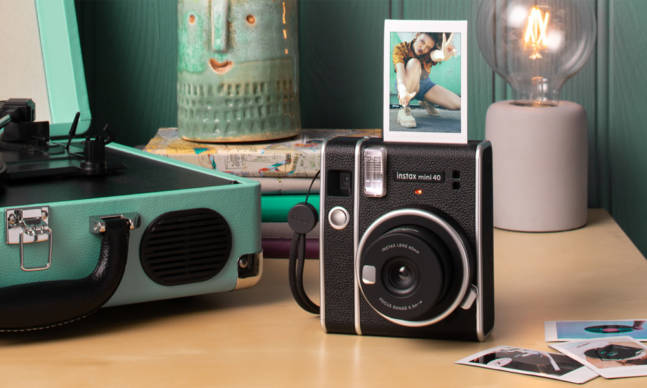
          The Instax Mini 40 is the Fujifilm’s latest entry-level instant film camera. Like the Instax Mini 11 before it, the Instax Mini 40 is fairly straightforward and simple shooter. It has two main frills: a flash and a pop-out zoom lens (for selfie photos). The big selling point compared to the Instax Mini 11 is that the Instax Mini 40 definitely looks more like a vintage film camera. but that retro vibe comes at $30 price hike.

          Fujifilm’s Instax Mini 40 will be available for purchase at the April.

          Price: $100

          SHOP NOW

          Samsung Galaxy A Series

          tech roundup

          Courtesy

          Samsung just announced its 2021 series of Galaxy A smartphones, which are essentially way more affordable alternatives to the company’s flagship Galaxy S21. They have less premium builds and generally not-as-great camera systems, but they actually don’t skimp out on that many flagship-level features. The three new Galaxy A smartphones that you should know about are: the Galaxy A32 5G ($280), the Galaxy A42 5G ($400) and the Galaxy A52 5G ($400). All three have basically the same design; a rear triple camera system (at least); and, as you can likely tell by their names, they all support 5G. They’re some of the most affordable 5G smartphones that you can buy.

          Price: $280+

          SHOP NOW

          THX Onyx

          tech roundup

          Courtesy

          THX, the brand best known for movie theater sound, has released its first-ever hardware product. The Onyx is a portable headphone amplifier and DAC combo that’s meant to plug into your smartphone or laptop and bring the best sound out of your wired headphones. It has a USB-C connection so you’ll be able to use with most new age smartphones or laptops; you’ll need a Lightning dongle if you have an iPhone.

          Price: $200

          SHOP NOW

          Ring Floodlight Cam Wired Pro

          tech roundup

          Courtesy

          This is Ring’s most advanced outdoor floodlight camera ever. It’s basically a more advanced version of the company’s first Floodlight Cam. It adds a new radar sensor that enables new 3D motion detection and “Bird’s Eye View”, just like the recently released Ring Video Doorbell Pro 2, which this allows it to better detect and even create a top-down map of the movement (within the app). When motion is detected, the high-powered LED lights will kick on and light up your backyard.

          It’s available for preorder right now and will be available everywhere in early May.

          Price: $250

          SHOP NOW

          This content is created and maintained by a third party, and imported onto this page to help users provide their email addresses. You may be able to find more information about this and similar content at piano.io

          How to Plug Lighting Headphones Into a Mac

          When Apple removed the headphone jack from the iPhone 7 back in 2016, the world managed to keep turning. Between dongles and AirPods and comes-with-your-iPhone Lightning EarPods, there were a handful of different options to move forward. But when Apple introduced its shiny new 2017 MacBook Pro with three USB Type-C ports, a good old fashioned headphone jack and nothing else it led to a weird little issue: Apple’s standard iPhone headphones with their Lightning plug had no way to plug into Apple’s flagship computer, which lacks one.

          Years later, no Mac has a female Lightning port. It’s unsurprising given Apple’s turn towards AirPods, but it also poses a problem for anyone who wants to take the Lightning version of Apple’s wired earbuds that come with an iPhone and plug them into a Mac.

          Fortunately, a dongle exists: Anker’s USB-C to Lightning Audio Adapter has a female Lightning port on the one side, which you can plug your Lightning headphones into, and then a male USB-C port on the other, which you can use to plug into any Mac that has USB-C ports on it.

          Anker USB-C to Lightning Audio Adapter

          Anker amazon.com

          $29.99

          This will let you plug Lightning headphones directly into a USB-C port, like the ones you’ll find on a MacBook Pro.

          At $30, it’s a bit steep for such a minor convenience, but more worth it if you happen to own one of the few pairs of pricier Lightning headphones like Beats urBeats3, which until now have been relegated to iPhone only.

          When it comes to using wired headphones with the iPhone, there are a few other adapters to consider that might make your life a little easier: Belkin’s audio and charge adaptors you listen and charge at the same time, whether you are using Lightning headphones or Apple wired headphones with a 3.5mm jack.

          Even with this Lightning headphones to USB-C adapter, Lightning headphones are still a bit hamstrung; there’s still no way to plug a pair of Lightning headphones into a traditional 3.5mm headphone jack, and there likely never will be: such an adapter would double the number of digital to analog conversion’s that happen to a signal on the way to your ears which is more trouble than it is worth and bad for audio quality to boot.

          But at least now, after years and with the help of a third-party adapter, two of Apple’s most common gadgets, Lightning headphones and the MacBook Pro, are compatible. Steve Jobs would be proud.

          This content is created and maintained by a third party, and imported onto this page to help users provide their email addresses. You may be able to find more information about this and similar content at piano.io

          3 Great Headphone and Amplifier Pairings That’ll Put Cheap Speakers to Shame

          If you’re looking for better audio at your desk, one of the best things you can do is buy a nice pair of wired headphones and a headphone amp/DAC that can properly drive them. The advantage of wired headphones is they’re generally more affordable and more likely to play higher-resolution audio. Good wired headphones really shine when paired with a suitable headphone amp/DAC is going to make them sound their best.

          Picking the right pairing of wired headphones and amp/DAC sounds a little daunting, but in reality it isn’t all that complicated. The main thing you need to be aware of is the headphone’s impedance (measured in ohms), which is the power required to drive them properly, as well as the impedance range of headphone amp/DAC. The good news is that most headphone amp/DACs have a wide range of impedances and, so long as the headphone’s impedance falls within that range, the pairing will work great.

          Most affordable headphones have a low impedance, meaning they are fairly easy to drive, which is why you can plug them directly into a laptop or computer’s headphone jack. However, because the amp/DAC that’s built into your laptop or computer isn’t great, the audio can sound flat and grainy. If you pair an affordable DAC, like the Schiit Audio Fulla 3 ($99) or the FiiO K5 Pro ($150), even your low impedance headphones are going to sound noticeably better.

          If you’re thinking about buying wired headphones with a high impedance, they are going to be more difficult to drive and therefore you need to be more diligent in your research before buying a headphone amp/DAC to pair it with. If the amp/DAC isn’t powerful enough to drive the headphones,

          The Entry-Level Pair

          Headphones: Grado SR80e

          Courtesy

          Grado SR80e

          Grado Labs gradolabs.com

          $99.00

          The Grado SR80e are identical in almost every way to the company’s more affordable SR60e headphones; they have the same open-back design and cool industrial flair that make them look like they’re straight out of the 1940s. However, Grado upgraded SR80e with improved drivers so they sound a little more detailed, expansive and punchy.

          Impedance: 32 ohms

          Amp/DAC: Fosi Audio Q4

          Courtesy

          Fosi Audio Q4

          Fosi Audio amazon.com

          $72.99

          $62.99 (14% off)

          The Fosi Audio Q4 is one best headphone DAC/amps that you buy for less than $100. It’s capable of driving most hi-fi headphones and playing high-resolution audio (up to 24bit/192kHz). It also a bunch of audio control knobs, which few other desktop amps, that allow you to further tweak your how your headphones sound.

          Impedance Range: 16 to 200 ohms

          The Step-Up Pairing

          Headphones: Beyerdynamic DT 990 Pro (250 Ohms)

          Courtesy

          Beyerdynamic DT 990 Pro (250 Ohm Version)

          beyerdynamic amazon.com

          $299.00

          $157.95 (47% off)

          The Beyerdynamic DT 990 Pro are wired open-back headphones that were originally released about 15 years ago. However, they’ve become popular again in large parts thanks to gamers (specifically Ninja) who are converting them into high-end gaming headsets (you have to buy a separate boom microphone). They’re available in different versions with different — this 250 ohms version being the highest — so make sure you pick the model that your amp can handle.

          Impedance: 250 ohms

          Amp/DAC: Schiit Audio Hel 2

          Courtesy

          Schiit Audio Hel 2

          Schiit Audio schiit.com

          $199.00

          Schiit Audio makes two different headphones amp/DACs that are designed for gamers. There’s the $99 Fulla 3, which is one of our favorite amp/DACs, and there’s the Hel 2, which is four times more powerful than the Fulla 3 and adds gain controls. The Hel 2 is the better option for more demanding headphones, like the Beyerdynamic DT 990 Pro.

          Impedance Range: 16 to 300 ohms

          The Planar Paradise Pairing

          Headphones: HiFiMAN Sundara

          Courtesy

          HiFiMan Sundara

          HiFiMan amazon.com

          $499.00

          $349.00 (30% off)

          The HiFiMAN Sundara are planar magnetic open-back headphones that cost less than $500 — which is pretty rare. They sound excellent, specifically their transparency and midrange resolution, and they’re extremely comfortable to wear for long periods. Maybe the best part is that they’re wonderfully easy to drive. So while you can plug them into your computer and they’ll sound good, pairing them with a nice headphone DAC/amp will be a big upgrade.

          Impedance: 37 ohms

          Amp/DAC: Audioengine D1

          Courtesy

          Audioengine D1

          Audioengine amazon.com

          $169.00

          The Audioengine D1 is a plug-and-play DAC and headphone amp that was first introduced in 2012, but like many of Audioengine’s products, it’s built to last and still works great. It’s more than capable enough to power the HiFiMAN Sundara. Additionally, it has RCA outputs and is capable of powering most bookshelf speakers; in case you want to build your desktop audio system even more in the future.

          Impedance Range: 20 to 300 ohms

          This content is created and maintained by a third party, and imported onto this page to help users provide their email addresses. You may be able to find more information about this and similar content at piano.io

          11 Easy Gmail Hacks to Get Your Inbox Under Control

          Welcome to Product Support, a column devoted to helping you get the most out of the gadgets and software you already use.

          In this day and age, it’s virtually impossible to keep your inbox tidy and even harder to reach that magic Inbox Zero. Most of us are busy trying to manage a mountain of messages that gets bigger with each passing day.

          There are a handful of snazzy new (and expensive) email services that promise to solve this problem but good old Gmail also has tools and options that can help. You can live without them, sure. You probably have been! But they can make email a little less of a stressful chore.

          1. Use email aliases

          Periods don’t matter in Gmail addresses — if your email address is brucewayne@gmail.com, you’ll get messages sent to bruce.wayne@gmail.com as well, and indeed b.rucewa.yne@gmail.com. They all go to the same place.

          You can also add plus (“+”) signs to your email address to create alternative addresses: brucewayne+work@gmail.com and brucewayne+office@gmail.com will still come through to your Gmail account, for example.

          Why is that useful? Use addresses with periods and plus symbols when you’re signing up for newsletters, or new apps, or anything else that demands your email address and you can filter incoming messages sent to these specific addresses to be marked as important, or to skip your inbox, and so on.

          LEARN MORE

          2. Get aggressive with filters

          These-Gmail-Hacks-Will-Help-You-Streamline-gear-patrol-ambience-1

          Speaking of filtering, filters are one of the best ways to tame an unruly Gmail inbox. On the Gmail web interface, you can create a filter by clicking the arrow to the right of the search box, then setting out your criteria. You can also create filters from inside individual conversation threads by clicking the menu button (three dots) on the right, then choosing Filter messages like this.

          Filters cover all kinds of different scenarios: it’s possible to pick out emails based on who sent them, or words that appear (or don’t appear) in the body of the email, or how big (or small) the emails are. You can identify emails with attachments too.

          The real power of the Gmail filtering system comes with what you can do with emails once they’ve been highlighted as matching your criteria: they can be marked as important or not important, starred, marked as read, sent straight to the archive, given a particular label, and more besides.

          LEARN MORE

          3. Take a minute to help train Google’s algorithms

          Google tries to do some clever email sorting for you, but if you take a few minutes each day to help it along, it’s going to get smarter over time. Take email importance, for example: emails that seem important by Google’s standards get put in the Primary tab, with a yellow arrow next to them. If Google has got it wrong, click this yellow arrow to mark the email as not important (or vice versa).

          Your Gmail inbox is most likely split up into tabs for social media emails, less important updates and so on, if you’re using the default layout (click the arrow next to Inbox on the left to change the view). On the web, just click and drag emails to put them in different tabs—Gmail then asks if you want to sort all future emails like this in the same way.

          Don’t neglect your spam folder either. Take a few moments, when you can, to dive into the spam folder and fish out genuine emails, as well as flagging junk messages in your main inbox that Gmail hasn’t caught automatically—as time goes on, you should find spam email becomes less and less of a problem.

          LEARN MORE

          4. Reach for the stars

          These-Gmail-Hacks-Will-Help-You-Streamline-gear-patrol-ambience-2

          Gmail’s system for starred emails is more extensive than it might seem at first glance. Open up the Settings pane on the web by clicking the cog icon on the right then choosing Settings. Switch to the General tab and under Stars you’ll see a total of 12 stars and other symbols you can make use of.

          Drag the small icons to the top row to have the associated stars enabled in Gmail. You can then cycle beyond the regular yellow star by clicking again (andagain) on the star symbol next to messages in your Gmail inbox on the web.

          Besides helping you better organize your emails into different lists or priority rankings (urgent, needs following up, family or whatever), you can also use these stars with searches—try “has:green-star” in the Gmail search box, for example. Hover the mouse cursor over the various icons on the General tab of Settings to see the name that Gmail gives to each indicator.

          LEARN MORE

          5. Clear out the ancient stuff

          There comes a point in the battle against email where it’s best to just cut your losses and start again from scratch (or maybe just from the last three months’ worth of messages). If those deleted messages were important enough, someone is bound to follow up.

          This isn’t for everyone — you might have old messages with a lot of sentimental value, for example — but if you’re ready to take the plunge, then a simple “before:01/01/2019” search on Gmail on the web will do the trick. Just change the date to whatever you want. Click the Select all checkbox (top left), then Select all conversations, then take a deep breath and click Delete (the trash can icon).

          Those older emails then get wiped from the record and your inbox is suddenly a lot cleaner. Unfortunately, Gmail can’t do this sort of tidying up automatically, but you can run the search every month or so, as well as combine it with other search terms, if needed — “before:01/01/2019 is:unimportant” for example.

          LEARN MORE

          6. Use the snooze

          These-Gmail-Hacks-Will-Help-You-Streamline-gear-patrol-ambience-3

          Don’t have time to deal with an email straight away? Feeling overwhelmed with all the messages coming into your inbox? Gmail’s snooze function can help here: with a conversation open on screen on the web, click the Snooze button (the clock icon), then choose when you want the thread to reappear. The emails in the conversation disappear from your inbox until the specified time and date.

          This feature is arguably even more useful in the Gmail apps for Android and iOS. You can find the Snooze option behind the menu button (three dots) whether you’re in a conversation or looking at the overview of your inbox (long press on an email in the list to select it).

          Snoozing is different than muting. If you choose Mute (an option on the same menus as Snooze) then you won’t see any notifications from the selected email conversation thread until you unmute it — it stays in the archive and won’t show up in the main inbox views. It can still be found, through search with a query of “is:muted” in Gmail on the web, for example.

          LEARN MORE

          7. Make message templates

          These-Gmail-Hacks-Will-Help-You-Streamline-gear-patrol-ambience-4

          Email wouldn’t be so bad if it wasn’t for all those responses you have to spend time crafting and sending—whether it’s getting back to your boss or chasing up someone who was due to fix your plumbing, a big chunk of your emailing efforts can be taken up with composing messages.

          Enter short email templates you can use over and over again. You might have one for telling someone you can’t make an event, for example, or for turning down a pitch that’s been sent to you for work. To enable the feature in Gmail on the web, click the cog icon on the right and choose Settings, then go to Advanced and select Enable next to the Templates option.

          When you’re composing a message, click the menu button (the three dots) down in the bottom right corner, then choose Templates. From this submenu, it’s possible to save the current message you’re writing as a template to use again in the future, or to drop in a template that you’ve previously created.

          LEARN MORE

          8. Know your mouse and keyboard shortcuts

          These-Gmail-Hacks-Will-Help-You-Streamline-gear-patrol-ambience-5

          Knowing a few keyboard and mouse shortcuts can make a huge difference to how quickly you’re able to power through your Gmail inbox, more of a difference than you might think. Rather than hunting through menus and toolbars for the options you need, you can simply make a few taps or clicks based on your muscle memory. Keyboard shortcuts can be turned on from the General tab of Settings (click the cog icon on the right of the web interface to find it).

          Google has a full list of keyboard shortcuts here, but some of our favorites include J and K for moving forwards and backwards through messages in the inbox, and E for archiving the currently selected (or open) conversation. G+I gets you back to the inbox from anywhere, while R (for reply) and A (for reply all) are really handy too.

          There’s plenty you can do with a right-click of the mouse (or trackpad) too, and Gmail recently added some new options to the right-click menu when you’re selecting messages in the inbox: you can reply to messages, move them to other tabs, apply labels, find more emails from the same sender, mute threads and more.

          LEARN MORE

          9. Make good use of bookmarks

          One way to get around your inbox faster is to start bookmarking certain sections of Gmail so you can jump between them more quickly. This works in any browser of course, and you can have your bookmarks on the browser toolbar for easy access, or have different Gmail screens open in different tabs.

          So what can you bookmark? Just about every part of Gmail. If you’re logged into your Gmail account in your web browser, the following links will lead you to your starred messages, and your sent messages, and your important messages, and messages you haven’t read yet.

          It doesn’t stop there either, because any Gmail search can be saved as a bookmark, or indeed any individual conversation thread. You could bookmark the most important labels and sub-labels you’ve set up in Gmail too. However you want to use this, you’ll find it gets you around your inbox more easily.

          LEARN MORE

          10. How to Unsend Emails

          Have you ever wished that you could take back an email because you made a typo or maybe said something you didn’t mean? You need to take advantage of the “Undo Send” feature in Gmail. strongly worded email to your boss, or that email that was meant for your significant other but went to your mom instead?

          Go to your Gmail inbox via a web browser. Click the gear icon in the top right. Select “See all settings” and enable the “Undo Send” feature. It gives you the ability to set a cancellation period (the amount of time you have to decide if you want to unsend an email) in the form of 5, 10, 20 or 30 seconds. (Pro tip: select the 30 second option for more piece of mind.) Then click “Save Changes” at the bottom of the page.

          Remember: Undo Send doesn’t actually “unsend” an email. It works by adding a delay, customizable to your preferences, to each email that you send. This can be your olive branch if you prematurely hit the send button, which we can all say that we are guilty of.

          LEARN MORE

          11. How to schedule emails for later

          Nobody wants to be the person who sends emails during the wee hours of the night — especially if you’re sending emails to people living in different time zones. To be courteous, it’s a good idea to schedule the times you emails get sent. (This also helps the emails be the first thing the recipient sees in the morning, as apposed to being buried.)

          Thankfully, Gmail makes scheduling emails pretty easy. All you have to compose an email in Gmail and, when you’re ready to schedule, click the adjacent dropdown arrow on the Send button and then pick a date and time you want the email to be sent. (You have to 100 scheduled emails at a given time.

              LEARN MORE

              This content is created and maintained by a third party, and imported onto this page to help users provide their email addresses. You may be able to find more information about this and similar content at piano.io